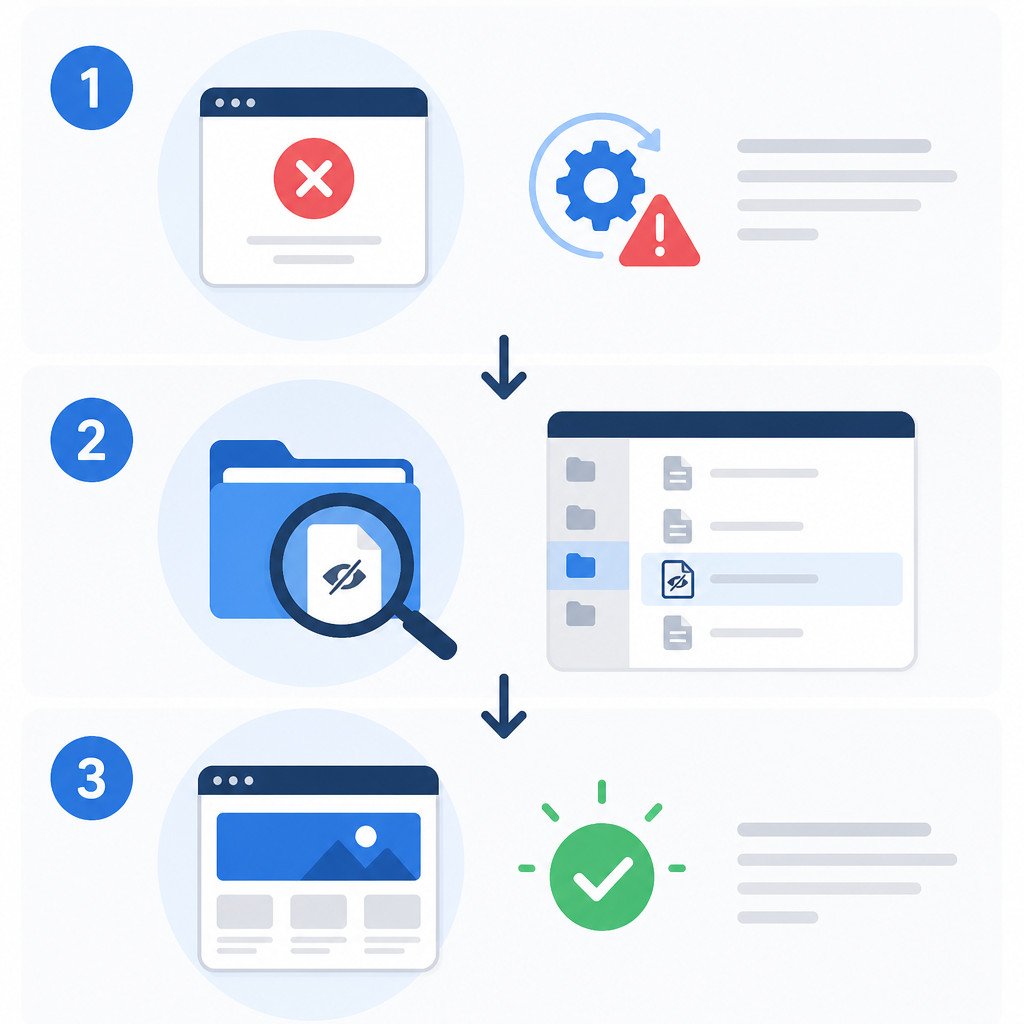
If your site keeps showing “Briefly unavailable for scheduled maintenance. Check back in a minute.” for more than a few minutes, WordPress is probably stuck in maintenance mode after an interrupted update. The quickest fix is to delete the .maintenance file from the root folder of your WordPress installation, then reload the site.
This message doesn’t usually mean your website content or database has been lost. WordPress created a temporary marker file before updating a plugin, theme, or core files, but the file wasn’t removed when the update finished or failed.
Quickly remove the stuck WordPress maintenance file
- Open your host’s File Manager or connect through FTP/SFTP.
- Go to the folder that contains
wp-admin,wp-content, andwp-includes. - Turn on the option to show hidden files if you can’t see filenames beginning with a period.
- Find
.maintenanceand delete it. - Clear your site, server, or CDN cache, then refresh the website.
- Open Dashboard > Updates in WordPress and reinstall any update that didn’t finish.
Don’t delete wp-config.php, the wp-content folder, or any other WordPress core files. The temporary .maintenance file is what keeps the maintenance message active.
Why “Briefly unavailable for scheduled maintenance” appears
Before updating WordPress core, plugins, or themes, WordPress briefly puts the site into maintenance mode. To do this, it creates a hidden file called .maintenance in the WordPress root directory. During a normal update, that file is removed automatically within seconds.
Sometimes the file gets left behind. Common reasons include a browser timeout, low server resources, a PHP fatal error, an exhausted disk quota, a permissions issue, or a hosting process that stops unexpectedly. For as long as the file remains in place, visitors may continue to see the maintenance message.
Deleting the .maintenance file with File Manager
For most site owners, the hosting File Manager is the easiest option.
- Sign in to your web hosting control panel.
- Open File Manager.
- Go to your site’s document root. The folder is often named
public_html,www,htdocs, or something specific to your domain. - Make sure you’re in the WordPress root by checking for
wp-admin,wp-content, andwp-includes. - Find the File Manager option labeled Show Hidden Files, Show Dotfiles, or something similar, then enable it.
- Select
.maintenanceand delete it. - Open your site in a private browser window or clear the browser cache.
If WordPress is installed in a subfolder such as public_html/blog, remove the file from that subfolder rather than the parent directory.
Removing .maintenance with FTP or SFTP
FTP/SFTP is useful if your hosting File Manager isn’t available. Connect with an FTP client using the credentials supplied by your host, then open the WordPress root directory. Turn on the setting that shows hidden files, locate .maintenance, and delete it.
If you have SFTP or SSH access, you can remove the file through the command line as well. Run this command only after changing to the correct WordPress directory:
rm .maintenanceTo check that the file exists before removing it, run:
ls -la | grep maintenanceIf the command doesn’t return a result, the problem may involve a cache, a different WordPress installation path, or a failed update that requires more investigation.
What to check after the site is back online
Deleting .maintenance restores access, but it doesn’t confirm that the interrupted update completed correctly. Sign in to WordPress and check the update status.
- Go to Dashboard > Updates and install pending updates one at a time.
- Look under Plugins and Appearance > Themes for update notices.
- Visit the front end and open key pages to make sure the design and site functions load properly.
- Check Tools > Site Health for critical errors or warnings related to updates.
- If the error returns, review your hosting account’s disk usage and PHP error log.
If the same plugin update keeps failing, temporarily deactivate the plugin, create a backup, and update it manually by uploading a fresh copy from a trusted source. Don’t replace plugin files unless you’ve confirmed that the update is causing the problem and you have a current backup.
Common reasons WordPress gets stuck in maintenance mode
| Cause | What happens | What to check |
|---|---|---|
| Browser or server timeout | The update stops before the cleanup process finishes. | Run the update again during a low-traffic period. |
| Low disk space | WordPress can’t unpack or replace the update files. | Free up storage space on the hosting account and retry. |
| File permission problem | WordPress can’t write or delete the required files. | Ask your host to check file ownership and permissions. |
| Plugin or theme conflict | An error interrupts the update process. | Review debug logs and update each item separately. |
| Cache still serving the page | The site has been fixed, but visitors continue to receive an old cached response. | Purge the plugin, host, and CDN caches. |
Preventing WordPress maintenance mode from getting stuck
- Create a recent backup before updating WordPress core, themes, or several plugins.
- Update themes and plugins in small batches instead of running many updates at the same time.
- Keep enough disk space free on your hosting account.
- Choose reliable hosting with enough PHP memory and execution time for your website.
- Don’t close the update page or force-refresh it while WordPress is actively updating.
- Test major updates on a staging site first, particularly for ecommerce, membership, and high-traffic websites.
- Keep WordPress, plugins, and themes current to reduce compatibility problems.
If deleting .maintenance doesn’t solve the problem
If the maintenance page still appears after you’ve deleted the file, purge every cache layer first. That includes your WordPress caching plugin, host cache, CDN cache, and browser cache. Then make sure you removed the file from the correct installation directory.
Check for a custom maintenance plugin, a host-level maintenance setting, or a manually configured maintenance page too. If you can reach the dashboard but encounter errors after restoring the site, temporarily enable WordPress debugging and inspect the error log to identify the plugin or theme behind the failed update.
FAQ
How long should WordPress maintenance mode last?
WordPress maintenance mode normally lasts only a few seconds to a couple of minutes while an update is running. If the “Briefly unavailable for scheduled maintenance” message stays visible for longer than five minutes, the update probably didn’t complete properly.
Is it safe to delete the .maintenance file?
Yes. Deleting the .maintenance file is the standard fix when WordPress is stuck in maintenance mode. Once it’s gone, check for incomplete updates and run them again safely.
Why can’t I see the .maintenance file?
Files whose names begin with a period are hidden in many hosting file managers and FTP clients. Enable the option to show hidden files or dotfiles, then check the folder containing the WordPress core directories again.
Will deleting .maintenance break my site?
No, but the interrupted update may have left a plugin, theme, or WordPress core update incomplete. Delete the file to restore access, then check the WordPress dashboard and finish any pending updates.