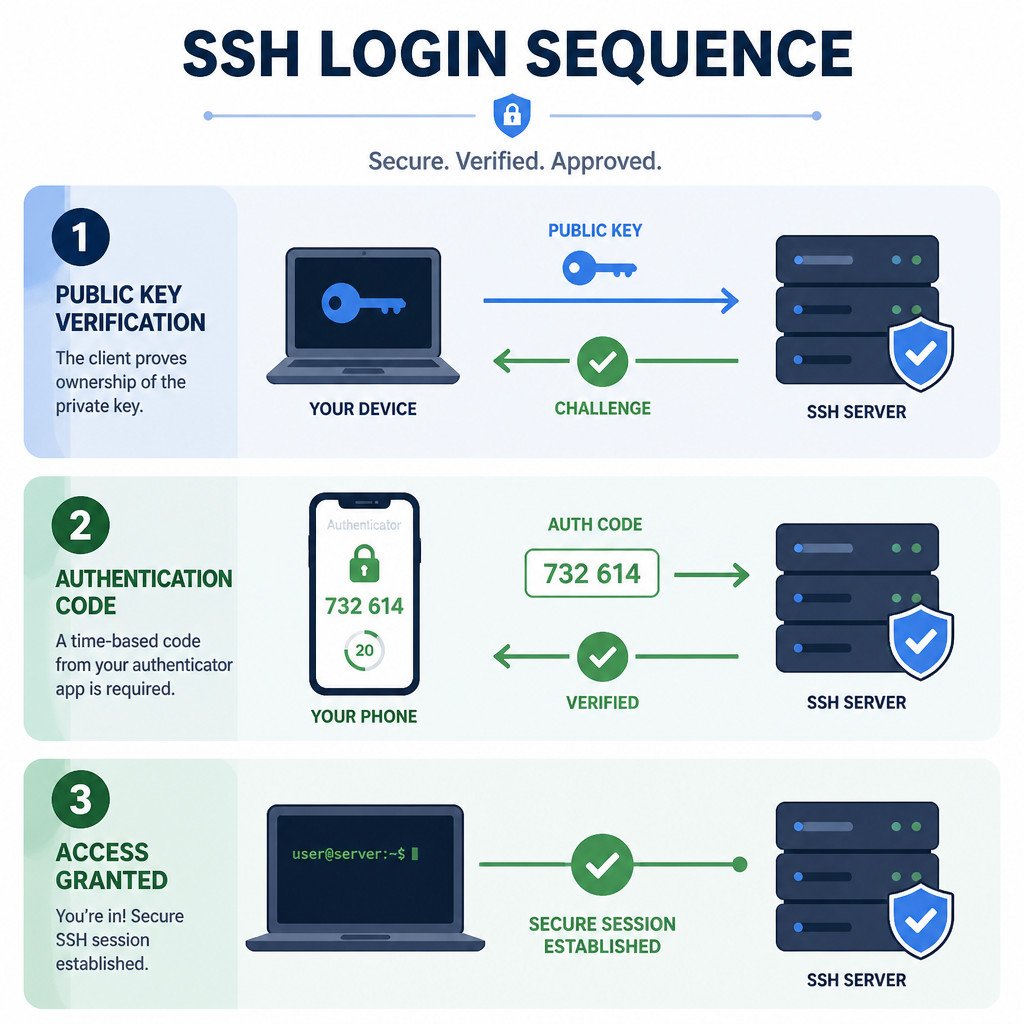
To set up SSH two-factor authentication on Ubuntu, install the Google Authenticator PAM module, enroll each SSH user, and configure OpenSSH to require a valid public key plus a time-based one-time password. Keep your current SSH session open while working so you have a way back in if authentication fails.
This guide is written for Ubuntu 22.04 and 24.04, though the steps are similar on other Debian-based systems. It uses standard TOTP, which means users can generate codes with most compatible authenticator applications, not just Google Authenticator.
Before You Begin
Make sure public-key authentication already works for every account that needs remote access. Once the final configuration is active, SSH password login will be disabled and users will need two separate credentials:
- A private SSH key stored on the user’s computer
- A current six-digit TOTP code generated by an authenticator application
You’ll also need sudo access and a recovery option, such as a console or hosting control panel, in case you get locked out. Don’t close the existing SSH connection until you’ve successfully tested a second one.
1. Install the TOTP PAM Module
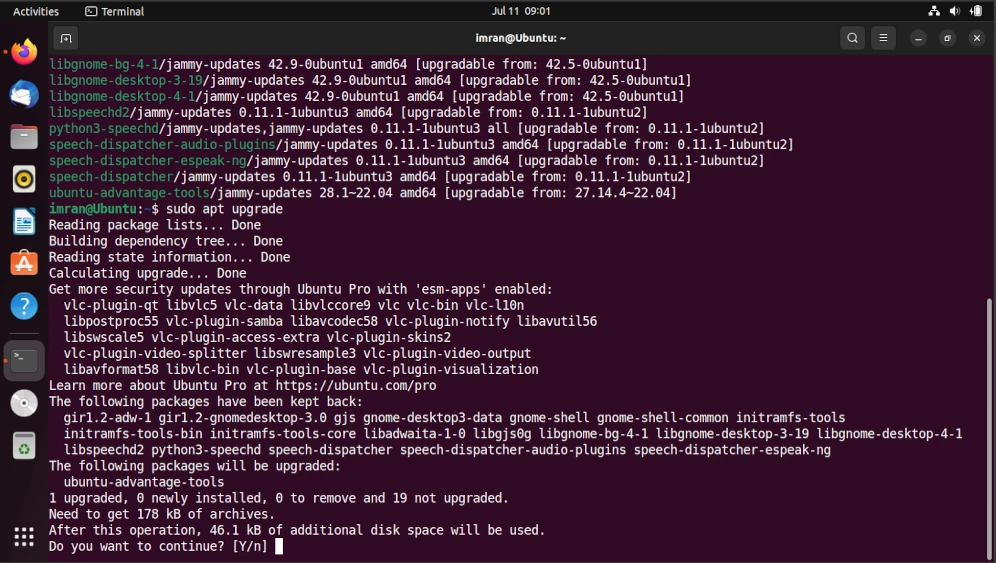
Start by updating the package index and installing the Google Authenticator PAM library:
sudo apt update
sudo apt install libpam-google-authenticator
TOTP codes rely on accurate system time. Check whether network time synchronization is active:
timedatectl statusIf synchronization is turned off, enable it with:
sudo timedatectl set-ntp true2. Enroll the SSH User
Run the enrollment command as the normal user who will connect over SSH. Don’t use sudo unless you’re intentionally setting up TOTP for the root account.
google-authenticatorWhen prompted, choose time-based tokens. The command will display a QR code, a secret key, and a set of emergency scratch codes. Scan the QR code with a TOTP-compatible authenticator application.
For a typical server, sensible choices are to update the user’s configuration file, reject repeated use of the same token, enable rate limiting, and keep the standard time window. A wider time window may help when clocks are unreliable, but fixing time synchronization is the safer approach.
Save the emergency scratch codes in a password manager or another secure offline location. Each one can normally be used once if the phone or authenticator application isn’t available. Treat the QR code and secret key as passwords, since anyone with the secret can generate valid tokens.
3. Configure PAM for SSH
Before editing the SSH PAM configuration, create a backup:
sudo cp /etc/pam.d/sshd /etc/pam.d/sshd.backup
sudo nano /etc/pam.d/sshd
Add the following line near the start of the file:
auth required pam_google_authenticator.soNext, locate this line and comment it out:
#@include common-authRemoving the common-auth step from this authentication flow stops SSH from asking for the account password before requesting the TOTP code. Leave the session-related and account-related PAM includes unchanged.
4. Require an SSH Key and TOTP Code
Back up the OpenSSH server configuration, then open it for editing:
sudo cp /etc/ssh/sshd_config /etc/ssh/sshd_config.backup
sudo nano /etc/ssh/sshd_config
Set or add these directives:
UsePAM yes
PubkeyAuthentication yes
PasswordAuthentication no
KbdInteractiveAuthentication yes
AuthenticationMethods publickey,keyboard-interactive:pam
The key setting here is AuthenticationMethods. Its comma means both methods must succeed. OpenSSH accepts the public key first, then presents the PAM-backed TOTP challenge.
Older OpenSSH configurations may use ChallengeResponseAuthentication instead of KbdInteractiveAuthentication. If the older directive is present, confirm that it doesn’t disable keyboard-interactive authentication. Check the files under /etc/ssh/sshd_config.d/ as well, because included configuration files can change the effective values.
5. Validate and Reload OpenSSH
Check the configuration syntax before reloading the SSH service:
sudo sshd -tIf the command produces no output, the syntax check passed. Then inspect the effective authentication settings:
sudo sshd -T | grep -E 'usepam|pubkeyauthentication|passwordauthentication|kbdinteractiveauthentication|authenticationmethods'Verify that PAM, public-key authentication, and keyboard-interactive authentication are enabled. Password authentication should be disabled, and the required authentication methods should include the public key and keyboard-interactive PAM.
Reload SSH without ending any established sessions:
sudo systemctl reload ssh6. Test the Two-Factor Login
Keep the original session open. In a new terminal on your local computer, connect as usual:
ssh username@server-addressOnce OpenSSH accepts the public key, it should ask for a verification code. Enter the current code shown in the enrolled authenticator application. If the login succeeds, both factors are working.
Try the failure cases too. An incorrect TOTP code should be rejected, while a connection that doesn’t have the correct private key should never reach the TOTP prompt.
Common Problems
SSH Still Requests an Account Password
See whether @include common-auth is still active in /etc/pam.d/sshd. You should also inspect the effective OpenSSH settings with sshd -T, since another configuration file may be overriding the values you intended to use.
Every TOTP Code Is Rejected
Compare the server’s time with a trusted clock and confirm that NTP synchronization is running. If the user scanned the wrong secret, run google-authenticator again to replace the enrollment, then scan the new QR code.
Another User Cannot Log In
TOTP enrollment is handled separately for each user. Every SSH user must run google-authenticator while signed in to their own account and add the resulting secret to their own authenticator application.
You Are Locked Out
Use the provider’s web console, a virtual machine console, or physical access to restore the backup files. Another option is to remove the AuthenticationMethods requirement temporarily, check the configuration with sshd -t, and reload SSH while you investigate the problem.
Security Best Practices
- Store emergency codes separately from the device that holds the authenticator application.
- Protect private SSH keys with strong passphrases.
- Don’t email or photograph the TOTP QR code.
- Enroll a second authorized administrator before requiring 2FA globally.
- When troubleshooting rejected logins, review SSH logs with
sudo journalctl -u ssh. - Use a recovery console instead of permanently weakening authentication.
Frequently Asked Questions
Does SSH Two-Factor Authentication Replace Public Keys?
No. This setup requires both a public key and a TOTP code. The one-time password adds a second factor to the SSH key rather than replacing it.
Can I Use a Different Authenticator Application?
Yes. The PAM module uses the standard TOTP algorithm, so most authenticator applications that can scan a TOTP QR code will work.
Can I Require TOTP Only for Selected SSH Users?
Yes, though doing so requires conditional OpenSSH configuration with Match blocks or carefully designed PAM rules. Test conditional policies from a session with recovery access, because a faulty rule can weaken access controls or lock administrators out.