Apple’s Text Replacement feature expands a short abbreviation into a longer phrase while you type. You might set ;email to insert your email address, for example, or use ;addr for a mailing address.
On an iPhone or iPad, go to Settings > General > Keyboard > Text Replacement, tap the plus button, then enter a phrase and shortcut. On a Mac, open System Settings > Keyboard > Text Replacements, click the plus button, and fill in the same details. These replacements can sync across Apple devices signed in to the same Apple Account.
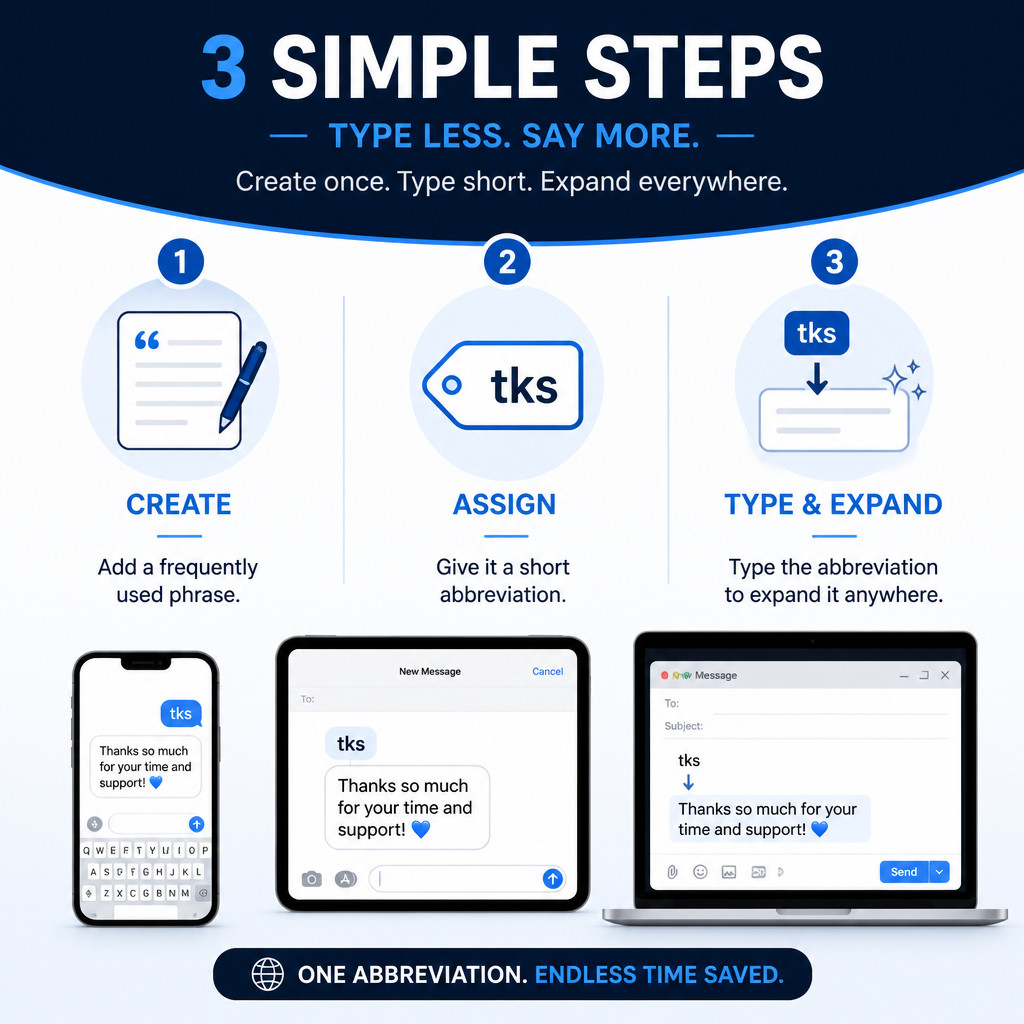
How Text Replacement Works
Text Replacement is Apple’s built-in text expansion tool. Once you type a saved shortcut and follow it with a space or punctuation mark, your device replaces the shortcut with the complete phrase. It’s handy for details and responses you type often, including email addresses, appointment replies, links, and customer support templates.
Pick shortcuts that you’re unlikely to type by accident. Adding a semicolon at the beginning, as in ;hours, can help prevent unwanted expansions.
Set Up Text Replacement on an iPhone or iPad
- Open the Settings app.
- Select General.
- Tap Keyboard.
- Choose Text Replacement.
- Tap the plus button in the upper-right corner.
- Enter the full text you want to insert in the Phrase field.
- Type a short, memorable abbreviation in the Shortcut field.
- Tap Save.
Try the shortcut in Notes or another text field. Type the abbreviation, then add a space or punctuation mark. The complete phrase should appear automatically, or it may show up as a keyboard suggestion that you can accept.
Edit or Delete an iPhone Text Replacement
Go back to Settings > General > Keyboard > Text Replacement. To change an entry, tap it and edit the phrase or shortcut. To remove one, swipe left across the entry and tap Delete. You can also tap Edit and use the delete control.
Set Up Text Replacement on a Mac
- Open the Apple menu, then select System Settings.
- Choose Keyboard in the sidebar.
- Locate the Text Input section and click Text Replacements. Its exact position may vary slightly between macOS versions.
- Click the plus button.
- Type the abbreviation in the Replace field.
- Enter the full phrase in the With field.
- Click Add or Done.
To test it, open TextEdit, Mail, Notes, or another compatible app. Enter your shortcut and follow it with a space or punctuation mark.
If the replacement works in one Mac app but fails in another, check Edit > Substitutions > Text Replacement in the affected app. Some third-party applications rely on their own text editors and don’t fully support macOS substitutions.
Useful Text Replacement Examples
| Shortcut | Example phrase | Use |
|---|---|---|
| name@example.com | Email address | |
| ;addr | Your complete mailing address | Forms and deliveries |
| ;meet | Please send me a few times that work for you. | Scheduling |
| ;thanks | Thank you for your help. I appreciate it. | Quick replies |
| ;hours | Our normal hours are Monday through Friday. | Business responses |
| ;link | A frequently shared web address | Links and resources |
A phrase can contain punctuation, capitalization, emoji, and multiple words. For longer entries, test them in the apps where you plan to use them. Formatting and line breaks aren’t handled consistently in every application.
Sync Text Replacements Between Apple Devices
Text replacements are designed to stay available on compatible Apple devices connected to the same Apple Account. After adding an entry on one device, give it time to sync before trying it on another.
If your entries aren’t syncing, try the following:
- Make sure every device is signed in to the same Apple Account.
- Check that each device is connected to the internet.
- Install current iOS, iPadOS, or macOS updates.
- Restart the devices affected by the issue.
- Edit and save the replacement again. If the problem affects only one entry, delete it and recreate it.
Syncing may take a while. Don’t create the same replacement on several devices while you wait, since duplicate entries could appear after synchronization finishes.
Why Text Replacement Might Not Work
- The shortcut isn’t followed by a separator: Add a space or punctuation mark after typing it.
- The app doesn’t support substitutions: Test your shortcut in Apple Notes. If it works there, the original app may be the problem.
- Text Replacement is turned off in a Mac app: Open the app’s Edit menu and review its Substitutions settings.
- The shortcut matches an ordinary word: Change it to a more distinctive abbreviation, such as ;reply.
- The text field is protected: Password fields and other secure fields generally block text expansion.
- Keyboard predictions work differently in that field: Sometimes the replacement appears as a suggestion rather than expanding right away.
Text Replacement Best Practices
- Choose a consistent prefix, such as a semicolon, and use it for every shortcut.
- Make abbreviations easy to remember but difficult to trigger accidentally.
- Review business templates regularly so you don’t insert outdated information.
- Proofread expanded text before sending it, particularly in formal messages.
- Create different shortcuts for formal and informal versions of replies you use often.
- Don’t save passwords, recovery codes, API keys, payment details, or other sensitive information in Text Replacement. Entries may sync to other devices, and anyone with access to an unlocked device could insert them.
Frequently Asked Questions
Can Text Replacement Shortcuts Sync Between an iPhone and Mac?
Yes. Shortcuts can sync when both the iPhone and Mac are signed in to the same Apple Account and synchronization services are working normally. A newly created entry may need some time to appear.
Can I Use Text Replacement for an Email Address?
Yes. Email addresses are among the most useful details to save. Give yours a distinctive shortcut, such as ;email, so it isn’t inserted accidentally.
Why Does Text Replacement Work in Notes but Not Another App?
The other app may have a custom text editor or may not support Apple’s substitution system. On a Mac, check that Edit > Substitutions > Text Replacement is enabled for that app as well.
Can Text Replacement Insert Multiple Lines?
Some Apple software keeps longer or multiline replacements intact, but results can vary depending on the app and operating system version. If you need dependable multiline templates, test the entry in the target app or use a dedicated text expansion tool.
Should I Save Passwords as Text Replacement Shortcuts?
No. Text Replacement is made for convenience, not secure storage. Keep passwords, passkeys, and recovery information in Apple’s Passwords app or a reputable password manager.