A keyboard shortcut guide is an on-screen reference that helps you discover commands when you need them. Unlike a fixed cheat sheet, a context-aware guide can take the app currently in front of you into account. In Windows, PowerToys Shortcut Guide is designed for this job: it provides a searchable view of Windows, PowerToys, and supported foreground-app shortcuts.
That context matters. Windows supplies many operating-system shortcuts, but an application can define its own commands or change how a shortcut behaves. A key combination that manages windows on the desktop may do something different, or nothing, inside a particular app. Microsoft also notes that shortcut behavior can vary by application. Treat any result as a useful suggestion to verify, not as a universal command.
PowerToys Shortcut Guide is best used for discovery: find an action, identify its shortcut, then try it once where the outcome is safe and easy to undo. It is not a reason to remap unfamiliar keys or assume every application and custom shortcut will be catalogued.
What Shortcut Guide shows
Shortcut Guide is a PowerToys utility that displays shortcut references and lets you search them. With a supported application in the foreground, it can show that app’s available shortcut information alongside relevant Windows and PowerToys entries. You can also pin a result that you want to keep visible while working. Its coverage relies on supplied shortcut manifests, so an absent command does not prove that the app lacks a shortcut.
For a complete list of an app’s own commands, especially in specialist or enterprise software, use that application’s official documentation or its built-in keyboard-shortcut settings. The guide is a faster starting point, not an authority over the application.
Install PowerToys before enabling the guide
Microsoft lists Windows 11, or Windows 10 version 2004 or later, a 64-bit x64 or ARM64 processor, and the WebView2 Runtime among PowerToys requirements. Install it from the Microsoft Store, GitHub, or a supported package manager. On a personal PC, the WinGet command is winget install --id Microsoft.PowerToys --source winget. A managed work computer may block installs or require approval, so follow your organization’s software policy rather than trying to bypass it. See Microsoft’s PowerToys installation instructions for the current options and requirements.
Enable and open Shortcut Guide
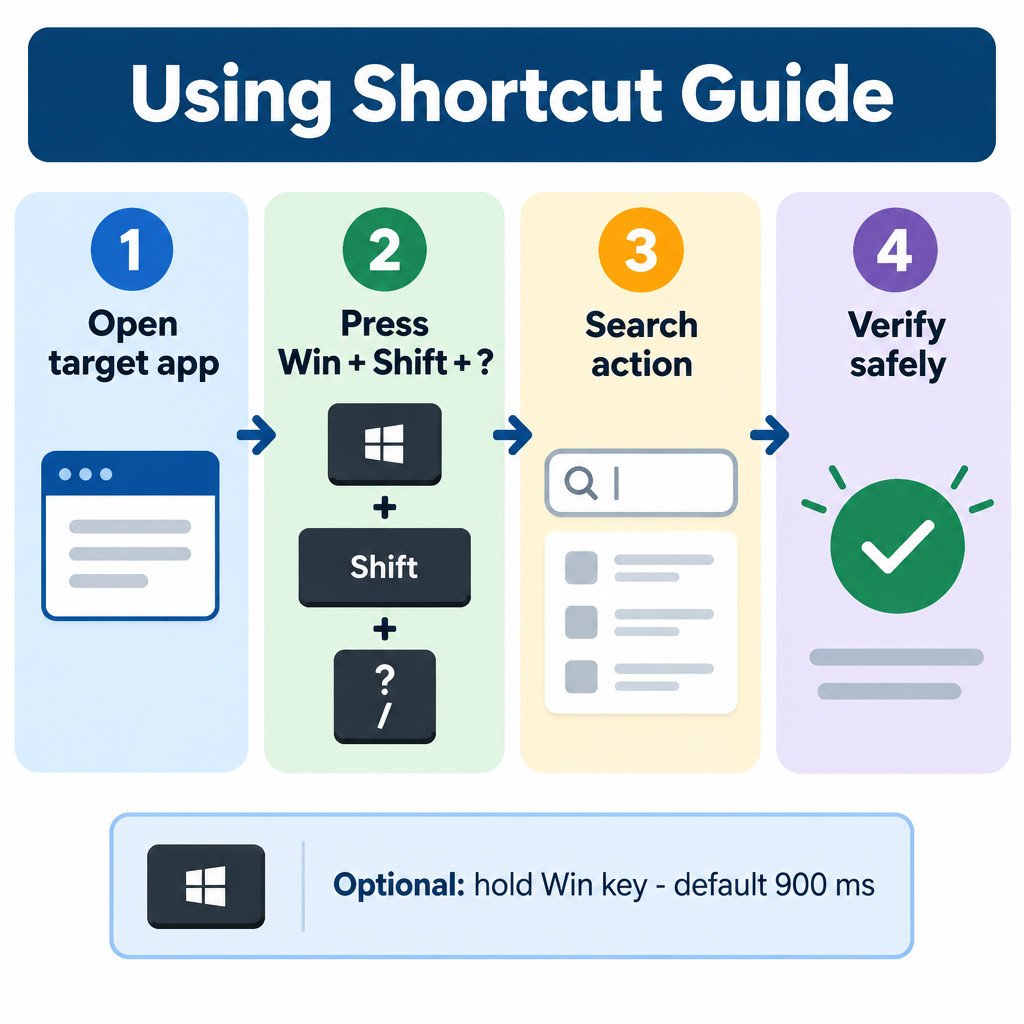
- Open PowerToys.
- Select Shortcut Guide in the left navigation.
- Turn on Enable Shortcut Guide.
- Bring the app you want to work in to the foreground.
- Press Win + Shift + ?, the documented default activation shortcut.
- Use the search field to look for an action, then select or pin a useful result.
Keep the target app active before opening the guide. This gives Shortcut Guide the best chance of showing app-relevant entries instead of only broad Windows commands. Search by the action you want, such as “new folder,” “rename,” or “find,” rather than guessing the key combination first.
Use the result as a small experiment
Start with actions that have a visible, low-risk result. In File Explorer, for example, search for an action and try its displayed shortcut with an ordinary test file selected. Confirm the expected change before relying on it during a larger cleanup. If a command would move, delete, send, or overwrite something, pause and make sure you understand the action first.
In an everyday writing or communication app, search for a non-destructive command such as find, focus, or open settings. The same discipline applies: verify it once in the current version of the app. An app update, keyboard layout, accessibility tool, or a conflicting app shortcut can alter the practical result.
Optional Windows-key hold behavior
Shortcut Guide can also react when you hold a Windows key. By default, holding it for 900 milliseconds can show taskbar indicators. This can be handy when learning Windows navigation, but it may be distracting if you frequently pause while using the Windows key. In Shortcut Guide settings, adjust the hold duration or turn off that activation behavior if it triggers accidentally.
The hold feature and the Win + Shift + ? activation are separate ways to reach the utility. If one is inconvenient, use the other rather than forcing yourself into a workflow that interrupts your typing.
A quick decision check
| Situation | Best next step |
|---|---|
| You know the action but not the keys | Open Shortcut Guide and search for the action. |
| A result does not work in the current app | Check the app’s own shortcut documentation or settings. |
| The guide opens accidentally | Change or disable the Windows-key hold behavior. |
| You need a Windows-wide default | Consult Microsoft’s Windows shortcut reference. |
Limits worth remembering
Shortcut Guide cannot promise complete coverage of installed software, custom key bindings, older versions, or every keyboard layout. It may also surface a shortcut that is technically valid but unsuitable in your present context. For example, a command may be disabled because no file, text, or panel is selected. That is a state issue, not necessarily a broken shortcut.
A useful workflow is simple: keep one or two newly discovered shortcuts that save repeated effort, pin them while they are still unfamiliar, and stop there. You do not need to memorize a large shortcut list for the guide to be valuable. The aim is reliable recall at the moment of work.