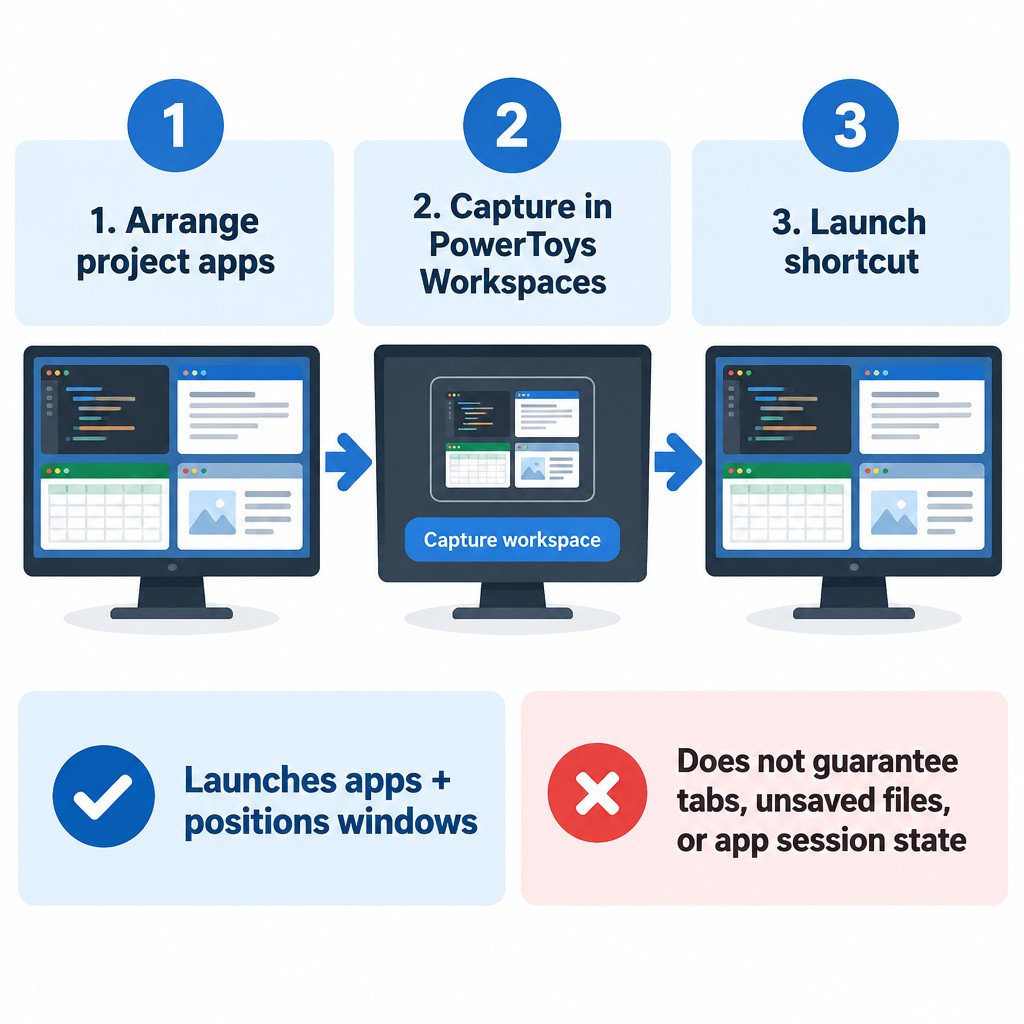
PowerToys Workspaces is useful when starting a project usually means opening the same group of apps and arranging them the same way. You can capture a desktop setup, such as a browser on the left, a notes app on the right, and a spreadsheet on a second monitor, then launch that arrangement later from a shortcut.
It is a launch-and-position tool, not a full session backup. Workspaces can start selected applications and attempt to put their windows in saved positions, but it cannot reliably restore every browser tab, unsaved document, account sign-in, or app-specific state. Those details remain the responsibility of each application.
Set up the layout before you capture it
Install Microsoft PowerToys, open its Settings window, and enable Workspaces. The official Workspaces documentation describes the utility and its capture, launch, and shortcut options.
Before opening the editor, create the setup you actually want to repeat. Open only the applications for one task, move them to the intended displays, and size the windows deliberately. A workspace records an arrangement that exists at capture time, so extra chat windows, temporary File Explorer windows, and unrelated browser windows create cleanup work later.
- For a writing project, open a browser, research notes, a document editor, and perhaps a reference spreadsheet.
- For routine reporting, open the reporting site, spreadsheet, source folder, and team chat.
- For a development task, open the editor, terminal, documentation browser, and issue tracker.
Use a stable monitor arrangement when possible. If a laptop is sometimes used alone and sometimes connected to external displays, a layout captured for two screens may need adjustment when launched on one screen.
Capture and save a workspace
Open the Workspaces editor from PowerToys Settings, or use its documented editor shortcut: Win+Ctrl+`. Create a new workspace and capture the current desktop arrangement. Review the captured application list before saving.
- Give the workspace a specific name, such as “Monthly reporting” or “Project documentation.”
- Remove apps that are not part of the repeatable task.
- Check each window’s saved monitor, size, and position in the editor.
- Save the workspace and create its desktop shortcut.
- Launch the shortcut once while the layout is still familiar, then correct anything that does not suit your workflow.
A desktop shortcut makes the workspace easy to use after a restart. If you launch it often, pin that shortcut to the taskbar. The result is one entry point for the project rather than a sequence of manual app launches and window moves.
Understand what happens when you launch it
Workspaces starts the selected apps and then places their windows. For that reason, an app may briefly appear in a default location before it moves. This is normal behavior, not necessarily a failed capture.
Existing windows need special attention. Depending on the app and the workspace option you choose, PowerToys may start another window, reuse an existing window, or move an existing one. Some applications are designed to allow only one running instance, so a workspace cannot force them to create a separate second window. Test this with the actual apps you use rather than assuming all apps behave alike.
Use command-line arguments carefully
The editor can store application-specific command-line arguments. This can be helpful when an app officially supports opening a particular file, folder, profile, or mode. However, PowerToys passes the arguments to the application; it does not define what they mean.
Illustrative example: if an application’s own documentation says it accepts a file path as an argument, a workspace could be configured to start that app with a chosen project file. Verify the app’s supported syntax first. An unsupported argument may be ignored, open the wrong thing, or prevent the launch from behaving as expected.
Re-capturing deserves caution. Microsoft notes that capturing a workspace again removes previously configured command-line arguments and other settings. If you have added useful arguments, record them before replacing the capture, then add them back afterward if needed.
When a window does not land where you saved it
| Symptom | Likely cause | Practical response |
|---|---|---|
| Window opens, then moves after a moment | PowerToys launches the app before repositioning it. | Wait for the launch to finish before judging the result. |
| An app opens but is on the wrong display | The display arrangement or resolution changed. | Reconnect displays in the usual order, then edit or re-capture the workspace. |
| A second app window does not appear | The app may be single-instance or may reuse an existing window. | Test with no existing instance, or configure the workspace around the app’s normal behavior. |
| An administrator-run app will not position correctly | Windows restricts interaction across different privilege levels. | Do not elevate PowerToys by default. Consider it only if managing elevated windows is necessary. |
Apps launched as administrator are a known limitation for positioning. Microsoft explains that PowerToys may need to run with administrator permission to interact with elevated applications, but elevation should be a targeted choice because it changes the program’s privilege level. See the PowerToys administrator guidance before enabling it.
Workspaces or FancyZones?
Choose Workspaces when the repeated problem is starting the same project tools and putting them into an initial layout. Choose FancyZones when the apps are already open and the repeated problem is placing windows into custom regions throughout the day.
| Need | Better fit |
|---|---|
| Launch a browser, spreadsheet, notes app, and chat for one task | Workspaces |
| Drop any currently open window into a two-column or grid layout | FancyZones |
| Start a repeatable project setup, then adjust windows as work changes | Use both: Workspaces first, FancyZones afterward |
FancyZones provides custom layouts and tools for moving windows among those zones; it does not replace a saved application-launch set. Its options are covered in Microsoft’s FancyZones documentation.
A reliable way to maintain a workspace
- Keep one workspace focused on one project type rather than trying to capture every app you use.
- Remove transient windows before capture.
- Use clear names that identify the task, not just the applications.
- Test the shortcut after a restart or after disconnecting and reconnecting displays.
- Treat app arguments as app-specific configuration and keep a note of any that matter.
- Re-capture only when the underlying setup has genuinely changed.
The main limitation is also the useful boundary: Workspaces automates a repeatable starting arrangement, not your entire working memory. Use it to eliminate predictable setup steps, then rely on each application’s own session, document, and account features for everything inside its window.