Do not reinstall Chrome as the first response to a freeze or crash. First identify whether Chrome itself is unstable, one tab is failing, or only one website will not load. Then make one reversible change at a time. That approach preserves useful clues and avoids removing extensions, site settings, or session data unnecessarily.
Start by defining the failure
| What happens? | What it usually narrows down | First safe test |
|---|---|---|
| Chrome will not open, or closes immediately | A stuck process, an update issue, security software, or a wider Chrome problem | Restart Chrome, then Windows; end stuck Chrome processes only if needed |
| The entire browser stops responding | Resource pressure, an extension, graphics handling, or a damaged setting | Close demanding work and test without extensions |
| One tab says it crashed or uses excessive resources | A specific site, tab, or extension | Use Chrome Task Manager to isolate that item |
| One website will not load, redirects, or behaves oddly | The site, connection, cookies, or an extension may be involved | Try the same page in Incognito and another browser |
Before troubleshooting, save unsent work in another application if possible. Record the wording of any error, the page involved, and what changed shortly before the trouble began. If the page fails in another browser too, do not assume Chrome is the cause.
Next, update Chrome and relaunch it: open the three-dot menu, choose Help, then About Google Chrome. Chrome checks for updates there and may require a relaunch. Google also recommends restarting Chrome and the computer, closing unneeded tabs or applications, and comparing the problem in another browser before escalating. Google Chrome Help: Fix Chrome if it crashes or will not open
If Chrome looks closed but will not reopen
On Windows, a Chrome process can remain running after its window disappears. Press Ctrl+Shift+Esc to open Task Manager. Find entries named Chrome or chrome.exe, select them, and choose End task. This closes all open Chrome windows and may discard unsaved form entries. Reopen Chrome afterward. If the issue returns, restart the PC before changing browser settings.
This step is for a browser that will not reopen, not for a single troublesome webpage. Repeatedly ending processes without testing the underlying trigger only hides the pattern.
Reduce load, then isolate the failing item
High memory use is not, by itself, proof that Chrome is broken. Modern sites, video calls, large documents, and many open tabs can all consume substantial resources. Start with the least disruptive actions: close tabs you no longer need, pause active downloads, and quit other demanding applications.
For a more precise test, open Chrome Task Manager with Shift+Esc. It lists tabs, extensions, and other browser processes. Select one unusually heavy or unresponsive item and choose End process. If ending one tab restores responsiveness, revisit that page later with extensions disabled or in another browser. If an extension is the repeat offender, move to the extension test rather than treating every tab as the problem.
Use Incognito to test extensions and stored site data
Open an Incognito window with Ctrl+Shift+N and repeat the exact task that fails. Extensions are normally disabled in Incognito unless you explicitly allowed them there. The window also uses a separate temporary browsing session. A successful Incognito test does not prove one particular cause, but it makes extensions, cookies, and cached site data reasonable next suspects.
To isolate extensions, open the three-dot menu and choose Extensions then Manage extensions. Note which extensions are enabled, turn them all off temporarily, and retest in a normal window. If Chrome becomes stable, turn on one extension at a time and repeat the task until the fault returns. This is slower than removing everything, but it identifies the conflict while retaining useful tools.
On a managed work or school device, extension controls may be limited by the organization. Do not attempt to bypass those restrictions; report the extension name and the result of your test to the administrator. Chrome’s extension documentation covers enabling, disabling, repairing, removing, and organization-managed extensions. Google Chrome Help: Install and manage extensions
For a page-specific loading or redirect problem, clear browsing data only after the Incognito comparison suggests that stored data matters. Clearing cookies can sign you out of websites, and clearing cache may make the first revisit slower. It is not the preferred first action for a browser that crashes before pages load. Google distinguishes these page-loading checks from broader crash troubleshooting. Google Chrome Help: Fix connection and loading errors in Chrome
Test hardware acceleration as a diagnostic change
If freezes, black windows, flickering, or crashes appear during video playback, scrolling, or graphics-heavy pages, test hardware acceleration. In Chrome, open Settings, choose System, turn off Use hardware acceleration when available, then relaunch Chrome and retry the original task.
Leave it off only if it makes a repeatable problem disappear. Hardware acceleration can improve graphics and video performance, so turning it off is an isolation step, not an automatic permanent fix. If nothing changes, turn it back on and continue rather than accumulating unrelated setting changes.
Reset settings before reinstalling
When Chrome remains unstable after update, restart, resource checks, extension isolation, and the graphics test, use Chrome’s settings reset before reinstalling. Go to Settings, choose Reset settings, then select the option to restore settings to their original defaults.
A reset changes the default search engine, homepage, startup and new-tab settings, pinned tabs, content settings, cookies and site data, extensions, and themes. It does not delete saved bookmarks or passwords. It is also not a full profile wipe, and some settings may apply to other devices signed into the same Chrome profile. Review those tradeoffs before confirming. Google Chrome Help: Reset Chrome settings to default
When a reinstall is justified
Reinstall Chrome after the earlier tests have not changed the outcome, or when Chrome will not open reliably enough to perform them. First consider whether antivirus or other security software is blocking Chrome, and review recent software changes. A reinstall can replace the application, but it will not necessarily resolve a problematic website, a network failure, a device policy, or an extension that you restore afterward.
A compact escalation checklist
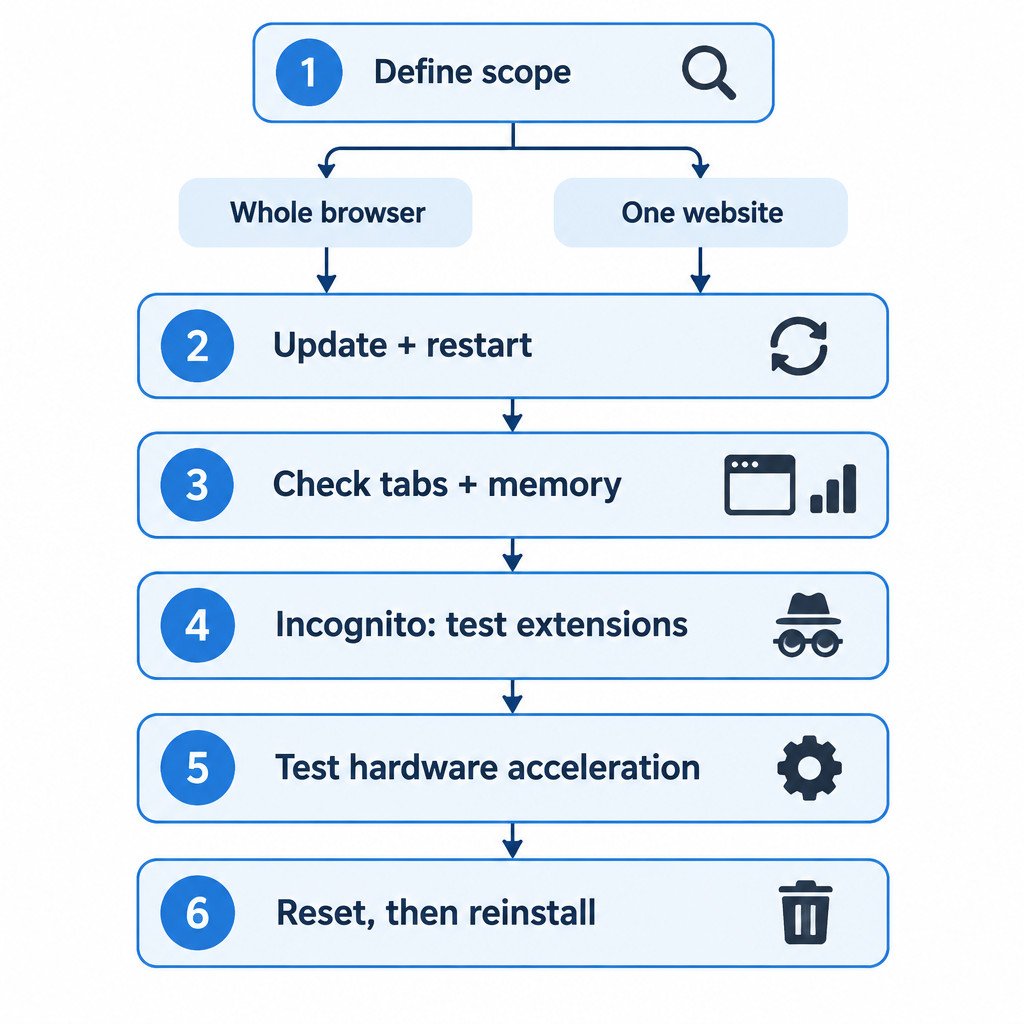
- Classify the issue: whole browser, one tab, or one website.
- Update Chrome, relaunch it, and restart Windows if necessary.
- If Chrome will not reopen, end only stuck Chrome processes in Windows Task Manager.
- Reduce active tabs and applications; use Chrome Task Manager for a single heavy tab or extension.
- Repeat the failing task in Incognito, then disable and re-enable extensions one at a time if the result changes.
- For visual or video-related instability, test with hardware acceleration off, then restore the setting if it does not help.
- For page-specific faults, consider targeted browsing-data cleanup after the Incognito comparison.
- Reset Chrome settings, then reinstall only if the earlier steps fail.
If the problem persists, collect the Chrome version, Windows version, exact error text, whether the task works in Incognito, whether another browser can open the same page, and the most recent extension or system change. Those details turn a vague “Chrome keeps crashing” report into information that can be acted on.