
If a website keeps sending notifications, cannot open your camera, or suddenly stops showing a needed pop-up, the cause is often a saved Chrome site permission. The most useful fix is usually targeted: change the rule for that one site, rather than allowing the feature for every website.
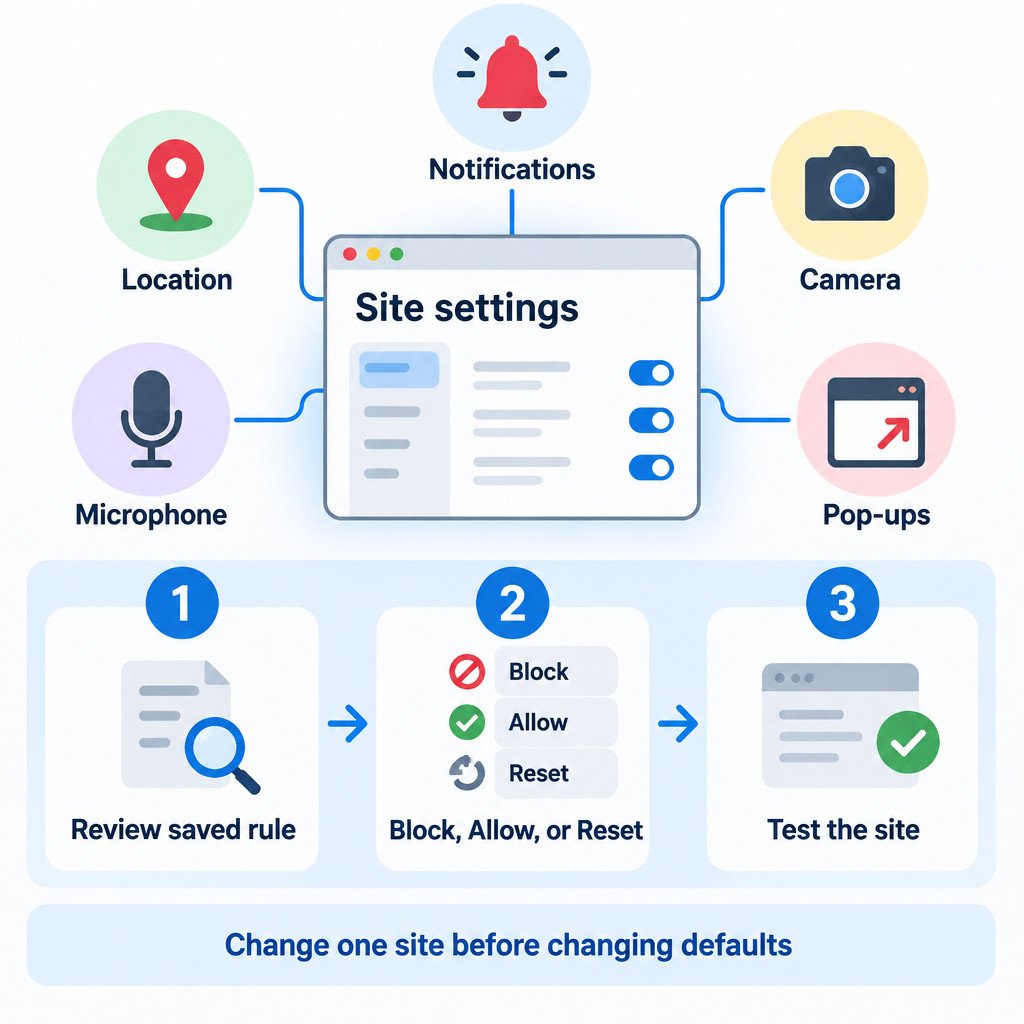
In Chrome, permissions have two layers. Default rules determine what new sites can ask to do. Individual sites can then have their own allowed, blocked, or reset choices. A site-specific exception takes priority over the default, so an old decision can continue to affect a site even after you change a general setting.
Start with the site that has the problem
For one troublesome site, open it in Chrome and select the site-information icon at the left of the address bar. Choose Site settings. This opens the saved permissions and stored-data controls for that site, without requiring you to hunt through every Chrome setting. Google documents this shortcut and the broader Site settings controls in its Chrome site permissions help.
Look for a permission that is set to Allow or Block. If a permission was granted by mistake, change it to Block. If a trusted service is failing because you previously denied a request, use Allow only when you understand why that service needs the access. When you are unsure, choose Reset permissions. Chrome will discard the saved decisions for that site and ask again when the site next needs access.
Resetting permissions is not a general browser cleanup. It does not promise to remove passwords, Chrome extensions, malware, or account data. It simply removes saved permission decisions for the selected site, so it is a sensible first step when behavior is unexpected.
Know which permissions deserve a quick audit
- Notifications: Lets a site send browser notifications. Old news, shopping, or promotional permissions are common candidates for removal.
- Location: Lets a site request an approximate or precise device location, depending on the device and service.
- Camera and microphone: Lets a site use these devices for meetings, calls, recording, or identity checks.
- Pop-ups and redirects: Controls whether a site may open extra windows or redirect you in ways Chrome would normally restrict.
- Local network access: Can be relevant when a web app needs to find or communicate with devices on your local network.
Do not treat every request alike. A video-meeting site may reasonably need a microphone; an unfamiliar page requesting notifications before showing useful content is easier to decline. The goal is not to block everything. It is to keep each permission proportionate to the task and limited to sites you trust.
Review Chrome-wide defaults and saved exceptions
To see Chrome’s broader controls, open Settings > Privacy and security > Site settings. The exact wording and available categories can vary with your Chrome version, operating system, device, and workplace policies. This area is useful for two different jobs: setting the default behavior for future requests and reviewing sites that already have saved permissions or data.
Begin with the short audit list above rather than changing every category. Open Notifications, for example, and review sites in the allowed and blocked lists. Remove an obsolete entry when you no longer need a permanent rule. Keep a deliberate blocked entry if it prevents a site from repeatedly asking. The same approach works for location, camera, and microphone.
Choose the least-disruptive fix
| Situation | Best first action | Why |
|---|---|---|
| An unfamiliar site sends alerts | Set Notifications to Block or remove its permission | Stops future browser notifications from that site without changing other sites. |
| A trusted meeting page cannot use the microphone | Reset or allow that site’s microphone permission, then retry | Corrects a likely saved denial while keeping the global default intact. |
| A billing or sign-in flow needs a new window | Allow pop-ups for that specific trusted site | Preserves Chrome’s broader pop-up protection. |
| You cannot explain a site’s past choices | Use Reset permissions | Lets Chrome ask again at the point of use. |
Fix camera and microphone access methodically
When a call or recording site cannot access a camera or microphone, first check the site’s own settings through the address-bar shortcut. Then open Chrome’s Camera or Microphone section in Site settings and inspect both the allowed and blocked lists. Remove an incorrect exception or set the appropriate device if Chrome offers a device selector.
If the site is allowed in Chrome but still cannot use the device, the block may be outside Chrome. Windows, macOS, and other operating systems have their own privacy controls for camera and microphone access. A work or school browser may also be managed, preventing changes to some settings. Google’s camera and microphone guidance for Chrome covers the browser-side checks and notes that computer settings may need attention.
Also confirm that the device is connected, not being used exclusively by another application, and selected as the intended input. These are separate troubleshooting steps from changing a website permission. Granting access to the wrong microphone does not fix an incorrect device selection.
Allow pop-ups narrowly, not globally
A pop-up is not the same as a notification. Pop-ups are browser windows or tabs that a site attempts to open; notifications are messages that can appear through the browser after permission is granted. If a trusted bank, document service, or sign-in provider needs a pop-up, use that site’s settings to create a narrow exception. Avoid turning off Chrome’s pop-up blocking for all sites. Chrome’s official pop-up controls documentation describes site-specific allow and block choices.
If unexpected pop-ups continue after blocking a site, do not assume the site rule is the only cause. An unwanted extension, unwanted software, or an organization-managed setting can also be involved. Review extensions separately and avoid installing “fix” tools suggested by the pop-ups themselves.
Use Safety Check as a second review
Chrome’s Safety Check, available from Settings > Privacy and security > Safety Check, provides another place to review browser hygiene. It can flag items such as updates, unused site permissions, potentially unwanted notifications, and potentially harmful extensions. Treat it as a prompt for investigation, not proof that a computer is secure or free from malware. Google explains the scope of Safety Check and Chrome security settings.
A repeatable permission-maintenance checklist
- Open Site settings after a suspicious permission prompt, an unwanted notification, or a feature failure.
- Use the address-bar Site settings shortcut when the issue affects only one site.
- Review Notifications, Location, Camera, Microphone, Pop-ups and redirects, and Local network access first.
- Remove obsolete exceptions instead of loosening a default setting for every website.
- Use Reset permissions when a trusted site behaves unexpectedly and you want it to ask again.
- For camera and microphone failures, check both Chrome rules and operating-system privacy permissions.
- Keep the global pop-up blocker on; add an exception only for a trusted site with a clear need.
- Run Safety Check periodically and examine unfamiliar extensions separately.
Site permissions are small settings with outsized effects because they persist. A brief review of saved exceptions is usually safer and faster than resetting all browser settings. Make the narrowest change that solves the immediate problem, then revisit it if the site no longer needs that access.
Limitations
This walkthrough assumes Chrome on a desktop computer. Menu names, categories, and available controls can differ by Chrome release, operating system, device hardware, and organization-managed browser policy. Browser permission settings and operating-system device permissions are related but separate controls, so either can be responsible for a camera or microphone problem.
