
PowerRename is a useful free option when File Explorer’s standard Rename command is no longer enough. It can change selected file names using search and replace, regular expressions, text formatting, and numbering while showing the proposed result before anything is changed. It is part of Microsoft PowerToys, a free, open-source set of Windows utilities. Microsoft’s PowerRename documentation describes the available rename modes, preview, and File Explorer undo support.
For a handful of files that only need one shared name, File Explorer is usually sufficient: select the files, press F2, type a name, and Windows adds numbers to distinguish them. Use PowerRename when names need a repeated cleanup rule, such as removing a camera prefix from 80 photos or converting date-based names into a consistent format.
Prepare a safe test set
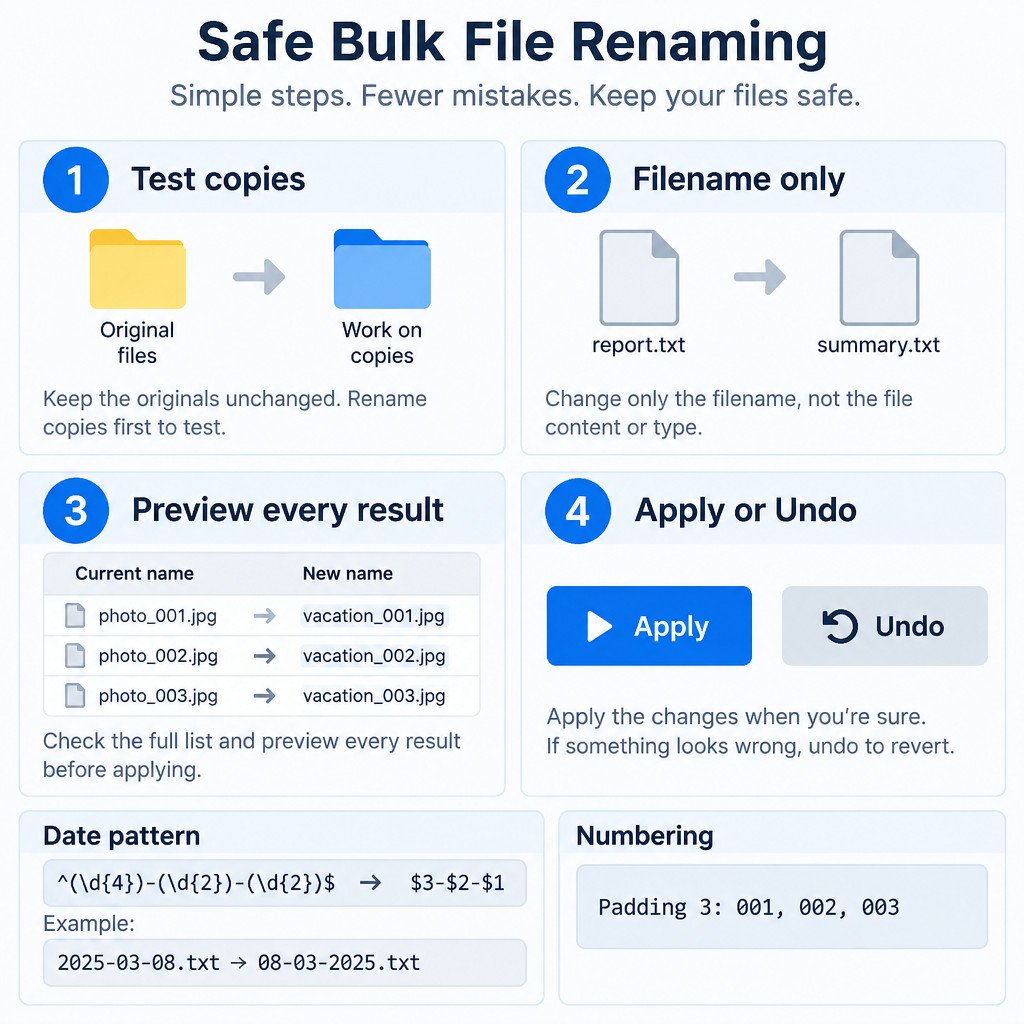
Bulk renaming changes references to files. A renamed document may no longer be found by a shortcut, script, or application that expects its old path. Copy irreplaceable files first, then test a rule on three to five representative files. Decide on the target pattern before opening the tool; for example, Project-brief-001.docx is easier to sort and search than several mixed styles.
Install PowerToys if it is not already available, open it, and enable PowerRename in its settings. Microsoft provides current installation methods and system requirements on its PowerToys installation page. In File Explorer, select the files or folders, right-click the selection, and choose PowerRename. On Windows 11, the command may be under Show more options.
The two most important areas are the search and replacement fields at the top and the preview below them. Do not apply a rename until every previewed name makes sense. Also check whether the operation includes files, folders, or both, and whether it applies to the filename, the extension, or both.
Five useful PowerRename tasks
1. Remove an unwanted word or prefix
Suppose downloaded statements are named download_Statement_Jan.pdf and download_Statement_Feb.pdf. Enter download_ in the search field and leave the replacement field empty. Restrict the operation to filenames so that .pdf remains unchanged. The preview should show Statement_Jan.pdf and Statement_Feb.pdf.
Use an exact string where possible. Searching for Jan, for example, could affect a word you intended to retain elsewhere in the filename.
2. Add a project prefix or suffix
To add text to every selected filename without altering its extension, turn on regular-expression matching and select the filename-only scope. Search for ^ and replace it with Northwind- to insert a prefix at the beginning. Search for $ and replace it with -reviewed to append a suffix at the end.
In regular expressions, ^ means the start of a name and $ means its end. A file named budget.xlsx therefore becomes Northwind-budget.xlsx or budget-reviewed.xlsx, not budget.xlsx-reviewed.
3. Make capitalization consistent
Use the text-formatting options when the words are already correct but their capitalization is inconsistent. The preview is especially important here: title case can be suitable for report names, while lowercase is often better for technical assets and web files. Do not assume a formatting choice will preserve preferred acronyms such as PDF, API, or a brand name exactly as you want it; inspect those examples before applying the rule.
4. Add ordered numbers with padding
For a sequence of related files, enable PowerRename’s enumeration option and set the starting number, increment, and padding in the controls shown by your version. A padding width of 3 produces values such as 001, 002, and 003. Padding matters because alphabetical sorting keeps 001 before 010 and 100.
Illustrative example: after adding the prefix Workshop-, enumeration can produce Workshop-001.jpg, Workshop-002.jpg, and Workshop-003.jpg. The order normally follows the order shown in the preview, so sort the File Explorer selection in the intended order before you begin. Treat that order as an assumption to verify, not as a substitute for checking the preview.
5. Convert an ISO-style date in a filename
Regular expressions are useful when the same parts need to move. For filenames that consist of a date in YYYY-MM-DD form, select filename-only scope, enable regular expressions, search for ^(\d{4})-(\d{2})-(\d{2})$, and replace it with $3-$2-$1. This captures year, month, and day, then writes them as day-month-year. For example, 2025-03-08.txt becomes 08-03-2025.txt.
This pattern deliberately matches only a complete date-only filename. It will not match invoice-2025-03-08.txt, which makes it a safer first test. If your files contain extra text, do not broaden the pattern until you understand exactly what the preview is matching.
| Goal | Search | Replacement | Key setting |
|---|---|---|---|
| Remove a prefix | download_ | Leave blank | Filename only |
| Add a prefix | ^ | Northwind- | Regular expressions; filename only |
| Add a suffix | $ | -reviewed | Regular expressions; filename only |
| Reorder a date-only name | ^(\d{4})-(\d{2})-(\d{2})$ | $3-$2-$1 | Regular expressions; filename only |
Check these settings before applying changes
- Confirm whether files, folders, or both are included. Renaming folders can change paths used elsewhere.
- Use filename-only mode for ordinary cleanup. Only select extension-related options when changing extensions is intentional.
- Test one rule at a time. A simple replacement followed by numbering is easier to review than several transformations at once.
- Read the entire preview, including the first, middle, and last entries. Look for duplicate-looking names, missing words, and unexpected extensions.
- When using regular expressions, begin with a narrowly matched pattern such as one anchored with
^and$. - If a completed rename is wrong, use File Explorer’s Undo as soon as possible. Avoid further file operations before undoing, since they can make recovery less straightforward.
Know the limits
PowerRename changes names; it does not identify duplicate content, infer the meaning of poorly named files, or repair broken links created by an earlier rename. It is also a Windows utility, and options can differ between PowerToys releases. For a large or important archive, keep a copy and work in stages: remove clutter, standardize the core name, then add numbering only if it serves a clear purpose.
A predictable naming scheme is the real goal. Use a stable project label, a meaningful subject, an ISO-style date when chronological sorting matters, and padded numbers only for ordered sets. PowerRename makes that scheme practical, but its preview is the final safety check before committing a batch.
Sources
Microsoft Learn: PowerRename Utility for Windows; How to Install PowerToys on Windows 11 and Windows 10.
