
If several people edited separate copies of the same Word document, use Combine, not manual copy-and-paste, to bring their revisions into one tracked document. Start with the untouched original, merge one reviewer copy at a time, and review the resulting markup before accepting or rejecting anything.
This is different from live coauthoring. Combine is for the common situation where attachments have been emailed back as separate files. Pasting text between those files can miss deletions, formatting changes, comments, or a suggestion placed elsewhere in the document.
Prepare the files before you merge
Make a copy of the original document and leave that copy untouched. Then place each returned review copy in one folder and give it an unambiguous name, such as Proposal-original.docx, Proposal-Amina-review.docx, and Proposal-Lee-review.docx. Do not rely on similarly named downloads or timestamps when selecting files in Word.
- Original: the version sent out for review, before any reviewer-specific edits.
- Revised copy: one person’s returned version of that original.
- Combined master: the new document Word creates, containing tracked revisions from the copies merged so far.
The instructions below target the desktop Windows version of Word in current Microsoft 365-era releases. Menu labels and available panes can differ in Word for Mac or Word for the web. Combining documents also cannot decide which of two contradictory edits is correct; it records the changes so an editor can make that decision.
Choose Combine rather than Compare
Compare is best when you want to inspect the differences between two versions. Combine is best when you want to merge revisions from independently edited copies into a single working document. In both cases, Word produces a new result rather than changing the selected source files. Microsoft’s overview distinguishes comparing versions from merging revisions and explains that the source documents remain unchanged.
| Goal | Use | Result |
|---|---|---|
| See what changed between version A and version B | Compare | A document showing differences |
| Bring one reviewer’s edits into an accumulating review master | Combine | A new document with tracked revisions |
| Work together on one current file going forward | One shared file with Track Changes | One review history instead of separate attachments |
Choose Compare if you are investigating a single disputed revision. Choose Combine if the practical objective is a consolidated master that will receive more reviewer copies.
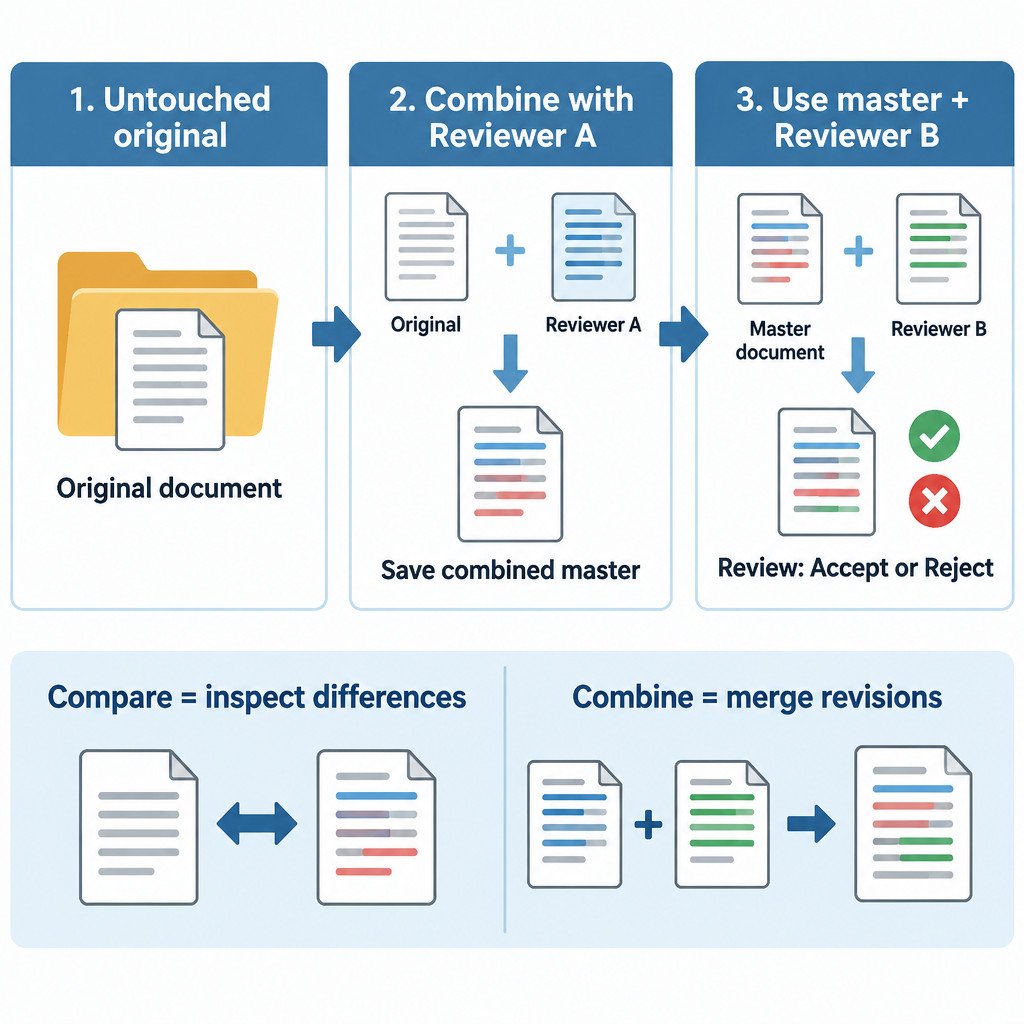
Combine the first reviewed copy
- Open Word. You can begin from a blank document or from the original; the command creates a separate result.
- Select Review > Compare > Combine.
- In Original document, select the untouched original file.
- In Revised document, select one reviewer’s returned copy.
- If Word asks how to label unmarked changes, enter a useful reviewer label, such as the reviewer’s name or role.
- Set the result to show changes in a new document, then select OK.
Word’s official Combine procedure uses this Original and Revised selection pattern and recommends creating a new combined document. See Microsoft’s instructions for combining document revisions for the desktop workflow and interface details.
Read the combined view before deciding anything
The resulting window can show several areas: the merged document in the center, a revisions summary or pane, and source-document panes. The center document is the important working copy. Its markup should show additions, deletions, formatting changes, and other revisions according to the review display currently selected.
Source panes can be useful when a change looks surprising, but they make a small screen crowded. Hide those panes if they are distracting; do not close the combined document without saving it first. Save it under a new name such as Proposal-combined-round-1.docx.
Do not use “Accept All Changes” at this stage. First confirm that Word recognized the expected edits and that the reviewer label is meaningful. If two people changed the same sentence in different ways, treat that as an editorial choice, not a technical conflict Word can reliably settle for you.
Add each remaining reviewer one at a time
For the second reviewer, repeat the Combine command, but change the roles of the files:
- Original document: the saved combined master from the previous step.
- Revised document: the next reviewer’s copy of the original.
- Output: a new combined document with the next round of revisions added.
Save the new result with an incremental name, then use that latest saved result as the Original for the next reviewer. This sequential approach is the key safeguard: every merge begins with the master that already includes the earlier reviewers’ changes. Keep the untouched original and individual returned files until the review is fully resolved.
Illustrative example: You sent a policy draft to Amina, Lee, and Morgan. First combine Policy-original with Policy-Amina-review, saving Policy-combined-1. Next combine Policy-combined-1 with Policy-Lee-review, saving Policy-combined-2. Finally, combine Policy-combined-2 with Policy-Morgan-review. None of the individual review files should be overwritten.
Resolve markup deliberately
Once every copy is merged, review the combined master rather than trying to reconcile the old attachments by eye. On the Review tab, use the markup display controls to focus on the categories that matter, then use Next and Previous to move through revisions. For each item, choose Accept or Reject only after reading enough surrounding text to understand the change.
Track Changes supports this item-by-item review with Accept, Reject, Next, and Previous controls. Microsoft documents those review controls in its Track Changes guidance.
- Check deletions as carefully as additions; a removed qualifier can change meaning.
- Inspect formatting revisions when layout, headings, lists, or tables matter.
- Read comments separately from tracked edits. A comment may ask for a decision without proposing a specific change.
- Resolve competing rewrites by selecting one, rewriting the passage yourself, or asking the reviewers to agree.
- Save a marked-up master before producing the final clean version.
Keep a marked-up master and a clean final copy
When all decisions are complete, save the reviewed document as your marked-up record. Then use Save As to create a separately named clean final copy, and accept or reject the remaining changes in that copy. This preserves an auditable version if someone later asks why wording changed.
Common mistakes to avoid
- Overwriting the only original: keep an untouched copy outside the working folder if the document is important.
- Using Compare for a multi-reviewer merge: Compare helps inspection, but Combine is the accumulating workflow.
- Merging all files against the untouched original: doing so creates separate comparisons rather than one master containing everyone’s revisions.
- Accepting everything before checking attribution: once changes are accepted, it is harder to see which reviewer proposed what.
- Assuming Word resolved a contradiction: software can surface overlapping edits; the final editorial decision is still yours.
A better setup for the next review round
Combine is valuable when separate copies already exist. For future review cycles, avoid creating those branches where possible. Store one current file in OneDrive or SharePoint, ask reviewers to use Track Changes and comments, and retain version history as an additional recovery option. Version History can let users view or restore earlier file states for files stored in supported OneDrive or SharePoint locations; availability can depend on the account and organization’s settings. Microsoft explains the feature in its Version History documentation.
The essential rule is simple: preserve the original, combine one returned copy into a saved master at a time, and make acceptance decisions only after you can inspect the complete markup.
