
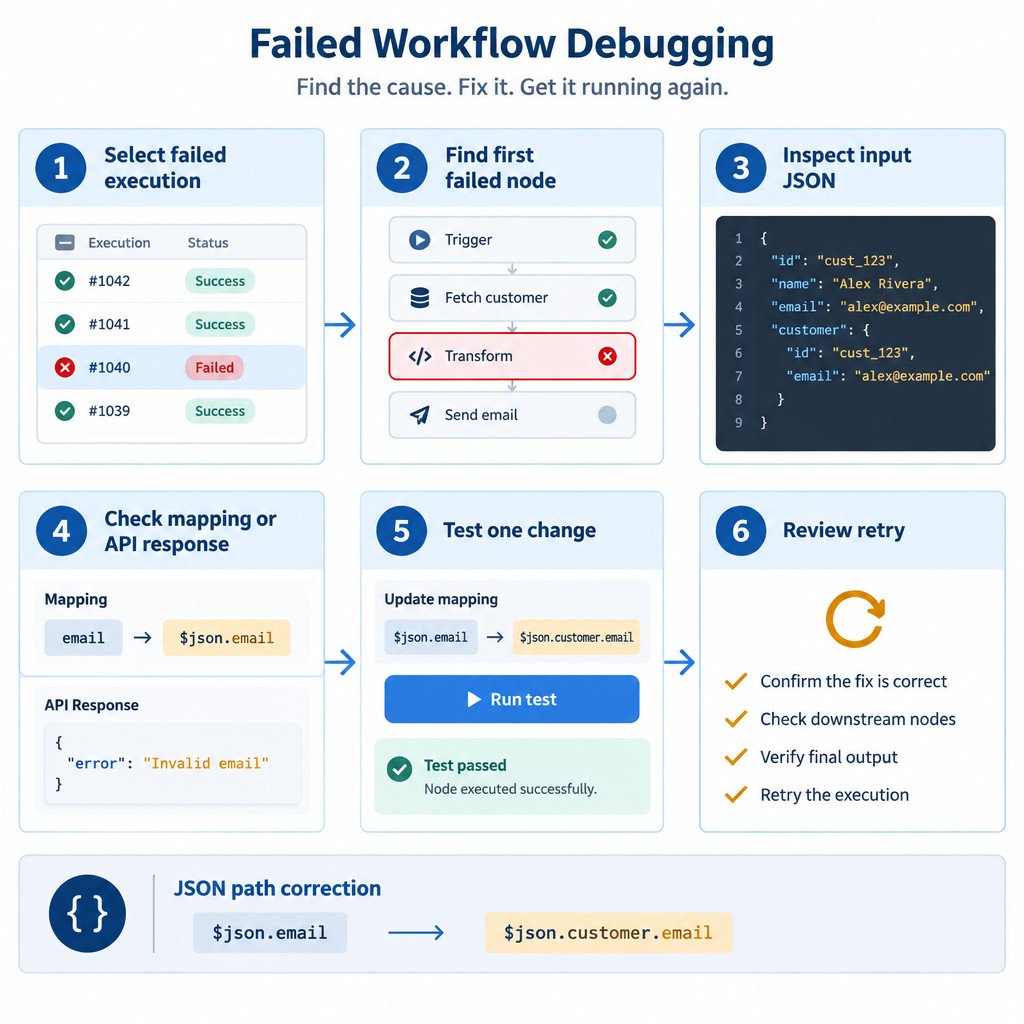
When an n8n workflow fails, start with one recorded failed execution and identify the first node that failed. Inspect the data reaching that node, compare it with its configuration and expressions, then make and test one small correction before retrying. This method helps separate a workflow problem from an outage, permission issue, or instance-level problem that n8n itself cannot resolve.
This checklist applies when n8n has recorded a workflow execution with a Failed status. It focuses on workflow logic, node settings, data mapping, credentials, and responses from connected services. If the n8n instance is unavailable, a webhook never reaches it, or a connected service is down, involve the relevant service owner or n8n administrator as appropriate.
1. Select a useful failed execution
Open the Executions view and narrow the list by workflow, status, and execution time. Open a representative failed run rather than automatically choosing the newest one. For example, a newer failure may contain an unusual form submission, while an earlier one may show the same error with a normal input. n8n documents filters for workflow, status, and start time in its execution history. n8n: All executions
Record the execution time and triggering event if you know it. This gives you context when checking a third-party service’s logs or status later. Do not edit multiple nodes before you understand what this one execution received.
2. Locate the first failing node, not just a visible error
In the execution view, find the node marked with an error and work backward through the path. Note the exact error text, HTTP status code if one appears, node operation, and number of input items. A downstream node can fail because an upstream node returned incomplete or differently structured data. Fixing the downstream symptom alone can leave the actual cause in place.
3. Compare the incoming data with the mapping
Open the failed node’s input data. If it has no useful output because it stopped with an error, inspect the output of the preceding node. Look at the actual JSON keys, nesting, value types, and item count. Then compare those details with every field or expression used by the failing node.
In n8n, data mapping references data from previous nodes. You can select a value in the input pane or use the expressions editor; drag-and-drop mapping can create an expression for you. A node name in an expression is therefore part of the dependency: renaming, bypassing, or replacing that node can require an update to the reference. n8n: Referencing data in the UI
Also check whether the node received one item, several items, or no items. A mapping that works for one customer record may fail when a prior search returns zero matches. Conversely, a node configured for a single record may create duplicate requests when it receives several items.
Illustrative mapping change
Suppose a previous step once returned an email field at the top level, so a later node used the expression {{$json.email}}. A connected service changes its response and the actual input now has the address under customer.email. The appropriate expression may now be {{$json.customer.email}}. This is an illustrative example, not a universal mapping rule: confirm the exact path in the execution data before changing anything.
4. Check the likely cause categories
- Missing or renamed fields: A required key is absent, null, or moved into a nested object.
- Incorrect expression reference: An expression points to the wrong node or assumes an old data shape.
- Unexpected item count: A search, split, loop, or filter produces zero or more items than the next step expects.
- Credentials or authorization: The credential may be expired, revoked, or permitted to access a different account or resource.
- External API response: A 4xx response often points to a request, validation, or authorization issue; a 5xx response can indicate a temporary provider-side failure. The response body matters more than the status code alone.
- Changed third-party format: An app or API may return fields in a new structure even though its request still succeeds.
Not every failed execution is fixable in the workflow editor. Rate limits, service maintenance, deleted remote resources, and account restrictions may require waiting, changing service settings, or contacting the connected service’s owner.
5. Change one thing and define the expected result
Preserve the original logic first if the change is risky, such as by duplicating the workflow or recording the current node settings. Then change one expression, field mapping, credential selection, or node option at a time. Write down the expected input shape and outcome, for example: “Each item must contain customer.email as a non-empty string before the email node runs.”
Test with a minimal payload that represents the failure when possible. A small test makes it easier to tell whether the correction worked and reduces the chance of sending duplicate messages, creating duplicate records, or modifying unrelated data.
6. Review the retry choice before running it
n8n lets you retry a failed execution with the currently saved workflow or with the original workflow. A retry uses the previous execution data, so it is useful for retesting the same scenario rather than collecting fresh trigger input. Choose the currently saved workflow only after confirming that your correction is saved and appropriate for that recorded data. Choose the original workflow when you need to reproduce the historical behavior exactly. n8n: Retrying executions
Before retrying a workflow that writes data or sends communications, check for side effects. Determine which earlier steps already completed and whether repeating them could create duplicates. If needed, test a limited path or use a non-production destination first.
Prevent the next failure
- Add a validation or conditional branch before a node that requires a value such as an email address, ID, or date.
- Keep a minimal test payload for important workflows, including expected keys and nesting.
- Name nodes for their job and data source, not only by the app name.
- Retain request and response details that are safe to store, while avoiding unnecessary personal data or secrets.
- Document expected item counts where a node depends on one match, at least one match, or every incoming item.
Execution history is useful evidence, so review it before deleting a workflow. n8n notes that deleting a workflow also deletes its execution history. n8n: All executions
When to escalate
Check the connected service’s API documentation or status information when the node shows a 4xx or 5xx response. Ask the credential owner to review scopes, account access, or revoked authorization when the failure is permission-related. Involve an n8n administrator when the issue concerns instance availability, networking, storage, upgrades, or other platform-level behavior rather than one workflow’s data or configuration.
Printable failed-workflow checklist
- Selected a representative failed execution
- Identified the first failed node and copied its exact error
- Checked input data, JSON paths, and item count
- Reviewed expressions, credentials, and the API response
- Tested one focused change
- Reviewed the retry option and possible side effects
For basic product context, n8n describes itself as a workflow automation tool for connecting apps and APIs and working with data using little or no code. n8n documentation
