
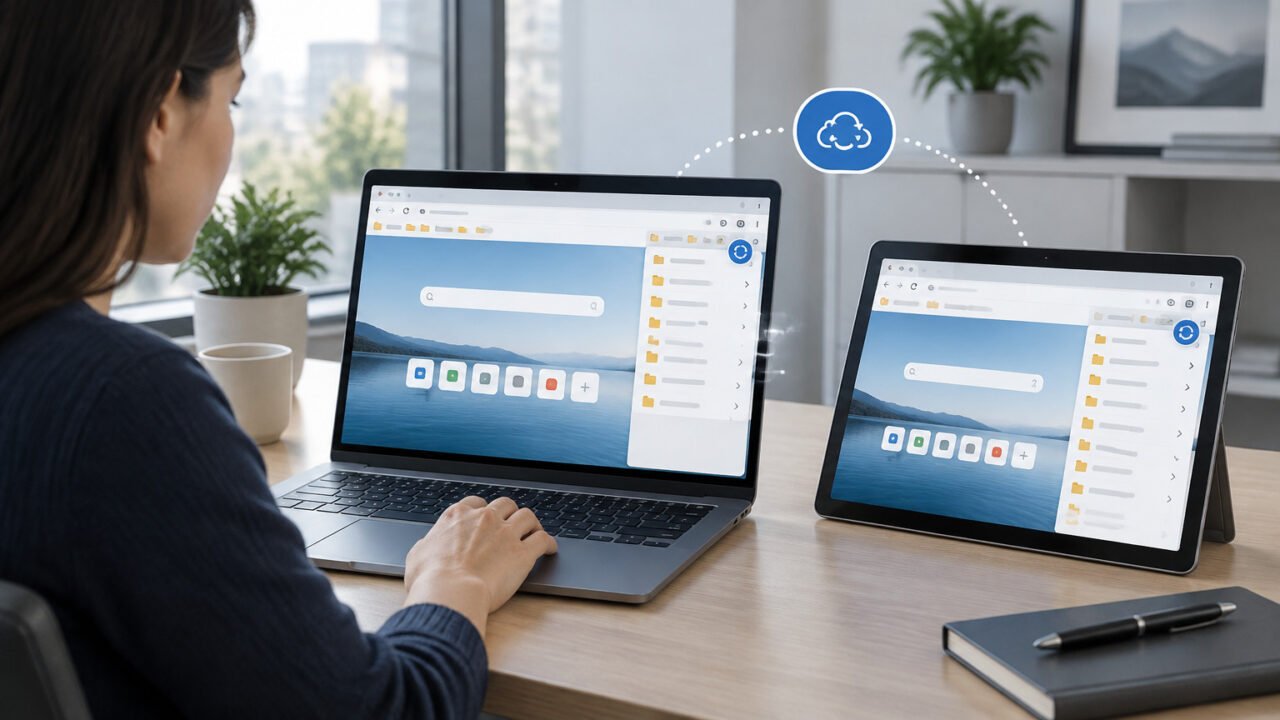
If Microsoft Edge is not syncing favorites, passwords, history, open tabs, or settings, start by confirming the account and the specific sync category on the affected device. Then use Edge’s Re-sync data to this device option. A full sync reset is a later step, not the first one, because it refreshes cloud-synced data and can require sign-in on other devices.
First identify the symptom. A device may show sync turned off, remain on “Setting up sync,” display an error, or sync favorites while another category such as passwords does not. These situations need different checks. A webpage failing to load or Edge crashing is not automatically a sync fault.
Protect your data before changing sync
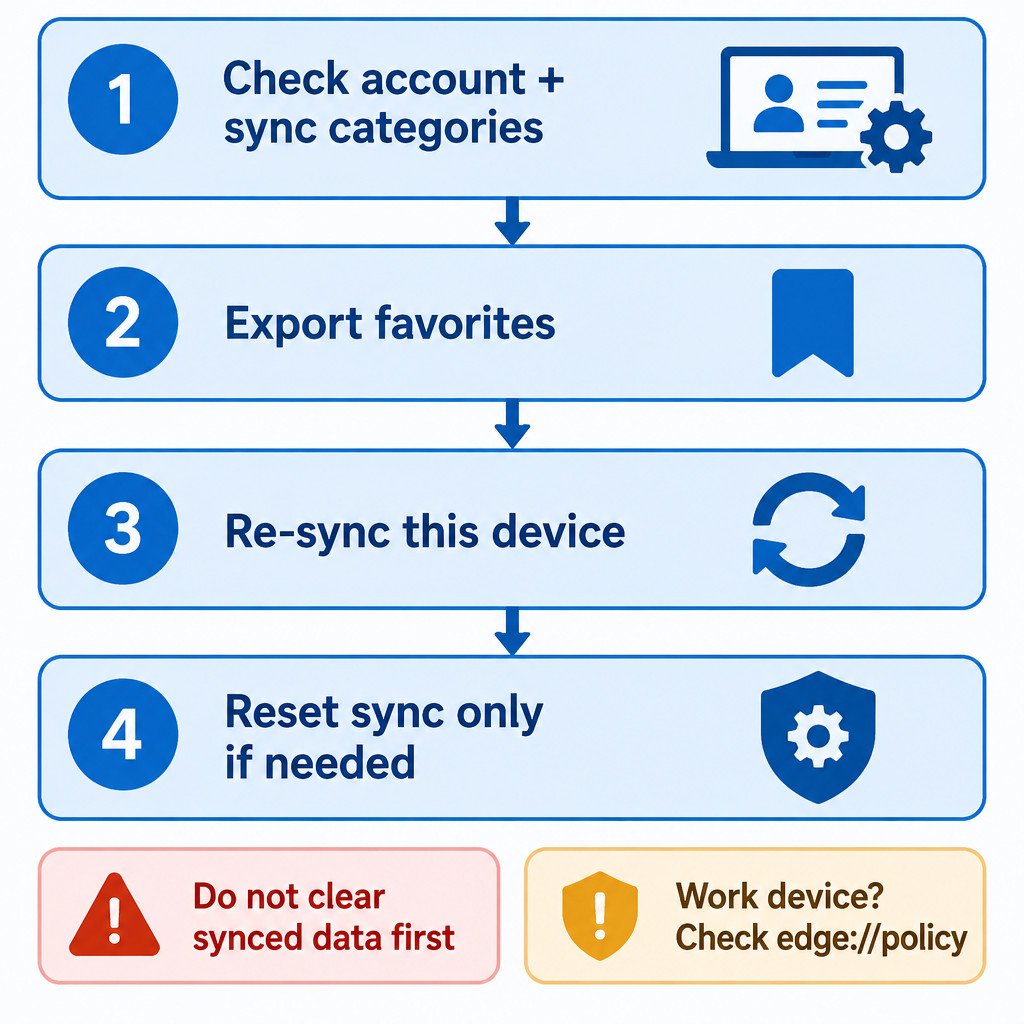
On every affected device, open Settings > Profiles and verify that you are signed in with the intended personal Microsoft account or work/school account. It is easy to compare two devices while one is using a different account.
Next, open the profile’s Sync settings and compare the enabled categories on both devices. If only favorites are missing, for example, make sure the favorites category is enabled everywhere. Turning on sync alone does not mean every data type is selected.
Export your favorites before attempting a reset. This creates a separate copy that you can import later if needed. Microsoft specifically recommends exporting favorites before resetting Edge data in the cloud. Do not use an export as a reason to delete the existing favorites: it is a precaution, not a repair step.
- Confirm the account email or organization is the same on each device.
- Compare enabled sync categories, especially Favorites, Passwords, History, Open tabs, and Settings.
- Export favorites before a cloud reset.
- Keep at least one device with the expected favorites available until the issue is resolved.
Do not clear browsing data just because sync is slow or missing. When you are signed in and sync is active, deleting synced browser data can remove it from other synced devices as well.
Use the lowest-risk fixes first
1. Update Edge and restart it
In Edge, open Settings > Help and feedback > About Microsoft Edge. Install any available update and restart the browser when prompted. An update will not solve every account problem, but it removes an outdated browser build as a variable before you change sync settings.
Close and reopen Edge after the update. If Edge is behaving broadly unreliably, restart Windows too. For a page-loading problem, try the same site in another browser. That comparison helps separate a site, network, or general browser problem from a sync problem. Microsoft lists updating, restarting, testing in another browser, and repairing Edge among its baseline steps for Edge failures.
2. Re-sync the affected device
If the account and categories match, go to Settings > Profiles > Sync and select Re-sync data to this device. This is the appropriate next action when one device is behind while another device has the correct data.
Leave Edge open while the process completes. Microsoft says it can take seconds to minutes. Check the originally missing category after it finishes rather than making several account changes at once. If favorites return but passwords do not, the remaining issue is narrowed to that category or its account state.
3. Reset cloud sync only if re-sync fails
If re-sync does not complete or the same sync error persists, return to Settings > Profiles > Sync. Select Still having sync problems? Try another option, then choose Reset sync. Keep the browser open until the reset is finished.
A sync reset is an account-level recovery action, not a normal refresh button. It resets Edge data in the cloud and then allows data to sync again. Other devices may need to be signed in again afterward. That is why the account check, category check, and favorites export come first. Exact wording can change with Edge updates.
| Symptom | Best first action |
|---|---|
| Favorites missing on one device | Confirm the account and Favorites category; then re-sync that device. |
| One category does not match | Compare category toggles on both devices; avoid resetting unrelated data immediately. |
| “Setting up sync” or a recurring sync error | Update Edge, restart it, then try re-sync before Reset sync. |
| Edge crashes or will not open | Treat it as a browser stability issue; repair Edge through Windows if needed. |
| Sync is disabled on a work device | Check for organization management and contact IT. |
Repair Edge when the browser itself is failing
If Edge will not open, repeatedly crashes, or is unstable beyond sync, Windows repair is more suitable than repeatedly changing sync settings. In Windows, go to Settings > Apps > Installed apps > Microsoft Edge, choose Modify, then select Repair. Microsoft states that this repair should not affect browser data and settings. The available labels can vary by Windows version, and a managed device may not offer the option.
Work or school accounts: check policy before troubleshooting further
An organization can control whether Edge sync is available. If Edge says it is managed by your organization, or sync is unavailable despite a valid work account, enter edge://policy in the address bar to view applied policies. This is a diagnostic check, not a way to override company controls. Contact your IT team instead of removing profiles, changing policy files, or attempting to bypass restrictions.
Account sign-in failures also sit outside ordinary device re-sync. If you cannot sign in to the Microsoft or work account at all, resolve that account access problem first. Sync cannot complete until Edge has an authenticated account that is permitted to sync.
Avoid these common data-loss mistakes
- Do not clear all browsing data as the first response to a sync-only issue.
- Do not delete favorites while signed in and syncing unless you intend that deletion to propagate.
- Do not manually remove Edge profile folders as a general sync fix; this can create a larger local recovery problem.
- Do not reset sync before confirming which device still holds the correct data and exporting favorites.
- Do not assume a company restriction is a browser bug.
The practical order is simple: verify the account and category, update Edge, re-sync the affected device, and use Reset sync only when the lower-risk step fails. If the browser itself is broken, repair it in Windows. If a policy or sign-in restriction is involved, escalation is safer than repeated resets.
