
A #VALUE! error means Excel cannot use one or more formula inputs in the way the calculation expects. The safest fix is to find the first failing input or operation, correct it, and only then decide whether an error fallback is useful. Wrapping the formula in IFERROR immediately may make the worksheet look clean while leaving bad data or a broken reference in place.
Start by tracing the formula, not suppressing it
Select the cell showing #VALUE! and read its formula in the formula bar. Confirm that it starts with an equals sign, parentheses are balanced, and function names are spelled correctly. Also check the argument separator used by the workbook. Some regional settings use a semicolon where others use a comma.
In the desktop app, choose Formulas > Evaluate Formula. Excel calculates the expression one piece at a time, so you can identify the first reference, function, or mathematical operation that becomes an error. Microsoft documents this as a way to isolate the part of a calculation causing #VALUE!. See Microsoft’s #VALUE! troubleshooting guidance.
This distinction matters: a formula can display #VALUE! because its own syntax is wrong, because a referenced cell contains unsuitable data, or because an inner function returns a value the outer function cannot accept. The displayed error cell is not necessarily where the problem began.
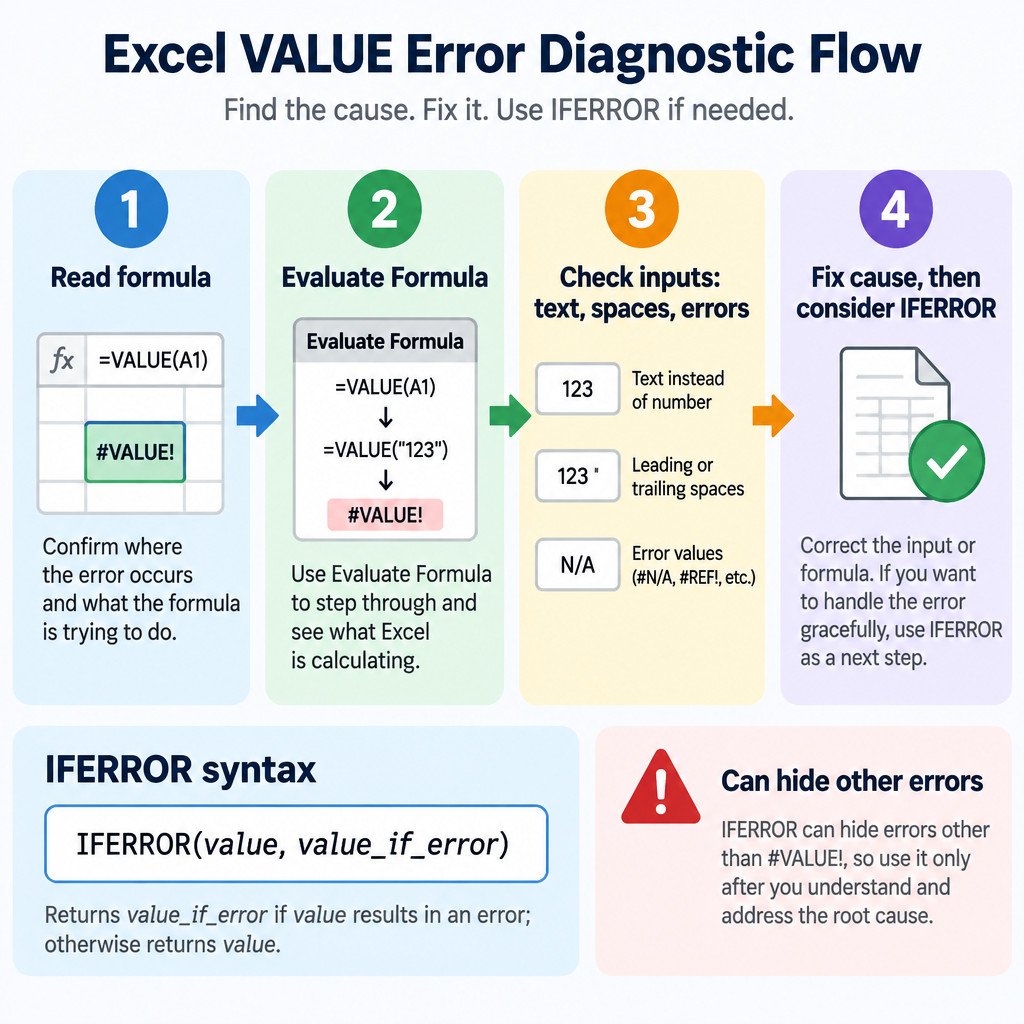
Check the inputs that feed the calculation
Once you know the failing part of the formula, inspect every referenced cell involved in that step. Look for these common problems:
- Numbers stored as text: A value that looks like 125 may be text after an import, copy-and-paste operation, or leading apostrophe.
- Leading or trailing spaces: Spaces can prevent an exact text match and can interfere with conversions. They are often invisible in a busy worksheet.
- Mixed data types: A range intended for quantities may contain a label such as
pending, a dash, or a date stored in an unexpected form. - An existing error upstream: A referenced cell containing #REF!, #N/A, or another error can cause a later formula to fail.
- Broken references: A deleted row, column, or sheet can leave a formula pointing at an invalid location.
Do not assume formatting tells you the data type. A cell formatted as Number can still hold text. Click into the cell and compare similar entries around it. For imported values, the right correction may be to clean the source data or deliberately convert the affected column, rather than altering one downstream total.
Test whether nested functions return the right kind of value
Functions can accept numbers, text, logical values, arrays, errors, or cell references, depending on their arguments. In a nested formula, the inner function must return a value that the outer function can use. Otherwise, Excel can return #VALUE!.
Illustrative example: suppose A2 contains the text Not available and a formula is =ROUND(A2*1.2,0). Multiplying text by 1.2 produces #VALUE!, so ROUND never receives a number to round. The best repair depends on the meaning of the data: replace the text with a valid amount, exclude records that have no amount, or redesign the formula to handle an explicitly defined missing-value state.
Build or repair long formulas in small pieces when possible. Formula AutoComplete and the Insert Function dialog can help confirm function names and expected arguments. Microsoft’s explanation of functions and nested functions is useful when an inner result does not match what the next function expects.
Use error checking as a clue, not a verdict
Excel’s background error checking can flag formulas that differ from neighboring formulas or formulas that appear to omit adjacent cells. For example, a total may skip the last row of a contiguous list, or one copied formula may point to a different column. These indicators are prompts to inspect the worksheet; they do not prove the formula is wrong.
Check the flagged formula against the intended pattern. A difference may be deliberate, such as excluding a subtotal row. Microsoft describes the available checks and their limitations in its guide to detecting formula errors in Excel.
When IFERROR is appropriate
Use IFERROR after you understand the error and have decided that a controlled fallback is part of the worksheet’s intended behavior. Its syntax is:
=IFERROR(value, value_if_error)
value is the calculation to evaluate. value_if_error is what Excel returns if that calculation produces an error. For example, =IFERROR(A2/B2,"Check input") shows a meaningful prompt instead of an error when the division cannot be completed. This is more auditable than returning zero when zero could be mistaken for a real result.
IFERROR handles more than #VALUE!, including #N/A, #REF!, #DIV/0!, #NUM!, #NAME?, and #NULL!. That broad behavior is exactly why it should be used deliberately: it can conceal a new and unrelated problem after the workbook changes. Microsoft’s IFERROR reference lists the error types it evaluates.
A safe IFERROR checklist
- Fix a known data or formula issue before adding a fallback.
- Use a clear fallback such as
Missing amountorCheck inputwhen a result needs review. - Return a blank only when a blank has an unambiguous meaning in the report.
- Avoid zero as a default for amounts, counts, or rates unless zero is truly the correct business result.
- Keep a way to audit suppressed errors, such as a helper column that identifies invalid source data.
- Use a narrower error-handling approach when the formula needs to distinguish an expected missing lookup from every other error.
Know the limits of the troubleshooting tools
Evaluate Formula and detailed error-checking options are most useful in desktop Excel. Menu names, available rules, and behavior can differ in Excel for the web, Excel for Mac, and across versions. If the formula works on one device but not another, compare the formula text, the referenced data, and the Excel version before assuming the displayed #VALUE! error has one universal cause.
The practical rule is simple: treat #VALUE! as information. Trace the calculation, correct the earliest unsuitable input, and reserve IFERROR for cases where a visible fallback is more useful than an error and will not hide a problem that still needs action.
