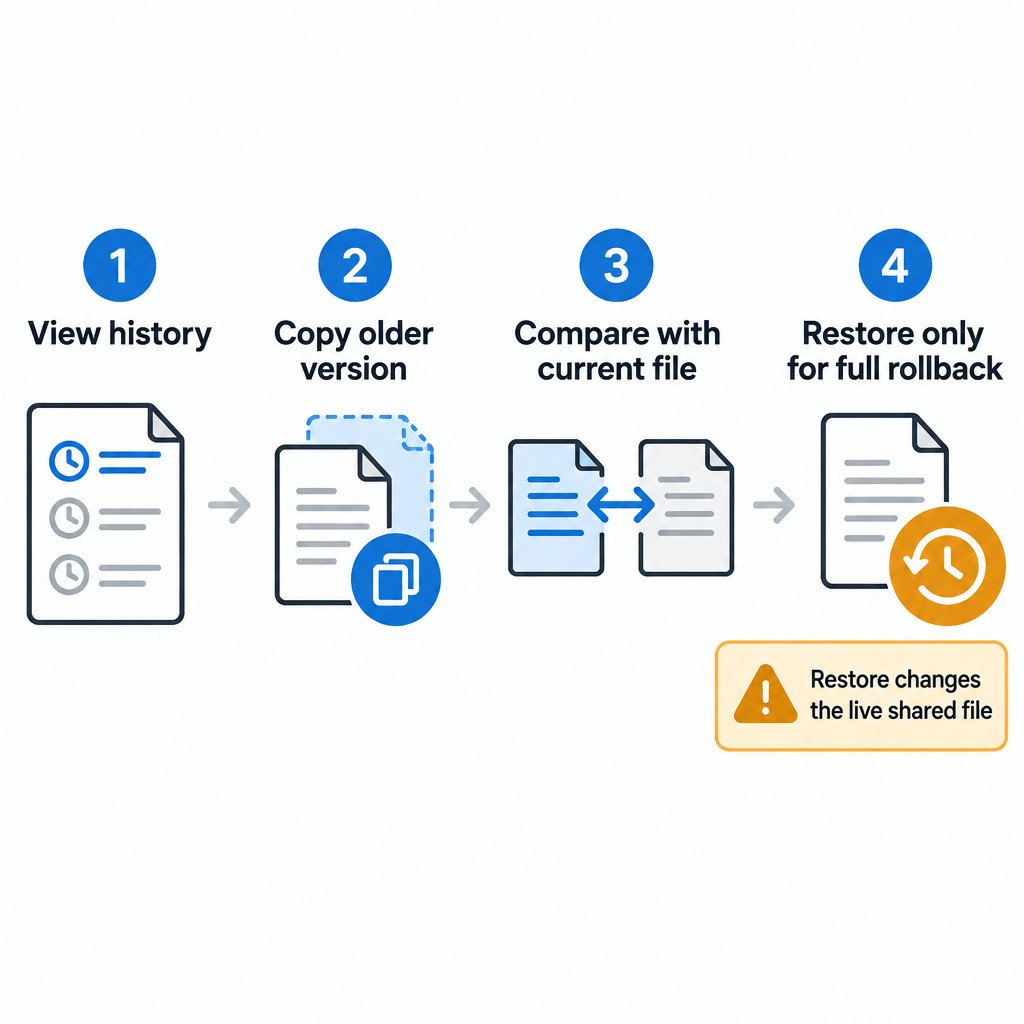
When a shared document is changed by mistake, do not restore an old version immediately. First inspect the earlier draft, make a copy of the version you want to preserve, and compare that copy with the current file. Restore only if the whole document should return to the earlier state.
This distinction matters in a live Google Doc. Viewing an earlier version changes nothing. Copying an earlier version creates a separate working file. Restoring an earlier version changes the active shared document for everyone with access, although the version that was current before the restore remains available in version history.
Start by identifying the file type
This workflow is for native Google Docs, Sheets, Slides, and Vids files in a desktop browser. Open the file and use the Last edit control near the document title, or choose File > Version history > See version history. You need edit permission to view a file’s version history. Google documents the available controls, including viewing, copying, naming, and restoring versions, in its Google Docs Editors version history help.
An uploaded PDF, image, or other non-native file is a different case. Google Drive manages versions of those files rather than providing the same document-editing history. Do not assume that a revision visible in a Google Doc has an equivalent recovery path for an uploaded attachment.
Open history and investigate before acting
The version-history panel shows dated revisions on the right. Select a timestamp to preview that state. Some revisions are grouped; expand a grouped entry when you need a more precise point in time. In compatible files, visual indicators and contributor information can help you determine who made a change and what changed.
- Use the current document as the baseline: what is present now that must not disappear?
- Check timestamps around the suspected edit rather than guessing from version names alone.
- Expand grouped revisions if the exact draft is not immediately visible.
- Confirm whether the earlier version contains a complete solution or only one section you need.
Version history is most useful as an investigation tool first. An earlier revision may contain the paragraph you need while also lacking newer corrections, comments, or decisions that should remain in the live document.
Use a copy-first recovery sequence
Copying an older version is usually the lowest-risk option. It preserves the earlier content in a separate file while leaving the current shared file untouched. You can then recover one passage, compare two drafts, or ask collaborators which version should become the new baseline.
- Locate the target revision. Preview the version that contains the content or structure you want.
- Make a copy of that version. In version history, use the version’s options menu and choose the copy action.
- Name the copy clearly. For example: Recovery copy – before budget rewrite – 2025-03-08. This is an illustrative naming example, not a required format.
- Compare the copy with the current document. Identify the specific text, tables, or decisions to carry forward.
- Choose the narrowest fix. Copy back only the needed material when that solves the problem. Consider a full restore only when the entire older document is the desired active state.
A practical example
Imagine that a project brief was heavily rewritten after stakeholder review. The current version contains new dates and approved scope, but an earlier version has a useful technical section that was removed accidentally. Restoring the older version would also remove the newer dates and scope. Making a copy of the older draft lets you retrieve the technical section without undoing unrelated, valid work.
By contrast, a full restore can be appropriate when a document was replaced with an unwanted rewrite and the team agrees that the complete earlier draft should again be the working version. Tell active collaborators before doing this. Their document view will move to the restored content, and they may otherwise continue editing based on assumptions from the newer draft.
Name milestones while the work is still orderly
Named versions turn an opaque timeline into useful checkpoints. Name a version at a meaningful handoff or decision point, not after every small edit. Good candidates include Client-approved draft, Before budget update, and Submitted for legal review.
A name should describe the document’s status, not just its date. “March draft” may be ambiguous later; “Approved copy before pricing revision” tells a future reader why that state matters. Naming important versions also makes them easier to find when automatic grouping has combined routine edits.
Treat Google Sheets as a special case
A spreadsheet has both file-level version history and, in some situations, cell edit history. They answer different questions. File-level history can return the whole spreadsheet to an earlier state. Cell edit history is narrower and does not show every kind of change: formula-driven changes, formatting changes, and added or deleted rows or columns may not appear there.
There is another important limitation: restoring a spreadsheet version clears prior cell-by-cell edit history. If that detailed trail matters for an investigation, inspect it and preserve what you need before a restore. For a Sheet with active formulas and several contributors, a copied recovery version is especially useful for checking whether a rollback would affect more than the visible wrong value.
Choose the action that matches the problem
| Situation | Best first action | Why |
|---|---|---|
| You need to know when a change happened | View version history | It lets you investigate without changing the file. |
| You need content from an old draft | Copy the older version | It preserves the old material separately and protects current work. |
| The entire current file is wrong | Restore an earlier version | It makes the older file state active again for collaborators. |
| You need to distribute a finished, stable document | Create a separate clean copy | It separates the delivered file from ongoing edits and experimentation. |
The limitation of any recovery workflow is that version history cannot decide which changes are correct. It can preserve and expose earlier states; the team still needs to decide whether a missing paragraph should be copied back, whether a conflicting edit needs discussion, or whether a whole-file rollback is justified.
For non-native files stored in Drive, check version retention separately. Google Drive says older uploaded-file versions can be deleted after 30 days or after 100 newer versions unless they are marked to keep forever. See Google Drive’s file versions guidance for the rules that apply to those uploads.
The safe default is simple: view history to understand the change, copy an earlier version to preserve useful material, and restore only when the current live file should genuinely become that earlier document again.
Sources
- Google Docs Editors Help: Find what’s changed in a file
- Google Drive Help: Check activity and file versions