
A Google Form linked to a Google Sheet is a practical work request tracker when a small team needs a consistent inbox for routine requests. It works well for internal IT questions, equipment needs, content reviews, office tasks, or similar work where someone mainly needs to see what arrived and decide what to do next.
Keep the scope modest. This setup collects requests, records them in a shared sheet, and helps reviewers sort the list. It does not provide reliable assignment controls, service-level tracking, approval chains, escalation rules, or a protected case-management record. If those are requirements, start with a dedicated tool instead.
Plan the intake before creating the form
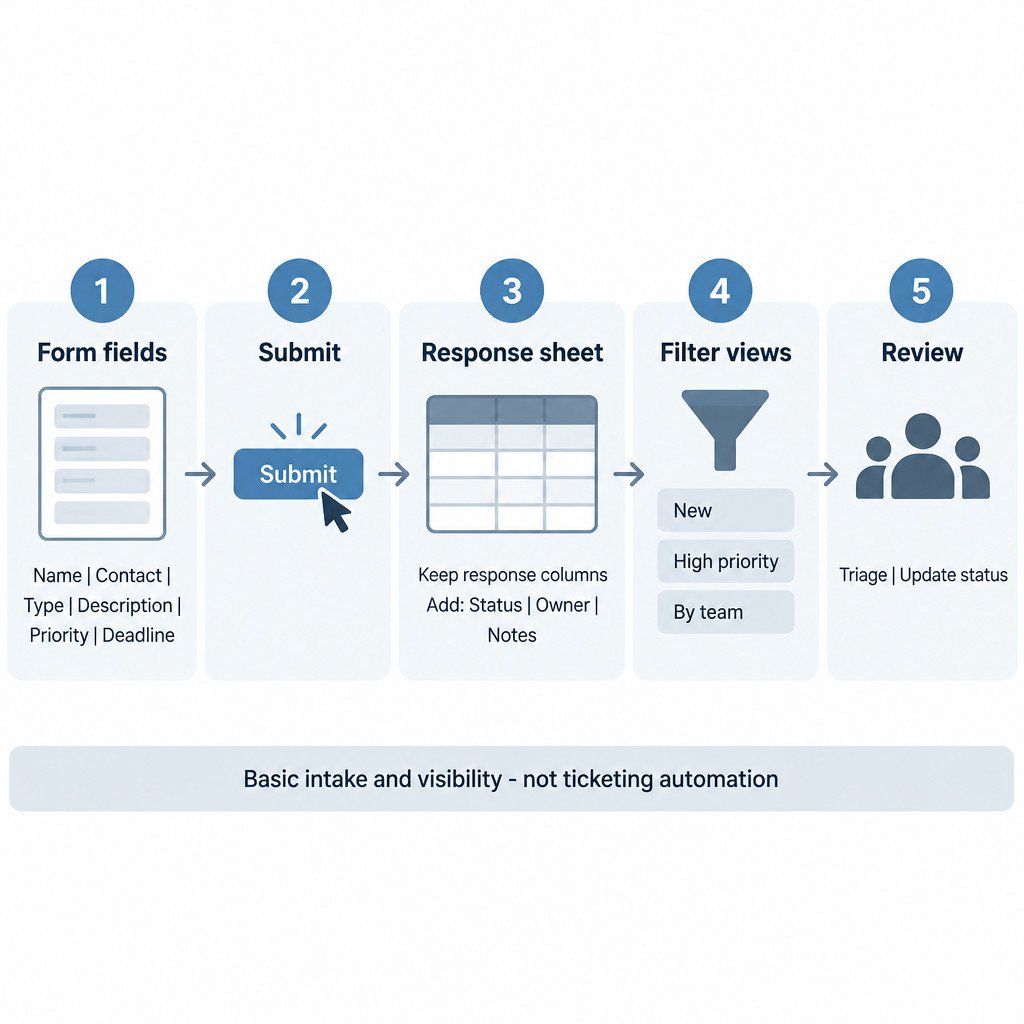
Only ask for details that a reviewer will use. A short form is more likely to be completed accurately than a long questionnaire. For most internal request trackers, the following fields are enough:
- Requester name – who needs help or approval.
- Contact method – usually a work email address or chat handle.
- Request type – a short list such as IT issue, equipment, content review, or office task.
- Short description – what is needed and any useful context.
- Priority guidance – for example, routine, soon, or blocking work.
- Needed-by date – only if deadlines affect triage.
Priority is a signal, not an automatic promise. State what each choice means in the question description. For example, “Blocking work” can mean that the requester cannot continue a current task; it should not imply a guaranteed response time.
Create the form and set clear questions
Create a blank form, give it a specific title, and add the planned questions. Google also supports creating a form from Google Sheets. Use short answer fields for names and contact details, a multiple-choice or dropdown question for request type, and a paragraph field for the description. Mark genuinely essential questions as required, but do not make every field mandatory just because it is available.
Before sharing, review the form’s access or publishing settings and submit flow. Google Forms uses a publishing process to control who can access a form. The available choices can depend on the Google account and organization configuration, so test access using the same type of account your requesters will use. Google’s overview of Google Forms covers creating, sharing, publishing, and reviewing responses.
Do not use a lightweight tracker to collect passwords, payment details, identity documents, health information, or other sensitive personal information. A shared response sheet can be convenient, but convenience is not a data-handling policy.
Link responses to a Google Sheet
In the form’s Responses area, create or select a response destination spreadsheet. You can create a new spreadsheet for the tracker or select an existing spreadsheet if you want it alongside other team records. A new response row is then added for each submission.
Use the response columns as the intake record. Do not rename, delete, or repurpose them for internal tracking. Instead, add your operational columns to the right of the form-generated columns. A simple arrangement is:
| Column | Purpose | Example value |
|---|---|---|
| Status | Shows the current review stage | New |
| Owner | Names the person currently handling it | Sam |
| Internal notes | Records a brief decision or next step | Need device model from requester |
| Completed date | Records when the work was finished | 2025-03-08 |
The values above are illustrative. For a very small team, even a single Status column may be enough. A useful starting convention is New, Reviewing, and Done. Avoid adding statuses that nobody will maintain.
There is an important access distinction: sharing the form and sharing the linked spreadsheet are separate decisions. In particular, permissions changed later on the form do not automatically synchronize to the response sheet. Review the editors and viewers of both items, especially when submissions contain internal details. Google’s guidance on where form responses are saved explains the response-sheet choices and this permission behavior.
Create filter views for triage
Filter views let each reviewer focus on a subset of rows without changing what other collaborators see. Create named views after the sheet has its response and operational headers. Three useful first views are:
- New requests: Status is New.
- High priority: Priority is Blocking work, or whatever urgent label your form uses.
- Requests from one team: Request type or requester details match the relevant group, if that information is collected consistently.
Use a filter view rather than applying a sheet-wide filter when several people review the tracker. Google Sheets supports saved, named filter views that collaborators can use independently; a view can also be shared by copying its URL. That improves visibility, but it does not prevent editors from changing the underlying rows or enforce a workflow. See Google’s instructions for sorting and filtering data in Sheets.
Add awareness, then test the whole path
If someone needs immediate awareness of new requests, turn on email notifications for new form responses. Treat these as basic alerts only. They do not assign an owner, remind someone about an unfinished request, or escalate an overdue item. Form owners can enable or disable response notifications and can stop accepting responses when the form is retired or temporarily paused.
Before distributing the link, make two illustrative test submissions. Use different request types and priorities. Confirm that each submission appears in the correct sheet, that the timestamp and answers are readable, and that each filter view returns the expected rows. Then check the form from a requester account or browser session that does not have editor access. This catches access mistakes before the tracker becomes the team’s advertised intake route.
Run it as a small, repeatable review routine
A tracker fails less often because of missing features than because no one owns the review step. Decide who checks new requests, how often they check them, and what “Done” means. For example, a team might review the New requests view each business morning, add an owner where needed, and leave a short internal note when closing an item.
- Keep the form link in one known location, such as an internal handbook or team channel.
- Use the same request-type and status terms in team communications.
- Periodically remove fields and statuses that are no longer used.
- Stop accepting responses when the process is replaced, paused, or no longer monitored.
- Review form collaborators and spreadsheet access separately after staffing changes.
Know when to move beyond a form and sheet
Move to a ticketing or project-management system when the work requires dependable assignment, requester-visible updates, an audit trail, multi-step approvals, external requesters, formal deadlines, reporting, or sensitive-data controls. A form-and-sheet tracker can still be a useful temporary intake point, but adding more columns and manual rules will not turn it into a controlled service desk.
For a lightweight internal request inbox, the goal is simple: capture the minimum useful information, make new work visible, and give reviewers a consistent way to triage it. Keep the process small enough that the team will actually maintain it.
Sources
Google’s response-management guidance documents notifications for new responses and stopping response collection. The linked Google Forms and Google Sheets documentation above provides the feature and permission details used in this guide.
