
Use Excel’s LET function when a formula repeats a calculation or is hard to read at a glance. LET assigns names to intermediate values inside one formula, then returns a final calculation. The result can be easier to edit because a change to a repeated expression is made once rather than in several places.
Check version support before refactoring a shared workbook. Microsoft documents LET for Microsoft 365, Excel 2024, and Excel 2021, including the listed Mac versions. A person opening the file in an older Excel version may not be able to calculate the formula. Microsoft’s LET function reference lists the current compatibility details and syntax.
The basic LET structure
The pattern is LET(name1, value1, calculation). You can add more name-and-value pairs before the final calculation. The last argument is not another definition: it must be the value or expression Excel should return.
For example, the following illustrative formula totals three cells, calculates a percentage discount, and returns the discounted amount:
=LET(subtotal,SUM(B2:D2),discount,subtotal*E2,finalTotal,subtotal-discount,finalTotal)Here, subtotal is the sum of B2:D2, discount is that subtotal multiplied by the rate in E2, and finalTotal is the returned result. These names are available only while this formula is being calculated; they do not create new columns, cells, or workbook-wide names.
LET is not automatically better than a short formula. For a simple one-off calculation, extra names can add clutter. It earns its place when the repeated logic, condition, or calculation has a meaningful role that a reader should be able to identify.
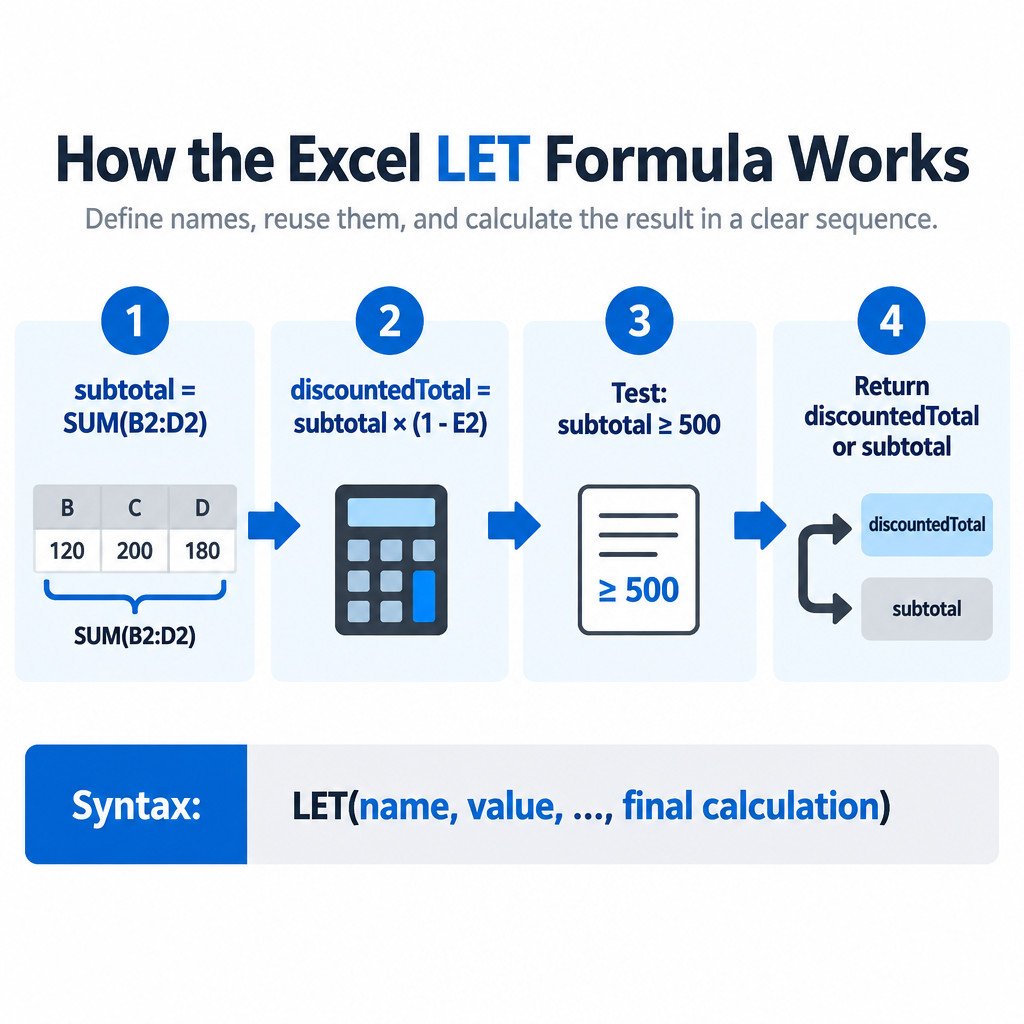
Refactor a repeated calculation step by step
Suppose a discount applies only when an order subtotal reaches 500. This illustrative formula calculates the same SUM twice:
=IF(SUM(B2:D2)>=500,SUM(B2:D2)*(1-E2),SUM(B2:D2))It is valid, but the business rule is buried among repeated expressions. Start by identifying the repeated part: SUM(B2:D2). Give it a name. Next, name the discounted result. Keep the IF test as the final calculation:
=LET(subtotal,SUM(B2:D2),discountedTotal,subtotal*(1-E2),IF(subtotal>=500,discountedTotal,subtotal))The two formulas should produce the same result for the same inputs. The LET version makes the rule easier to inspect: first calculate the subtotal, then calculate a possible discounted total, then choose which value to return.
Choose names that help the next reader
Name a value for what it represents, not for the order in which you happened to write it. Names such as netSales, taxRate, cutoffDate, and eligibleTotal communicate intent better than x, temp, or calc2.
- Begin names with a letter as a safe, readable convention.
- Use letters, numbers, and underscores where they improve readability, such as
tax_rate. - Do not use a name that looks like a cell reference, such as
A1orR1C1. - Keep related names in calculation order, because a later value can use an earlier LET name.
- Use a singular name for one value and a plural name for an array or collection when that distinction matters.
Excel allows many name/value pairs in one LET formula, but a high limit is not a design target. If a formula needs a long chain of opaque variables, consider whether helper cells, a separate table, or a reusable named formula would make the workbook easier to maintain.
LET names versus defined names
A LET name is local to one formula. It is appropriate for an intermediate result that matters only there, such as a subtotal used in a single pricing calculation. A defined name can refer to a range, constant, or formula for use elsewhere in the workbook. Choose a defined name when the reference has a stable meaning across multiple formulas; choose LET when the name only clarifies one formula.
For example, a workbook-wide defined name such as SalesTaxRate may be useful in many sheets. In contrast, subtotal inside one invoice formula is usually best kept local. Workbook names can be reviewed and managed in Name Manager, while LET names do not become reusable Name Manager entries. Microsoft’s guide to defining and using names explains the broader workbook-name feature.
Audit before replacing a working formula
Refactoring should improve readability without changing the result. Keep the original formula until the revised version has been compared on representative rows: a typical row, a row at the threshold, a blank or zero-value row if those are valid inputs, and a row with a negative value if the sheet permits one. This is especially important when the original formula combines rounding, dates, lookups, or error handling.
- Copy the original formula to a temporary comparison cell.
- Enter the LET version in the working cell or a second comparison cell.
- Check that both results match for representative inputs.
- Change one input at a time and confirm that the expected portion of the logic changes.
- Only then replace the old formula across the intended range.
Fix common LET mistakes
| Problem | What to check |
|---|---|
| The formula returns an error immediately | Confirm that every name is followed by a value and that the final argument is the calculation to return. |
| A name is rejected | Replace cell-reference-like names and simplify punctuation. Use a meaningful name beginning with a letter. |
| The formula works on one computer but not another | Verify that every intended editor and user has an Excel version that supports LET. |
| The result changed after refactoring | Compare the original and revised formulas on the same row, then inspect each named value in sequence. |
| IFERROR makes the formula look fixed | Find the underlying error first. IFERROR can hide errors that still need attention. |
When a result is unexpected, select the formula and use Formulas > Evaluate Formula to step through the calculation. This can help reveal where an input, reference, or intermediate expression stops matching your expectation. Microsoft also cautions that IFERROR hides all errors, not just a particular error type, so it should not be used as a substitute for checking a newly refactored formula. See Microsoft’s Evaluate Formula guidance.
A practical decision checklist
- Use LET when an expression is repeated or an intermediate calculation needs a clear label.
- Keep the original logic intact first; improve naming before attempting broader changes.
- Use formula-local LET names for local clarity and defined names for reusable workbook concepts.
- Test the new formula against the old one before filling it down or sharing the workbook.
- Do not wrap errors in IFERROR merely to make a result appear clean.
Used with restraint, LET turns a dense formula into a small, readable sequence of calculations. Its main benefit is maintainability: a future edit has fewer repeated pieces to find, and a reviewer has clearer clues about what each part is meant to do.
