
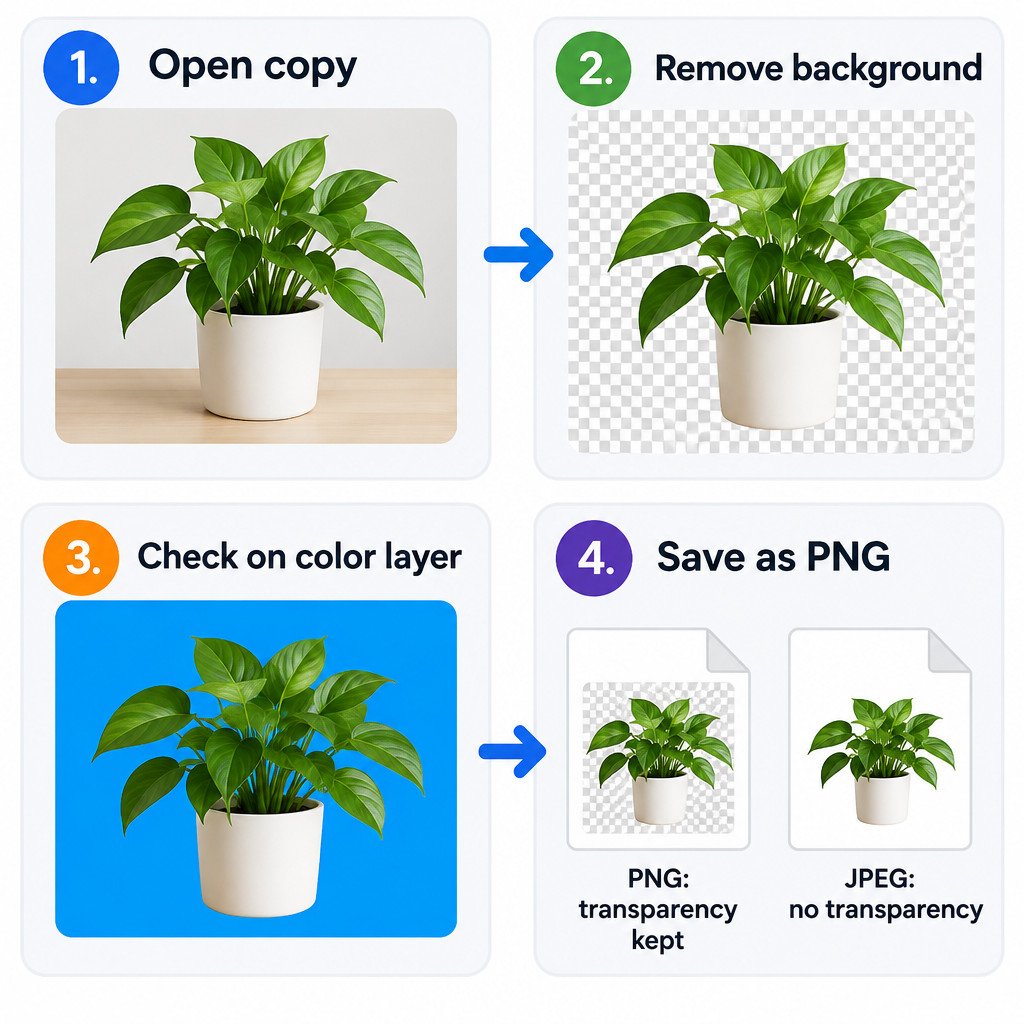
To make a transparent PNG in Microsoft Paint on Windows 11, remove the image background, check that the removed area shows Paint’s checkerboard pattern, then save the working copy as a PNG. Do not save the final cutout as JPEG: JPEG files do not retain transparent pixels.
This is useful when you need a product, person, icon, or object to sit cleanly over a slide, document, web graphic, or another photo. Paint’s automatic background removal works best when the subject is clearly separated from a relatively simple background. Fine hair, transparent objects, thin wires, and similar foreground/background colors can need manual cleanup or a different editor.
Before you remove the background
- Start with the highest-quality version of the image you have. Enlarging a small, compressed image will not create cleaner edges.
- Open the image in Paint, then use Save as to create a working copy before editing. This protects the original photo.
- If you cannot find Remove background, Layers, or transparency-related controls, update Paint from the Microsoft Store and reopen it. Microsoft continues to issue Paint updates and fixes, although feature availability can vary with the installed version.
Paint added support for layers and transparent PNG files in its newer app experience. Transparent portions appear as a checkerboard rather than as white pixels, and content on lower layers becomes visible where upper-layer pixels are erased. Microsoft’s Paint announcement describes these layer and transparency behaviors.
Remove the background
- Open or paste the image into Paint.
- Select the image or click the canvas as needed, then choose Remove background from the toolbar.
- Let Paint process the image. The removed area should become checkerboard, leaving the intended subject visible.
- For an image with several objects, use a rectangular selection around the object you want first, then apply background removal to that area when the control is available for a selection.
Paint can apply automatic removal to the full canvas or to a rectangular selection. That makes a selection useful when only one part of a larger image needs to become a cutout. Microsoft’s background-removal overview documents both modes.
Check the cutout with a temporary color layer
A checkerboard confirms transparency, but it is not always the easiest way to notice small leftovers. A light gray fragment can disappear against the checkerboard yet become obvious when the PNG is placed on a dark presentation slide. Layers provide a simple review method.
- Open the Layers panel and keep the cutout image on its own layer.
- Add a new layer and move it below the cutout layer.
- Fill the lower layer with a strong, contrasting color, such as dark blue, bright green, or black.
- Zoom in around edges, gaps, handles, cables, and other narrow details. Look for unwanted background pixels and accidental holes in the subject.
- Hide or delete the temporary color layer when the review is complete.
This check does not improve the automatic selection by itself. It simply makes errors easier to see before the file is used elsewhere. Try more than one test color if the subject contains a similar color.
Make conservative manual corrections
Use a high zoom level and make small changes. The eraser can remove a few stray pixels from the background; selection tools can help isolate a larger unwanted patch. After each change, toggle the colored test layer on and off to ensure you have not erased part of the subject.
Do not expect Paint to provide the detailed masking, edge refinement, or semi-transparent brush control available in dedicated image editors. If automatic removal cuts into hair, lace, glass, shadows that matter, or a similarly colored object, repeated erasing may make the result worse. In that case, begin with a cleaner source photo or use an editor designed for precise selections.
Save as PNG and verify the result
- Choose Save as after the cutout looks correct.
- Select PNG picture as the file type.
- Use a new filename if you want to retain the editable working copy.
- Close and reopen the saved PNG, or place it over a colored background in another document, to confirm that the checkerboard areas remain transparent.
PNG supports an alpha channel, which records pixel opacity. A fully transparent pixel has no visible color in the final composite; a fully opaque pixel is visible. JPEG has no alpha channel, so exporting the cutout as JPEG replaces transparent regions with ordinary image pixels, commonly a solid background.
| Save format | Transparency preserved? | Typical use |
|---|---|---|
| PNG | Yes | Cutouts, interface graphics, screenshots, images placed over other backgrounds |
| JPEG | No | Photographs where a rectangular image and smaller file size are more important |
Troubleshooting common Paint transparency problems
| Problem | Likely cause | Practical next step |
|---|---|---|
| Remove Background is missing | An older Paint version or a feature not yet present on that installation | Update Paint through Microsoft Store, restart the app, and check again. |
| The result looks white in another app | The file may have been saved as JPEG, or the viewing app may show a white page behind a valid PNG | Check the extension is .png and test it over a deliberately colored background. |
| Rough or missing edges | The source has low contrast, compression artifacts, or intricate detail | Try a sharper image with a simpler background; make only limited manual corrections in Paint. |
| Unexpected background fragments remain | Automatic removal did not distinguish similar colors or small areas | Use the temporary contrasting layer, zoom in, and erase only the visible fragments. |
A useful final checklist
- The original image is still available and unchanged.
- The unwanted area appears as a checkerboard in Paint.
- The subject has been checked over at least one contrasting temporary layer.
- The exported file uses the .png extension.
- The saved PNG has been reopened or tested over a colored background.
For simple cutouts, this workflow avoids a common failure: doing the removal correctly and then losing the transparency at export. Keep the layered working copy until the PNG has passed the final test.
Sources
- Microsoft Paint release notes
- Microsoft resources for deprecated Windows client features (Paint 3D deprecation context)
