
Use a Microsoft Defender Offline scan when you are concerned that malware may be hiding or resisting removal while Windows is running. The scan restarts the PC into Windows Recovery Environment (WinRE), runs before the usual Windows session loads, and then returns to Windows. It is a sensible next step after repeat malware detections or other signs of a persistent infection, but it is not a guarantee that every threat can be removed.
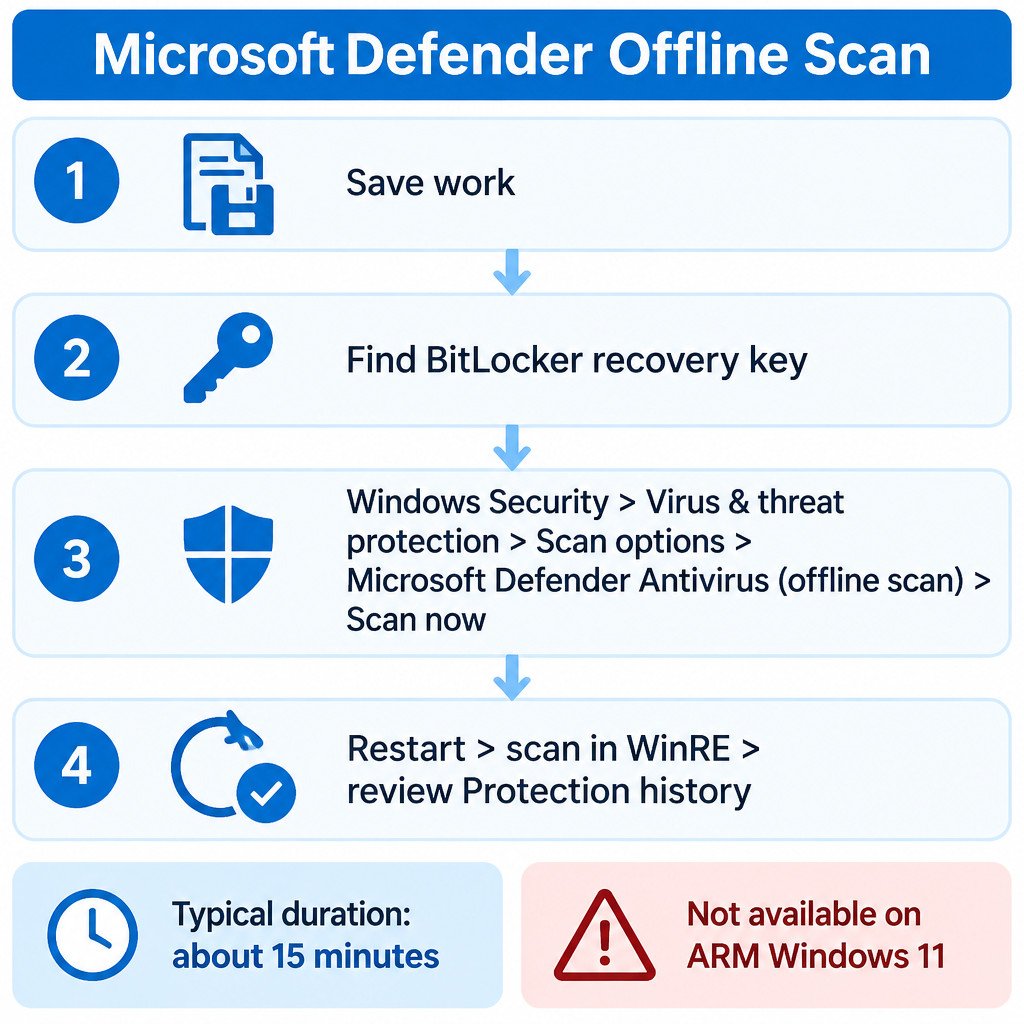
Before starting, save open work and close applications: the process restarts the computer. Install available security intelligence updates first so Defender uses current definitions. Microsoft says the offline scan normally takes about 15 minutes, although the actual time can vary with the device and what the scan finds. It requires administrator privileges and an enabled Windows Recovery Environment. It is not available on ARM versions of Windows 11. Microsoft’s Defender Offline documentation describes these requirements and the scan’s purpose.
Choose the scan that matches the problem
| Scan type | Best use | Important limitation |
|---|---|---|
| Quick scan | A routine check of locations malware commonly targets. | It is not designed to examine every accessible file. |
| Full scan | A wider check when you want Windows to examine files and running programs. | Windows remains running, so highly evasive malware may be harder to inspect. |
| Custom scan | A specific folder, drive, or suspicious file. | It only covers the location you choose. |
| Microsoft Defender Offline scan | Repeat detections or concern about malware that hides while Windows is active. | It is not a replacement for backups, account recovery, or professional incident response. |
If the concern is one downloaded installer or folder, a targeted scan is usually the lower-impact first check. In File Explorer, right-click the item, choose Show more options if Windows 11 shows that menu, then choose Scan with Microsoft Defender. That is not equivalent to an offline scan, and the option may be unavailable when another antivirus product manages protection. Microsoft’s file-scan instructions cover this alternative.
Check BitLocker recovery access first
An offline scan can trigger a BitLocker recovery-key prompt on an encrypted PC. Do not begin until you know where to get that key. The recovery key is a 48-digit number and may be stored with a Microsoft account, a work or school account, a printout, or a USB drive. On a managed work device, contact your IT team rather than changing encryption settings or attempting to bypass company policy. Microsoft cannot recreate a lost recovery key. Microsoft’s BitLocker recovery-key guidance explains the common locations.
Some technical guidance recommends suspending BitLocker protection before this kind of restart to avoid the prompt. That should not be the default for most home users: suspension temporarily reduces startup-integrity checking. If you can access your recovery key, leaving protection enabled is the more cautious choice.
Start Microsoft Defender Offline Scan
- Open Start, search for Windows Security, and open it.
- Select Virus & threat protection.
- Under Current threats, select Scan options.
- Select Microsoft Defender Antivirus (offline scan).
- Select Scan now.
- Approve the restart prompt after confirming that work is saved and your BitLocker recovery key is accessible.
The screen may look different from the normal Windows desktop after the restart. That is expected. Defender scans from WinRE rather than from the regular Windows session, which makes it harder for some persistent threats to interfere with the scan. Let the device finish and restart normally; avoid forcing it off unless it is clearly unresponsive for an unusually long time.
Review Protection history after Windows returns
After sign-in, open Windows Security > Virus & threat protection > Protection history. This is where Windows Security records detected items and actions taken during the scan. The Windows Security support documentation confirms that offline-scan results are available there. See Microsoft’s scan and Protection history overview.
- Quarantined or removed: Defender isolated or removed the item. Keep it quarantined unless you have a specific, well-supported reason to believe it is a false positive.
- Detected: Open the entry and read the available details, including the affected item and action. A detection alone does not always tell you whether cleanup is complete.
- Allowed threat: This means an earlier action permitted the item. Do not select Allow merely to stop an alert; doing so can restore or exempt a harmful item.
- No current threats: This is reassuring, but it does not prove that every symptom on the PC was caused by malware or that no compromise occurred.
Interpret the result in context
An offline scan is most useful as one part of troubleshooting. For example, an illustrative situation: Defender repeatedly reports the same threat after each normal restart. An offline scan can check before that suspected program has a chance to run in the ordinary desktop session. By contrast, a browser that is slow only when a particular extension is enabled is more likely to need browser troubleshooting than an offline malware scan.
Also distinguish malware alerts from system instability. Blue screens, failed updates, or an app crash can result from drivers, damaged system files, or conflicting software. Treat a confirmed detection seriously, but do not assume that every Windows problem has a malware explanation.
If the threat returns or the PC remains unstable
- Install Windows updates and updates for browsers and other commonly used applications.
- Run a full Microsoft Defender scan after the offline scan, especially if Protection history shows a detection.
- Uninstall software you do not recognize or no longer need, but avoid deleting files at random from system folders.
- Restore personal files only from a backup created before the suspected infection, where appropriate. Scan restored files before opening them.
- For a work-managed device, report the issue to the organization’s IT or security team. They may need to investigate accounts, network access, or company data.
If you suspect password or session theft, use a known-clean device to change important passwords, review account sign-in activity, and revoke unfamiliar sessions where the service provides that option. An antivirus scan can remove a malicious file, but it cannot undo credentials that may already have been copied. For ransomware, confirmed data loss, or signs that a device is still being controlled remotely, disconnect it from networks if practical and seek qualified technical or organizational support.
A cautious order of operations
- Save work, update Defender intelligence, and locate the BitLocker recovery key.
- Run the offline scan if persistence or evasion is a reasonable concern.
- Read every relevant Protection history entry rather than dismissing alerts.
- Run a full scan and update software if a threat was found.
- Address account security and backups separately from device cleanup.
This approach keeps the scan focused on what it can do: inspect the PC before the regular Windows session starts. It also avoids the two risky shortcuts of disabling protection without a plan or treating a clean scan as proof that no further recovery steps are needed.
