
When Chrome feels slow, one page stops responding, or your computer’s fans become unusually loud, the useful question is not simply whether Chrome is using resources. It is which Chrome task is using them. Chrome Task Manager shows individual tabs, extensions, and background pages so you can investigate the specific item rather than closing the whole browser.
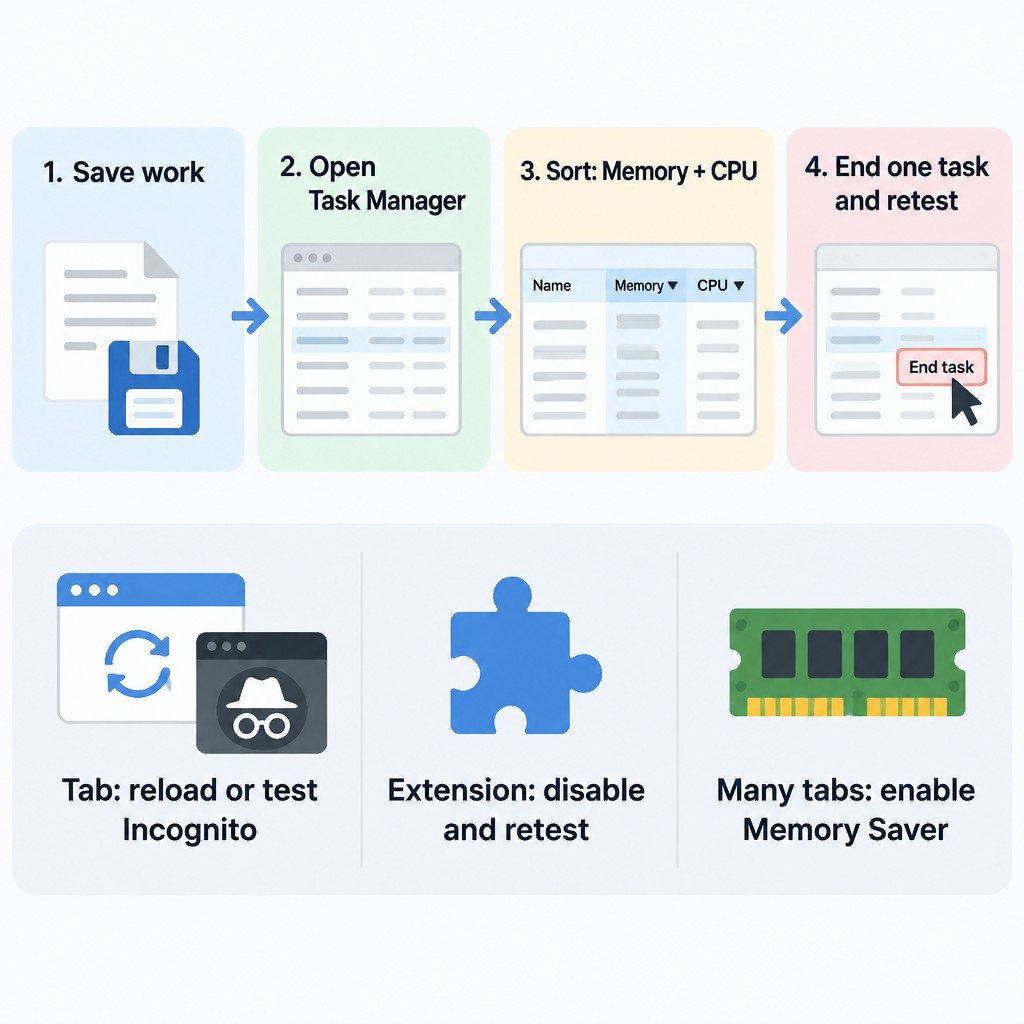
Save work first. Ending a task can discard unsaved text in a form, an in-progress upload, an online edit, or game progress associated with that task. Task Manager is a diagnostic and containment tool; ending a process may restore responsiveness, but it does not repair the underlying cause.
Open Chrome Task Manager
On a desktop computer, select Chrome’s three-dot More menu, then choose More tools and Task manager. You can also press Shift+Esc while Chrome is active. Google’s Chrome Help documents this route along with sorting tasks and ending a selected process: Speed up Google Chrome.
The window lists Chrome’s separate tasks and columns such as Memory footprint and CPU. Start by sorting on Memory footprint. If the slowdown is occurring now, compare CPU too. A task at the top of either list is a lead, not automatic proof that it is broken.
A video call, a large spreadsheet in a browser tab, a mapping tool, or a graphics-heavy site can reasonably need more memory or processor time than a simple article. Look for a task whose resource use is unexpectedly high relative to what it is doing, especially if the symptom returns when you use it.
| Task type | What it usually represents | First diagnostic action |
|---|---|---|
| Tab or page | A website open in Chrome | Reload it or end that task, then reproduce the same action. |
| Extension | An add-on running in Chrome | Disable that extension temporarily and repeat your normal workload. |
| Background page | Background activity, often associated with an extension | Note its name and inspect the related extension before removing anything. |
End one suspected task and observe the result
Select the suspected row, then choose End process. A page may display an error message or reload. An extension may stop providing its feature until Chrome is restarted or the extension is enabled again. That is expected behavior and gives you a clean observation: did browser responsiveness return when that one item stopped?
Do not end several tasks at once if you can avoid it. Changing one variable makes the result interpretable. If the browser remains slow after you end a high-memory tab, the tab may have been a visible symptom rather than the only cause.
If an extension is the likely cause
Open Chrome’s More menu, choose Extensions, then Manage extensions. Turn off only the extension that corresponded with the Task Manager entry or repeatedly coincides with the problem. Use Chrome normally long enough to repeat the activity that previously caused the slowdown. Extension controls, including enabling, disabling, removal, and site access, are described in Google’s extension management guide.
- Record the extension name and the site or action that triggered the issue.
- Toggle the suspect extension off.
- Repeat the same normal task, as closely as practical.
- If the issue disappears, turn the extension back on once and repeat the test.
- Remove it only when the correlation repeats, or leave it disabled while you seek an update or alternative.
If trouble occurs only on particular sites, inspect the extension’s site-access setting as well. An extension that is useful on one site may not need permission on every site. Avoid treating a single successful test as conclusive: websites change, and performance can vary with network activity and the work being done in the tab.
If a tab or website is the likely cause
First reload the tab and try the same task again. Then try it in an Incognito window and compare. Incognito is a cleaner comparison session, and extensions normally do not run there unless they have been explicitly allowed. If the problem disappears in Incognito, that suggests an extension, stored site data, profile setting, or another session difference may be involved. It does not identify which one by itself.
For example, an illustrative result might look like this: a document editor becomes slow in a regular window, its Task Manager row rises during scrolling, and it works normally in Incognito. Disable one relevant extension in the regular window and repeat the scroll test. Only that follow-up comparison can strengthen the case for the extension; otherwise, site data or a profile difference remains plausible.
Use Memory Saver for many inactive tabs
If no single task stands out but you routinely keep many tabs open, Memory Saver may be appropriate after your diagnosis. In Chrome Settings, open Performance and enable Memory Saver. Chrome can deactivate inactive tabs so they reload when you return to them. This helps with memory pressure; it is not a cure for one CPU-heavy site or a faulty extension.
Some tabs may stay active because of their current activity, including media playback, downloads, partially completed forms, pinned tabs, or connected devices. Plan around that behavior: save form work before leaving it, and do not expect a tab with active work to behave like an idle page. Chrome explains these controls and their limits in its Performance settings documentation.
Choose the next step from the evidence
| What you find | Practical next step |
|---|---|
| One tab repeatedly uses unusual resources during a specific action | Reload or close it, then investigate that site’s task or try the task in Incognito. |
| One extension repeatedly correlates with the slowdown | Disable it, retest, and remove it only after a repeatable result. |
| Memory use is broadly high with many open tabs | Reduce the active workload and consider enabling Memory Saver. |
| Unrelated sites repeatedly load or connect poorly | Investigate Chrome, the connection, security software, or the operating system rather than blaming one tab. |
Escalate without losing useful settings
If the same issue affects multiple unrelated sites after you have tested extensions, make sure Chrome is up to date and work through connection or loading troubleshooting. A settings reset is a later option, not the first response to a single slow tab: it changes selected Chrome settings and disables extensions, while bookmarks and saved passwords are not deleted. Google includes Incognito comparison, extension isolation, and reset guidance in its Chrome loading and connection troubleshooting.
The durable habit is simple: capture the symptom while it is happening, identify one unusual task, make one reversible change, and retest the same workload. Chrome Task Manager turns a vague “Chrome is slow” report into evidence you can act on without immediately reinstalling or resetting the browser.
