
A browser profile is a separate set of browsing data and preferences inside the same browser. Creating a Work profile and a Personal profile lets you keep their signed-in accounts, bookmarks, history, saved passwords, extensions, and appearance largely separate while still using one Windows or macOS account.
For most people, profiles are the simplest way to stop a work calendar opening in a personal session, prevent personal bookmarks from filling a work toolbar, or test an extension without disrupting a daily setup. They are an organization tool, not a substitute for a separate operating-system account or device security.
What a browser profile separates
Each profile has its own local browser data. The precise list and sync behavior vary by browser and by the options selected when you sign in, but profiles commonly separate the following:
- Bookmarks, favorites, and reading lists
- Browsing history and address-bar suggestions
- Saved passwords, payment methods, and autofill entries
- Signed-in website sessions and cookies
- Extensions and their settings
- Browser settings, themes, and profile colors
For example, an Outlook or Google account signed into a Work profile does not automatically sign the same website into a Personal profile. That makes it easier to keep two accounts open at once. Google describes Chrome profiles as separate spaces for bookmarks, history, passwords, and other settings; its profile menu is also where you add and switch profiles. Google Chrome Help: Manage Chrome with multiple profiles.
What profiles do not protect
A profile is not a separate Windows or macOS user account. Someone who can use your unlocked computer may be able to switch to another browser profile. Profiles also do not replace full-disk encryption, a screen lock, endpoint management, or an employer’s policies for company data.
Use a separate operating-system account when another person regularly uses the same computer and should not access your files or browser data. Use a managed work device or follow your organization’s guidance for sensitive work. A browser profile is best treated as a practical divider that reduces accidental mixing, not as a hard access-control boundary.
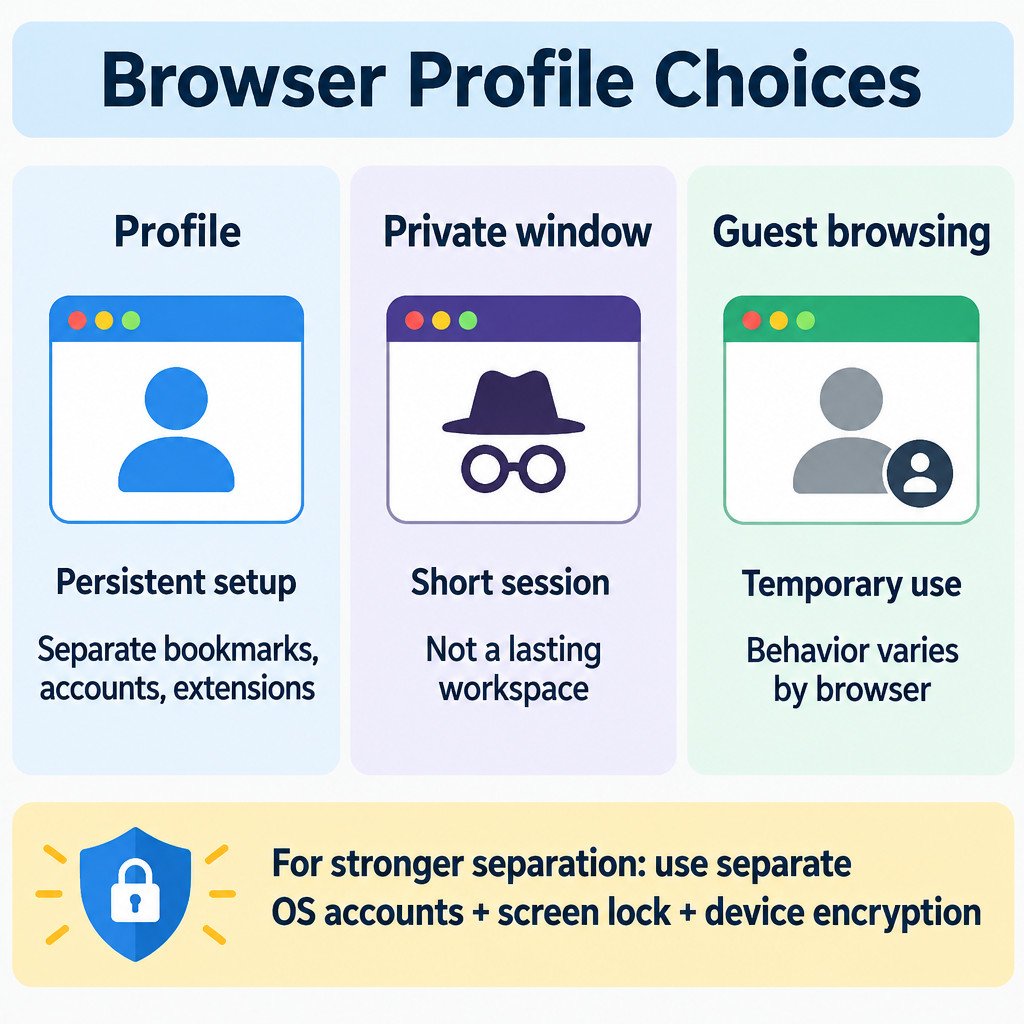
Profiles, private windows, and guest browsing are different
| Option | Best for | What remains after you close it |
|---|---|---|
| Browser profile | Ongoing work, personal, client, or test setups | Its bookmarks, settings, extensions, and other profile data remain |
| Private or incognito window | A short session that should not add normal local history or keep most session cookies | Typically little session data; downloads and bookmarks may remain |
| Guest browsing | A temporary session for another trusted user or a one-off task | Behavior is browser-specific; Edge says its guest profile does not save browsing history or data |
Private browsing does not create a lasting, separately configured workspace. A profile does. Conversely, a profile normally keeps data between sessions, so it is the better choice when you need a consistent set of accounts and tools.
A practical three-profile pattern
A simple setup for a working professional is Work, Personal, and Test. Give each profile a distinct name and color so the browser window itself signals which context you are using.
- Work: Sign in with the account approved for work. Keep work bookmarks and required extensions here.
- Personal: Use for personal email, shopping, personal cloud storage, and non-work extensions.
- Test: Use when troubleshooting a site or assessing an extension. Where practical, leave it unsigned in and add only the extension or setting being tested.
The Test profile is especially useful for diagnosis. If a website works in an otherwise clean Test profile but fails in your usual profile, the difference may involve an extension, a stored site cookie, a browser setting, or an account-specific condition. That result narrows the investigation; it does not by itself prove which item caused the problem.
Create and switch profiles in Chrome
- Select the profile icon near the top-right of the Chrome window.
- Choose Add and create a new profile.
- Choose a name and visual identifier, then decide whether to sign in with a Google account.
- To change context later, select the profile icon and select the profile you need.
Signing in can synchronize selected browser data to other devices using that same account. Before enabling sync in a Work profile, consider whether your employer permits it and which data categories are appropriate to synchronize.
Create and switch profiles in Microsoft Edge
- Select the profile icon at the top-right of Edge.
- Choose an option to add a profile.
- Choose a personal or work/school profile as appropriate, then decide whether to sign in and sync.
- Use the same profile menu to switch profiles.
Edge can keep settings, favorites, extensions, themes, and preferences separate by profile. Its documentation also covers creating a profile without existing data, using guest browsing, and removing profiles. Microsoft Support: sign in and create multiple profiles in Edge.
Create and switch profiles in Firefox
Firefox profile controls can look different across versions because Mozilla is rolling out a newer interface gradually. If you do not see a profile menu, type about:profiles in Firefox’s address bar. From that page, you can create, rename, launch, set a default, and remove profiles.
Firefox profiles store personal information such as bookmarks, passwords, and preferences separately from the Firefox program files. Mozilla Support: Firefox Profile Manager documents the available profile actions and the removal warning.
Avoid account and sync mistakes
Profile separation is most useful when the labels, sign-in choices, and extensions match the purpose of each profile. Avoid signing the same personal browser-sync account into every profile unless you intentionally want data to overlap across devices. Also check which account a website shows before uploading a file or sending a message; a profile reduces mix-ups but cannot eliminate them.
On an employer-managed browser, profile creation, synchronization, extensions, or account sign-in may be limited by policy. Do not work around those controls. Use the profile options your organization provides, or ask its IT team which arrangement is acceptable.
Before deleting a browser profile
Removing a profile can erase its local data. Sync may preserve some items in an online account, but that depends on what was synchronized and whether sync completed. Treat deletion as irreversible until you have checked what you need.
- Open the profile and confirm its name so you do not remove the wrong one.
- Export or otherwise preserve bookmarks that are not synchronized elsewhere.
- Confirm that important passwords are available through an approved password manager or the intended sync account.
- Check whether any downloads, local web-app data, or extension settings need separate backup.
- Review sync status before removal, then read the browser’s deletion confirmation carefully.
Firefox deserves particular care here: selecting its Delete Files option removes the contents of that profile folder, according to Mozilla’s documentation. If you only want Firefox to stop listing a profile, read the available removal choices rather than assuming they have the same effect.
Quick decision checklist
- Use browser profiles to keep persistent work, personal, client, or testing contexts organized.
- Use a private window for a short-lived session, not for a lasting separate setup.
- Use separate Windows or macOS accounts when people sharing a device need real separation.
- Use a screen lock, device encryption, and organization-approved controls for stronger protection.
- Check sync and preserve needed data before removing any profile.
Profiles work best as deliberate lanes: one purpose, clear visual cues, and only the accounts and extensions needed for that purpose. That small amount of structure makes everyday browsing less error-prone without overstating what the feature can secure.
