For most self-hosted n8n instances, a sensible starting policy is to save full data for failed executions, save no data for successful executions, avoid progress and manual-run data unless you actively use them, and prune finished records by both age and count. This preserves useful debugging evidence without allowing ordinary successful runs to become an open-ended storage cost.
Execution data is the history n8n stores for a workflow run. Depending on the execution and settings, it can include node inputs and outputs, status information, and data needed to inspect or retry a run. High-frequency workflows can therefore grow the execution database quickly, even when they are healthy.
Scope and the retention trade-off
This procedure is for self-hosted n8n, especially installations configured with Docker Compose. n8n Cloud retention and plan-specific behavior are outside its scope. The relevant self-hosted settings are documented in n8n’s execution environment variables reference.
Retention is a trade-off, not a cleanup switch with one correct setting. Keeping everything makes later diagnosis easier but consumes more storage. Keeping too little can remove the exact node input, error context, or saved state needed to investigate an intermittent problem or retry an execution.
Before changing configuration, look at the Executions view and answer three questions: Which workflows fail often enough to need history? How long do failures usually take to notice? Are manual tests or in-progress node data genuinely useful to your team? Also make a backup appropriate to your deployment before changing containers, environment files, or the database. Pruning is not a backup strategy.
- Keep error data when failures need investigation or a possible retry.
- Reduce success data for routine, repeatable workflows that have another audit trail where needed.
- Keep manual data only when useful, such as during active workflow development.
- Use both a time and a volume limit so an unexpected burst cannot defeat an age-only policy.
A practical Docker Compose policy
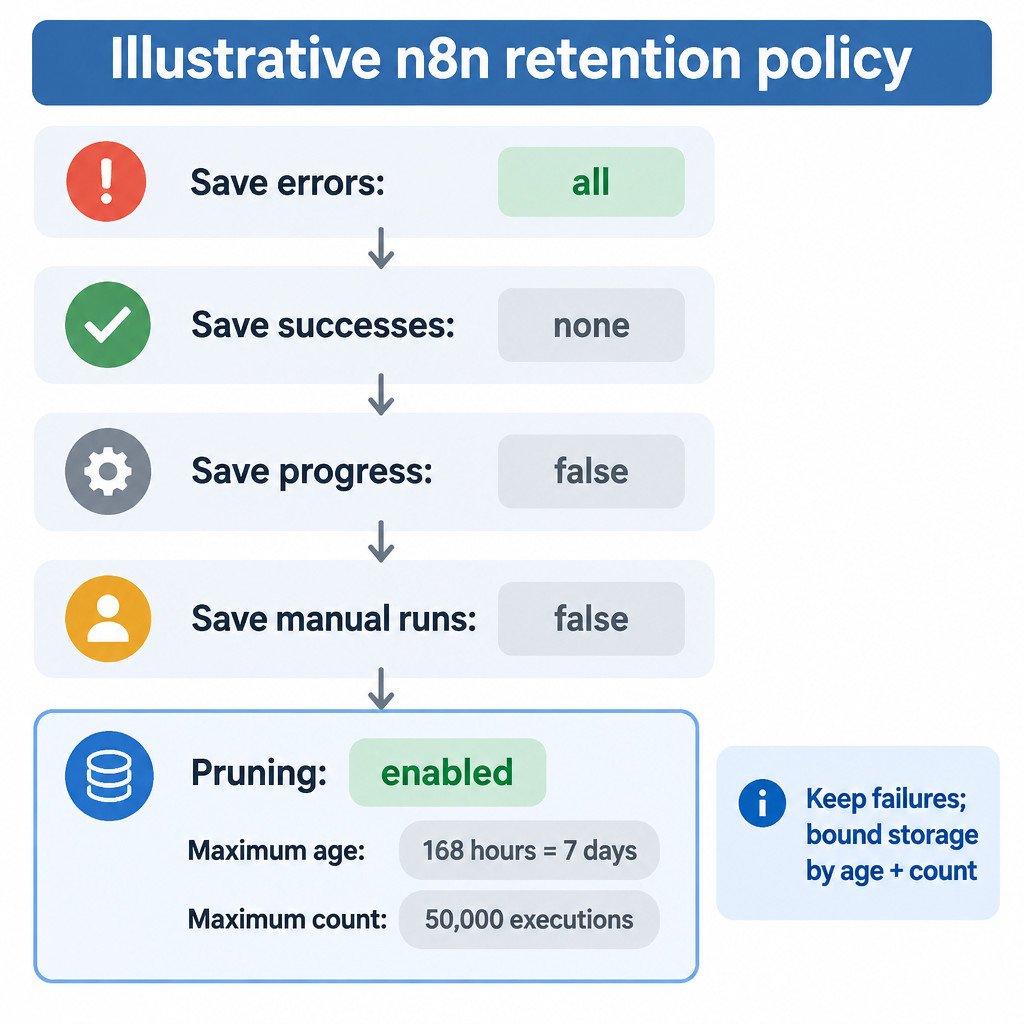
Add the following variables under the n8n service’s environment: section, then redeploy the service. These are illustrative choices, not universal defaults. They retain data for failed runs, omit it for successful and manual runs, disable progress saving, and turn on pruning.
services:
  n8n:
    environment:
      EXECUTIONS_DATA_SAVE_ON_ERROR: all
      EXECUTIONS_DATA_SAVE_ON_SUCCESS: none
      EXECUTIONS_DATA_SAVE_ON_PROGRESS: "false"
      EXECUTIONS_DATA_SAVE_MANUAL_EXECUTIONS: "false"
      EXECUTIONS_DATA_PRUNE: "true"
      EXECUTIONS_DATA_MAX_AGE: 168
      EXECUTIONS_DATA_PRUNE_MAX_COUNT: 50000
EXECUTIONS_DATA_MAX_AGE is measured in hours, so 168 hours is seven days. EXECUTIONS_DATA_PRUNE_MAX_COUNT sets a separate upper bound on retained execution records. In this illustrative example, age handles normal cleanup while the 50,000-record cap limits growth during a sudden increase in workflow activity.
Choose the numbers from your own operating needs. For example, if someone reviews failures only on weekdays and a workflow may run thousands of times daily, seven days may be too short for one workflow and too long for another. Workflow-level execution settings can be a better fit when a small number of workflows require more diagnostic history than the rest.
What pruning does and does not do
Pruning applies to finished executions; it is not intended to remove a run that is still active. n8n also protects annotated executions from pruning, so annotations can be used deliberately when a particular incident needs to remain available. Deletion is buffered rather than necessarily being an immediate physical removal at the instant an execution reaches its limit. See n8n’s execution data documentation for the current pruning behavior and configuration details.
The key limitation is simple: once retention removes an execution, its saved diagnostic evidence is no longer available in n8n. Do not set a very short limit merely to shrink a database file. First make sure the window still covers realistic detection, triage, and escalation time.
Restart and verify the policy
- Redeploy or restart n8n using your normal Compose process.
- Run a harmless successful test workflow, then inspect its execution entry. Confirm that it does not retain data in a way you did not intend.
- Create a controlled failure, such as supplying an intentionally invalid value to a non-production test endpoint, and inspect the failed execution.
- Confirm that the saved node data is sufficient to identify the failing step and its inputs without exposing secrets unnecessarily.
- Review the execution count and storage trend after normal workload resumes. Adjust the age or count limit if the retained window is impractical.
A controlled failure matters because configuration can look correct while still leaving too little context for a real incident. Use a test that is safe to repeat and does not create records, send messages, or charge a payment method.
Be careful when retrying retained failures
Retained execution state makes retries possible, but retrying is not automatically safe. A failed node may have already performed part of an external action before the error occurred. Before retrying, check the destination system for a created ticket, sent email, posted message, or completed transaction. n8n notes that retries create a new execution and may replay items handled by the failed node; they are available only while the original execution is retained. The details are in the All executions guide.
SQLite storage note
If your self-hosted instance uses SQLite, pruning makes freed space available for later use but does not necessarily make the database file smaller on disk. If reclaiming file size is the goal, use n8n’s documented vacuum option or perform a manual SQLite VACUUM only with suitable database precautions and a verified backup. Treat that as database maintenance separate from retention policy.
Retention checklist
- Retain error data long enough to discover and investigate failures.
- Disable routine successful-execution data only after confirming other required audit evidence exists.
- Set both an age limit and a maximum record count.
- Review retention after a workflow changes, especially when it gains new external side effects.
- Use annotations for exceptional executions that must survive ordinary pruning.
- Keep tested backups; execution retention cannot restore deleted configuration or database data.
A good policy is intentionally modest: enough failed-run history to solve problems, bounded storage for everything else, and a periodic review when workflow volume or risk changes.