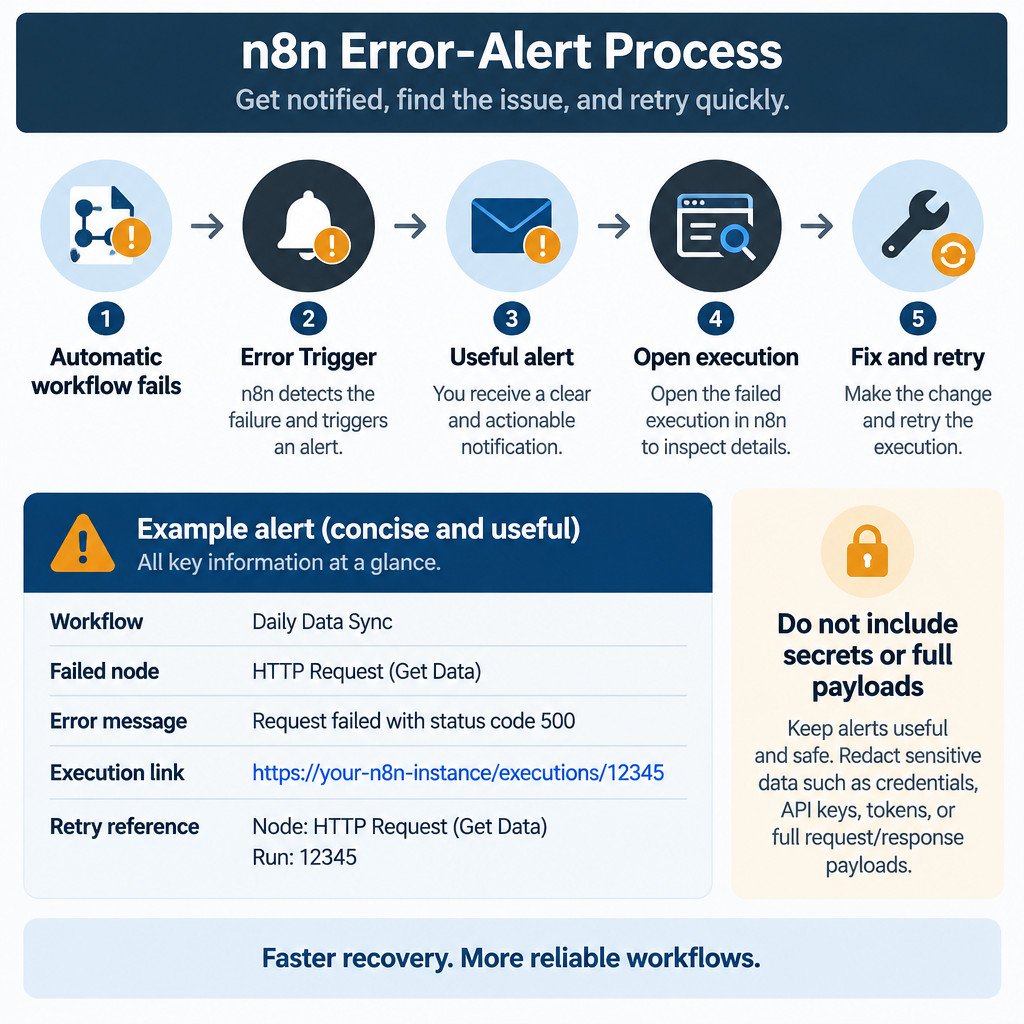
An n8n error workflow is a separate workflow that starts when a linked, automatically running workflow fails. Set it up once, attach it in each monitored workflow’s settings, and send a short alert containing the workflow name, failed node, error message, and an execution link when available.
The aim is not to copy the whole failed execution into an inbox or chat channel. A useful alert tells an owner what failed and where to investigate, while keeping sensitive inputs, credentials, and customer data out of the notification.
What an n8n error workflow does
n8n’s Error Trigger starts an error-handling workflow after a linked workflow fails during an automatic run. The Error Trigger must be the first node in the handler, and the relevant workflows must be published. It cannot be tested by clicking manual execution on the editor canvas. n8n’s Error Trigger documentation explains these operating conditions.
Keep this handler separate from the workflow it monitors. That makes it reusable and avoids mixing business steps with operational notifications. One handler can serve several workflows, provided its alert format is general enough.
Before you start
- Choose a notification destination that has a clear owner, such as a shared operations mailbox or team channel.
- Confirm the workflow being monitored has an automatic trigger and is published.
- Decide who investigates alerts and what counts as urgent.
- Use a non-critical test workflow first. Deliberate failures are safer than breaking a production workflow to test notifications.
An error workflow reports a failure; it does not repair the underlying process. Treat the alert as the beginning of an investigation loop.
Create the reusable handler
- Create a new workflow with a descriptive name, such as Automation Failure Alerts.
- Add Error Trigger as its first node.
- Add the node that sends your chosen notification. Configure the destination and authentication according to that node’s requirements.
- Build a concise subject or message from the Error Trigger output.
- Save and publish the handler workflow.
- Open a workflow you want to monitor. In Workflow Settings, select the handler in the Error workflow setting, then save the monitored workflow.
The Error workflow setting is where n8n links a normal workflow to its handler. The same settings area also contains execution-saving and redaction controls that affect what is available for later diagnosis. n8n’s workflow settings guide describes these options.
Put the right context in the alert
For an ordinary workflow failure, the Error Trigger commonly provides workflow details plus execution details. In the notification node, expressions can read values such as {{$json.workflow.name}}, {{$json.execution.lastNodeExecuted}}, and {{$json.execution.error.message}}.
| Alert field | Useful expression | Why it belongs in the alert |
|---|---|---|
| Workflow | {{$json.workflow.name}} | Identifies the automation that needs attention. |
| Failed node | {{$json.execution.lastNodeExecuted}} | Narrows the first place to inspect. |
| Error message | {{$json.execution.error.message}} | Supplies the immediate failure reason. |
| Execution ID | {{$json.execution.id}} | Helps locate the run in execution history. |
| Execution URL | {{$json.execution.url}} | Lets an authorized recipient open the failed run directly when present. |
| Retry reference | {{$json.execution.retryOf}} | Shows that the failed run was itself a retry when populated. |
Not every field is guaranteed. In particular, an execution ID or URL can be absent. Do not make your notification fail because an optional field is missing. Prefer a neutral fallback such as “Open n8n Executions and filter by workflow and time.” The error payload differs when a trigger node itself fails: relevant information can appear under trigger rather than the usual execution object. n8n’s error-handling guide documents both payload patterns.
Illustrative alert layout
This is an illustrative message format, not a required n8n template:
- Subject: n8n failure: [workflow name]
- Failed node: [last node executed]
- Error: [error message]
- Execution: [execution URL, if available]
- Retry: [yes/no or retry reference, if available]
- Next step: Review the failed execution before retrying.
Keep the message short enough to scan on a phone. The execution record is the place for deeper technical context; the alert is the pointer to it.
Test with a controlled automatic failure
Manual runs do not test Error Trigger. Instead, create or use a non-critical workflow with an automatic trigger, activate it, and cause a controlled failure with the Stop And Error node. Trigger the workflow through its normal automatic path, then confirm that the handler sends an alert. This verifies the link between the monitored workflow and the error workflow as well as the notification delivery.
After receiving the alert, open the execution record, inspect the node that failed, and correct the underlying issue. If you retry a failed execution, first consider whether earlier nodes may already have created an external side effect, such as sending a message or creating a record. n8n supports retrying with either the current saved workflow or the original workflow and prior execution data; those choices can produce different results after edits. The n8n executions documentation explains the available retry paths.
Keep alerts useful without exposing data
- Include identifiers and error summaries, not full request bodies, API responses, access tokens, passwords, or customer records.
- Limit access to the alert destination and execution history to people who need it.
- Set failed-execution retention long enough for realistic investigation, while accounting for storage and privacy requirements.
- Consider execution-data redaction where supported, but verify that the remaining information is still sufficient to diagnose common failures.
- Give each workflow or alert destination a named owner. An alert without ownership is only a record of a problem.
- Review the handler after n8n upgrades or workflow changes, especially if message expressions rely on optional fields.
A small, reusable error workflow turns unattended failures into actionable work: identify the workflow, point to the failed run, protect sensitive data, and investigate before retrying.