A passkey can make signing in quicker, but it should not be the only route back into an important account. The safe sequence is simple: keep your current password and recovery method, create the passkey, test it in a separate session, then decide whether any older sign-in method should change.
A passkey is a credential for a specific account. The service keeps a public key, while the corresponding private credential stays with the device or credential provider you choose. When you sign in, Windows Hello, a phone, a security key, or a password manager confirms that you can use that credential. Windows supports passkeys through Windows Hello and can also work with other providers and security keys.
For a passkey stored with Windows Hello, unlock capability depends on this PC and its Windows Hello setup. A passkey saved in a synced password manager may be available on other signed-in devices, subject to that manager’s own sync and recovery rules. Those are different recovery models, so choose based on the devices you use and the account’s importance.
Prepare before creating a passkey
- Use a Windows 11 PC with a working Windows Hello PIN, fingerprint, or face sign-in method. A PIN is especially useful as a fallback when biometric recognition is unavailable.
- Confirm that the account still has a password, recovery email, recovery phone number, recovery codes, or another approved recovery path that you can access.
- Update any recovery contact details before making account-security changes.
- Do not remove a password or existing passkey merely because creation appeared to succeed. A successful test sign-in is the relevant check.
Passkey controls differ by website. A Microsoft account, for example, has account-security options for creating and saving a passkey, while another service may call the feature “passkey,” “security key,” or “passwordless sign-in.” The broad flow is similar, but follow the labels shown by the account you are securing.
Choose the storage location first
| Where the passkey lives | Useful when | Access and recovery trade-off |
|---|---|---|
| Windows Hello on this PC | You mainly sign in from one personal Windows PC. | Convenient locally, but plan another recovery route before replacing or losing the PC. |
| Synced password manager | You regularly use several devices supported by that manager. | Portability can be better; access depends on the manager account, sync, and its recovery process. |
| Phone or tablet | Your phone is reliably available during sign-in. | Useful across nearby devices, but protect the phone and retain account recovery details. |
| Hardware security key | You want a separate physical sign-in device. | Keep a backup credential or recovery method in case the key is lost or damaged. |
This choice is not permanent, but changing it later requires care. Microsoft documents Windows Hello, password managers, phones or tablets, and physical security keys as possible places to save a passkey. Microsoft’s passkey setup guidance also notes that work or school options can be restricted by an organization.
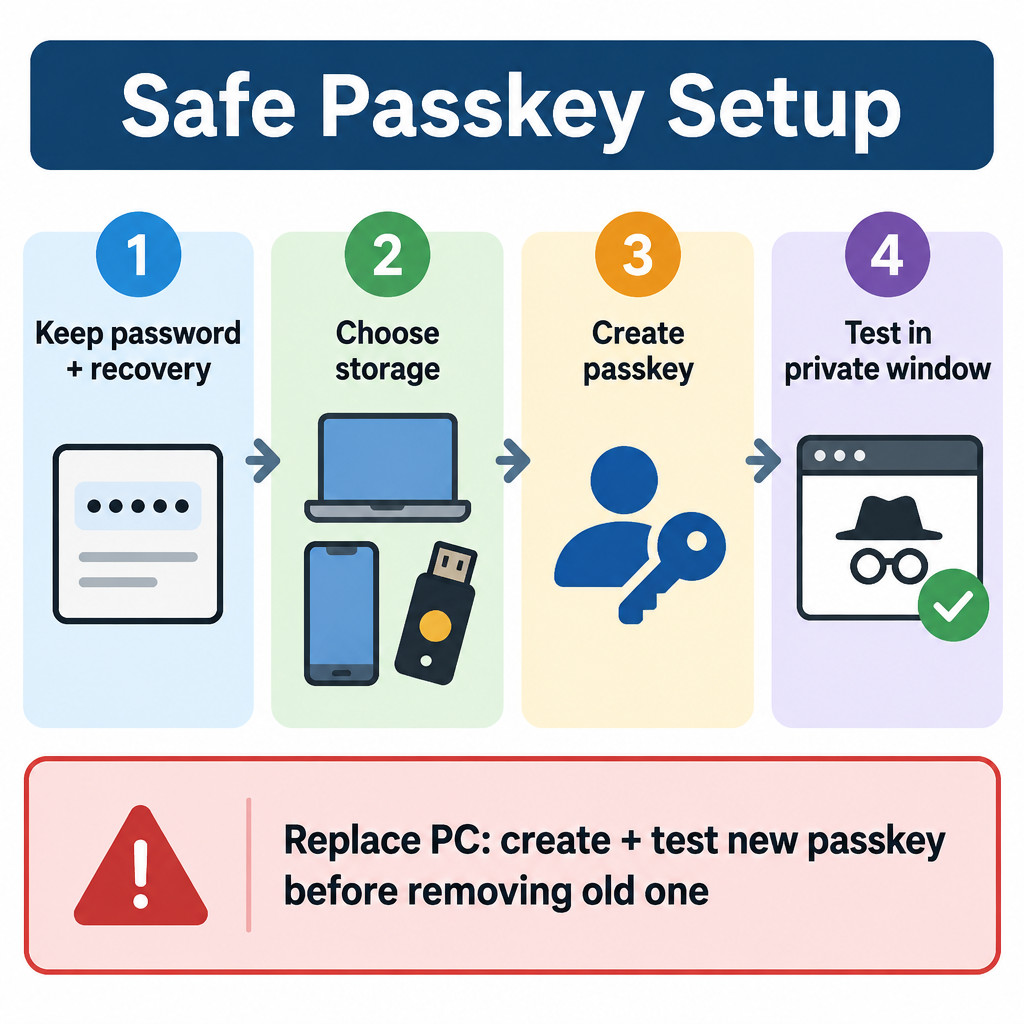
Create a passkey without disrupting sign-in
- Sign in to the account using your current working method.
- Open its security, sign-in, or passkey settings. Look for an option such as “Create a passkey” or “Add passkey.”
- When prompted, select the intended storage location. Read the prompt rather than accepting the first option automatically; Windows, a browser, or a credential manager may each offer a provider.
- Complete the Windows Hello prompt, phone approval, or security-key action.
- Give the credential a recognizable name if the service offers one, such as “Home desktop – Windows Hello” or “USB key – backup.” Avoid putting sensitive information in the label.
- Leave the existing password and recovery methods in place for now.
For a Microsoft account, the prompts may offer Windows Hello, a password manager, a mobile device, or a physical security key. The exact choices depend on the device, browser, installed providers, and account policy. Windows uses Windows Hello to verify creation and sign-in for a Windows Hello passkey; this is not the same as sending your Windows PIN to the website.
Test it before removing anything
Testing prevents the most common lockout: assuming a new credential works, then deleting the only method that actually did. Use a private browsing window, another browser profile, or a second device. This avoids relying on an existing signed-in session.
- Open the service’s normal sign-in page in the separate session.
- Choose the passkey sign-in option rather than entering the password first.
- Select the storage provider you intended to use if more than one is offered.
- Complete the Windows Hello or other verification prompt.
- Confirm that you reach the account and can perform a non-destructive action, such as viewing account-security settings.
- Sign out, then repeat the test once if the account is important or you plan to retire another credential.
If the test fails, retain the password and recovery methods. Check whether you selected the wrong credential provider, whether the passkey was stored on a different device, or whether the service requires a different browser flow. Delete and recreate an unused test credential only after you can still sign in through a known-good method.
View or delete passkeys saved locally in Windows
For passkeys stored locally by Windows, open Settings > Accounts > Passkeys. This area lets you review and remove local passkeys. Deleting an entry there removes that local credential; it does not delete the online account. It may, however, remove one of your ways to sign in, which is why testing and alternate recovery matter.
A passkey held by a password manager or on a security key is generally managed in that provider’s app or on the key, not necessarily from the Windows list. Likewise, the website’s security page may show registered passkeys even when Windows does not store the private credential itself. Treat the account page and the storage provider as two places to review during cleanup.
Windows passkey support and its management model are described in Microsoft Learn’s Windows passkeys documentation. Individual services can implement their own naming and management screens, so their interface may not precisely match Windows.
When you replace or retire a PC
Do not begin by deleting the passkey associated with the old PC. On the new PC, sign in using an existing recovery route or another approved credential, create a new passkey, and test it in a separate session. Only then remove the old device-bound passkey from the account and, if applicable, from the old Windows installation.
A passkey that is available through a synced credential manager can behave differently from a Windows Hello passkey created only on the previous computer. Even then, test the new machine rather than assuming sync has completed or that the site’s sign-in prompt will select the expected provider.
Work and school accounts need an extra check
An employer or school can limit which passkey providers are allowed. It may also require you to remove an old work credential from both the organization’s account-security portal and its storage location. If an option is unavailable or a removal is blocked, contact the organization’s IT support rather than trying to bypass the policy.
Quick troubleshooting
- No passkey option on the website: The service may not offer passkeys for that account type, region, browser, or sign-in path. Use the service’s own security settings and retain its current sign-in method.
- Windows Hello cannot verify you: Make sure you can unlock Windows with the configured PIN or biometric method. Resolve that first; do not disable your other account sign-in methods.
- The wrong provider appears: Cancel if needed and look for an option to choose another device or provider. A browser may present a manager that is not where you intended to save the credential.
- A work account does not allow the option: This can be an organization policy, not a fault with your PC.
- An unexpected approval prompt arrives: Decline it. Start sign-in yourself from the service you intend to use, then approve only a prompt that matches that action.
A safe passkey checklist
- Keep at least one verified recovery route for each important account.
- Know where each passkey is stored and label it clearly when the service allows labels.
- Test new passkeys outside your existing signed-in browser session.
- Create and verify a replacement credential before removing one tied to an old device.
- Review registered passkeys when you sell, recycle, lose, or replace a device.
For the Windows-specific management steps and old-device replacement sequence, see Microsoft’s guide to managing saved passkeys. Passkeys improve the sign-in experience, but they do not replace careful account recovery planning.