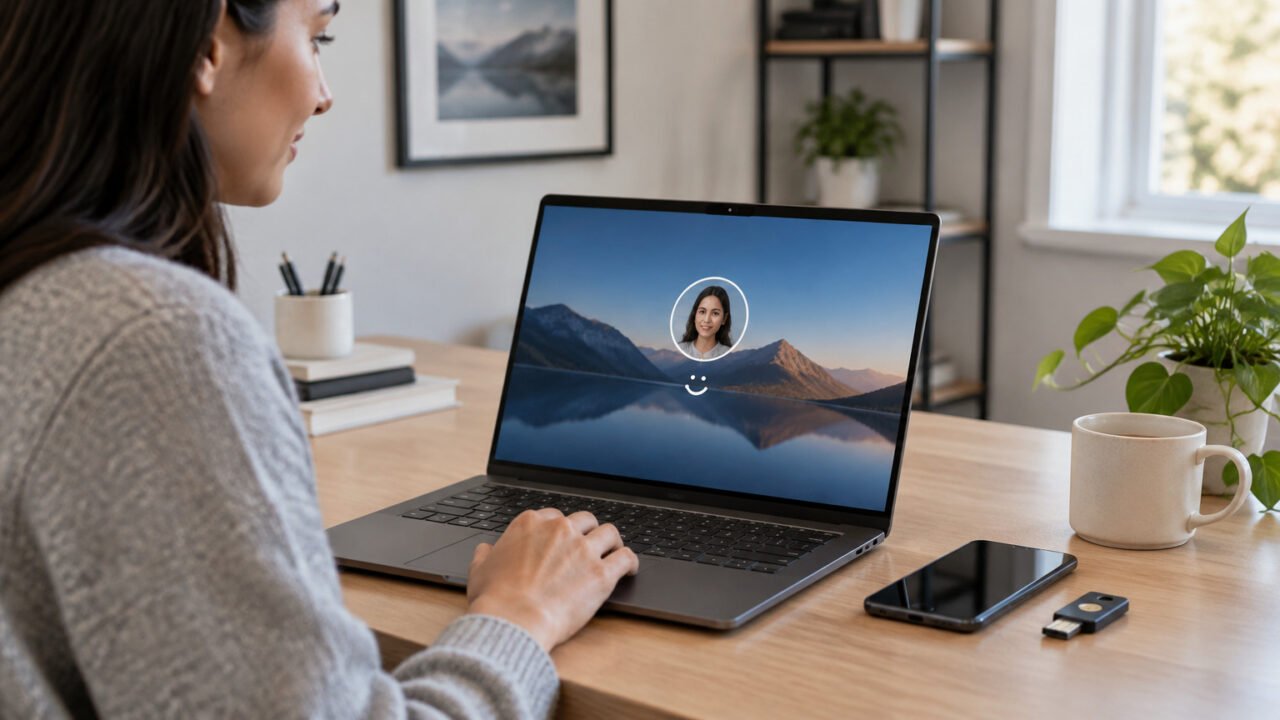
Quick Assist is a built-in Windows remote-help tool for a specific problem with a person you already trust. The safe rule is simple: contact the helper yourself through a phone number, chat, or workplace channel you independently know is genuine. Then use a newly generated Quick Assist code for that one session.
It is not unattended remote access. A helper cannot simply reconnect later with an old code: Quick Assist uses time-limited session codes, and the person sharing the PC must approve screen sharing and any request for control. Microsoft documents the standard session flow and these separate permissions in its Quick Assist support guide.
Prepare the PC before you share it
Agree on what needs fixing before either person opens the app. For example, say that the goal is to diagnose a printer error or change one Windows setting. A defined task makes it easier to notice a request that does not fit the conversation.
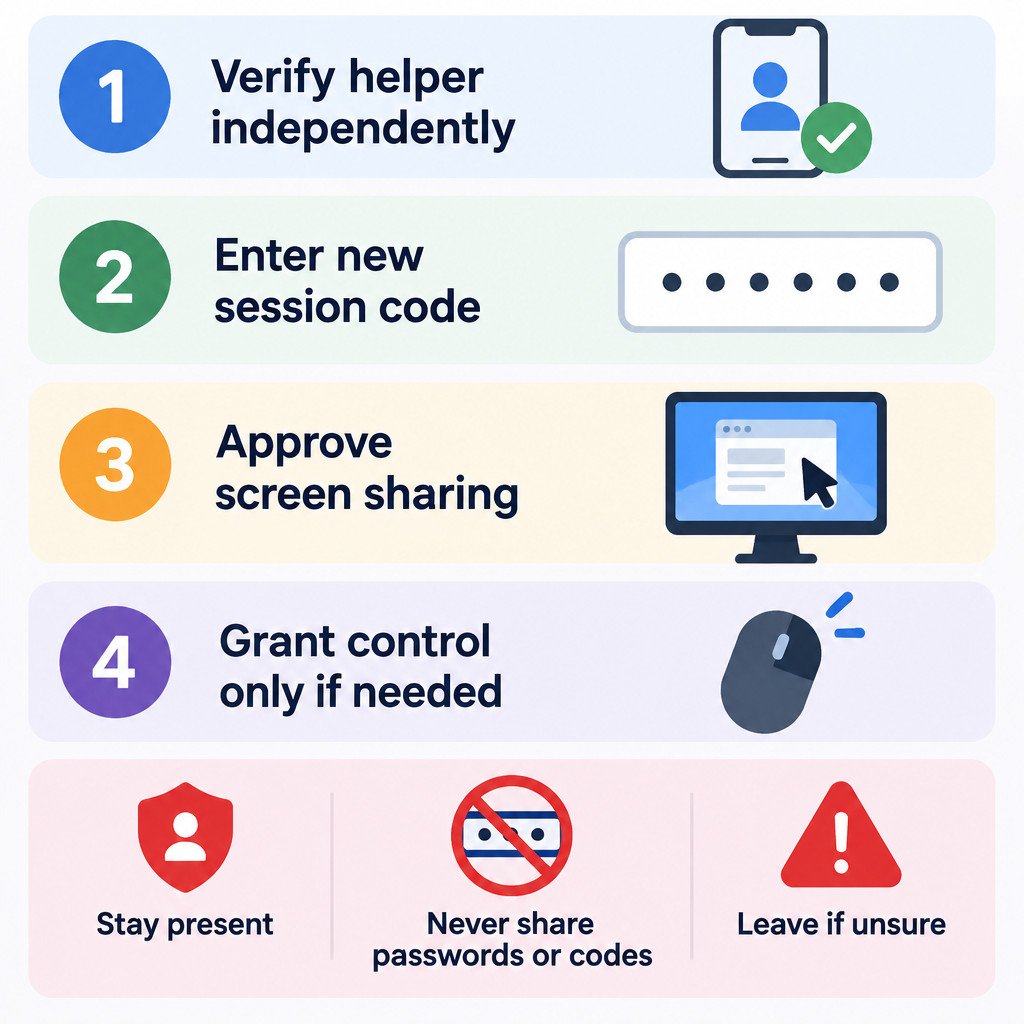
- Confirm the helper’s identity through a separate, known contact method. Do not rely on a pop-up, an incoming call, or a message that supplied its own contact details.
- Close banking, email, payroll, private documents, password managers, and work material that the helper does not need to see.
- Save open work. Remote assistance is not a substitute for a backup, and troubleshooting can sometimes require restarting an app or PC.
- Plan to stay at the computer for the entire session. If that is not possible, postpone it.
A company-managed PC may have rules that prevent Quick Assist from being installed or used. Do not work around those restrictions; use your organization’s approved IT support route instead.
Start a Quick Assist session
On the PC receiving help, search for Quick Assist from Start, or press Windows key + Ctrl + Q. If the app is not installed, Windows may direct you to Microsoft Store. Installation can be unavailable on a managed device.
- The trusted helper opens Quick Assist and selects Help someone. They sign in if prompted.
- The helper gives you the security code generated for this session. Treat it like a short-lived invitation, not a code to post in a chat or send to an unknown person.
- Enter the code in Quick Assist on your PC and select Submit.
- Read the screen-sharing prompt and explicitly allow it only after confirming who is requesting it.
Both computers need a working internet connection. Microsoft notes that Quick Assist connects over HTTPS and that organizations can disable or remove the app through management policies. If the connection fails, check ordinary connectivity first, then ask the relevant IT team if the device is managed; do not disable security software or change workplace network settings just to force a session.
Screen sharing and full control are different permissions
Screen sharing lets the helper see what is on your display. It does not automatically let them click, type, install software, or change settings. Full control is a separate request that you can approve or deny. Microsoft’s administrator documentation confirms that sharing and control both require user approval.
| Permission | What the helper can do | Safe default |
|---|---|---|
| Screen sharing | View your display while you operate the PC | Start here for advice, navigation, and diagnosis. |
| Full control | Use the mouse and keyboard on your PC | Allow only for a clear, limited task you understand. |
View-only support is often enough. A helper can point out where to find Device Manager, read an error message, or tell you which setting to choose while you make the change yourself. Grant control only when it will genuinely save time, such as reproducing a setting issue you have already agreed to investigate.
Stay in charge during the session
Watch the screen and read prompts yourself. Do not type a password, one-time verification code, recovery key, or payment information while another person can view the display. A legitimate helper can usually explain a safer alternative, such as asking you to sign in after they finish a task or instructing you where to click.
- Ask why a proposed change is needed before approving it.
- Decline surprise software installs, browser extensions, security-tool changes, or account changes.
- Use Cancel control if you want to take back mouse and keyboard control but still keep the conversation and screen-sharing session open.
- Use Leave to end the session completely when the task is done or anything feels wrong.
Ending the session is not rude; it is the correct response to an unexpected request. The next session will require a new code and fresh approvals.
Recognize the remote-support scam pattern
Quick Assist is a legitimate tool, but a legitimate tool can be used deceptively. Microsoft has documented social-engineering campaigns in which attackers impersonated support contacts and persuaded people to grant Quick Assist access. The risk is the unverified request and the pressure around it, not a defect you can diagnose from the app alone. Read Microsoft’s account of misuse of Quick Assist in social-engineering attacks for that context.
Reject a support request that begins with an alarming browser pop-up, an unexpected call, or a message demanding immediate action. Microsoft says it does not proactively contact customers with unsolicited technical support, and genuine Microsoft error messages do not include a phone number to call. Its technical-support scam guidance explains recognition and reporting options.
If a stranger has already connected, end the session immediately. Do not continue the conversation using contact details they provided. If you disclosed a password or approved an unfamiliar account or software change, use a separate trusted device or independently reached support channel to secure the affected account and report the incident according to the guidance relevant to your workplace or service.
Reusable checklist
- I initiated contact with the helper and verified their identity independently.
- I closed information that is unrelated to the repair.
- I entered only a newly generated code from that verified helper.
- I approved screen sharing deliberately.
- I granted full control only if it was necessary for the agreed task.
- I did not reveal passwords, verification codes, recovery keys, or payment details.
- I selected Leave when the task was complete or the session no longer felt right.
Used this way, Quick Assist can make a small Windows problem easier to resolve while keeping the final decisions, sensitive information, and ability to disconnect in your hands.