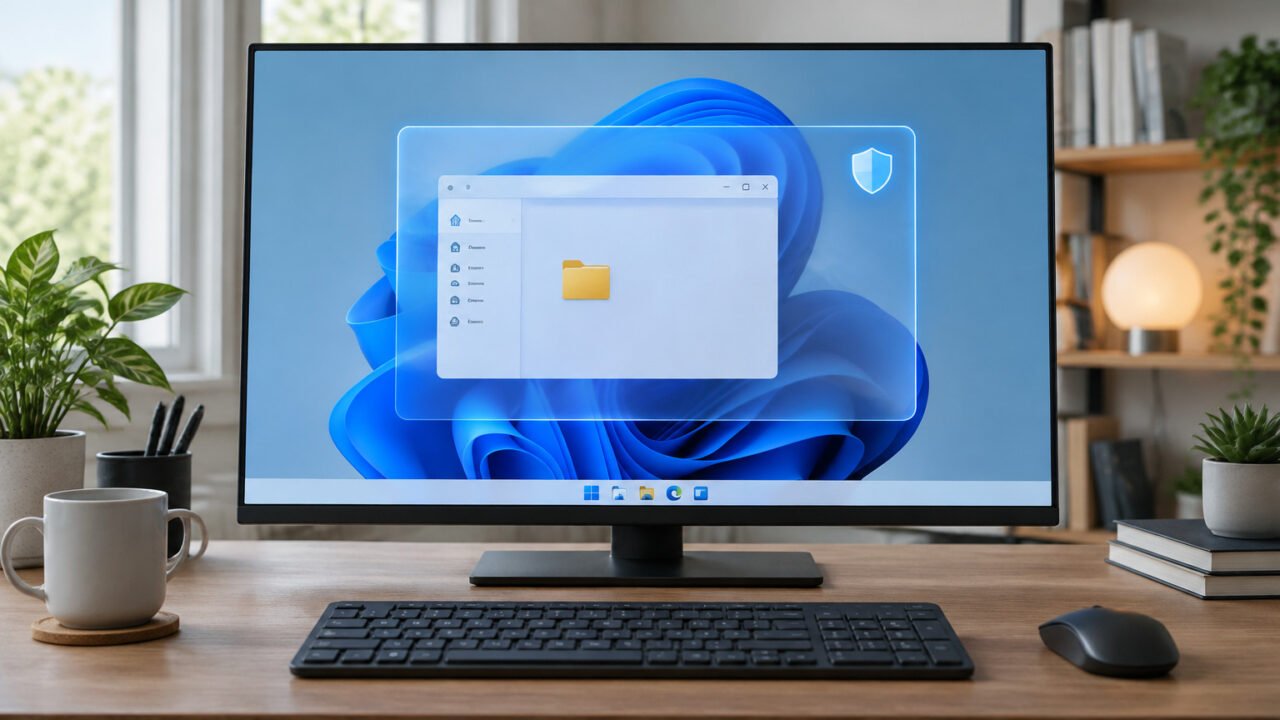
Windows Sandbox is a disposable Windows desktop that can be useful when you need to inspect an unfamiliar installer, utility, attachment, or browser extension before trusting it on your main PC. When you close the Sandbox, its installed software, files, and changes are discarded.
That reduces exposure, but it does not prove a file is safe or guarantee protection from every threat. Treat Sandbox as one layer: obtain files from a legitimate source where possible, keep Windows and security software updated, and do not put passwords, private documents, or other sensitive information into the test environment.
Check whether your PC can use it
Windows Sandbox is available on supported Windows 11 Pro, Enterprise, Education, Pro Education, and Pro for Workstations editions; it is not included with Windows Home. It also requires hardware virtualization and uses system resources while it runs. Microsoft lists virtualization support, a supported processor architecture, and available memory and disk capacity among the prerequisites. A work-managed PC may also prevent you from enabling optional Windows features.
Before changing anything, save open work. Then search Windows for Turn Windows features on or off, select Windows Sandbox, choose OK, and restart if Windows requests it. After the restart, search the Start menu for Windows Sandbox and open it. Microsoft’s installation instructions also document an optional administrator PowerShell method.
- Open PowerShell as an administrator.
- Run
Enable-WindowsOptionalFeature -FeatureName "Containers-DisposableClientVM" -All -Online. - Restart when prompted, then open Windows Sandbox from Start.
Use the graphical feature dialog if you prefer. On an organization-managed device, do not try to work around a policy that blocks Sandbox; ask the IT administrator whether there is an approved testing process.
Start with the least sharing possible
A new Sandbox normally has networking and clipboard sharing enabled. Networking can be needed to download a test file or see how a web-connected app behaves, but it also gives an untrusted program a route to networks the PC can reach. For an installer or document that does not need internet access, an offline Sandbox is the safer default.
Microsoft describes Sandbox as an isolated, lightweight environment whose state is discarded when it closes, while also warning that networking is enabled by default and can expose untrusted applications to an internal network. See the Windows Sandbox overview for the supported-edition and isolation details.
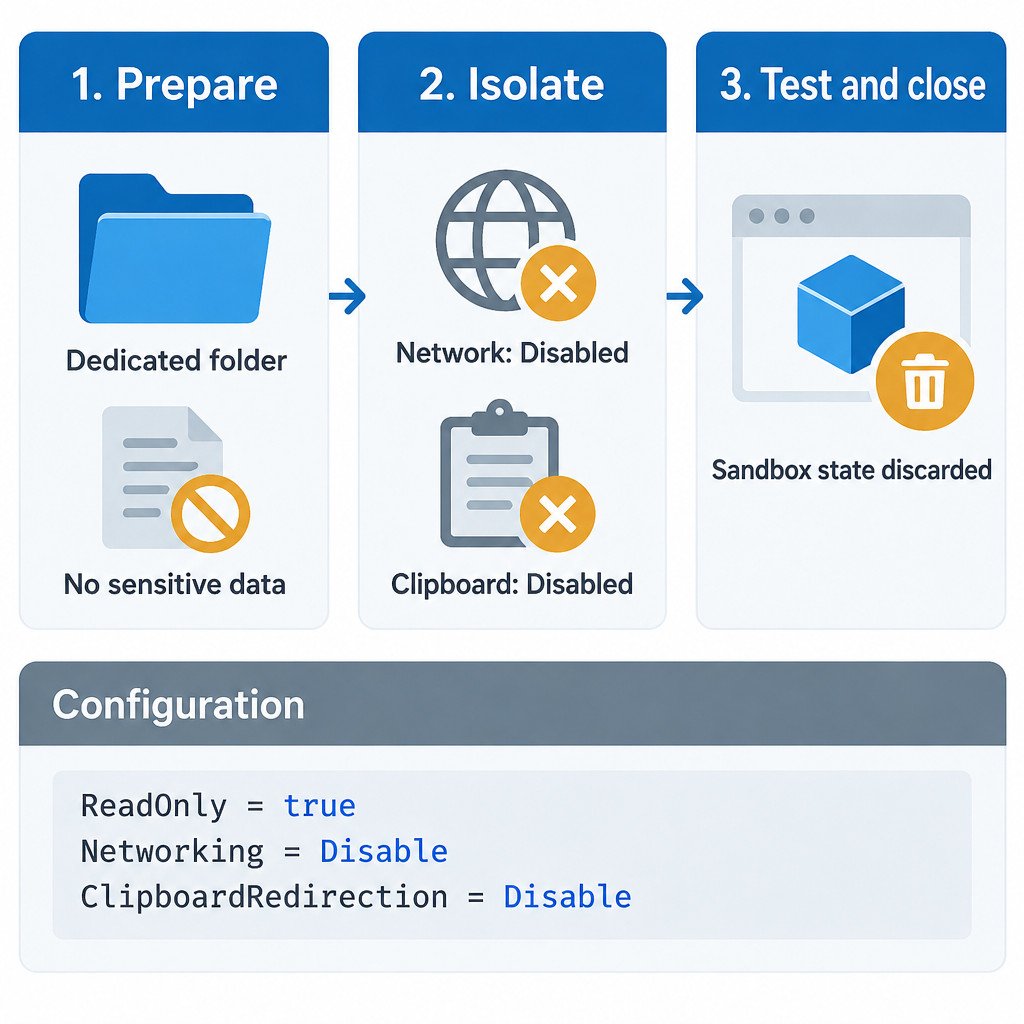
A practical offline testing workflow
- Decide whether the file truly needs a network connection. If not, use an offline configuration.
- Place only the specific file you intend to inspect in a dedicated transfer folder. Do not use a folder containing personal or work documents.
- Open a configured Sandbox, copy or access the test file, and examine it there.
- Do not sign in to important accounts, paste credentials, connect removable drives, or open confidential files during the test.
- Close the Sandbox when finished. Its temporary state is removed; keep notes or screenshots outside it only if they contain no sensitive content.
Observation has limits. An installer that appears normal in a short session may still be unwanted or harmful, and a program may behave differently without a network connection. Conversely, a failure in the Sandbox can result from its temporary nature or disabled networking rather than a problem with the file. Use the result to make a more informed decision, not as a verdict.
Create an offline .wsb configuration
A .wsb file starts Sandbox with chosen settings. The following illustrative template disables networking and clipboard redirection, then maps one host folder into the Sandbox as read-only. Create C:\SandboxTransfer, save this text as offline-test.wsb (not .txt), and open the saved file.
<Configuration>
  <Networking>Disable</Networking>
  <ClipboardRedirection>Disable</ClipboardRedirection>
  <MappedFolders>
    <MappedFolder>
      <HostFolder>C:\SandboxTransfer</HostFolder>
      <SandboxFolder>C:\Transfer</SandboxFolder>
      <ReadOnly>true</ReadOnly>
    </MappedFolder>
  </MappedFolders>
</Configuration>Networkingset toDisableprevents the Sandbox from using the network.ClipboardRedirectionset toDisablestops copy-and-paste sharing between the host and Sandbox.HostFolderis the folder on the main PC. Change it only to a dedicated, non-sensitive folder you control.SandboxFolderis where that folder appears inside the temporary desktop.ReadOnlyset totruelets Sandbox read the supplied file but prevents writes back to that mapped host folder.
Mapped folders are convenient, but they deliberately create a connection to host data. Avoid them unless they solve a real need. In particular, do not map Downloads, Documents, Desktop, cloud-sync folders, source-code folders, or any folder containing data you would not want unknown software to read. If a test must create output, manually copy back only a reviewed, non-sensitive result after closing the test application; do not make a broad host folder writable merely for convenience.
Microsoft’s .wsb configuration documentation covers these options and specifically cautions that mapped directories can expose host data or allow harmful software to affect the host. It also documents read-only mappings and other configuration choices.
When networking is necessary
Sometimes an app cannot be evaluated offline. In that case, use the default Sandbox only for the narrow test, and still minimize sharing: leave sensitive host folders unmapped, avoid clipboard use for secrets, and do not log in to email, password managers, banking, or work systems. Remember that disabling networking changes what you are testing, while enabling it increases exposure. Choose deliberately rather than treating either setting as universally correct.
Common setup problems
| Problem | Likely next step |
|---|---|
| Windows Sandbox is missing from Windows Features | Confirm the Windows edition and whether the device is managed. Windows Home does not include this feature. |
| A message says no hypervisor is available | Check that virtualization is supported and enabled in the PC firmware, then restart after enabling the Windows feature. |
| You cannot change the feature or configuration | On a work or school device, ask the administrator. Device policy can restrict these settings. |
| A mapped folder gives access errors | Use a simple dedicated folder rather than mapping the host Desktop, and check the documented mapped-folder guidance. |
| You need a second test desktop | Close the existing Sandbox first; only one Sandbox instance can run at a time. |
For error-specific guidance, including hypervisor and policy-related issues, use Microsoft’s Windows Sandbox troubleshooting guide. Firmware options, Windows builds, other virtualization software, and organizational management can all affect the outcome.
Keep the limitations in view
Sandbox runs a temporary environment based on the host Windows build; it is not a separate security operating system and it is not a replacement for backups, updates, Microsoft Defender or other endpoint protection, and careful download habits. Data you intentionally share through a mapped folder, clipboard, network connection, or account sign-in may be exposed to whatever runs inside it.
For a low-risk first pass, use a dedicated read-only transfer folder, disable networking and clipboard sharing, and close the Sandbox when done. If a file needs privileges, a live network, or access to valuable data to function, the safer choice may be not to run it until its source and purpose are better established.