If scheduled posts are consistently late, start with WP-Cron rather than disabling plugins at random. WordPress uses WP-Cron to handle scheduled publishing, update checks, and other timed work, but its default trigger depends on requests reaching the site. A low-traffic site may therefore run a due task later than its intended time.
One delayed post is not enough to identify the cause. Compare it with the pattern you see: a single post may have been affected by temporary server load, while repeated delays, Site Health warnings, failed automated updates, or overdue plugin jobs point to a scheduling or environment problem. WordPress documents the page-load nature of WP-Cron and its implications for scheduled tasks in its Cron Plugin Handbook.
Start by recording the exact symptom
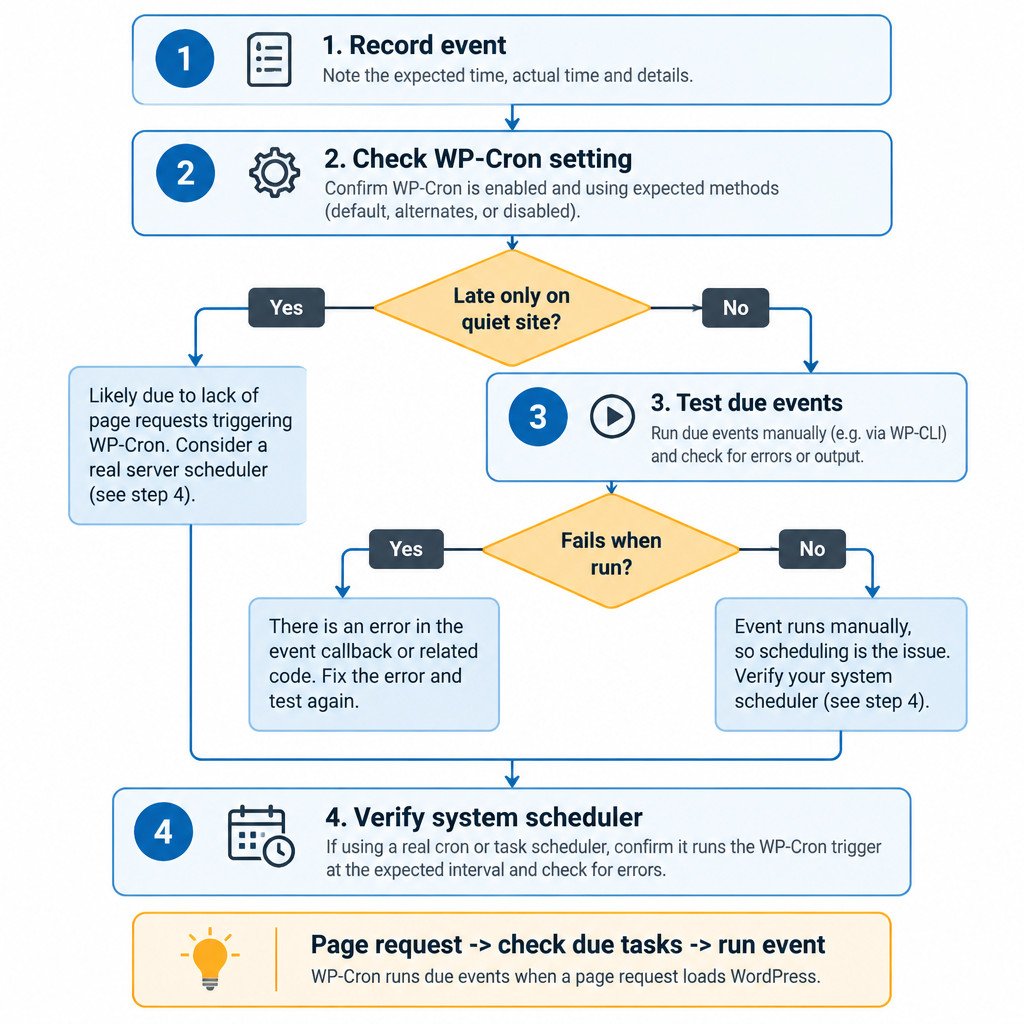
Open Tools > Site Health in the WordPress dashboard. Note the full wording of any critical or recommended item, especially the name of a late or failed scheduled event. Also record the approximate scheduled time, actual completion time, and whether the issue affects publishing, email, backups, imports, or updates.
An event hook that contains a plugin name is a useful clue, not a verdict. That plugin may own the task, but the underlying failure can still be a blocked loopback request, an unavailable external service, a timeout, or WP-Cron not being invoked often enough.
How the default schedule works
WP-Cron is not normally a continuously running server process. When WordPress receives a request, it checks whether scheduled work is due and attempts to process it. This design is convenient, but it ties timing to traffic and to the server being able to make the required internal request.
That means a quiet brochure site can publish a post late even when its configuration is otherwise healthy. Conversely, a busy site can have recurring failures if the cron request is blocked or exceeds resource limits. Treat this as a diagnosis path, not proof that every late post has the same cause.
Check whether page-load WP-Cron was deliberately disabled
Before changing anything, inspect the site’s wp-config.php file for this setting:
define( 'DISABLE_WP_CRON', true );This setting is often intentional. A managed host or administrator may have disabled the page-load trigger because a real server scheduler already calls WordPress at regular intervals. Do not remove it simply to make a warning disappear. First ask the host whether a replacement scheduled task exists, what command or URL it uses, and whether it has reported errors.
If there is no replacement scheduler, the setting can explain why due tasks remain overdue. If one does exist, focus on whether that scheduled task is running successfully and can reach the correct site environment.
Use WP-CLI only when you have appropriate access
SSH access and WP-CLI provide a more direct view of the queue. From the WordPress installation directory, this command lists scheduled events:
wp cron event listTo attempt only tasks that are currently due, use:
wp cron event run --due-nowThe output helps distinguish two cases: events are overdue but run when invoked manually, or they fail even when invoked directly. The first case often points to the normal trigger not firing reliably. The second gives you an error to investigate, such as a failed callback, connectivity issue, or timeout. These commands can execute real work, including sending emails or contacting APIs, so do not run them casually on a production site. See the official WP-CLI cron event command reference for available subcommands and options.
Rule out environment problems in a useful order
- Low traffic: Is the site quiet for long periods around the missed time? This makes page-load scheduling inherently less prompt.
- Loopback access: Can the server make an internal request back to the WordPress site? A loopback failure can prevent cron from starting.
- Access restrictions: Check whether a firewall, DNS rule, basic authentication, maintenance mode, or security layer blocks the cron request.
- Timeouts and resources: Review PHP and web-server error logs around the event time. Long imports, backups, or remote API calls may exceed available execution time or memory.
- External dependencies: If the task calls a payment, email, storage, or API provider, determine whether that service returned an error rather than assuming WordPress scheduling failed.
The WordPress hosting guidance highlights loopback limitations and server-level causes as common considerations. It also cautions that a staging site can still send emails or make external API calls if its scheduled jobs run, so do not treat staging as consequence-free. WP-Cron and System Cron is a useful reference when discussing the issue with a host or developer.
When a real system scheduler is the better fix
Use a host-managed system scheduler when timing matters: scheduled publishing at a specific time, ecommerce maintenance, queued email, backups, imports, or other tasks that should not wait for a visitor. A system scheduler runs independently of public traffic and invokes WordPress on the interval approved by the hosting environment.
The safe sequence is important. Have the host or administrator create the scheduled task using the host’s documented command, PHP binary, site path, and interval. Verify that it runs successfully. Only then disable page-load WP-Cron if that is part of the host’s recommended configuration. Do not copy a generic cron command from another server, and do not run scheduled jobs as root.
Test the replacement without risking important work
- Create a non-critical draft post and schedule it several minutes ahead.
- Check whether it publishes close to the intended time.
- Observe a known benign scheduled event across several scheduler intervals.
- Review Site Health and relevant logs after the test.
- Repeat on another day before relying on the setup for orders, customer emails, or backups.
For example, an illustrative test might schedule a draft for 10:15, then confirm that it publishes near that time on several separate tests. The aim is not a universal number of minutes; it is evidence that the scheduler is both running and able to complete WordPress tasks in your environment.
Know when to escalate
Ask your host or a WordPress developer for help when loopback requests fail, logs show server errors, a managed platform controls cron configuration, or the site is multisite. Security and caching layers can require environment-specific changes that are unsafe to guess at. Bring the event hook name, timestamps, Site Health message, relevant log excerpt, and the results of any safe WP-CLI test.
The practical rule is simple: identify whether tasks are late because WordPress is not being triggered, because the trigger is blocked, or because the task itself fails. That evidence is more useful than changing plugins blindly.