The safest way to investigate a suspected WordPress plugin or theme conflict is to work on a staging site when you have one, or use a per-user troubleshooting session on production. Do not deactivate plugins or switch themes for every visitor just to test a theory. Troubleshooting Mode gives the logged-in administrator a stripped-down session while other users and visitors continue to receive the normal active theme and plugins.
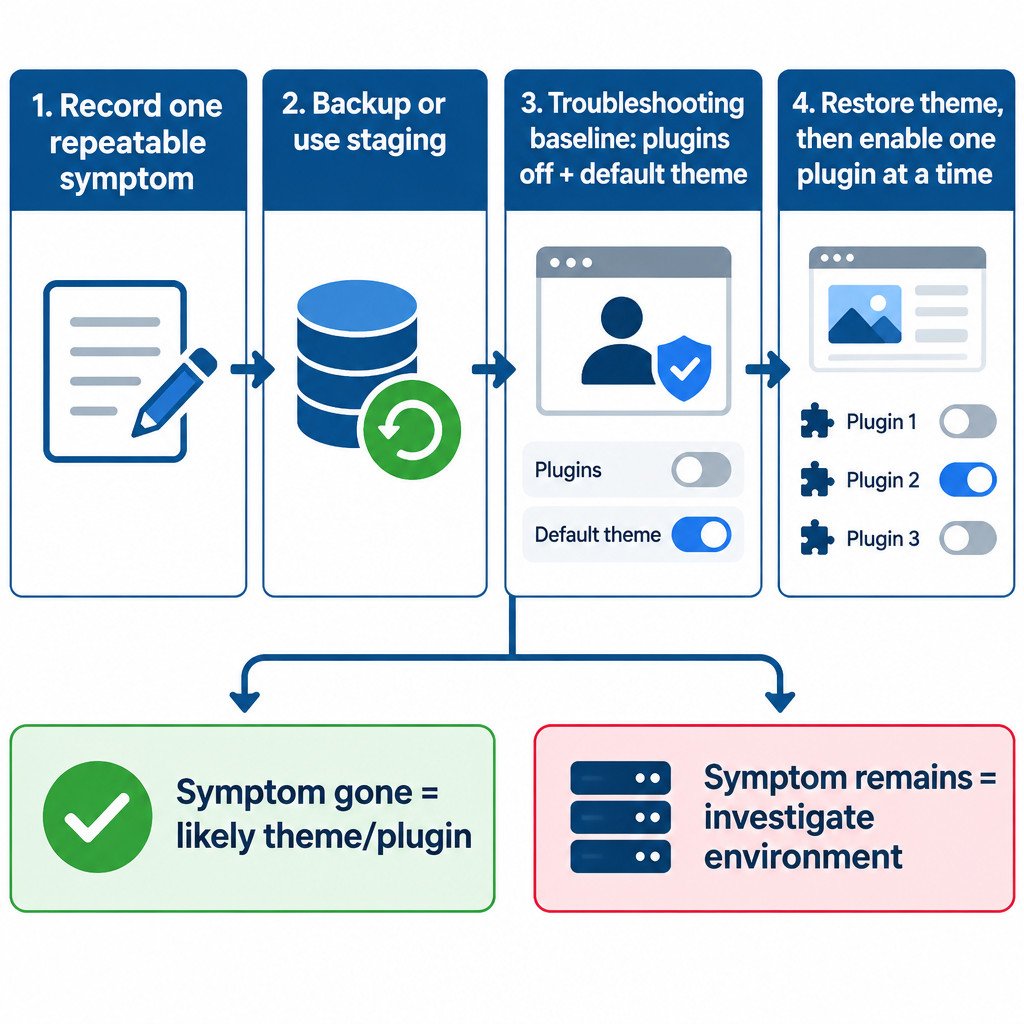
Before changing anything, define one reproducible symptom. Record the affected URL or admin screen, the exact error or unexpected behavior, the time it began, and who sees it: visitors, all logged-in users, or only an editor. Also note the action that triggers it, such as saving a post, submitting a form, opening the Customizer, or completing checkout. A test is useful only when you can repeat the same action under different conditions.
Protect the site before diagnosing it
First, make sure you have a usable backup. This means more than seeing a reassuring “backup enabled” message in a hosting dashboard: know what is included, when the most recent backup ran, how restoration works, and whether files and the database are restored together. If your host offers staging, use it for updates, configuration changes, and deeper debugging. WordPress training guidance likewise recommends a backup and staging copy before conflict testing.
Then open Tools > Site Health. The Status tab can flag critical or recommended improvements, while the Info tab provides configuration details that may help a host or developer investigate. Treat these findings as clues rather than automatic explanations: a warning about scheduled events or secure communication may matter, but it does not by itself prove why a particular form or editor screen fails. WordPress Site Health documentation
- Copy the exact error message rather than paraphrasing it.
- Note recent changes: WordPress, PHP, plugin, theme, DNS, SSL, caching, or hosting changes.
- Check whether the failure happens in a private browser window, where you are logged out.
- Do not clear caches, update everything, and change settings all at once. That removes evidence.
If the issue is visible to visitors and urgent, stabilize the affected feature first. For example, restore the last known working configuration or use a host backup according to its documented process. Isolation work can follow once you have a safe, repeatable test case.
Create a private troubleshooting baseline
If your installation does not already provide a suitable troubleshooting tool, install and activate the Health Check & Troubleshooting plugin from the WordPress plugin directory. Its Troubleshooting Mode is designed to affect only the current logged-in user: it can disable plugins and use a default theme for that session without changing the experience for visitors or other users. Interface labels can vary by version, so follow the plugin’s current prompts rather than relying on a particular button name. Health Check troubleshooting guidance
Enter Troubleshooting Mode, then test the exact failing action before re-enabling anything. This is your baseline. In the baseline, nonessential plugins are off for your session and a default WordPress theme is used. Keep another browser window, private window, or device available to confirm that the public site still looks and behaves normally.
| Baseline result | What it suggests | Next move |
|---|---|---|
| The symptom disappears | A plugin, theme, or their interaction is likely involved. | Test the original theme, then plugins methodically. |
| The symptom remains | The cause may be outside the active plugin/theme set, or may depend on another condition. | Check environment, core, database, cache, authentication, or external-service factors. |
| The symptom cannot be reproduced | The report may depend on a user role, browser state, cached asset, content item, or timing. | Refine the test case before drawing a conclusion. |
Add components back one at a time
When the symptom disappears in the baseline, enable your original theme first and retest the same action. If the failure returns immediately, the theme or its interaction with the remaining conditions is the leading suspect. If it stays fixed, leave the original theme enabled and turn plugins back on one at a time, retesting after each change.
Start with the plugin most closely connected to the failed feature, then continue through the remaining plugins in a deliberate order. Do not enable five plugins, see the problem return, and blame the last one you remember changing. The useful unit of evidence is one change followed by the same test.
Illustrative example: a contact form submits normally in the baseline. It still works after the site theme is restored and after a security plugin is enabled. It fails only after a caching or optimization plugin is enabled. That does not yet prove the optimization plugin is defective; a JavaScript setting, cached asset, or interaction with the form plugin may be responsible. Disable it again and repeat the test. If the pattern repeats, record the versions, settings, browser error, and steps before changing configuration.
- Test ID: for example, “submit Contact page form while logged out.”
- Starting condition: Troubleshooting Mode baseline, original theme restored, or named plugin enabled.
- Change: exactly one theme or plugin action.
- Result: passes, fails, or changes in a specific way.
- Evidence: timestamp, screenshot, error text, and relevant browser or server reference.
This short log matters when two components are involved. A plugin may work alone but fail only with a particular theme, page builder, caching rule, or PHP version. In that case, calling it a single-plugin conflict overstates what the test established.
Confirm the cause before making a production change
Repeat both sides of the result: confirm that the symptom returns when the suspected component is enabled and disappears when it is removed from the troubleshooting session. Then check the component’s documentation and support channel for a compatible update, documented setting, or known issue. Apply updates or replacements on staging first where possible. A workaround that restores a feature is not necessarily a diagnosis, especially if it changes caching, security, or user permissions.
When a plugin or theme is not the answer
If the failure persists with plugins disabled and a default theme, stop treating the issue as a normal plugin conflict. Possible areas to investigate include WordPress core files, database connectivity, PHP version or memory limits, server rules, SSL or DNS configuration, loopback requests, authentication, outbound connections, and an external API used by the site. Collect the Site Health information and the exact reproduction steps before contacting the host or a developer.
For errors that need more detail, enable WordPress debugging on staging rather than exposing messages to live visitors. WordPress documents using WP_DEBUG and logging to wp-content/debug.log, while keeping on-screen display disabled. Debug logs can reveal file paths, query details, or other sensitive information, so review and redact them before sharing with a vendor or posting them in a forum. WordPress debugging documentation
Conflict-testing decision checklist
- Gone in the troubleshooting baseline: investigate the theme, plugins, or their interaction.
- Returns when the original theme is restored: investigate the theme or its compatibility with the site setup.
- Returns after one plugin is enabled: retest to confirm, then investigate that plugin’s settings, version, and interactions.
- Returns only after two components are enabled: document it as a likely interaction, not a proven single-component fault.
- Persists in the baseline: investigate core, hosting, database, cache, network, or external-service causes.
The goal is not to switch off everything until the site appears to work. It is to produce a small, repeatable set of observations that tells you what changed, who is affected, and where the next investigation should happen. For the broader recommended sequence of backups, staging, and one-at-a-time reactivation, see the WordPress lesson on plugin and theme conflicts.