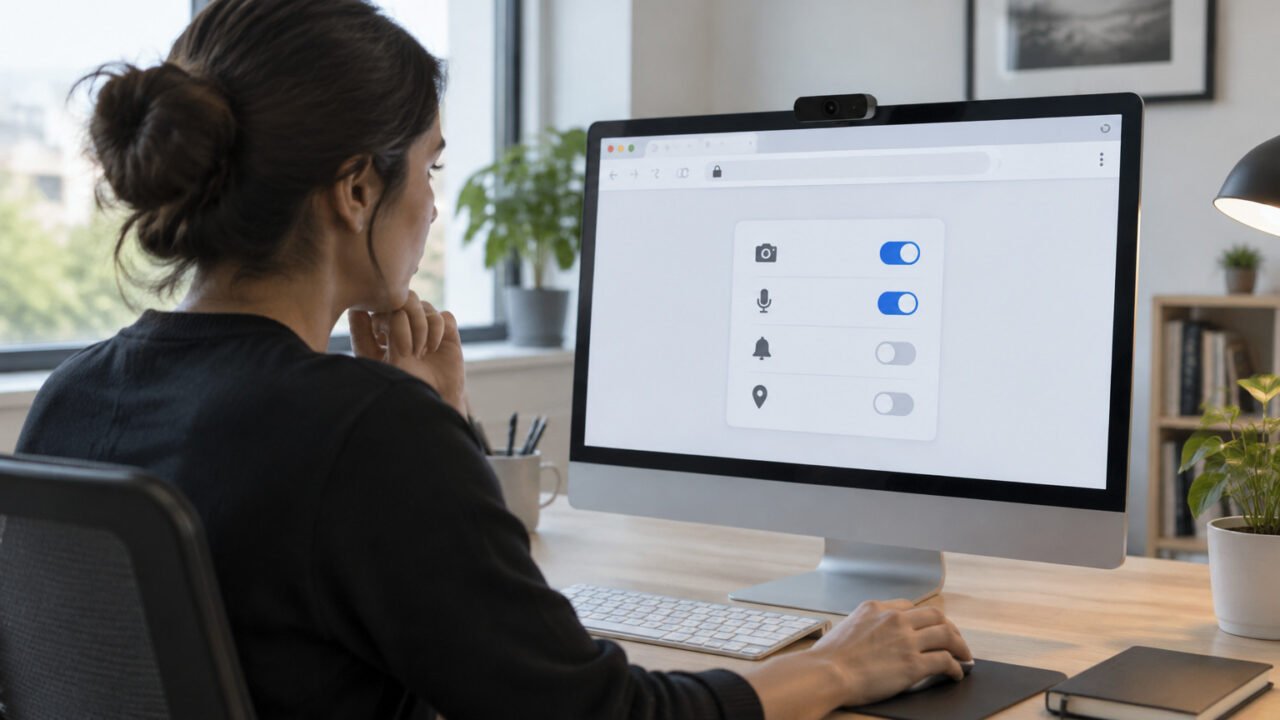
Chrome permissions are worth reviewing when a site sends unwanted alerts, opens extra windows, asks for a device unexpectedly, or keeps access you granted for a one-off task. The safest first move is usually to change or reset permissions for one site, not to clear all browser data or reset Chrome.
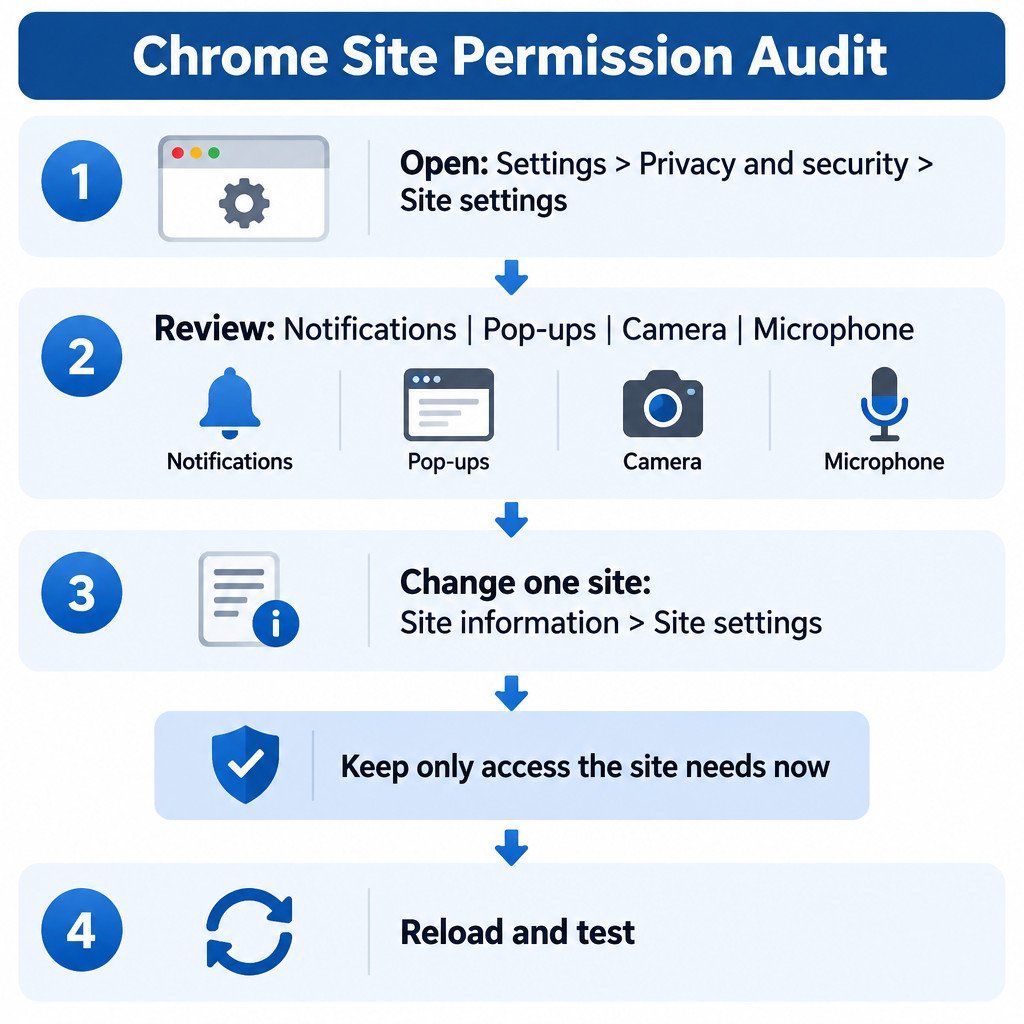
On a current desktop version of Chrome, open Settings > Privacy and security > Site settings. The central review area is labeled View permissions and data stored across sites. It shows site-specific decisions and stored site data, allowing you to investigate an exception without affecting every website.
Chrome separates a site’s individual permission decisions from its general defaults. A default determines what Chrome asks or blocks for new sites; an exception records what you chose for a particular site. Depending on the permission and Chrome version, a prompt may offer a one-time choice, access while visiting, ongoing access, or blocking. The exact labels and categories shown can differ by operating system, available hardware, Chrome version, and organization policy.
Start with the permissions most likely to be disruptive
| Permission | What to look for | Reason to review it |
|---|---|---|
| Notifications | Sites you do not recognize or no longer use | Browser alerts can continue after you leave the site. |
| Pop-ups and redirects | Sites allowed to open additional windows or redirect | An old exception can override your normal protection. |
| Camera and microphone | Former meeting, interview, or support sites | Remove stale allowances before the next sensitive call. |
| Location | Sites with no continuing reason to know it | Location is rarely necessary for ordinary reading or shopping. |
| Automatic downloads and clipboard | Unfamiliar sites or expired work portals | These permissions can affect how files and copied information are handled. |
| Local network access, where shown | Sites that do not need to discover nearby devices | Keep this limited to services with a clear local-device purpose. |
This is an audit, not a rule that every permission is bad. A video meeting service may need a camera and microphone; a document portal may need download access; a local-device management page may need local network access. The useful question is whether the site still has a current, understandable reason to need the permission.
Google documents the Site settings controls and the permissions that may appear in Chrome, including notifications, location, camera, microphone, clipboard, automatic downloads, and local network access. Chrome’s site-permissions help page is also a useful reference if a menu label has changed.
Reset one site’s permissions first
If you know which site is causing the issue, visit it rather than starting with the full list. Select the site-information icon to the left of the address bar, then choose Site settings. Review the entries that are allowed, blocked, or set to ask.
- Identify the feature that is unwanted or failing, such as notifications, microphone, or pop-ups.
- Change that single permission to the appropriate setting, or select Reset permissions when several old decisions look questionable.
- Reload the page and test only the feature you expect to use.
- If the site needs access, grant the minimum necessary permission from its next prompt.
Resetting permissions returns the site’s permissions to Chrome’s defaults. It is narrower than deleting browsing data, but it can still make a site ask again for legitimate access. For example, resetting a conferencing site may require you to select the correct microphone again at the next meeting. Do it before a call when possible, then run the service’s device test or join a test meeting.
Review camera and microphone exceptions before a call
For a broader review, return to Site settings and open the camera or microphone category. Check both allowed and blocked sites. Remove allowances for services you no longer use, and remove an incorrect block if a trusted meeting site cannot detect your device. Chrome also lets you choose the default camera or microphone it should use.
A browser permission is only one layer. Windows or macOS may separately control which applications can use the camera or microphone. On a managed work or school browser, an administrator can control Chrome’s camera and microphone settings, so an option may be unavailable or revert after you change it. Google outlines these browser controls and the possible operating-system and administrator restrictions in its camera and microphone guidance.
Treat notifications and pop-ups as different problems
A notification is a browser alert that a website has been permitted to send. A pop-up or redirect is a page, window, or navigation event triggered by a site. Blocking pop-ups does not automatically stop notifications from a site that already has notification permission.
If unwanted alerts appear outside the website, find that site’s notification permission in Site settings and block it or reset the site’s permissions. If a site opens unwanted windows, inspect the Pop-ups and redirects setting and remove any exception that allows the site. Chrome’s official instructions cover both the pop-up setting and blocking notifications from a specific site: Block or allow pop-ups in Chrome.
Use a narrow troubleshooting sequence
- Confirm the full site address. Similar-looking domains should not share trust automatically.
- Inspect that site’s settings and change the one relevant permission.
- Reload and test the required action, such as uploading a file or starting a call.
- Check whether an extension changes page behavior, especially if the problem occurs on many sites.
- Review the relevant Chrome default, such as Pop-ups and redirects, only if a site-specific adjustment did not explain the issue.
A full Chrome reset is a last resort, not the normal cure for one bad permission decision. It can disrupt extensions, startup behavior, and other settings without identifying the original cause.
Decide whether to keep an exception
Keep a permission when all three conditions are true: you recognize the site, you are using its related feature now, and the permission makes sense for that feature. Block or reset it when the site is unfamiliar, the task has ended, or the request is unrelated to what the site does.
Illustrative example: A contractor used a video-call platform for a single interview six months ago. The platform remains in the allowed microphone list. Removing that allowance does not accuse the site of wrongdoing; it simply means Chrome will ask again if the contractor ever returns and needs to speak. In contrast, a company meeting platform used each week may reasonably retain camera and microphone access, provided the address is correct and the selected devices are appropriate.
A lightweight maintenance routine
- Review a site’s permissions immediately after an unexpected prompt or unwanted alert.
- Remove exceptions for portals, vendors, and projects you no longer use.
- Before an important video call, verify the meeting site’s camera and microphone choices rather than changing settings during the call.
- When notification spam starts, block the sending site’s notification permission; do not rely on pop-up blocking alone.
- If settings are locked on a work device, contact the organization’s IT support instead of attempting to bypass its policy.
Permission reviews work best when they are occasional and specific. Reset the questionable site’s access, test the exact feature you need, and keep only the exceptions that still serve a clear purpose.
Sources
- Google Chrome Help: Change site settings permissions
- Google Chrome Help: Use your camera and microphone in Chrome
- Google Chrome Help: Block or allow pop-ups in Chrome