A Chrome extension problem usually falls into one of four categories: it will not install, Chrome has disabled or marked it as corrupted, its button is not visible, or it works on one website but not another. Identify the category first. It prevents a broad browser reset from becoming the first response.
Start with Chrome itself. Update Chrome, close all Chrome windows, then reopen the browser. Extensions from the Chrome Web Store are intended for desktop Chrome; they cannot be installed while Chrome is in Incognito or Guest mode. Google also notes that a work or school device may have installation restrictions set by its administrator. Chrome Web Store Help explains these installation limits and basic fixes.
Check the extension before removing it
Open Chrome’s extensions manager: select the three-dot menu, choose Extensions, then Manage Extensions. Find the affected extension and look for a direct clue:
- The extension is turned off: Turn it on, provided you recognize it and still want it installed.
- Chrome reports corruption: Use Repair if Chrome offers that action, then restart Chrome and retry the task.
- The extension is present but its toolbar icon is missing: Open the Extensions menu near the address bar and pin it if Chrome offers a pin control. An unpinned icon does not by itself mean the extension has stopped running.
- The extension is missing: Reinstall it only from its known Chrome Web Store listing or the organization’s approved source.
Do not remove an extension before checking whether it stores local settings, requires a sign-in, or needs a recovery code or configuration file. Removal is reasonable after repair fails, but it can erase settings that are not synchronized to the extension’s account.
Chrome’s extension manager supports turning extensions on or off, repairing a corrupted extension, removing an extension, and changing its website access. Google’s extension management guide is the useful reference when the labels in a future Chrome version differ slightly.
Fix an extension that fails only on certain websites
If the extension works on one site but not another, review its site access rather than immediately giving it permission everywhere. In the extension’s details page, look for site-access controls. Depending on the extension and Chrome version, the choices commonly allow access only after you select the extension, on specified sites, or on all sites.
| Access choice | Practical use | Trade-off |
|---|---|---|
| When selected / on click | Use the extension only when you actively invoke it on the current page. | More private, but automatic page features may not run. |
| On specific sites | Allow it on the website or websites where it is genuinely needed. | New sites must be added when needed. |
| On all sites | Use only when the extension’s purpose requires broad, continuing access. | Gives the extension visibility across more browsing activity. |
Use the narrowest setting that lets the extension do its job. For example, a writing assistant used only in a company web app may need access to that app’s domain, not every site you visit. After changing access, reload the affected tab. A page that was already open may not reflect the new permission until it is reloaded.
This check has an important limitation: VPN- and proxy-style extensions can affect network traffic at a lower level, so ordinary site-access settings do not govern them in the same way. Changing a site setting is therefore unlikely to explain every connection issue caused by that type of extension.
Rule out a conflict without resetting Chrome
Extensions can overlap. Two coupon tools, content blockers, password tools, translation tools, or network-related extensions may each try to alter the same page or request. Test methodically:
- Keep the affected extension enabled.
- Temporarily turn off the other nonessential extensions.
- Reload the page and repeat the task that failed.
- If the problem disappears, turn the other extensions back on one at a time, retesting after each change.
- When the failure returns, you have a useful conflict candidate rather than a guess.
For a website loading problem, an Incognito window can be a diagnostic clue because extensions are generally not active there unless explicitly allowed. It is not proof that an extension caused the problem: private browsing can also change cookies, cached data, and sign-in state. Google’s general Chrome troubleshooting guidance likewise recommends disabling extensions and restoring them one at a time to isolate a conflict. See the Chrome loading-error guidance.
Know when the device, not the extension, is the blocker
On a work or school computer, Chrome may be managed. An administrator can prevent Web Store installations or updates, force certain extensions, or remove controls that are available on a personal device. Messages that mention an administrator, management, policy, or a blocked installation point in this direction.
Do not try to bypass device management. Send IT the extension name, its Web Store listing, the exact error message, the site where it is needed, and a brief business reason. That gives them enough information to assess compatibility and security without asking them to reconstruct the issue.
When to remove, replace, or seek support
Remove and reinstall an extension when Chrome repeatedly reports corruption after repair, or when the extension no longer loads at all. Replace it when the developer no longer supports it or its required permissions no longer fit the task. If the fault is specific to one extension after the checks above, use the developer support contact on its Chrome Web Store listing. Include the Chrome version, operating system, extension version, affected website, steps to reproduce, and any error text.
A compact troubleshooting path
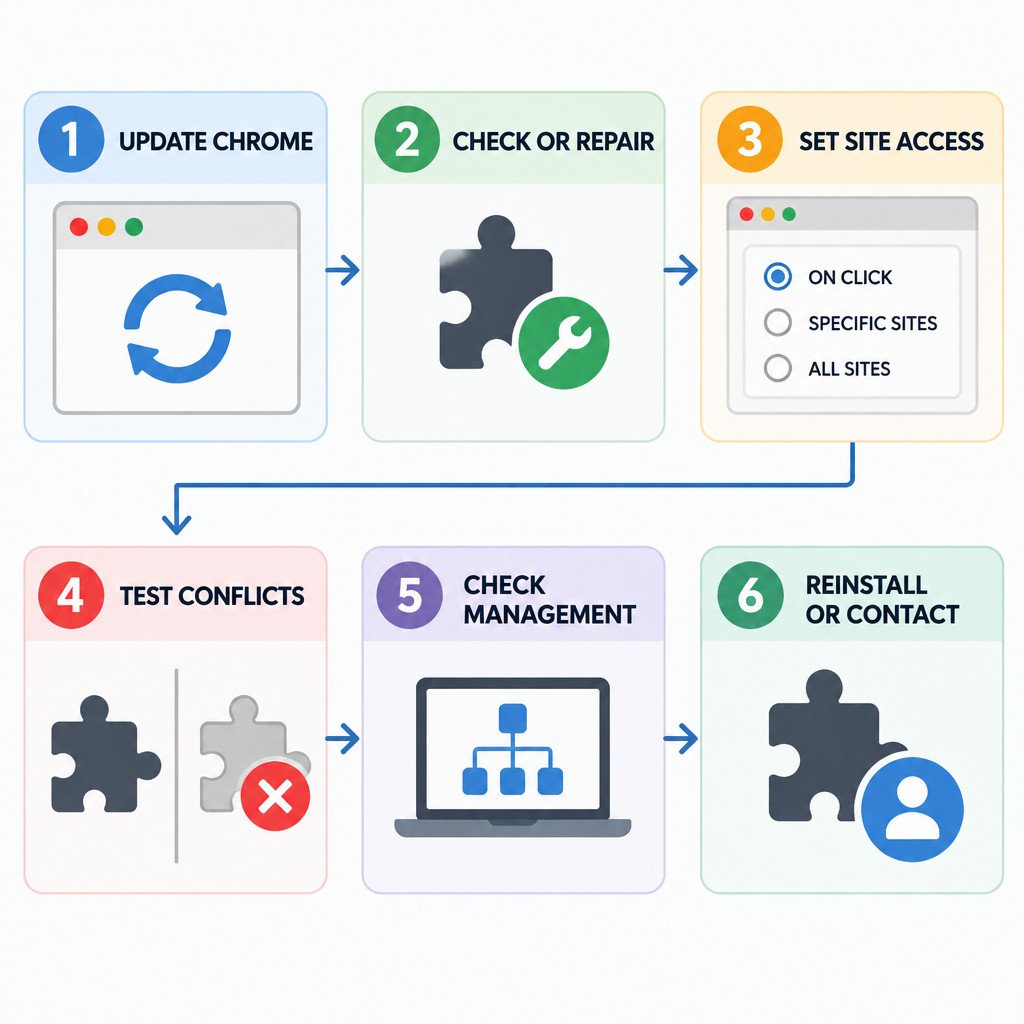
- Update Chrome and restart it.
- Open Manage Extensions; enable the extension or use Repair if Chrome identifies corruption.
- For a site-specific failure, grant the least broad site access that works and reload the page.
- Temporarily disable other extensions and re-enable them one at a time to find conflicts.
- If installation or updates are blocked on a managed device, ask IT rather than changing management settings.
- If the issue remains extension-specific, reinstall it or contact its developer with reproducible details.
This sequence preserves useful browser settings and produces clearer evidence than clearing all Chrome data or resetting the entire browser at the outset.