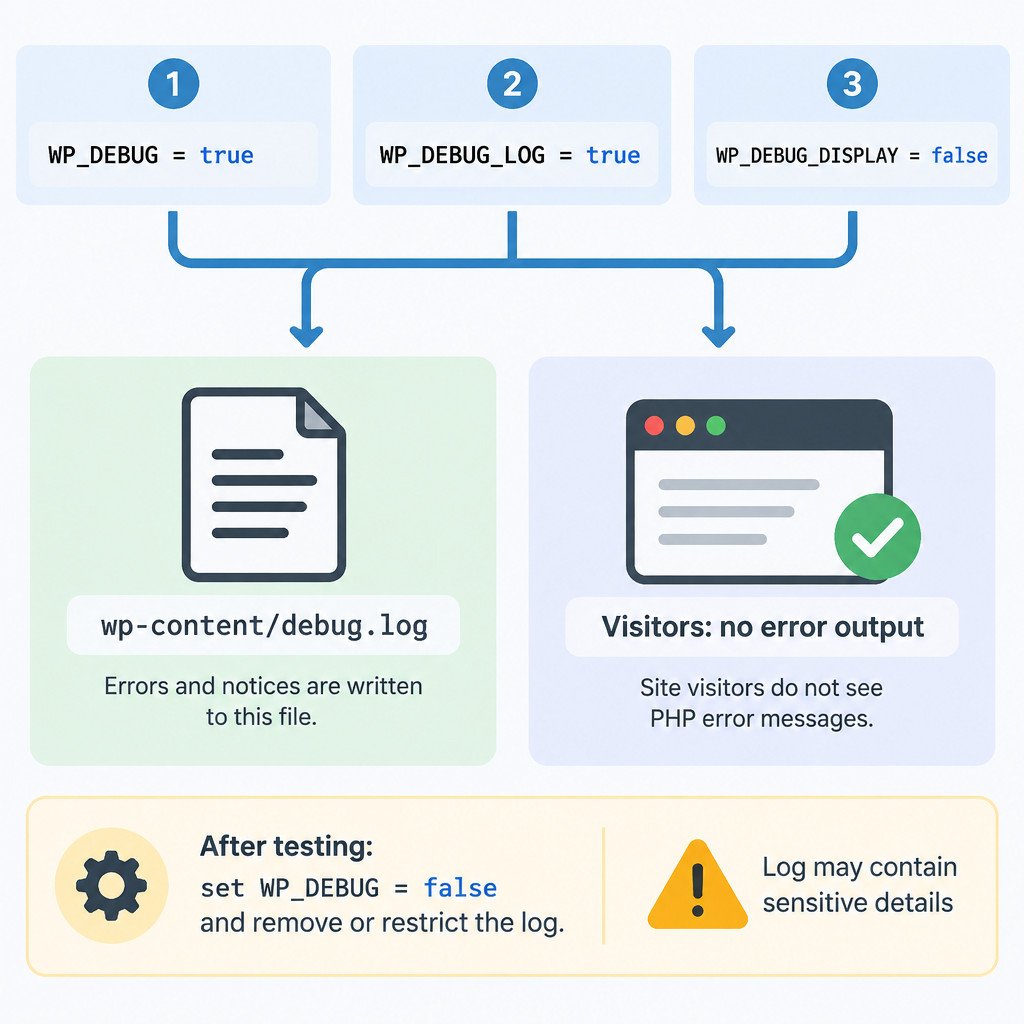
To investigate a WordPress problem without showing PHP warnings or file paths to visitors, enable debugging, write entries to a log, and disable browser display. Add the required constants to wp-config.php, reproduce the issue once, review the log, then switch debugging off and handle the log as sensitive material.
This is useful when an admin screen fails, a plugin action produces an unexpected result, or a page shows a generic error with no useful explanation. It is not a reason to leave debug mode running on a live site. WordPress describes its debugging tools as intended primarily for development and staging, so use a staging copy when practical and take a backup before editing configuration files.
What the three debug settings do
| Setting | Purpose | Recommended value while investigating |
|---|---|---|
WP_DEBUG | Turns WordPress debug mode on. | true |
WP_DEBUG_LOG | Writes eligible debug messages to a log file. | true |
WP_DEBUG_DISPLAY | Controls whether debug messages are printed in page output. | false |
WP_DEBUG is the switch that enables the other two behaviors. With WP_DEBUG_LOG set to true, WordPress uses wp-content/debug.log by default. WP_DEBUG_DISPLAY set to false tells WordPress not to print those messages in the browser. These relationships and the default log location are documented in the WordPress debugging guide.
These settings reduce the chance of exposing details to visitors, but they cannot override every server-level PHP setting. Treat the result as a controlled diagnostic step, not an absolute guarantee that no error can be displayed.
Add the settings in wp-config.php
Edit wp-config.php through your host’s file manager, SFTP, or a developer-approved deployment process. Find the line that says /* That's all, stop editing! Happy publishing. */ and place this snippet immediately above it:
define( 'WP_DEBUG', true );
define( 'WP_DEBUG_LOG', true );
define( 'WP_DEBUG_DISPLAY', false );
@ini_set( 'display_errors', 0 );
Use unquoted Boolean values: true and false, not 'true' or 'false'. Quoted values are strings and can lead to confusing behavior. The final @ini_set line asks PHP not to display errors as an additional safeguard. WordPress notes, however, that server configuration can still cause errors to appear even when WP_DEBUG_DISPLAY is false.
If your file already defines any of these constants, change the existing definitions rather than adding a second set. Do not edit WordPress core files to enable debugging.
Reproduce once, then find the evidence
Save the file, load the relevant admin page or repeat the action that fails once, and then inspect wp-content/debug.log. A log file may not exist until WordPress actually generates a message, so its absence immediately after enabling the settings does not by itself prove the configuration failed.
A simplified, illustrative entry might look like this:
[15-Mar-2025 14:22:08 UTC] PHP Warning: Example message in /home/account/site/wp-content/plugins/example-plugin/file.php on line 42| Part of the entry | Why it matters |
|---|---|
| Timestamp | Lets you match the entry to the action you just performed. |
| Error type | Distinguishes warnings, notices, deprecated messages, and fatal errors. |
| File path and line | Identifies the code location that reported the problem. |
| Folder name | Helps classify the location as a plugin, theme, WordPress core, or custom code. |
The named file is a clue, not automatic proof that the plugin or theme caused the underlying problem. For example, a plugin may be the first code to encounter a missing server extension, a bad database response, or another component’s altered data. Keep the entries nearest the time of the failure and note the exact action that triggered them.
Choose a low-risk next step
- Check whether the implicated plugin, theme, or WordPress installation was recently updated.
- On staging, temporarily deactivate one suspected plugin or switch to a default theme to test a clear hypothesis.
- Share a short, redacted excerpt with the responsible plugin developer or host, along with the reproduction steps.
- Do not change code merely because its path appears in one entry. Look for a repeatable pattern first.
For advanced setups, WP_DEBUG_LOG can also be a string containing a custom log path. That can be useful when a host provides a non-public log directory, but the correct location and permissions are host-specific. WordPress documents the custom-path behavior in its debug-mode reference.
Turn debugging off and protect the log
After collecting the evidence you need, change the settings back promptly:
define( 'WP_DEBUG', false );
define( 'WP_DEBUG_LOG', false );
define( 'WP_DEBUG_DISPLAY', false );
@ini_set( 'display_errors', 0 );
Then delete the temporary debug.log if it is no longer needed, or move and restrict it according to your hosting environment’s documented process. Logs can contain full server paths, request details, plugin names, and other information that should not be public. WordPress Site Health specifically treats enabled debug mode and a publicly accessible debug log as security concerns.
When debug.log is not enough
Some failures happen before WordPress loads, so WordPress cannot write its own log entry. Others may be captured only in PHP-FPM, web-server, database, or managed-host logs. File permissions can prevent WordPress from creating debug.log, and caching can make it harder to reproduce a front-end issue. Ajax and REST requests may also handle error display differently from a normal page request.
If visitors still see errors despite the settings above, or if a serious outage leaves no WordPress log entry, ask the host to check its PHP and server error configuration. Provide the approximate time, affected URL or action, and any safely redacted log excerpt. Avoid sharing passwords, authentication cookies, API keys, database credentials, or full configuration files.