Firefox Troubleshoot Mode is a low-risk way to check whether an extension, theme, graphics acceleration, or another customization is behind a crash, flicker, broken page layout, or unusual browser behavior. It temporarily changes several likely causes, lets you repeat the exact problem, and returns to normal on the next restart.
It is not a repair button and it does not permanently reset Firefox. Think of it as an A/B test: first observe the problem in your usual Firefox setup, then run the same task with common customizations temporarily out of the way. If the outcome changes, you have useful evidence about where to investigate next.
Record the symptom before restarting
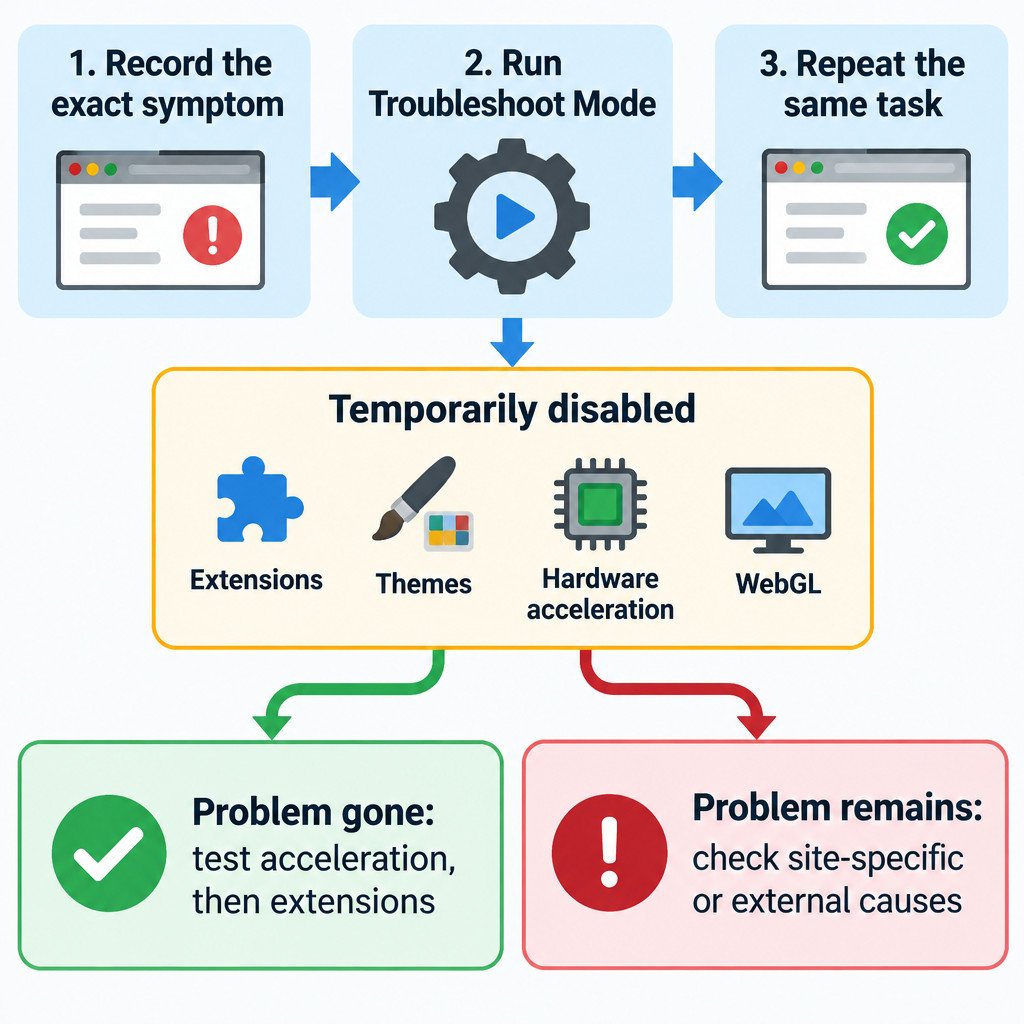
A meaningful comparison needs a repeatable test. Before entering Troubleshoot Mode, note what fails and the smallest action that triggers it. For example: “The browser flickers after starting a particular video,” “this internal web app will not load its dashboard,” or “Firefox closes when I open a certain site.” Save any open work, because Firefox will restart.
- Write down the affected website, page, file, or action.
- Note whether the problem occurs every time or intermittently.
- Close or pause unrelated demanding applications if they would make the comparison inconsistent.
- Do not clear history, cookies, or all settings before the test; doing so changes too many variables at once.
Start Firefox Troubleshoot Mode
On Firefox desktop, open the application menu, choose Help, select Troubleshoot Mode, then confirm Restart. When Firefox reopens, choose Open in the prompt. Menu wording can vary slightly by Firefox version and operating system. Mozilla documents these steps and the temporary changes made by the mode in its Troubleshoot Mode guide.
While it is active, Firefox disables extensions and themes, turns off hardware acceleration and WebGL, and ignores some interface customizations. Some advanced custom stylesheet and JavaScript optimization behavior is also temporarily changed. That breadth is useful for diagnosis, but it means a successful test does not yet identify one specific setting.
To leave Troubleshoot Mode, simply quit Firefox and start it normally. Your extensions and usual settings should load again; the mode itself does not delete them.
Repeat the same task and interpret the result
Now perform the same action you recorded earlier. Use the same site, video, document, or workflow where possible. Do not judge the result from a general impression that Firefox feels different: the value comes from seeing whether the original symptom returns under comparable conditions.
| Result in Troubleshoot Mode | What it suggests | Best next move |
|---|---|---|
| The problem disappears | An extension, theme, hardware acceleration, or another temporarily disabled customization is a plausible cause. | Test hardware acceleration on its own, then isolate extensions or the theme. |
| The problem continues | Those temporarily disabled items are less likely to explain this particular symptom. | Check the affected site or narrower causes before considering a reset. |
| The result is inconsistent | The trigger may be intermittent, or conditions were not equivalent. | Repeat the same controlled test and note timing, network, and workload differences. |
If the problem disappears, isolate the cause
Return to a normal Firefox session before testing individual settings. Start with hardware acceleration, because graphics hardware or driver combinations can contribute to rendering problems and crashes. In Firefox settings, search for “hardware acceleration,” clear the option to use recommended performance settings if needed, turn off hardware acceleration, and restart Firefox. Repeat the original task.
If the symptom stays away only when acceleration is off, leave it off for now and consider updating the graphics driver through the computer or graphics vendor’s normal support channel. The result identifies a useful workaround, not definitive proof that Firefox alone or the driver alone is faulty.
If disabling hardware acceleration does not reproduce the improvement, test extensions next. Open the Add-ons and themes manager, disable extensions, restart if Firefox requests it, and run the same test after each change. For a short list, enable one extension at a time. For a long list, enable roughly half, test, and then keep narrowing the half that brings the issue back. This is faster than guessing, provided you record which group was enabled.
- Update Firefox and the extension first if an update is available.
- Check the extension’s own settings for site-specific filtering, privacy, proxy, or appearance rules.
- Enable a single extension or a defined group.
- Repeat the original failing action.
- When the problem returns, disable the last item or group and confirm that the problem goes away again.
Check themes in the same way. A theme is less likely to cause a network failure, for example, but it can be relevant to visual glitches or an unreadable interface. Mozilla’s extension, theme, and acceleration troubleshooting instructions describe this staged approach and its limits: Troubleshoot extensions, themes and hardware acceleration.
A hypothetical isolation example
Illustrative example: Firefox displays black video frames on one streaming site. The frames do not appear in Troubleshoot Mode. In normal mode, turning off hardware acceleration makes the video work, while re-enabling it brings the black frames back. That is stronger evidence for a graphics-acceleration path than for an extension. By contrast, if acceleration has no effect but the problem returns only when a video-enhancement extension is enabled, the extension or its settings become the leading suspect.
If the problem continues in Troubleshoot Mode
Do not conclude that Firefox is broken beyond repair. The comparison only makes extensions, themes, hardware acceleration, and the other temporary changes less likely causes. A website outage, account-specific issue, network path, security software, enterprise policy, a damaged profile component, or a Firefox setting that Troubleshoot Mode does not alter can still be involved.
Try the smallest relevant check next. Restart Firefox and then the computer if you have not already. If exactly one website is affected, clear data only for that site rather than wiping the whole browser. Removing a site’s cookies and storage can sign you out and remove its saved preferences, so save anything important first. Firefox provides options to clear cookies, site data, and cached files for a selected site in its site data guide.
For repeatable crashes, open Firefox’s Troubleshooting Information page from the Help menu and review available crash-report details. If the failure happens only on a work network or managed computer, involve the organization’s support team rather than changing security or policy-controlled settings yourself.
Treat Refresh Firefox as a later option
Refresh Firefox is more disruptive than Troubleshoot Mode. It creates a fresh profile while preserving important personal data such as bookmarks, browsing and download history, passwords, cookies, autofill data, and the personal dictionary. It removes extensions, themes, website permissions, modified preferences, added search engines, toolbar customizations, and certain security or device settings.
That trade-off can be worthwhile when ordinary troubleshooting has failed, but it also destroys evidence about the original configuration. Review Mozilla’s retained-and-removed items before using it, especially if you rely on extensions or site permissions for work: Refresh Firefox documentation.
Keep the diagnostic result
The useful outcome is not merely that Firefox worked once in a simplified state. It is a clear observation: the problem did or did not change when common customizations were temporarily removed. Record which setting, extension, or theme was enabled when the symptom returned. That gives you a reversible workaround, a focused update or support request, and a better basis for deciding whether a larger reset is justified.