Quick answer: To stop echo during a video call, mute any second device in the room and switch to headphones instead of speakers. If speakers are your only option, turn down the volume, move the microphone farther away, and make sure the meeting app is using the right input and output devices. If you hear your own voice coming back to you, the cause is usually another participant’s speakers or microphone.
These fixes work with Zoom, Microsoft Teams, Google Meet, Slack, Discord, FaceTime, and most other calling platforms. Before changing any settings, find out who can hear the echo. That usually tells you which end of the call needs fixing.
Find the device causing the echo
Video call echo happens when sound from a speaker reaches a microphone and gets transmitted back to the person who originally spoke. The device causing the problem isn’t always the device where the echo can be heard.
| What happens | Likely source | First action |
|---|---|---|
| You hear your own voice repeated | Another participant’s device | Ask participants to mute one at a time |
| Others hear their voices repeated | Your speakers are feeding your microphone | Use headphones or lower your speaker volume |
| A loud squeal or ringing develops | Two nearby devices have active microphones and speakers | Mute or disconnect one device immediately |
| Echo starts after someone joins | The newly connected participant or device | Mute that participant temporarily to confirm |
On a group call, ask everyone to mute themselves. Participants can then unmute one at a time until the echo comes back. It’s usually much faster than asking everyone to adjust their settings at once.
How to fix echo during video calls
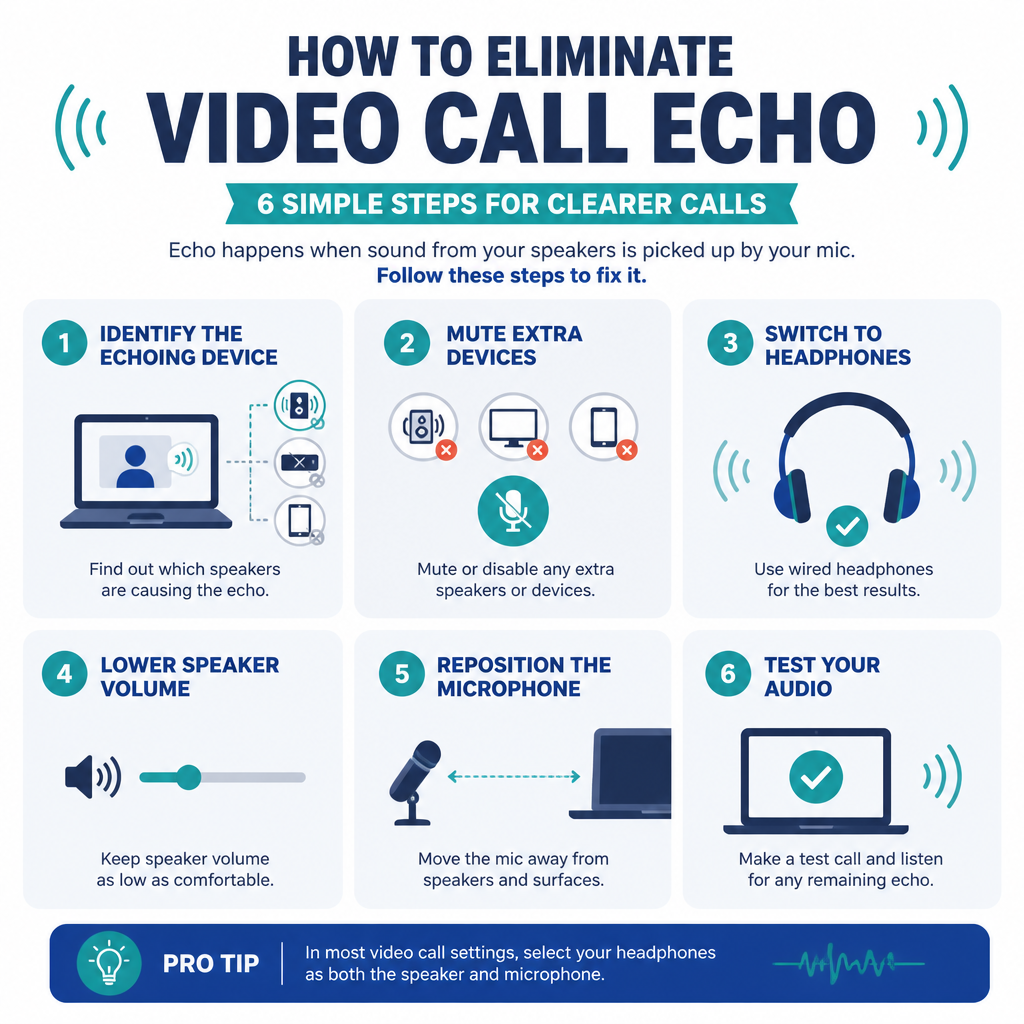
1. Mute other devices in the room
Joining the same meeting on both a computer and a phone is a common source of feedback. The devices may be several feet apart, but each microphone can still pick up sound from the other device’s speakers.
- Leave the meeting on the device you don’t need.
- If you need the second device for its camera or screen, disable both its microphone and speaker.
- Don’t depend on turning its volume down. Even a quiet speaker can create a noticeable echo.
If several people are attending from the same room, use one shared conferencing device. Another option is for everyone except one person to join without computer audio.
2. Use headphones or a headset
Headphones keep meeting audio from reaching the microphone, so they’re the most dependable fix. A wired USB headset is often easier to troubleshoot than a Bluetooth model because there’s no wireless profile switching, battery trouble, or connection delay to deal with.
Once the headset is connected, go into the meeting app’s audio settings and choose it for both the microphone and speaker. Don’t assume the app switched devices automatically.
3. Turn down the speaker volume
If headphones aren’t practical, lower the speaker volume to the quietest comfortable level. Louder audio gives the microphone more sound to pick up and makes acoustic echo cancellation less effective.
Don’t place speakers directly beside or behind the microphone. When possible, put them in front of it so a directional microphone can reject more of the sound.
4. Select the right microphone and speakers
A laptop connected to a monitor, dock, webcam, headset, or USB microphone may show several available audio devices. The meeting app could choose a monitor or webcam microphone that’s farther away and more likely to capture sound around the room.
- Open the audio or device settings in the meeting app.
- Choose the microphone you want to use.
- Select your headphones or preferred speakers for audio output.
- Run the built-in microphone and speaker test before returning to the conversation.
Temporarily disconnect any audio device you aren’t using. This lowers the chance of the operating system or meeting app unexpectedly switching to it.
5. Lower the microphone input level
A microphone that’s too sensitive will capture speaker output, keyboard sounds, and reflections around the room. Reduce the input level until your voice still sounds clear but unnecessary background noise is no longer being collected.
In Windows, check the selected microphone under Settings, System, Sound, Input. On macOS, go to System Settings, Sound, Input. Speak from your normal position while adjusting the input volume. Avoid microphone boost settings unless your voice really is too quiet.
6. Move the microphone
Place the microphone near your mouth and away from the speakers. For many headset, USB, and directional microphones, a distance of roughly 15 to 30 centimeters works well. Speak toward the active side of the microphone rather than raising the gain so it can hear you from across the desk.
Bare desks, hard walls, and empty rooms reflect sound. Rugs, curtains, upholstered furniture, and soft wall materials can help reduce those reflections. They won’t, however, fix feedback caused by two active devices.
7. Turn on echo cancellation and noise suppression
Most calling apps turn on acoustic echo cancellation automatically. Still, check the audio settings for options called echo cancellation, noise suppression, or background noise reduction. The available options and their names depend on the app, account, operating system, and device.
Start with automatic or moderate noise suppression. Aggressive settings can make speech sound clipped, particularly when there’s music, more than one speaker, or a low-quality microphone. Noise suppression is meant to remove steady background sounds. It can’t replace headphones when audio from the speakers is entering the microphone.
If the echo doesn’t stop
- Restart the meeting app: This resets the app’s connection to your audio hardware.
- Reconnect USB audio devices: Plug the headset or microphone directly into the computer rather than using an unreliable hub.
- Switch off Bluetooth temporarily: Try wired headphones to rule out a Bluetooth routing issue.
- Close other audio applications: Recording software, virtual mixers, voice changers, and browser tabs can interfere with device selection.
- Update the meeting app and operating system: Updates may fix audio-device and echo-cancellation problems.
- Try another microphone: This can show whether the problem comes from the hardware or an application setting.
A reliable home office audio setup
For consistently clear video calls, use a headset or pair a directional USB microphone with headphones. Keep the microphone close to your mouth, set the input gain to a moderate level, and allow only one device in each room to connect to the meeting audio.
If several people often join calls from the same room, a dedicated conference speakerphone is a better choice than separate desktop speakers and microphones. Conference devices are built to coordinate the speaker, microphone array, and echo cancellation as a single system.
Frequently asked questions
Why can I hear myself during a video call?
Your voice is probably coming through another participant’s speakers and being picked up by that person’s microphone. Ask the other participants to use headphones or lower their speaker volume. You can also have them mute one at a time to find the device responsible.
Why does echo start when I join on my phone and computer?
Both devices are receiving and retransmitting the same meeting audio. Keep audio enabled on only one device. If you still need the second device for its camera or screen, disconnect it from meeting audio.
Can noise cancellation remove video call echo?
Noise cancellation can reduce background sounds, while acoustic echo cancellation deals with sound returning through the speakers. Correct device placement and headphones are more reliable than software processing by itself.
Why does my call echo only with external speakers?
External speakers may be louder than the built-in speakers or positioned closer to the microphone. Lower their volume, move the devices farther apart, reposition the microphone, or switch to headphones.
How can I check for echo before a meeting?
Run the meeting app’s microphone and speaker test, or start a private test call. Speak at your normal volume while audio plays through the output device you plan to use. Check that the correct microphone and speakers are selected, and make sure no second device is connected to the same meeting audio.