If a problem started immediately after an update, do not reset Windows first. Match the repair to the scope of the failure: roll back a driver when one device stopped working, uninstall a recent Windows update when the change affects the wider system, or use System Restore when several changes occurred and the exact trigger is uncertain.
This guide is for a PC that was working normally and then developed a new problem soon after a driver or Windows update. It cannot prove that the update caused the issue, but the timing gives you a sensible, low-risk order for testing reversible fixes.
Record the symptom before you change anything
Save open work if Windows is still usable. Then note when the fault began, what was installed just before it began, and whether the problem affects one component or the whole PC. A photo of a blue-screen code, a device error, or a blank display can be more useful than a general description later.
- Likely one-device issue: Wi-Fi disappeared, audio stopped, a printer fails, a webcam is unavailable, or the display flickers.
- Likely system-update issue: startup, sign-in, apps, networking, or multiple devices changed behavior after the same Windows update.
- Unclear or broad change: apps, drivers, and settings changed around the same time, and no single update is a convincing cause.
Check the recent update list before removing anything: open Settings > Windows Update > Update history. Also make sure you can access your BitLocker recovery key before using Windows Recovery Environment (WinRE). Recovery actions can prompt for it, and being locked out midway through diagnosis is avoidable.
Choose the narrowest recovery action
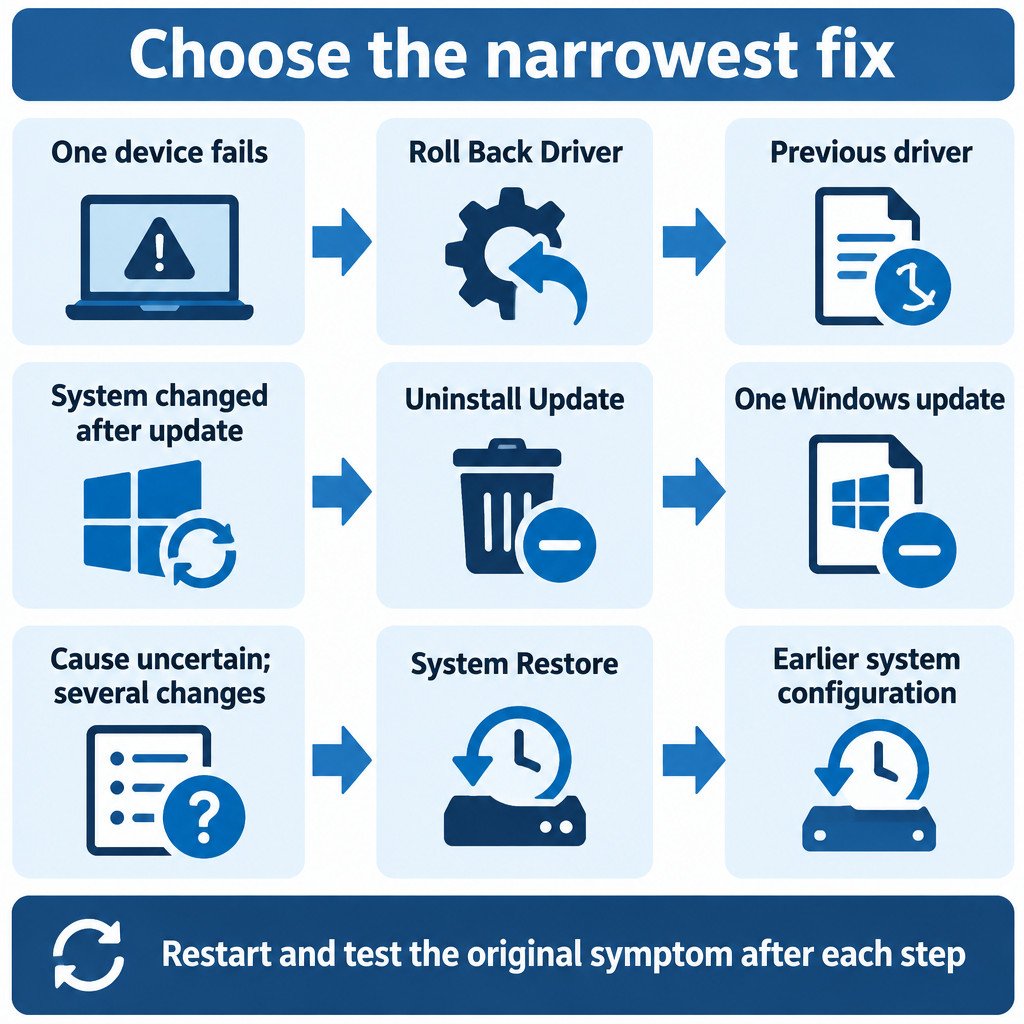
| What changed? | First action | What it reverses |
|---|---|---|
| One hardware device fails | Roll Back Driver | The previous driver for that device, when available |
| Several functions changed after a Windows update | Uninstall updates | One selected Windows update |
| The trigger is uncertain and changes are wider | System Restore | System configuration at a chosen restore point |
After each action, restart if prompted and test the original failure, not just whether Windows reaches the desktop. For example, reconnect to the same Wi-Fi network, play audio through the same output, or open the app that previously crashed. Change one thing at a time so the result remains interpretable.
When one device fails: roll back its driver
A driver rollback is the most targeted choice when the issue is isolated to hardware such as a graphics adapter, network adapter, sound device, printer, or camera. Open Device Manager, expand the category for the affected device, right-click the device, and select Properties. On the Driver tab, select Roll Back Driver if the button is available. Restart and test the same device again.
The button is available only when Windows has an earlier driver package stored locally. If it is unavailable, do not treat that as evidence that the driver is innocent. It only means this particular rollback route is not available. Microsoft documents the Device Manager rollback, update, and reinstall options, and recommends obtaining a manual driver only from the device manufacturer’s official support site: Update drivers through Device Manager in Windows.
Avoid third-party “driver updater” utilities during troubleshooting. They can introduce another variable and may replace a known-compatible driver with a different version. Do not delete a driver package from the driver store as a first move either; that can make recovery harder, especially if the device is needed for display or network access.
When a Windows update looks responsible: uninstall that update
If the problem is broader than one device and began immediately after a dated Windows update in Update history, remove only the most plausible recent update. Go to Settings > Windows Update > Update history > Uninstall updates, select the candidate update, and restart. Confirm the original symptom is gone before taking further action.
Not every update can be uninstalled. Removing a security update also reduces protection until a corrected update is installed, so use this as a diagnostic or recovery measure rather than a permanent configuration. Microsoft’s supported Settings and recovery-environment routes are described in How to uninstall a Windows Update.
If Windows will not start
Enter WinRE, choose Troubleshoot > Advanced options, and use Uninstall Updates. The available choices may be described as the latest quality update or the latest feature update. Prefer the smallest, most recent change that matches the timing of the failure.
For a problem that prevents Windows from booting, try Startup Repair before broader recovery actions. It is aimed at startup problems; it is not a general fix for an application, printer, or Wi-Fi fault.
When the trigger is uncertain: use System Restore
Use System Restore when an update period included several driver, app, or configuration changes and you cannot confidently isolate one update. Choose a restore point from before the symptoms began. Before confirming, select Scan for affected programs to see software, drivers, and updates that would be removed or restored.
System Restore reverts system files, Registry settings, installed programs, and system configuration to an earlier point. It does not affect personal files, but it can remove apps, drivers, and updates installed after that point. It also requires a suitable restore point to exist. Microsoft explains these limits and the recovery options in System Restore.
If the first repair does not work
Do not stack rollback, update removal, and System Restore without retesting in between. If the narrow repair did not change the symptom, move to the next action that fits the evidence rather than repeating the same fix.
- Boot into Safe Mode if Windows starts but behaves unpredictably.
- Test whether the original fault still occurs with basic drivers and startup services.
- If the fault is absent in Safe Mode, a normal startup driver, service, or app is less likely to be irrelevant and is worth narrowing down.
- Reinstall the affected device driver from Windows Update or the hardware maker’s official support page if rollback did not help.
- Contact the PC or device manufacturer when the failure involves firmware, storage, a display that cannot be used reliably, or a repeated boot failure.
Safe Mode is a diagnostic environment, not proof of one root cause. Some hardware features, third-party services, networking, and normal sign-in methods may not be available there. Microsoft documents the Startup Settings path and Safe Mode variants in Windows startup settings.
After the PC is stable
Record what fixed the issue and the update or driver version involved. Then check for a newer Windows update or a newer manufacturer driver rather than leaving security updates disabled indefinitely. If you used System Restore, review the affected-programs list again and reinstall only the apps or drivers you still need.
The practical rule is simple: reverse the smallest change that plausibly matches the symptom. A driver rollback has the smallest blast radius, uninstalling an update is broader, and System Restore is useful when the history is too mixed to isolate one cause. Resetting or reinstalling Windows belongs much later in the process.