If one website will not sign in, remember your session, show embedded content, play media, or open a pop-up in Microsoft Edge, troubleshoot that site before resetting the whole browser. Start by confirming the failure is limited to Edge, then check the site’s permissions and privacy controls. Remove only that site’s stored data before considering browser-wide clearing.
This approach is for one or a few affected sites. If Edge will not open, crashes repeatedly, or many unrelated sites fail, the cause may be broader than a site setting.
Confirm that Edge is the likely cause
Open a different, known-working website in the same Edge profile. Then try the affected website in another browser, if one is available. These quick checks narrow the possibilities:
| What you see | Most useful next step |
|---|---|
| The site fails in every browser | Check the connection, DNS or VPN setup, or wait and contact the site. Do not change Edge settings yet. |
| The site works in another browser but not Edge | Continue with the site-specific steps below. |
| Several sites fail only in Edge | Check updates, extensions, cache, and then consider Edge repair. |
| Only one feature fails, such as camera or sign-in | Start with that site’s permission, tracking-prevention, and cookie settings. |
Next, update Edge. Select Settings and more (the three dots) > Help and feedback > About Microsoft Edge. Let Edge install an available update, then restart the browser when prompted. Updates can correct browser-side compatibility or security issues without removing your site data.
If you use a work or school profile, some controls may be unavailable or revert to an organization policy. That is a useful clue, not a reason to bypass the policy: ask the organization’s IT support team if a business site is affected.
Check permissions for the affected site first
Open the broken site, select the site-information icon to the left of its address, and review the available permissions. The exact menu wording can vary with the Edge version and the permission requested. Change only the permission that matches the symptom, refresh the page, and test again.
| Symptom | Permission to inspect | Practical choice |
|---|---|---|
| A meeting or recording page cannot access hardware | Camera and microphone | Allow only when you expect the site to use them. |
| A map, delivery, or local-results page lacks a location | Location | Allow for a trusted site if location is necessary for the task. |
| A payment, login, or report window never appears | Pop-ups and redirects | Allow the specific trusted site, complete the task, then review the setting. |
| Video will not begin until clicked | Autoplay, where shown | Prefer manual playback unless automatic media is genuinely required. |
A permission change is not a general fix for every loading problem. For example, allowing pop-ups will not repair an expired login cookie. Keep each change narrow so you can tell what solved the issue and avoid granting unnecessary access.
Use tracking prevention exceptions sparingly
Edge tracking prevention helps limit trackers across sites. Its Strict level can also interfere with sign-in flows, video, and other site functions. Microsoft documents per-site exceptions, which are usually a better choice than lowering protection for every website. See Microsoft’s tracking prevention guidance for the available levels and exception controls.
For a site you trust, use the address-bar site-information menu to see whether tracking prevention is blocking content and add an exception if the option is offered. Retest the exact feature that failed. An exception permits trackers on that site, so it is a trade-off: use it for a site you recognize and remove it once it is no longer needed. Do not add exceptions for a suspicious link, an unexpected sign-in page, or an unfamiliar download site.
Check cookies and cross-site site data
Cookies and other site data commonly maintain a signed-in session, shopping basket, preferences, and steps in a multi-page process. A site may also depend on a related domain during authentication, embedded payments, media, or support chat. Blocking third-party cookies can therefore leave part of a page blank or produce repeated requests to allow cookies.
Do not turn off cookie protection globally as a first response. Instead, review the cookie message or Edge prompt and allow only the trusted site or required site data where Edge presents that option. Microsoft notes that cookie blocking can prevent pages from displaying correctly and provides per-site allow, block, and deletion controls in its cookie settings documentation.
Some Edge prompts offer temporary access to cookies and site data. This can be useful for a trusted site when a specific embedded feature needs it, but it is not a blanket approval. Microsoft says these temporary allowances expire after 30 days; remove an allowance earlier if you no longer need it. Details are in Microsoft’s temporary site-data allowance instructions.
Delete stored data for only the broken site
If permissions and a targeted exception do not help, stale or corrupted site data is a reasonable next suspect. In Edge, open Settings > Privacy, search, and services > Cookies > See all cookies and site data. Search for the site name, inspect the matching entries, and delete the data for that site.
This signs you out of that site and can remove its preferences. Have your sign-in method and any required multi-factor authentication device ready before doing it. It will not remove saved passwords from Edge, but clearing a site’s data is still disruptive to that one site by design.
After deletion, close the affected tab, open a new one, visit the site directly, and sign in again. Test before restoring any optional exception. If it now works, leave the global privacy settings unchanged.
Escalate without wiping more than necessary
If the same site still fails, clear cached images and files and test once more. Cache clearing may make pages load more slowly on the next visit, but it is less disruptive than deleting all browser data. Avoid selecting saved passwords, autofill data, or all cookies unless you understand the consequences.
Then temporarily disable unneeded extensions and retry. Content blockers, privacy extensions, password tools, VPN extensions, and corporate security add-ons can affect page scripts or sign-in redirects. Disable one extension or a small related group, test, and re-enable it if it was not responsible. Do not leave security software disabled as a permanent workaround.
When multiple sites fail, Edge is unstable, or these targeted steps change nothing, repair Edge through Windows: Settings > Apps > Installed apps > Microsoft Edge > Modify > Repair. Microsoft states that repair should not affect browser data and settings, though managed devices may not expose the option. Its broader Edge troubleshooting article also covers updates, cache, extensions, and repair.
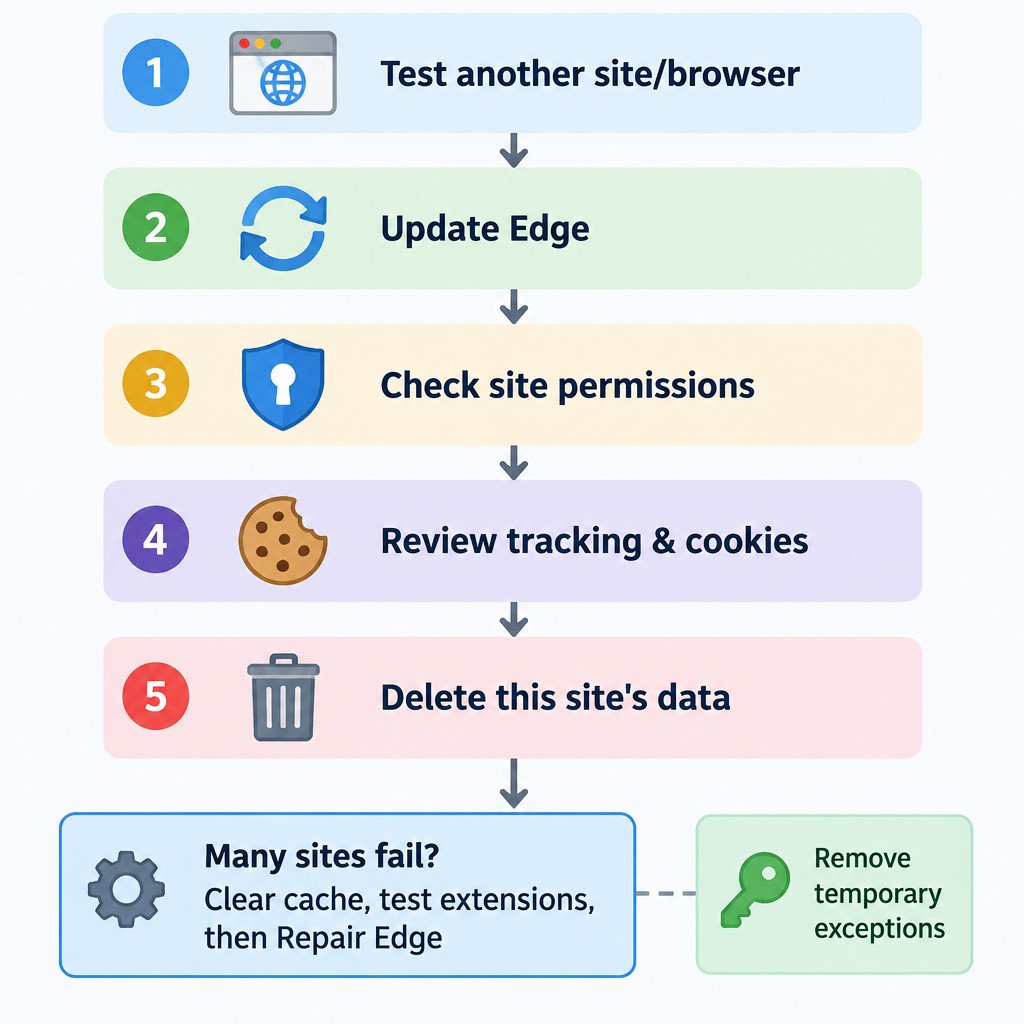
A short decision checklist
- Confirm that the problem is limited to Edge and, ideally, to one site.
- Update and restart Edge.
- Review the affected site’s relevant permission.
- For a trusted site, test a narrow tracking-prevention or site-data exception.
- Delete data for that site only, then sign in again.
- Clear cached images and files or test without nonessential extensions.
- Use Edge repair only when the problem is broader or persistent.
- Remove temporary cookie allowances and tracking exceptions after the task is complete.
The key limitation is that browser settings cannot fix an outage, an account problem, or a service that deliberately requires settings you do not want to grant. In those cases, preserving your privacy and security settings may be the better decision.