Chrome profiles keep separate browsing environments on the same computer. Each profile has its own bookmarks, saved passwords, browsing history, extensions, themes, settings, and signed-in Google account. This is handy if you use one PC for both work and personal tasks, share a family computer, or regularly manage several Google accounts.
Quick answer: Open Chrome on a computer and select the profile icon in the top-right corner. Choose Add, then sign in with a Google account or continue without one. Pick a name and color for the profile, and Chrome will open it in a separate window.
What Chrome profiles are
A Chrome profile is a separate collection of browser data stored on your computer. It’s a bit like having several Chrome installations without installing the browser more than once.
For instance, your work profile might contain your company account, work-related bookmarks, and approved extensions. A personal profile could hold your private Gmail account, shopping sites, entertainment subscriptions, and personal bookmarks. Browsing activity in one profile won’t appear in the history of another.
When you sign in to a profile with a Google account and enable sync, Chrome can also sync selected browser data across your other signed-in devices.
How to create a new Chrome profile
- Open Google Chrome on Windows, macOS, Linux, or ChromeOS.
- Select the profile icon in the upper-right corner of the Chrome window. Depending on your setup, it may display your picture, initials, or a generic person icon.
- Select Add.
- Choose Sign in to connect a Google account and, if you want, sync your browser data.
- Choose Continue without an account if you only need a local profile on that computer.
- Enter a profile name and choose a color. Chrome may also let you select an avatar.
- Select Done. The new profile will open in its own Chrome window.
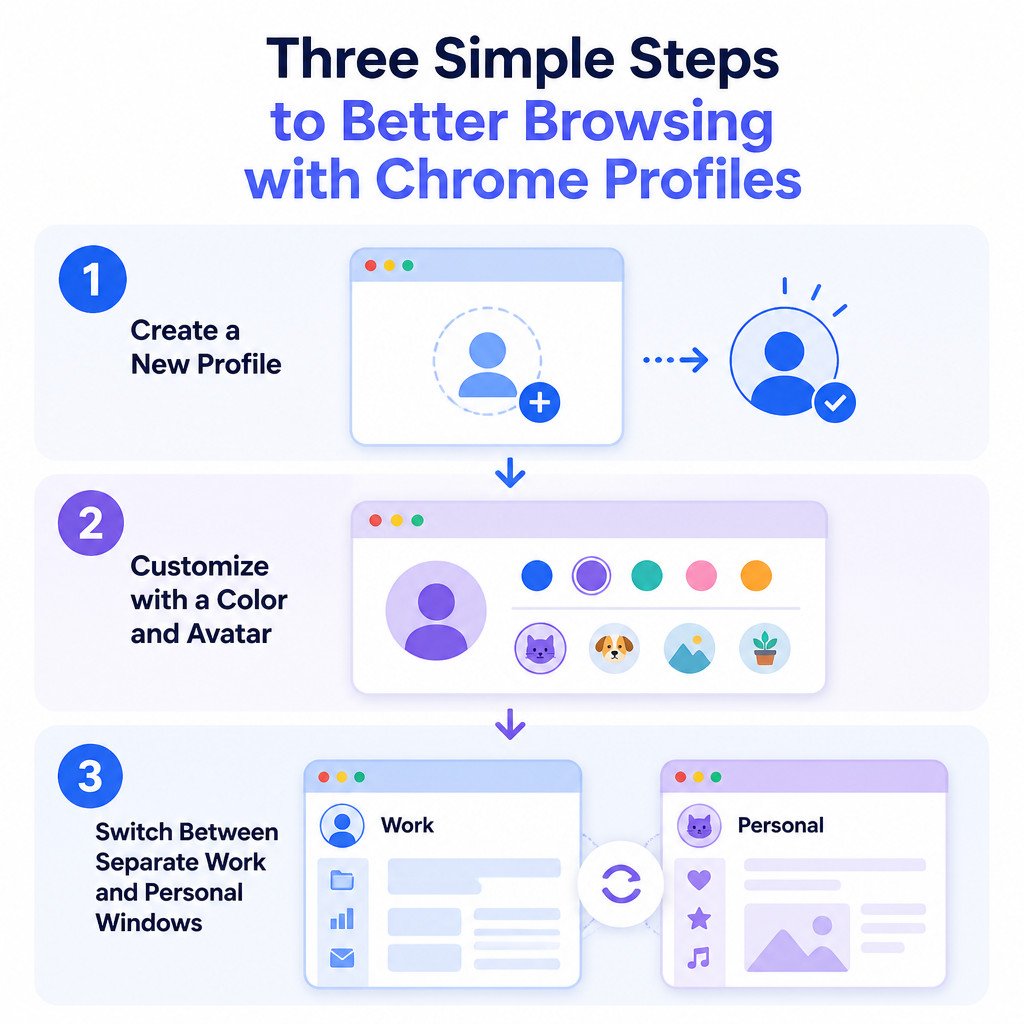
Once the profile is ready, install only the extensions and save only the bookmarks that belong in that environment. Doing so keeps the profiles distinct and makes each one easier to identify.
How to switch between Chrome profiles
You don’t need to sign out of every website whenever you switch Chrome profiles.
- Open any Chrome window.
- Select the profile icon in the top-right corner.
- Find the list of available profiles, then select the one you want to use.
Chrome opens the chosen profile in a separate window. Several profile windows can stay open at once, which is especially useful if you need access to work and personal accounts at the same time.
Create a desktop shortcut for a profile
While creating a profile, Chrome may show a checkbox for adding a desktop shortcut. Select it if you’d like a dedicated shortcut for a work, school, or personal browser window.
If you skipped that option at first, open the profile and select its profile icon, then check the profile management options. The exact availability may differ slightly depending on your operating system and Chrome version.
How to sign in and turn on Chrome sync
Signing in isn’t required. A local profile will still keep its browsing data separate on the computer, though that information won’t automatically move to another device.
To sign in to an existing profile:
- Open the Chrome profile you want to connect.
- Select the profile icon.
- Choose Turn on sync or Sign in to Chrome.
- Sign in with the Google account associated with that profile.
- Review the sync prompt and confirm your selection.
Chrome sync may include bookmarks, passwords, history, open tabs, addresses, settings, and extensions. You can choose what gets synced by opening Chrome settings and going to the sync settings for your account.
Important: Don’t sign in to a work-managed Google account through your personal profile unless you understand your employer’s browser management policies. An organization may apply its policies to the profile where the managed account is used.
Chrome profiles, Guest mode, and Incognito mode
| Option | Best for | What is saved? |
|---|---|---|
| Chrome profile | Ongoing work, personal, school, or family browsing | Bookmarks, history, passwords, extensions, and settings remain separate |
| Guest mode | Letting someone briefly use your browser | Most browsing data from the guest session is deleted when all Guest windows close |
| Incognito mode | Temporary private browsing within a profile | Chrome doesn’t save local history or cookies after the session, but downloads and bookmarks remain |
For a long-term, separate workspace, a profile is the best fit. Guest mode works better for someone who only needs to use the browser briefly. Incognito mode is designed for temporary sessions, but it doesn’t make you anonymous to websites, networks, employers, schools, or internet providers.
How to remove a Chrome profile safely
Removing a profile deletes its local Chrome data from that computer. Before you proceed, check that any important bookmarks, passwords, and files have been backed up or synced to the right account.
- Close any Chrome windows belonging to the profile you plan to remove.
- Open Chrome and select the profile icon.
- Select the settings or gear icon beside the profile list to open profile management.
- Locate the profile you want to remove.
- Select the three-dot menu for that profile.
- Choose Delete, then confirm.
If the profile was signed in and syncing, removing the local profile won’t automatically delete data stored in the Google account. Synced bookmarks, for example, may still be available after you sign in again on another device.
Common mistakes with Chrome profiles
- Using one profile for every account: This can lead to account mix-ups, cluttered bookmarks, and messages sent from the wrong email address.
- Assuming Incognito replaces a separate profile: Incognito sessions are temporary and still run within the profile’s browser environment.
- Installing work extensions in a personal profile: Keep organization-required extensions in your work profile unless you deliberately need them somewhere else.
- Deleting a profile without checking sync: Make sure important bookmarks and passwords have been synced or exported before removing it.
- Confusing Google account sign-in with Chrome profile separation: Signing in to several Google accounts inside one profile doesn’t provide the same separation as creating individual Chrome profiles.
Can you create Chrome profiles on Android or iPhone?
Chrome profile management is mainly a desktop feature. Chrome for Android and iPhone doesn’t provide the same separate browser-profile setup found on computers.
Android users can rely on separate Android user accounts, an employer-managed work profile, or different devices for stronger separation. On an iPhone or iPad, browser data is generally connected to the app and the iOS account environment, so separate Chrome profiles aren’t available in the same form.
FAQ
Are Chrome profiles private from other computer users?
Profiles separate browser data, but they aren’t a security boundary on their own. Someone who can access your unlocked computer may also be able to open a profile. For better privacy, use a password-protected operating system account.
Can I use two Gmail accounts with Chrome profiles?
Yes. Set up one Chrome profile for each Gmail or Google Workspace account, then sign in to the matching account within each profile.
Do Chrome profiles have separate extensions?
Yes. Extensions are installed and configured independently in each Chrome profile. An extension added to your work profile won’t automatically show up in your personal one.
Will deleting a Chrome profile delete my Google account?
No. Deleting a Chrome profile removes that profile’s local browser data from the computer. Your Google account itself isn’t deleted.
What is the best Chrome profile setup for work and personal use?
Create one work profile and sign in only with your work account. Then make a separate personal profile that uses only your personal account. Different colors and desktop shortcuts can help you avoid opening the wrong profile.