If one website works in other browsers or on another device, while other websites still work in Firefox, treat it as a Firefox-and-site interaction first. Do not clear all browsing data or refresh Firefox immediately. Start by confirming the pattern, then change one reversible variable at a time.
This order is useful whether the page will not load, looks broken, loops at sign-in, fails to play a video, or has a button that does nothing. The exact symptom matters: a connection error points in a different direction from a layout or rendering problem.
Confirm that Firefox is the meaningful difference
Run two quick comparisons before changing settings:
- Open a different, known-working website in Firefox.
- Open the affected page in a second browser on the same computer, or on another device if practical.
- Write down the exact Firefox message or what fails. Distinguish “page will not load” from “page loads but login, media, checkout, or a control fails.”
If several unrelated websites fail in Firefox, this is not the narrow one-site problem covered here. Check the connection, proxy or VPN state, security software, and broader Firefox networking settings instead. If the affected website also fails in another browser, Firefox is less likely to be the cause; the site, its account service, or the network may be involved. Mozilla likewise recommends comparing another site in Firefox with the affected site in another browser when investigating loading failures. Firefox Help: websites do not load
Clear data for the affected site, not for every site
Cookies and stored site data can become inconsistent after a site update, an interrupted sign-in, or a changed consent setting. Clear the affected site’s cookies and site data first using Firefox’s address-bar site controls, then reload the page and sign in again if needed.
This is deliberately narrower than clearing all Firefox history. Expect to be signed out of that website and to lose preferences stored only by that site, such as a chosen language or consent choice. It should not sign you out of unrelated websites. Mozilla documents current-site data clearing as a remedy when a site appears or behaves incorrectly. Firefox Help: websites look wrong
Retest immediately after this one change. If the site now works, stop there. Adding more fixes makes it difficult to know what solved the problem and can remove useful browser configuration.
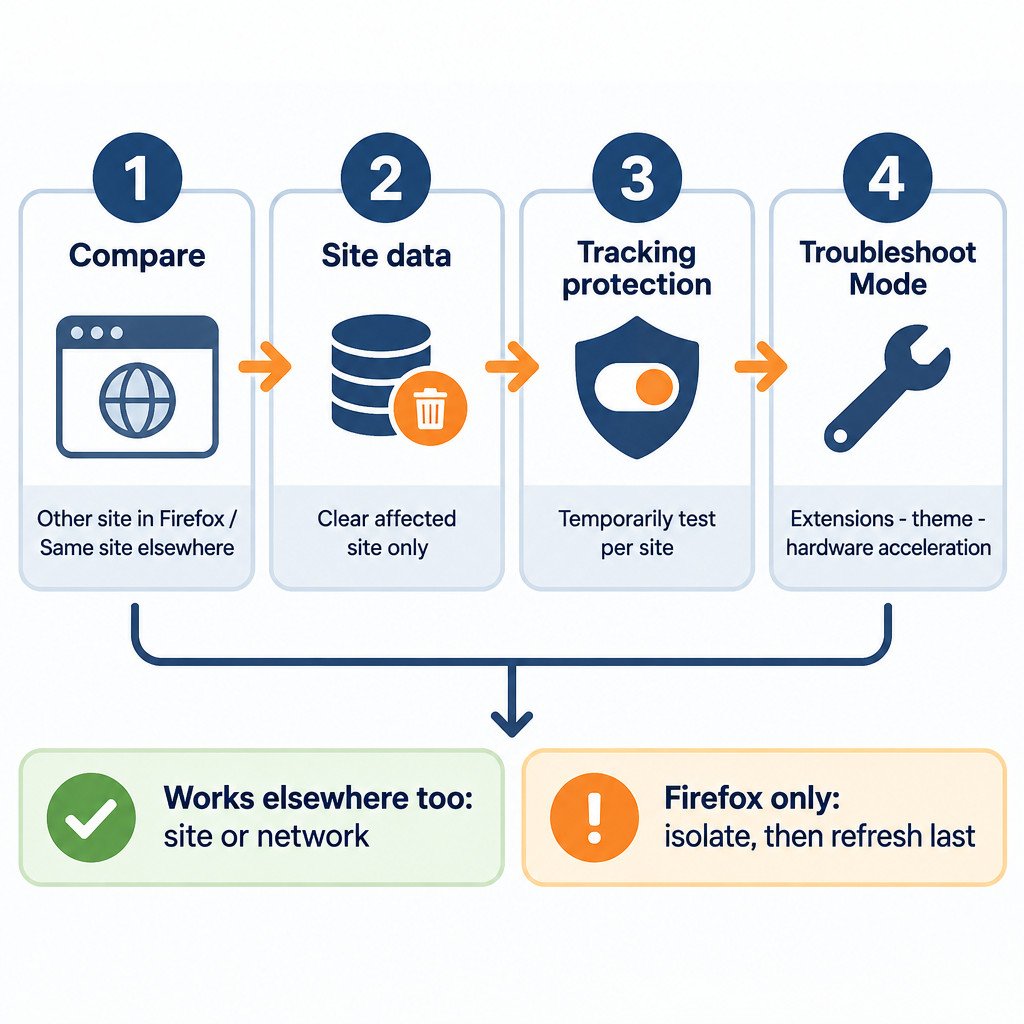
Test Enhanced Tracking Protection for this site only
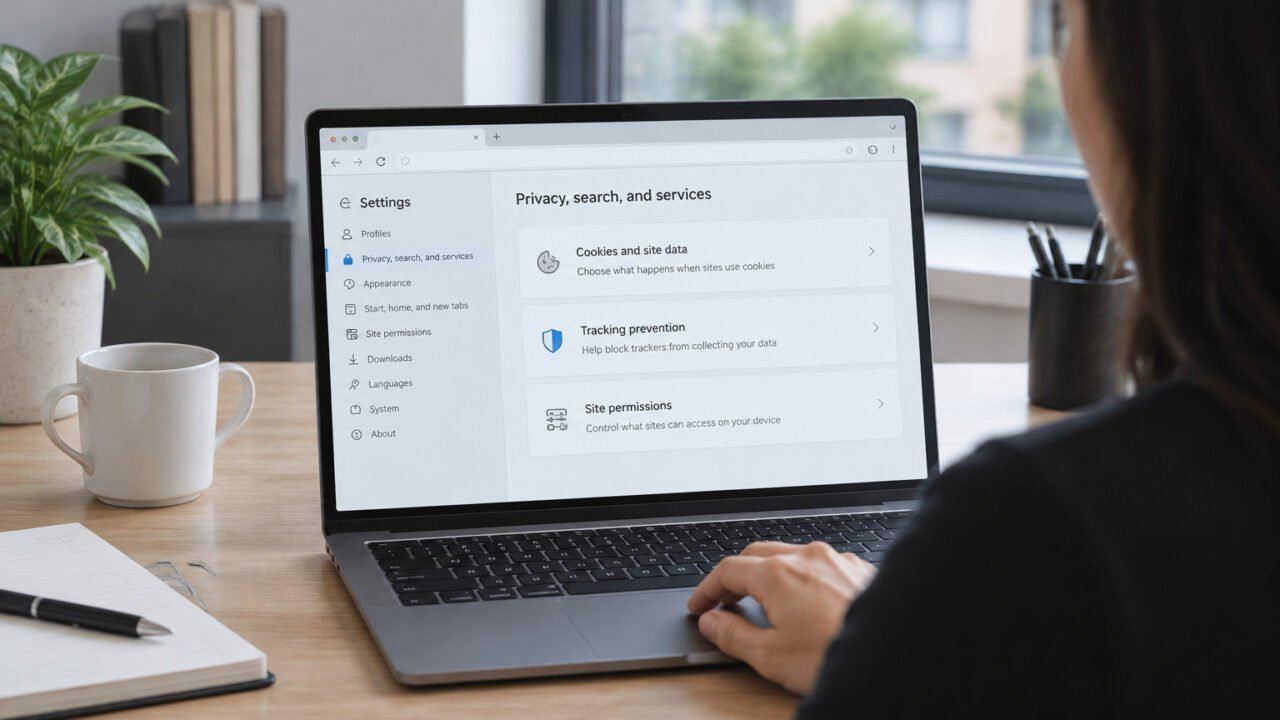
Firefox’s Enhanced Tracking Protection can block content that a site depends on, particularly embedded sign-in components, media, comments, or third-party scripts. This is a diagnostic test, not a recommendation to reduce privacy protection everywhere.
- Open the affected site in Firefox.
- Use the shield icon in the address bar to turn off Enhanced Tracking Protection for that site temporarily.
- Reload the page and repeat the failed action.
- Turn protection back on if nothing changes.
If disabling protection fixes the problem, decide whether the site is important enough to keep that per-site exception. Do not turn off Enhanced Tracking Protection globally for a single troublesome page. A site may work only after the change because it relies on a third-party element that Firefox had blocked; that is useful information, not necessarily a reason to trust the element. Mozilla specifically lists temporarily disabling tracking protection for the affected website as a troubleshooting step for pages that look or behave incorrectly. Firefox Help: site display problems
Use Troubleshoot Mode to isolate add-ons, theme, or rendering
If site data and per-site tracking protection did not help, open the site in Firefox Troubleshoot Mode and repeat the exact failed action. This mode is a controlled test: it temporarily disables extensions, uses the default theme, and turns off hardware acceleration.
A successful test in Troubleshoot Mode narrows the likely cause, but does not name it. Return to normal Firefox and work methodically:
- Disable extensions, then re-enable them one at a time, testing the site after each change.
- Pay particular attention to content blockers, script/privacy extensions, password managers, translation tools, and video-related extensions.
- If the symptom is a blank area, flickering, distorted graphics, a video issue, or a crash, test hardware acceleration separately. Change it, restart Firefox when requested, and retest.
- If you use a custom theme, switch to the default theme as a separate test.
Do not leave every extension disabled simply because that makes the page work. The goal is to identify the smallest change that resolves the conflict. Mozilla explains that a positive Troubleshoot Mode result can implicate extensions, the theme, or hardware acceleration, and recommends isolating them rather than guessing. Firefox Help: troubleshoot extensions, themes, and hardware acceleration
Rule out causes Firefox cannot fix alone
If the failure persists in normal Firefox and Troubleshoot Mode, widen the test carefully. Confirm that your computer’s date, time, and time zone are correct, especially when the site reports a certificate or secure-connection error. Try a different network when that is safe and available, such as mobile hotspot versus office Wi-Fi. A work network, VPN, captive portal, or DNS filter can affect a particular service.
If you previously changed Firefox’s DNS over HTTPS setting, record its current state before experimenting. It is an advanced variable to review, not a universal cure for one broken site. Avoid changing several network settings at once; otherwise a later result will not tell you which change mattered.
Refresh Firefox only after the targeted tests
Refresh Firefox is a late-stage repair option for a persistent Firefox-only issue, not the first response to one broken website. It restores many settings to their defaults and removes add-ons and customizations. Mozilla says essential information such as bookmarks and passwords is retained, but extension data and preference configurations can be removed.
Before refreshing, note any extensions you need and export or record their settings where the extension provides that option. Also note custom search engines, privacy exceptions, certificates, and other browser preferences that matter to your work. Then retest the site in the refreshed profile before reinstalling extensions; otherwise an extension conflict can return immediately. Firefox Help: Refresh Firefox
Choose the next step by symptom
| What you observe | Most useful next step |
|---|---|
| Only one site fails in Firefox | Clear that site’s data, then test per-site tracking protection. |
| The page loads but controls, sign-in, or embedded content fail | Test Enhanced Tracking Protection for that site, then check extensions. |
| The problem disappears in Troubleshoot Mode | Isolate extensions, theme, and hardware acceleration one at a time. |
| The issue involves flickering, blank areas, video, or crashes | Test hardware acceleration separately after the Troubleshoot Mode comparison. |
| The site fails in multiple browsers or devices | Consider a website, account, network, VPN, or DNS-related cause. |
| Firefox alone still fails after targeted tests | Preserve needed settings, then consider Refresh Firefox as a last resort. |
The useful habit is not memorizing a reset sequence. It is preserving evidence: compare browsers, make one small change, retest the same action, and keep only the change that explains the result. That approach avoids unnecessary sign-outs, lost customizations, and weaker browser privacy settings.