If Microsoft Edge keeps opening new tabs on its own, the cause is usually an unwanted extension, a startup-page setting, website notifications, adware, or a modified browser shortcut. Check your extensions and startup settings first. If the problem continues, reset Edge.
Tabs that appear only when Edge launches usually point to a startup setting. If they open while you’re browsing, an extension, site notification, redirect, or potentially unwanted program is more likely to blame.
Quick ways to stop Microsoft Edge opening new tabs by itself
- Remove unfamiliar Edge extensions.
- Set Edge to open a specific page or a new tab at startup.
- Block notifications from suspicious websites.
- Remove unwanted search engines and startup pages.
- Scan Windows for adware and potentially unwanted apps.
- Reset Microsoft Edge if the problem remains.
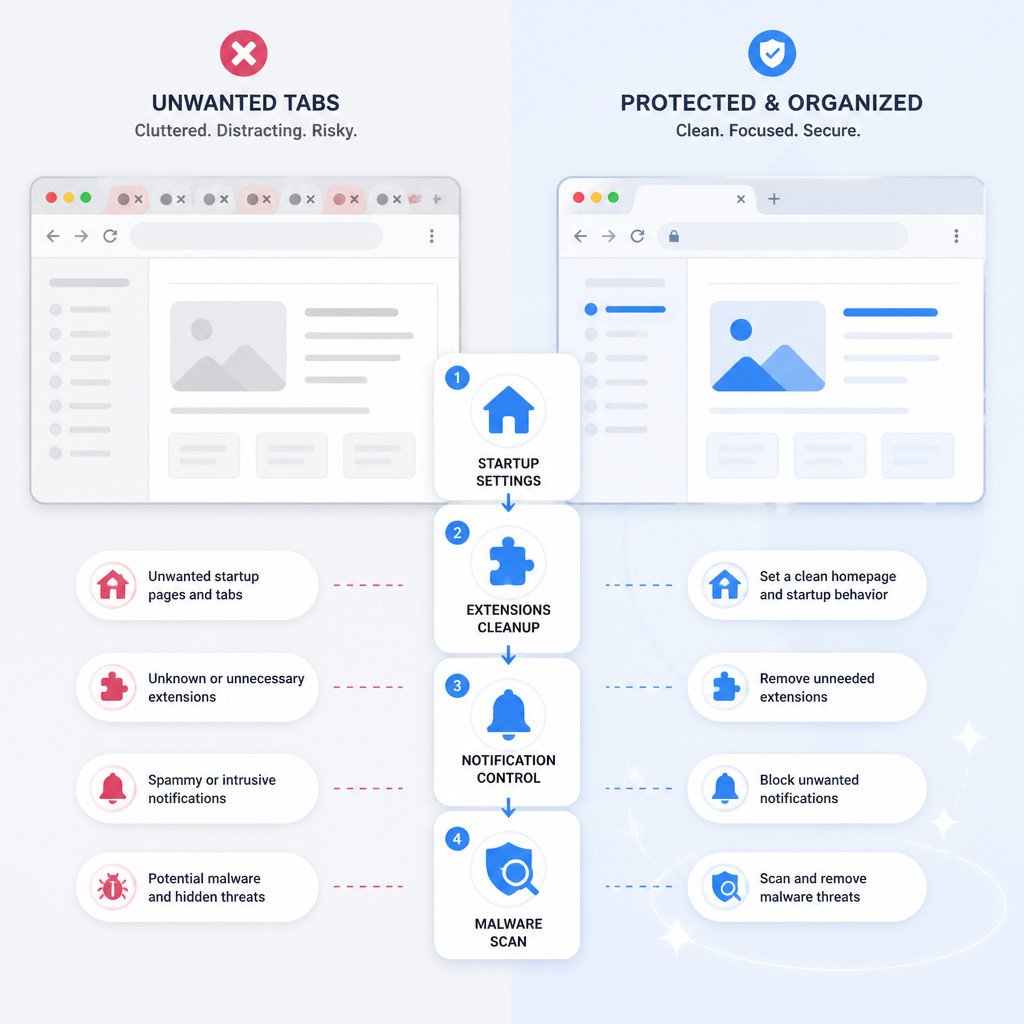
1. Review Microsoft Edge startup settings
If the extra tabs appear as soon as you launch the browser, check Edge’s startup configuration before trying anything else.
- Open Microsoft Edge.
- Select the three-dot menu in the top-right corner, then choose Settings.
- Select Start, home, and new tabs.
- Under When Edge starts, choose Open the new tab page or Open these pages.
- If Open these pages is selected, delete any address you don’t recognize or no longer want.
While you’re on this page, check the Home button setting as well. An unwanted site configured as the home page can easily look like an automatic redirect.
2. Remove suspicious extensions
Browser extensions can inject ads, alter search results, open promotional pages, or redirect your searches. Even an extension that once seemed harmless may become unwanted after an update or a change in ownership.
- Enter
edge://extensionsin Edge’s address bar and press Enter. - Turn off any extension you don’t recognize or no longer use.
- Restart Edge and check whether new tabs still open automatically.
- If the problem has stopped, re-enable the extensions one at a time until you identify the cause.
- Select Remove beside the extension responsible.
Take extra care with coupon finders, download helpers, PDF converters, wallpaper tools, video downloaders, and extensions that promise better search or shopping features. Only install browser extensions from trusted publishers and official extension stores.
3. Remove unwanted website notifications
Website notifications don’t always open tabs directly, but deceptive alerts may tempt you to click through to unwanted pages. Some sites send fake virus warnings, prize messages, or download prompts simply to generate traffic.
- Open
edge://settings/content/notifications. - Look under Allow for websites you don’t trust.
- Select the three dots beside each suspicious site.
- Choose Block or Remove.
- If you never want sites to request notification access, consider turning off Ask before sending.
Don’t call phone numbers shown in browser notifications, and never download software because a pop-up claims your PC is infected.
4. Check the search engine and site permissions
If Edge sends you to an unfamiliar search site whenever you type in the address bar, the default search engine may have been changed.
- Open
edge://settings/search. - Under Search engine used in the address bar, make sure your preferred search engine is selected.
- Select Manage search engines.
- Delete unfamiliar entries that point to suspicious web addresses.
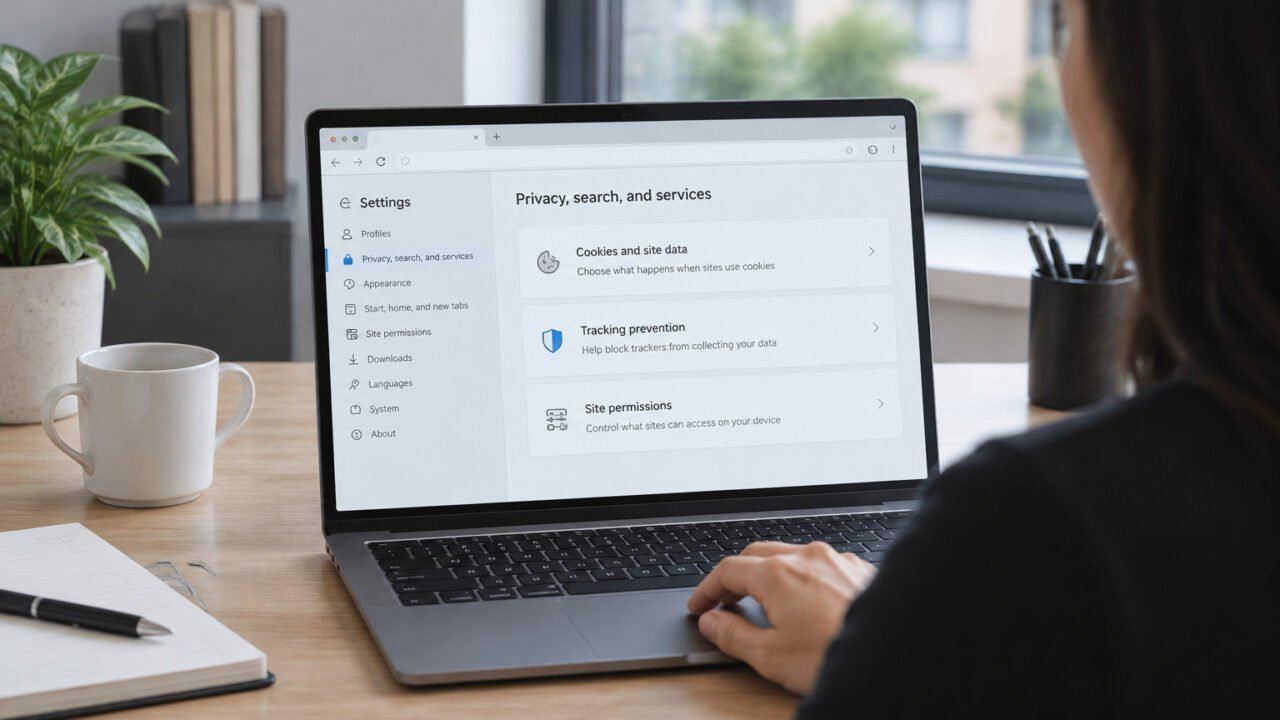
You should also review the permissions listed at edge://settings/content. Pay attention to pop-ups and redirects, notifications, automatic downloads, and intrusive ads. Blocking unknown sites in these categories can help reduce unwanted browser activity.
5. Inspect the Microsoft Edge shortcut
Adware sometimes changes a browser shortcut so it launches Edge along with a promotional website. This is especially likely if the same unwanted page opens whenever you use one particular desktop or taskbar shortcut.
- Close Microsoft Edge.
- Right-click the Edge shortcut you normally use, then select Properties.
- Open the Shortcut tab.
- Inspect the Target field.
- The target should end with
msedge.exe. Delete any website address or other text that appears after it. - Select Apply, followed by OK.
If Edge is pinned to the taskbar, unpin it and then pin it again from the Start menu after fixing or replacing the shortcut.
6. Scan Windows for adware
If Edge continues opening tabs after you’ve removed suspicious extensions and corrected its settings, scan the computer. Adware and potentially unwanted applications may change browser settings, create scheduled tasks, or reinstall unwanted extensions.
- Open Windows Security from the Start menu.
- Select Virus & threat protection.
- Choose Scan options.
- Run a Full scan.
- If the suspicious behavior continues, run a Microsoft Defender Offline scan. Your PC will restart, allowing Defender to scan before many background programs have loaded.
Next, open Settings > Apps > Installed apps and sort the list by installation date. Remove unfamiliar software installed around the time the redirects started. Don’t uninstall hardware drivers or applications you recognize as legitimate without checking them first.
7. Reset Microsoft Edge settings
Resetting Edge is a sensible last browser-level fix. It restores the startup configuration, new-tab page, search engine settings, and pinned tabs, while also disabling extensions. Your favorites, browsing history, and saved passwords are normally kept.
- Open
edge://settings/reset. - Select Restore settings to their default values.
- Choose Reset to confirm.
- Restart Edge and test it before installing or re-enabling any extensions.
Common mistakes to avoid
- Don’t click “Allow” on random notification prompts. Legitimate websites can still work without notification permission.
- Don’t install several browser cleaners. Some programs advertised as cleaning tools are potentially unwanted software themselves.
- Don’t restore every extension immediately after a reset. Reinstall only the extensions you genuinely need.
- Don’t ignore a URL that keeps returning. If the same site opens repeatedly, it can help you identify the responsible extension, shortcut, or scheduled task.
How to check that the problem is fixed
Restart your computer, then launch Edge from the Start menu instead of using an old desktop shortcut. Visit several trusted websites and run a few searches from the address bar. If no unexpected pages appear, enable only the extensions you need, one at a time, over the next few days. Should the problem return after you enable a particular extension, remove it permanently.
FAQ
Why does Microsoft Edge open random tabs on startup?
Microsoft Edge usually opens random tabs at startup because unwanted pages were added to its startup settings, a browser shortcut contains a URL, or an extension or adware program is launching them.
Can a virus make Edge open new tabs by itself?
Yes. Adware, browser hijackers, and potentially unwanted applications can make Edge open new tabs or redirect searches. Run a full Windows Security scan, then remove unknown applications and extensions.
Will resetting Microsoft Edge delete bookmarks and passwords?
No. An Edge reset normally keeps your favorites, history, and saved passwords. It does reset browser settings and disable extensions, so you may have to configure some preferences again.
How do I stop websites from opening pop-ups in Edge?
Open edge://settings/content/popups and confirm that pop-ups and redirects are blocked. Delete any unfamiliar websites from the allowed list.