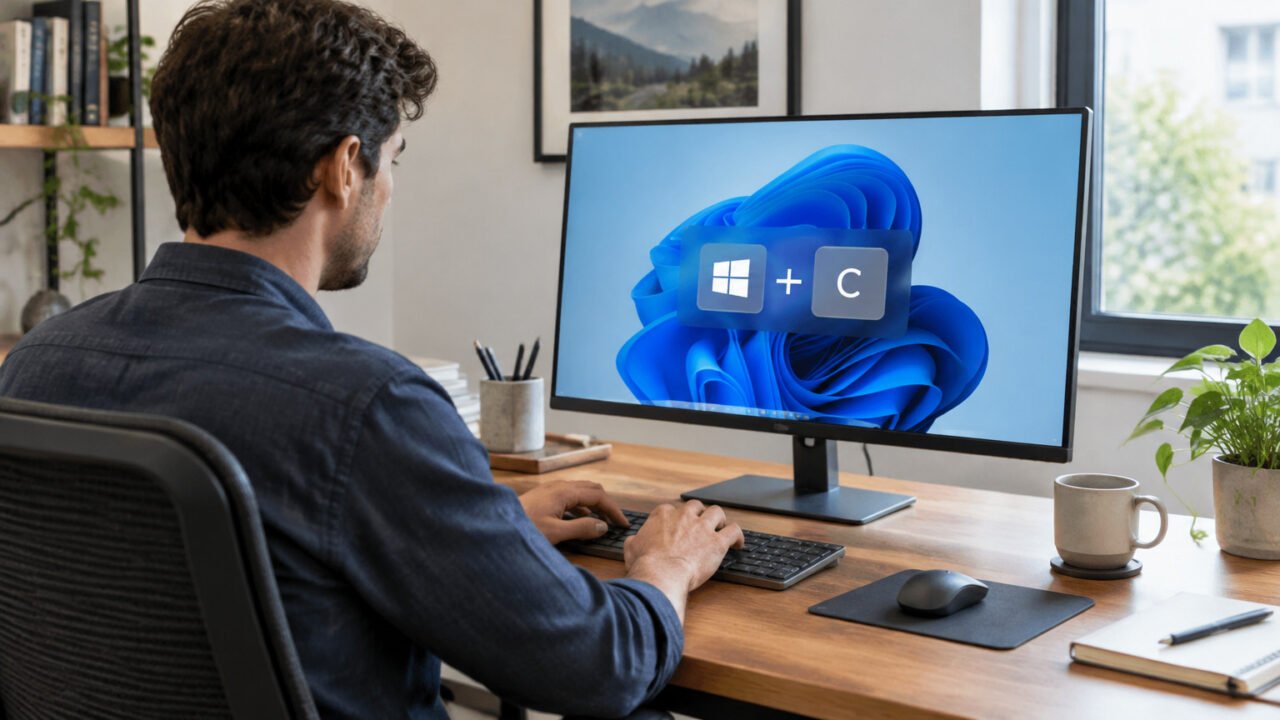
Use PowerToys Awake when you need a Windows PC to stay awake for one bounded task, but do not want to alter your normal power plan. The safest choice for most situations is Keep awake for a time interval: set a realistic end time, leave Keep screen on off unless you need to watch the display, and turn Awake off after the work is complete.
That makes Awake useful for an attended long download, software installation, file transfer, presentation, or status check. It is not a replacement for a permanent sleep policy. If a PC must remain available every day, configure Windows power settings instead of relying on a temporary awake request.
Install PowerToys if it is not already available
PowerToys is a free, open-source Microsoft utility suite. Its documented requirements include Windows 10 version 2004 or later, or Windows 11, on x64 or ARM64 hardware. Microsoft lists the Microsoft Store, GitHub, and WinGet as installation options. From an elevated or standard terminal where WinGet is available, the documented command is winget install --id Microsoft.PowerToys --source winget. On a work-managed PC, follow your organization’s software-installation policy first. Microsoft’s PowerToys installation guide
Open PowerToys Settings after installation, select Awake in the left menu, and enable it. Awake can also be controlled from its system-tray icon, which is useful for checking the active mode and its planned expiration without reopening Settings.
Choose a temporary wake mode, not an indefinite one
Awake offers several modes. For a task with a known duration, choose a time interval. If you know the desired clock time rather than the duration, choose an expiration time. Indefinite mode is best avoided for ordinary one-off jobs because it is easy to forget that it is active.
| Mode | Best use | Main tradeoff |
|---|---|---|
| Passive or off | Normal Windows sleep behavior | Does not protect a task from sleep |
| Keep awake for a time interval | A download or installation with an estimated duration | May end too soon if the estimate is poor |
| Keep awake until expiration | A task that should run until a specific clock time | Requires checking the selected date and time |
| Keep awake indefinitely | Short, actively supervised use | Can be left on accidentally |
The modes and tray controls are documented in the PowerToys Awake utility documentation. The exact labels can change slightly between releases, but the decision is the same: pick the narrowest duration that covers the job.
Keep the PC awake without necessarily keeping the screen lit
Keeping the computer awake and keeping its display on are separate choices. Awake can prevent system sleep while still allowing the screen to turn off under your usual display timeout. Enable Keep screen on only when a visible display matters, such as during a presentation, a live dashboard check, or a process that needs occasional on-screen attention.
Leaving the display off is usually the better default for an unattended-but-nearby installation or download. It reduces unnecessary display use while the computer remains available to finish the task. It does not make the machine private or secure; lock it before stepping away in a shared environment.
A practical timed setup
- Estimate how long the task should take, including a modest buffer for restarts or slower-than-expected transfer speeds.
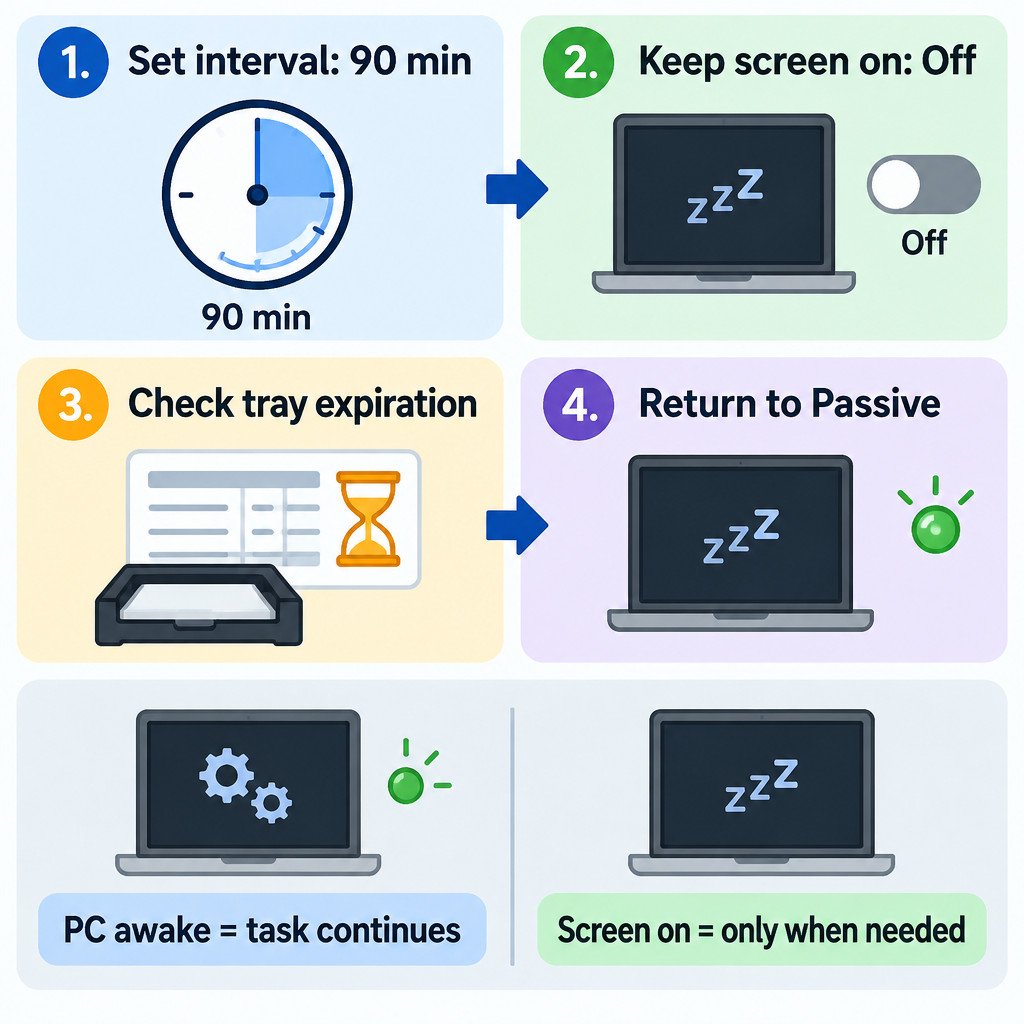
- In PowerToys Settings, turn on Awake and select Keep awake for a time interval.
- Enter the interval, then leave Keep screen on switched off unless the task needs a visible display.
- Open the Awake icon in the system tray and confirm that the active mode and expiration match your intention.
- Start the task. Do not close the laptop lid or deliberately put the PC to sleep.
- When the task finishes, return Awake to passive or off mode and confirm that normal sleep behavior resumes.
Illustrative example: a 90-minute installation
Suppose an installation is expected to take about 75 minutes and you will be nearby. Set Awake for 90 minutes, leave Keep screen on off, and check the tray icon after setting it. If the installation completes early, disable Awake then rather than waiting for the timer. If it is still working near the end, extend the timer deliberately after confirming that the process is progressing.
This is preferable to changing a laptop’s normal sleep setting to “Never” and forgetting to change it back. Your usual power plan remains the baseline once the temporary Awake session ends.
Know the limits before you leave the computer
Awake works while you are signed in; it does not keep a PC awake at the lock screen. It also cannot override a deliberate sleep action, such as closing a laptop lid or pressing a configured power button. If you need to leave a device unattended in a shared place, finish or pause the task where possible, then lock the device rather than assuming Awake will cover every situation.
Power matters too. A wake request prevents the system from entering its normal low-power state, so a laptop can use substantially more battery than it would while sleeping. Windows documentation advises against holding continuous system-awake requests indefinitely, particularly on devices that use Modern Standby. Plug in for a long task when practical, and use a finite end time. Windows system sleep criteria
Optional: use Awake from a script
PowerToys also includes the standalone PowerToys.Awake.exe tool for command-line use. This can suit a scheduled, time-limited maintenance task, but it is secondary to the Settings interface for most people. A script should always use an explicit duration or expiration and should be tested while you can observe the machine. Do not build an unattended workflow around an indefinite wake request without understanding its power and operational consequences.
Quick decision checklist
- Use Awake for a temporary task, not as a permanent power-plan substitute.
- Choose a time interval or a specific expiration whenever possible.
- Keep the screen off unless the display itself is needed.
- Verify the current mode and end time in the system tray.
- Keep a laptop open, powered as needed, and signed in while the task runs.
- Turn Awake off when the work is done, then lock the PC if you leave it.
The key distinction is simple: Awake temporarily requests that Windows keep the system available; it does not rewrite your normal power habits. A defined timer and a screen-off default make it a controlled tool rather than a source of wasted power.
Sources
Microsoft Learn: PowerToys Awake utility; PowerToys installation guidance; Windows system sleep criteria.