If a database password is currently in compose.yaml, a .env file, or a copied deployment command, move it to a Compose secret and have each container read the mounted file at /run/secrets/<secret_name>. This reduces the chance that a credential is exposed through routine configuration sharing, environment inspection, or debugging output. It does not make a compromised host safe or replace password rotation.
Docker advises using secrets rather than environment variables for sensitive values. In Compose, a secret is declared at the top level, then explicitly granted to only the services that require it. The normal short syntax makes it available as a read-only file under /run/secrets/. Docker’s Compose secrets guide also shows this pattern with a database and WordPress.
What must be true before you switch
- You are using Docker Compose with Linux containers. Docker documents Compose secrets as supported on Linux containers only.
- Your database image can read a password from a file, usually through an image-specific setting such as
MYSQL_PASSWORD_FILEorPOSTGRES_PASSWORD_FILE. - Your application can also use a file-based password setting, or is configurable to read a specific mounted file.
- You can keep the secret files outside version control and restrict access to the host account and backups that can read them.
The _FILE suffix is an image convention, not a general Compose feature. Compose mounts the file; the image decides whether it knows to read it. Check the documentation for the exact image tag you run before changing a working deployment.
Start by finding every old password path
Inspect compose.yaml, override files, .env, CI variables, and deployment notes for settings such as POSTGRES_PASSWORD, MYSQL_PASSWORD, MYSQL_ROOT_PASSWORD, or an application-specific database password. A safe migration removes the old password variable after the file-based setting works. Leaving both in place creates ambiguity about which value the container actually used.
Create a directory that is not committed to your repository, for example secrets/, and create one file per credential. Add the directory or exact filenames to .gitignore. This prevents an accidental commit, but it is not an access-control system: anyone who can read the files, a copied host backup, or an unprotected deployment archive may still obtain the passwords.
# .gitignore
secrets/
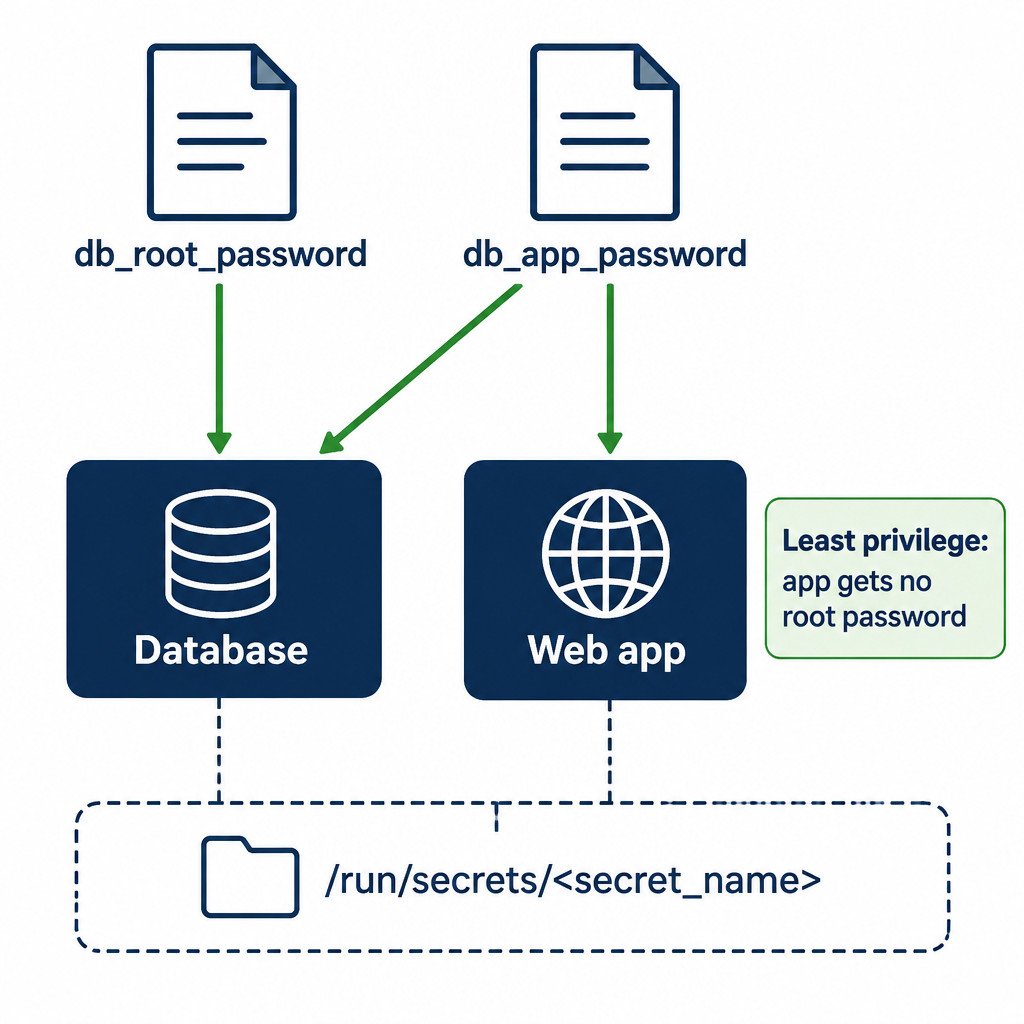
Use separate credentials for separate roles. In a typical two-service setup, the database needs its administrative password and the application account password. The web application needs only the application account password. It should never receive the administrative database credential.
Example: MySQL and WordPress with file-backed secrets
The following is an illustrative reconstruction based on the documented MySQL and WordPress file-variable pattern. It is not a universal template: image names, tags, database names, users, and supported variables must match your own deployment.
services:
  db:
    image: mysql:8
    environment:
      MYSQL_DATABASE: exampledb
      MYSQL_USER: appuser
      MYSQL_ROOT_PASSWORD_FILE: /run/secrets/db_root_password
      MYSQL_PASSWORD_FILE: /run/secrets/db_app_password
    secrets:
      - db_root_password
      - db_app_password

  wordpress:
    image: wordpress:latest
    environment:
      WORDPRESS_DB_HOST: db:3306
      WORDPRESS_DB_NAME: exampledb
      WORDPRESS_DB_USER: appuser
      WORDPRESS_DB_PASSWORD_FILE: /run/secrets/db_app_password
    secrets:
      - db_app_password

secrets:
  db_root_password:
    file: ./secrets/db_root_password.txt
  db_app_password:
    file: ./secrets/db_app_password.txt
Put the root password in secrets/db_root_password.txt and the application password in secrets/db_app_password.txt. Do not put the passwords themselves in the YAML example. The database receives both mounted files because it initializes both accounts; WordPress receives only db_app_password. That service-level secrets list is the access boundary. A top-level declaration alone does not grant a container access to a secret, as described in the Compose service reference.
Bring it up and verify without printing credentials
- Review the YAML with
docker compose config. Look for the_FILEenvironment settings, top-level secret declarations, and the intended service-level grants. Do not use a command or diagnostic option that prints the contents of your source secret files. - Start the stack with
docker compose up -d. - Confirm that the expected paths exist without reading them:
docker compose exec db sh -c 'test -f /run/secrets/db_root_password && test -f /run/secrets/db_app_password && echo mounted'. - Check the application service similarly:
docker compose exec wordpress sh -c 'test -f /run/secrets/db_app_password && echo mounted'. - Test the application normally, then review logs for authentication failures. Avoid pasting secret values into shell commands, tickets, or logs while troubleshooting.
A successful file mount alone does not prove the software used the password. The meaningful test is a successful application-to-database connection after the old plain-text password variables have been removed.
Common migration failures
| Symptom | Likely cause | What to check |
|---|---|---|
| Compose says a secret is undefined | The service references a name missing from the top-level secrets section. | Make the names match exactly. |
| Compose cannot find the file | The relative path is wrong for the directory where Compose is run, or the file is absent. | Verify the path and host-side file access without displaying its contents. |
| The container starts but authentication fails | The image does not support that _FILE variable, or the app still reads its old variable. | Check the image documentation and remove the obsolete password setting. |
| The application cannot see the secret | The secret was declared globally but not granted to that service. | Add only the required secret under that service’s secrets list. |
| The setup works on one host but not another | Different container mode, image version, file ownership assumptions, or Windows containers. | Confirm Linux-container compatibility and pin or validate the image version. |
Know what local Compose secrets do not solve
A file-backed Compose secret is an improvement in how a container receives a credential; it is not an external vault, encryption-at-rest guarantee, automatic rotation system, or audit trail. The secret still originates as a file on the Docker host. Protect host accounts, deployment directories, backup destinations, and any automation that can read those files.
For a single self-hosted machine, a practical baseline is to keep secret files out of the repository, limit their host-side access, grant each one to the fewest services possible, and rotate the database credentials when access changes or a file may have been exposed. Rotation usually requires updating the database account, replacing the source file, and recreating the affected containers so they read the new value.
For production or multi-host deployments, assess a centralized secret-management approach that fits your platform and operational controls. Also be cautious with environment-sourced Compose secrets: Compose can source a secret from a host environment variable, but that merely moves the initial handling problem to the host environment. File-backed examples are easier to inspect and reason about for a small local stack. Docker documents both file and environment sources, along with deployment-mode differences, in its Compose secrets reference.
A short checklist before you call the migration complete
- The password values no longer appear in
compose.yaml,.env, or committed configuration. - Each secret has a named file source outside version control.
- Each service receives only the secret or secrets it needs.
- The selected images explicitly support the configured file-based password variables.
- The application connects successfully after the old environment password variables are removed.
- Host access, backups, and credential rotation are part of the operating plan.
This change will not eliminate database risk, but it narrows routine exposure and makes the intended credential boundary visible in the Compose file.