If File History was configured before a file was changed or deleted, it may hold an earlier copy that you can restore. The cautious approach is to open and inspect that copy, then use Restore to to save it in a separate folder. That preserves the current file while you compare the two versions.
File History is a versioned backup feature, not a recovery tool that can reconstruct files it never backed up. It normally protects files in libraries such as Documents, Pictures, Videos, and Music, along with Desktop. A work folder stored somewhere else must have been added to a library before the loss for File History to include it. Microsoft describes the supported backup locations and restoration options in its File History guide.
Check whether File History is likely to help
- The change happened after File History was enabled. It cannot create an older version retroactively.
- The file was in a protected location. Check Documents, Desktop, and other libraries first. For a custom location, consider whether it had been added to a library.
- The backup destination is available. Connect the external drive used for File History, or connect to the network location that held the backup.
- A version existed before the unwanted change. Available dates depend on when backups ran and how long versions were retained.
Do not save, download, or heavily edit files on the backup destination while you are checking it. The immediate goal is simply to find a usable older copy. If the file is still open in an app, save a copy under a new name or close it without making further changes before proceeding.
Open File History and confirm the destination
In Windows 11, open Control Panel, select System and Security, then select Save backup copies of your files with File History. If the page shows that File History is off, or no usable drive is listed, it cannot supply an earlier version. A drive connected today is not enough; it must contain backups made before the file was lost.
If Windows says that the File History drive should be reconnected, first check the cable, power, and drive letter for an external disk. For a network destination, make sure you are on the required network and reselect the location if necessary. After reconnection, Windows can wait for its next scheduled backup; File History also provides a Run now option. Microsoft’s reconnection instructions cover those connection steps.
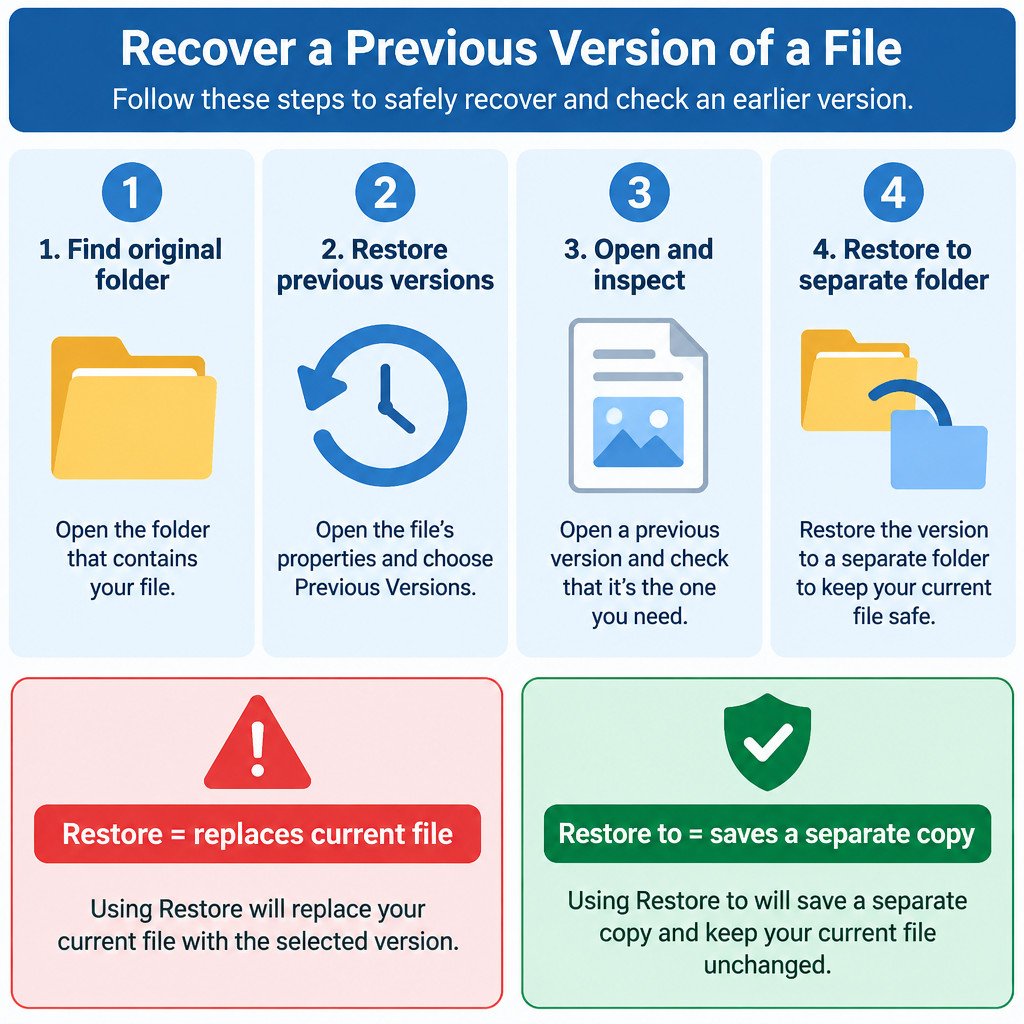
Preview an earlier file version before restoring it
Work from the file’s original folder, not from a copied folder with a similar name. That gives Windows the best chance of matching the item to its recorded history.
- Open File Explorer and browse to the folder where the file normally lives.
- Right-click the file, then select Restore previous versions. To recover a deleted file, right-click its original parent folder and choose the same command.
- Select a version with a date and time from before the unwanted change or deletion.
- Choose Open to inspect the older copy. Check its contents, not just its date or size.
- With the desired version selected, choose Restore to.
- Pick a separate, easy-to-find destination, such as a folder named Recovered File History Copy in Documents.
- Open the restored copy and compare it with the current file. Replace the current version only after you are satisfied.
For example, an illustrative scenario: a report named Budget.xlsx was overwritten at 3:00 PM. A File History version from 1:00 PM may contain the missing formulas. Restoring it to a separate folder lets you copy only the needed worksheet or formulas into the current report, rather than discarding work completed after 1:00 PM.
Why not use Restore immediately?
The plain Restore action restores the selected version to its original location and can replace the current file. That may be appropriate when the current file is clearly unusable, but it is a poor first move when the current copy contains any newer work. The separate-location restore creates a comparison point and gives you time to decide.
If Restore previous versions shows nothing
An empty list does not necessarily mean Windows is malfunctioning. Common explanations are that File History was never enabled, the file was outside a backed-up library, the backup drive is disconnected, or no retained backup was made before the change. Reconnecting the original backup destination is worth trying; configuring File History afterward will protect future versions, but it will not populate old ones.
Also confirm that you are looking at the original path. A file moved into a different folder, copied under a new name, or created in an app-specific location may not appear where expected. Search File Explorer for the filename, then check the previous versions of the folder where it originally resided.
Choose the right Windows recovery option
| Situation | Best starting point | Important limit |
|---|---|---|
| An earlier copy of a personal file is needed | File History | It requires an earlier File History backup. |
| Windows settings, drivers, or system files caused a problem | System Restore | It rolls back system configuration; it does not restore personal files. |
| Setting up or moving to a Windows device | Windows Backup | Its setup-oriented backup and restore role is different from browsing old local file versions. |
| A locally deleted file has no backup and is not in Recycle Bin | Windows File Recovery | It is command-line based, recovery is not guaranteed, and drive use can overwrite recoverable data. |
System Restore and File History are often confused because both use the word “restore.” System Restore targets Windows system configuration and does not affect personal files, while File History is intended for backed-up personal files. Microsoft outlines these recovery roles in its Windows backup, restore, and recovery overview.
When there is no File History backup
First check the Recycle Bin if the item was deleted. For a deleted local file that is not there and has no backup, Windows File Recovery is a possible last resort. It is a Microsoft Store command-line utility, and successful recovery is not guaranteed. Minimize use of the affected drive before attempting recovery because new data can overwrite the deleted file’s storage space. It is not designed for cloud-storage or network-share recovery; see Microsoft’s Windows File Recovery documentation for its supported use and commands.
If the missing item was stored in a sync service, check that service’s recycle bin and version history as well. Those are separate from File History and follow the retention rules of the relevant service or workplace account. On a managed work device, backup locations and recovery options may also be controlled by organization policy.
Keep the next recovery simple
- Use a dedicated external drive or reliable network location for File History.
- Confirm that File History shows a recent successful backup after important work.
- Add non-library work folders to a library if they need File History protection.
- Restore a test copy to a separate folder occasionally, rather than assuming the backup is usable.
- Maintain a second backup for critical files; File History alone is not a whole-PC recovery plan.
The key decision is timing: File History can restore versions that were backed up before the mistake. When a suitable version exists, preview it and restore a copy elsewhere first. That small precaution avoids turning one overwritten file into two lost versions.
Sources
- Microsoft Support, Backup and restore with File History
- Microsoft Support, Reconnect Your File History Drive in Windows
- Microsoft Support, Backup, restore, and recovery in Windows
- Microsoft Support, Windows File Recovery