If Windows 11 says Wi-Fi is connected but nothing loads, do not begin with Network Reset. First determine whether the failure affects one device, every device on the Wi-Fi network, or only one website or app. That quick distinction prevents a PC-wide reset from becoming the response to an ISP outage or a site-specific problem.
Classify the failure first
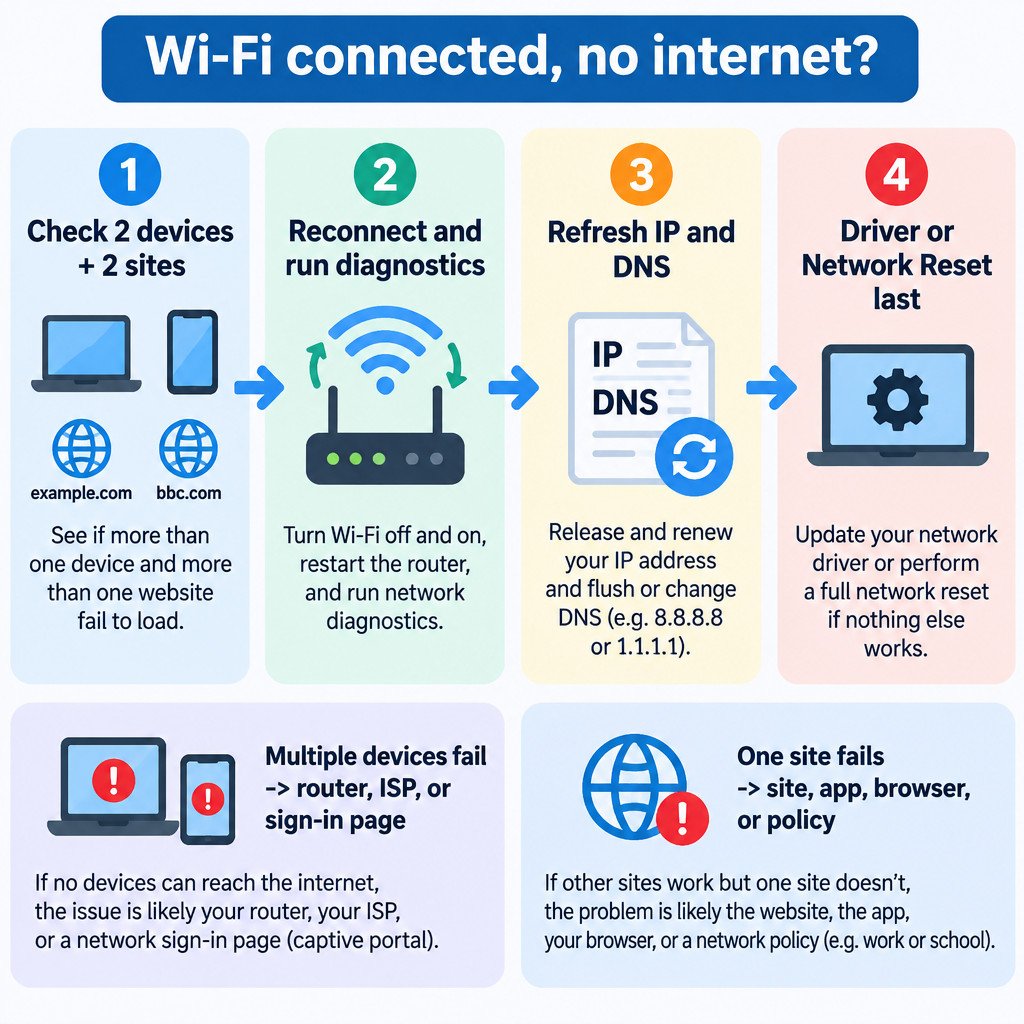
- Your PC and another device both fail on the same Wi-Fi: the router, modem, ISP connection, or a network-wide sign-in page is more likely involved. Check the router’s documented status indicators and contact the provider if the problem persists.
- Only this Windows PC fails, while a phone works on the same Wi-Fi: focus on the PC’s saved network, adapter, IP address, DNS cache, or driver.
- Only one site or app fails: do not treat it as a general Wi-Fi fault. Try another site and another app first; the service, browser extension, firewall, sign-in state, or workplace policy may be the real cause.
- Wi-Fi works except on one network: the saved profile or that network’s configuration deserves attention.
These checks are clues, not proof. A phone can use cellular data instead of Wi-Fi, and an intermittent router problem can appear on only one device at first. Confirm that the comparison device is actually connected to the same Wi-Fi name.
Take the low-risk steps
- Confirm that Airplane mode is off, Wi-Fi is on, and the selected network is the intended one.
- Disconnect from that Wi-Fi network, wait a few seconds, and reconnect.
- Open two unrelated sites or use two different internet-dependent apps. This distinguishes a broad connection failure from a single-service issue.
- Run Windows diagnostics. Search the Start menu for Get Help, search within it for connect to network and internet, then choose Run network diagnostics. Note the result before applying further changes.
Microsoft now routes network troubleshooting through Get Help, and its recommendations can vary by configuration. Follow the prompts, but treat a suggested fix as a test rather than an explanation of the root cause. Microsoft’s Get Help troubleshooter guidance describes this workflow.
If this is a personal network and reconnecting did not help, forget the saved profile: open Settings > Network & internet > Wi-Fi > Manage known networks, select the network, and choose Forget. Reconnect afterward and enter the Wi-Fi password again. Avoid this on a workplace, school, hotel, or other managed network unless you know the required sign-in details.
Refresh the connection without resetting every network setting
When other devices work but this PC still cannot browse, open Command Prompt as administrator. Run the following commands one at a time. They are most useful for a Wi-Fi adapter that receives its address automatically through DHCP; they are not a cure for an ISP outage, a captive portal, or an unavailable website.
ipconfig /release
ipconfig /renew
ipconfig /flushdns
netsh winsock reset
netsh int ip reset
ipconfig /release gives up the adapter’s current DHCP address, and ipconfig /renew requests one again. ipconfig /flushdns clears Windows’ local DNS resolver cache, which can help when an old or incorrect name-to-address entry is the issue. netsh winsock reset resets the Windows Sockets catalog, while netsh int ip reset resets TCP/IP settings. Restart Windows after the sequence so the resets can take effect.
The commands have different scopes. A DNS cache clear cannot restore a broken Wi-Fi signal, and an IP reset cannot make a blocked site available. Microsoft documents the available ipconfig switches, including /all, /release, /renew, and /flushdns, in its ipconfig command reference.
Use DNS clues carefully
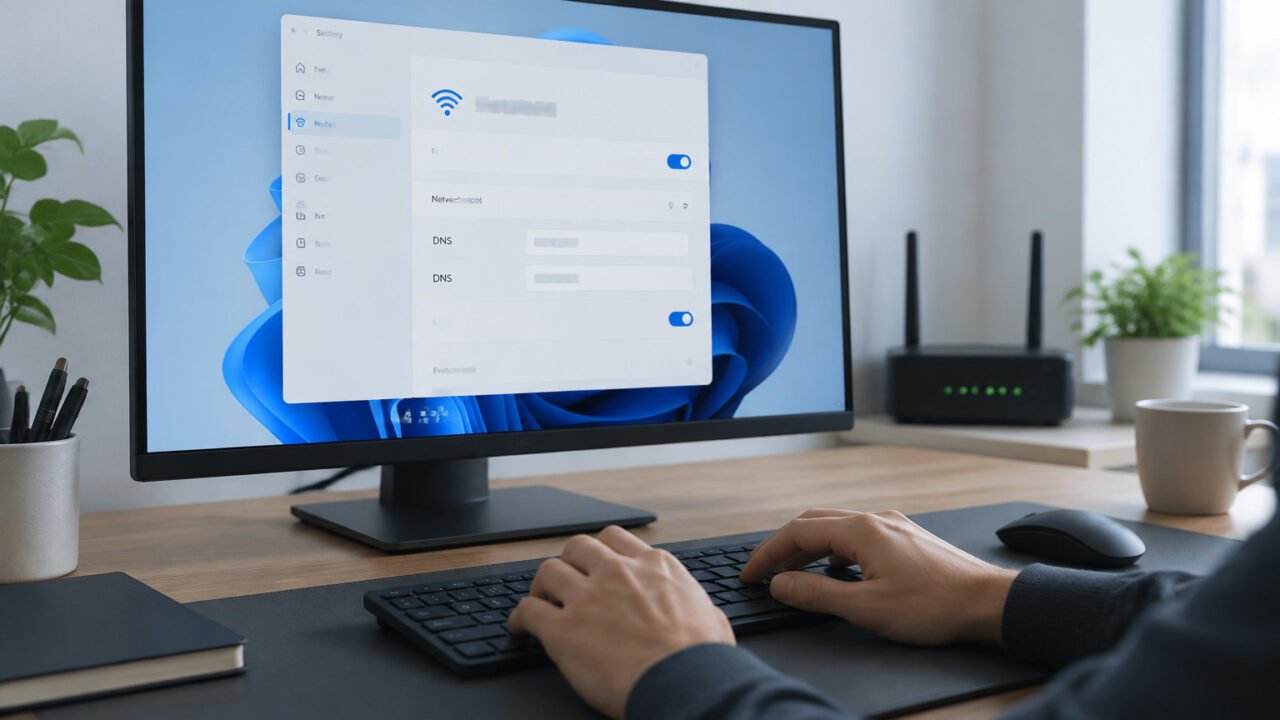
If the Wi-Fi connection appears stable but sites whose names you type do not open, inspect the active adapter before making DNS changes. Run ipconfig /all and find the Wi-Fi adapter section. It shows the adapter’s IP configuration, whether DHCP is enabled, and the DNS servers assigned to that adapter. Record the details or take a screenshot before changing anything.
For example, an illustrative case is a laptop that can reconnect after ipconfig /renew but still cannot resolve ordinary website names. Flushing the local cache is a reasonable next test. If other devices also fail to resolve names, however, changing one laptop’s DNS settings is unlikely to resolve the underlying network issue. A browser extension, filtering service, captive portal, or the destination site itself can also produce symptoms that look like DNS trouble.
Collect evidence for intermittent Wi-Fi failures
For drops that come and go, create a Windows wireless report before reinstalling drivers. In an elevated Command Prompt, run:
netsh wlan show wlanreport
Windows creates an HTML report with Wi-Fi events from the previous three days. Review the recent connection sessions, installed network adapters, and listed problem numbers for timestamps that match the failure. It is evidence, not a diagnosis on its own: a report can show that a connection ended without establishing why a router, driver, or enterprise authentication service ended it. Microsoft’s wireless network report guide explains the report sections.
Escalate in the right order
If the targeted repairs fail, update the Wi-Fi adapter driver from the PC or adapter manufacturer’s support channel. If an update does not help, reinstalling the adapter through Device Manager is a more disruptive but still focused next step. On a managed work device, contact IT first: driver versions, VPN clients, certificates, and wireless profiles may be centrally controlled.
Use Network Reset only after the earlier checks and targeted steps have failed. Microsoft describes it as a last resort because Windows removes and reinstalls network adapters and returns their settings to defaults. You may need to set up VPN clients or virtual switches again, and saved networks can be set to a Public profile after the reset. Read the consequences and make sure you have Wi-Fi credentials before proceeding. Microsoft’s Wi-Fi troubleshooting guide covers the reset, driver, reconnect, and command-line escalation path.
When to stop changing Windows settings
- Multiple devices have no access: pause PC repairs and investigate the router, modem, ISP, or required network sign-in page.
- One site or app fails while others work: investigate that service, browser, extension, account, or firewall rule instead of resetting Wi-Fi.
- The PC belongs to work or school: contact IT before forgetting managed networks, reinstalling drivers, or using Network Reset.
- The report shows repeated disconnects: keep the report and note the time, network name, and symptoms when seeking adapter or network support.
The practical order is simple: compare devices and services, reconnect, run diagnostics, refresh the PC’s network state, collect evidence, then make disruptive changes only when the evidence points to the PC. That sequence preserves useful configuration and makes the eventual escalation easier to explain.