A Windows 11 battery report is a useful first check when a laptop seems to run down faster than it used to. It cannot certify that a battery is good or bad, but it can show its current estimated full-charge capacity, its original design capacity, recent discharge sessions, and any longer-term capacity trend Windows has recorded.
Generate the report before changing power settings, buying a replacement battery, or assuming that a single short runtime means the hardware has failed. Lithium-ion batteries age with use and time, and heat can contribute to deterioration. Microsoft also notes that a visibly swollen battery should no longer be used. See Microsoft’s battery-care guidance for the built-in report and safety information.
Create the battery report
Open Windows Terminal or Command Prompt as an administrator. Enter the following command, then press Enter:
powercfg /batteryreportWindows displays the location of the HTML report after it finishes. Open that exact file path rather than guessing where the report was saved. You can also choose a location and filename explicitly, for example:
powercfg /batteryreport /output "C:\Users\YourName\Desktop\battery-report.html"Replace YourName with your Windows user-folder name. The resulting report opens in a web browser, but it is a local file, not a page uploaded to the internet.
Start with the two capacity figures
In the Installed batteries section, find Design capacity and Full charge capacity. Both are usually shown in milliwatt-hours (mWh).
| Report field | What it means | How to use it |
|---|---|---|
| Design capacity | The battery’s original rated energy capacity. | Use it as the baseline for a retention calculation. |
| Full charge capacity | Windows’ current estimate of the maximum energy the battery can hold. | Compare it with design capacity and its own history. |
| Cycle count | A count reported by some, but not all, battery hardware. | Useful context when present; its absence is not itself a fault. |
Full charge capacity is an estimate, not a guaranteed laboratory measurement. Treat it as one signal to compare over time, especially if the number changes after firmware updates, different workloads, temperature changes, or additional Windows battery data.
Calculate estimated capacity retention
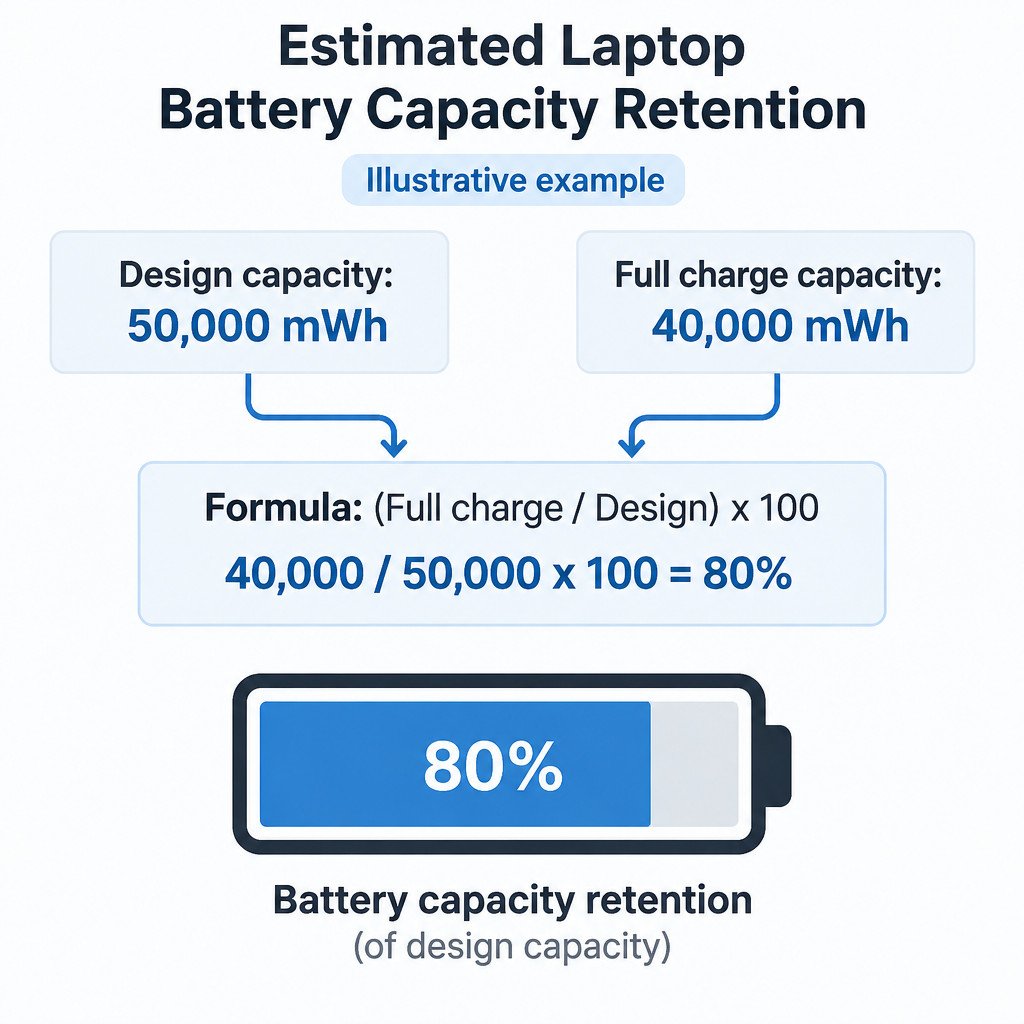
A simple comparison puts the two capacity numbers in context:
Capacity retention (%) = (Full charge capacity / Design capacity) × 100Illustrative example: if design capacity is 50,000 mWh and full charge capacity is 40,000 mWh, the calculation is (40,000 / 50,000) × 100 = 80%. That indicates an estimated 80% of the original rated capacity, or an estimated 20% reduction. It does not, by itself, prove that replacement is necessary.
There is no single percentage that applies to every laptop. A battery can have a moderate capacity reduction yet remain practical for its owner’s workload, while a battery with a less striking figure may still be disruptive if it discharges unpredictably. Compare the report with real use and your laptop maker’s diagnostics, warranty terms, and service guidance.
Use recent sections to look for repeatable patterns
The Recent usage and Battery usage sections show recent active and suspended periods, power source changes, and battery drain. They are more useful for finding a pattern than for judging one isolated session.
- Compare several ordinary workdays, not a day spent rendering video, gaming, or installing large updates.
- Check whether the battery drops sharply during active use at a similar workload and brightness level.
- Notice whether substantial drain happens while the screen is off rather than while you are working.
- Record the date, approximate workload, display brightness, and starting charge before drawing conclusions from a short session.
A rapid decline during one unusually demanding task is weak evidence of a battery fault. A similar result across normal sessions is more actionable. The Usage history section offers a broader view of time spent on battery and AC power, while Battery capacity history can reveal whether the estimated full-charge capacity is gradually declining or whether a single reading is unusual.
Read battery-life estimates cautiously
The Battery life estimates section compares observed active-use time with a calculation based on design capacity. These are historical estimates derived from recorded usage, not promises of future runtime. A laptop used for video calls, external displays, compilation, or high-brightness work can have very different runtime from the same laptop doing light document work.
If the capacity figures look broadly stable but runtime is poor, investigate software and power use before replacing hardware. Check power mode, display brightness, connected peripherals, browser tabs, startup apps, and pending Windows or device-firmware updates. Windows Security also has a Device performance & health page that can flag battery-life strain and provide recommendations; availability can be limited on organization-managed devices. Microsoft documents that feature here.
Investigate screen-off drain with SleepStudy when supported
If the laptop loses an unexpected amount of charge while it is asleep, use a different report rather than treating the battery report as a sleep diagnostic. On PCs that support Modern Standby, run:
powercfg /sleepstudySleepStudy creates an HTML report about screen-off Modern Standby sessions, including activity and power consumed. It is not available on every laptop and does not assess physical battery health. The command reference documents the report options for powercfg, while Microsoft’s SleepStudy documentation explains its Modern Standby scope.
Decide whether to monitor, troubleshoot, or seek service
| What you see | Reasonable next step |
|---|---|
| A one-time capacity change or short runtime after an unusual workload | Use the laptop normally for several days, then create another report and compare the trend. |
| Poor runtime but no concerning capacity trend | Review power settings, background activity, brightness, peripherals, Windows updates, and device firmware. |
| Repeated screen-off drain | Use SleepStudy if the laptop supports Modern Standby; review the sessions before changing battery hardware. |
| Unreliable charging, abrupt shutdowns, a hardware-fault notice, or impractical runtime | Run the laptop maker’s diagnostic tool and contact its support or authorized service channel for replacement guidance. |
| A swollen or visibly distorted battery or chassis | Stop using the laptop and arrange manufacturer-approved service. Do not puncture, compress, or attempt an internal battery repair unless the maker’s service instructions specifically support it. |
The most useful battery-report workflow is conservative: save a report now, repeat it after a period of normal use, and compare like with like. Capacity retention provides context, usage sections reveal behavior, and capacity history provides the trend. Together, those signals are more reliable than a single runtime impression or a single percentage.
Useful official references
- Microsoft Support: Caring for your battery in Windows
- Microsoft Learn: Powercfg command-line options
- Microsoft Learn: Modern Standby SleepStudy
- Microsoft Support: Device performance & health in Windows Security