If your Windows 11 PC is responsive eventually but feels sluggish in the first few minutes after you sign in, review startup apps before attempting major repairs. These apps launch automatically at sign-in and can add background activity while you are trying to open your first programs.
This is different from a computer that is slow before the sign-in screen appears, freezes throughout the day, or reports disk, memory, or security problems. Disabling startup apps can improve post-sign-in responsiveness, but it is not a universal fix for slow performance.
Prepare before changing startup items
Restart once before diagnosing the problem. A restart clears the current Windows session and makes the next sign-in a more useful test than simply closing and reopening apps.
Then make a short list of programs that need to be ready immediately. Depending on how you use the PC, that list might include a work VPN, endpoint security software, backup software, accessibility tools, password-management components, or a device sync utility. Do not disable an item merely because its name is unfamiliar; identify it first.
Microsoft provides supported startup controls in both Settings and Task Manager. Turning an entry off stops it from launching automatically at sign-in; it does not uninstall the application. Microsoft’s startup-app guidance also documents the impact labels shown in Task Manager.
Use Settings for a quick, low-risk change
- Open Start, then select Settings.
- Select Apps > Startup.
- Find one optional app and switch its toggle to Off.
- Restart the PC and sign in normally.
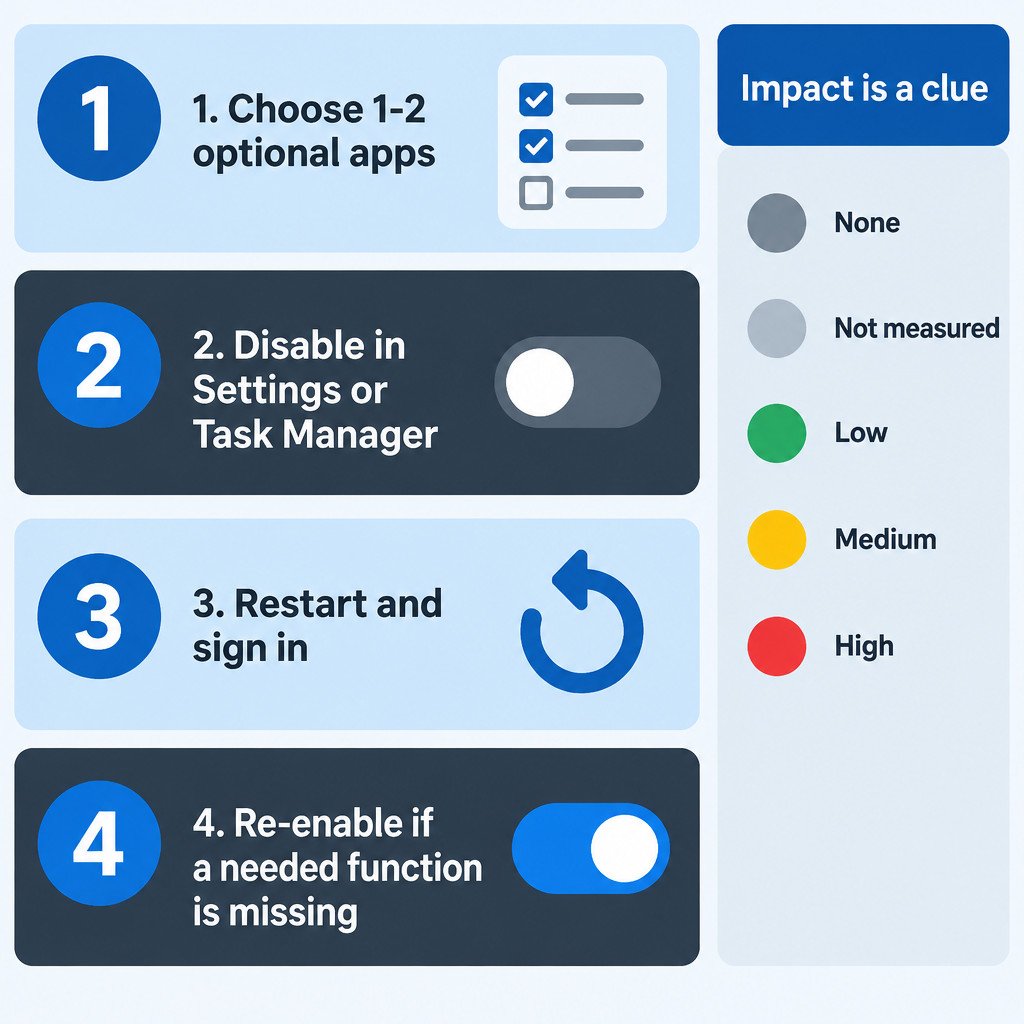
Start with one or two candidates, not every enabled item. Optional app launchers, chat clients, game clients, update helpers, and vendor utilities are often reasonable candidates when you do not need them the moment you sign in. The right choice is personal: a chat app may be optional on one computer and essential on another.
Use Task Manager to see startup impact
Task Manager offers the same basic control plus an impact label that can help you decide what to test first.
- Press Ctrl+Shift+Esc to open Task Manager.
- Select Startup apps in the left navigation.
- Select an entry, then choose Disable from the command bar or context menu.
- Restart and assess the next sign-in.
The Startup impact column can show None, Not measured, Low, Medium, or High. Treat these as prioritization clues rather than instructions. A High-impact item may be important to your work or security, while a Low-impact item may still be unnecessary. “Not measured” means Windows has not produced an impact measurement for that entry; it does not mean the app is harmless or problematic.
Choose candidates based on function, not the label alone
| Entry type | Usually reasonable to test later | Pause and verify first |
|---|---|---|
| Optional convenience software | Game launchers, media helpers, chat apps you can open manually | Apps required for your work notifications or workflow |
| Update and vendor tools | Nonessential product launchers or promotional utilities | Hardware utilities that control a required dock, input device, or display setup |
| Protection and data tools | Only after confirming the exact component and its role | Security, backup, encryption, VPN, password-management, and sync components |
If an entry has an unclear publisher or name, search within the app’s own interface, installed-app list, or documentation before acting. On a work-managed device, organization policy may control some startup behavior, and changing it could affect required tools.
Test changes one small batch at a time
A controlled test makes rollback easy. Disable one or two optional entries, restart, sign in, and wait until the desktop has settled. Then open the applications and connections you normally need. If anything important is absent, delayed, or unable to connect, re-enable the most likely item and restart again.
For example, an illustrative test might turn off a game launcher and a meeting app that is only used occasionally. If sign-in feels better and both apps open normally when launched manually, leaving them disabled is a reasonable preference. If the meeting app no longer receives an essential incoming-call notification, enable it again. The goal is a usable setup, not the smallest possible startup list.
If an app is not listed in Settings or Task Manager, open that app’s settings and look for an option such as “start at login” or “launch when Windows starts.” Avoid routine registry edits for this problem. App settings are easier to understand and easier to reverse.
When to use a clean boot instead
Use a clean boot when you suspect a background software conflict, particularly when an application repeatedly fails, crashes, or behaves normally only after some startup programs are removed. It is a diagnostic process, not a first response to every slow sign-in.
The critical safeguard is to hide Microsoft services before disabling non-Microsoft services. Record what you change, test methodically, and restore Normal Startup when the investigation is complete. Do not alter advanced boot options in System Configuration as part of this process. Follow Microsoft’s clean-boot procedure rather than disabling services indiscriminately.
Know the limits of this fix
Startup changes reduce automatic background work. They cannot correct every cause of a slow PC, such as inadequate memory for the workload, a failing storage drive, malware, an incomplete update, or a program consuming resources after it opens. If the computer remains slow well after sign-in, use Task Manager to identify sustained CPU, memory, disk, or network activity and investigate that specific process. Microsoft lists startup management alongside other performance checks, not as a guaranteed cure. Its PC performance guidance is a useful next reference.
Simple rollback checklist
- Open Settings > Apps > Startup or Task Manager > Startup apps.
- Find the app you disabled and turn it back on or select Enable.
- Restart the PC to confirm it launches as expected.
- Record the app name, the change date, and why you reversed it.
That small record prevents repeated guesswork later. Make startup changes gradually, keep essential tools available, and reserve broader troubleshooting for symptoms that remain after a clean, repeatable test.