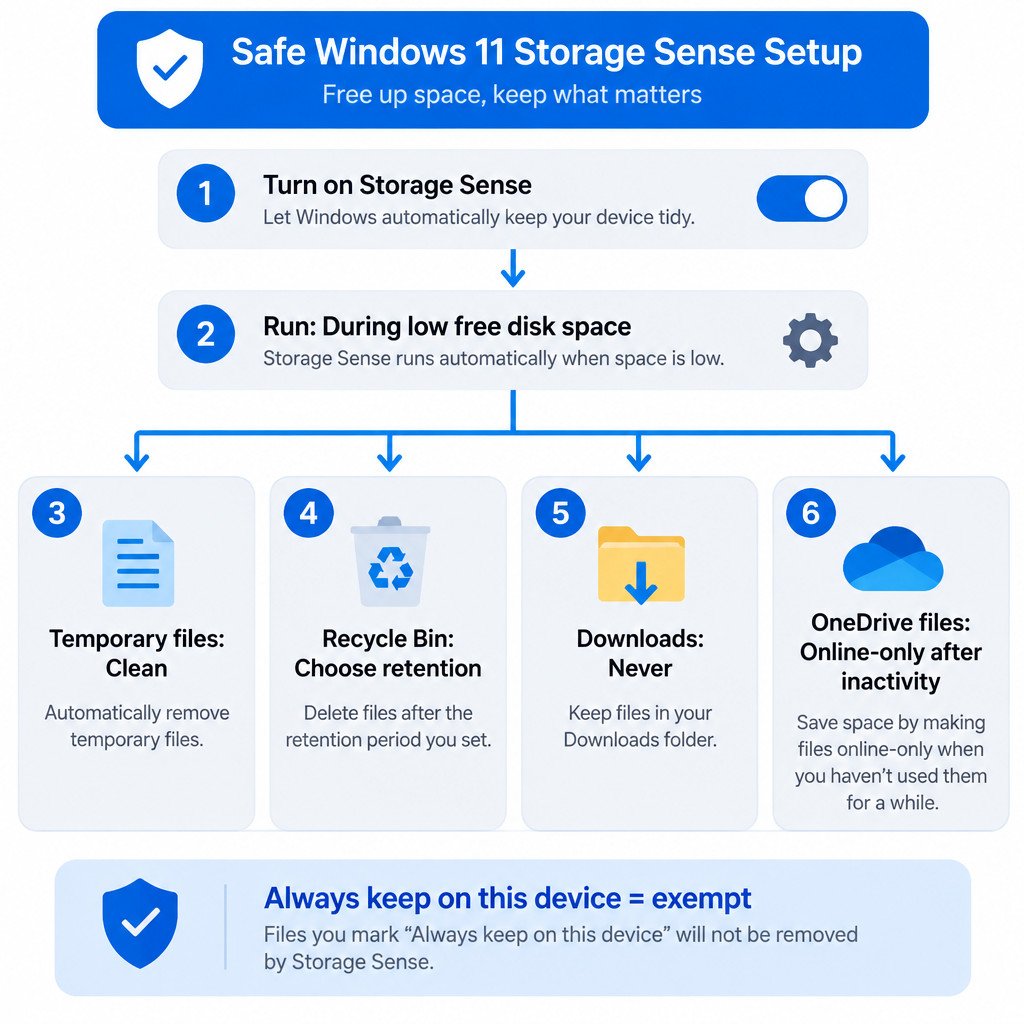
Storage Sense is safest when it is used to clear temporary files automatically but left away from Downloads until you have a dependable filing routine. For most cautious users, enable it, choose During low free disk space as the schedule, set a deliberate Recycle Bin retention period, and leave Downloads set to Never.
The feature is useful because a one-time cleanup does not stop browsers, installers, update files, and applications from consuming space again. Storage Sense manages the Windows system drive, normally C:, rather than acting as a general cleanup tool for every connected drive. Microsoft documents its Settings controls, cleanup categories, and scheduling options in its Storage Sense guide.
Check what is using space before automating cleanup
Open File Explorer, select This PC, and note the free space on the C: drive. Then open Settings > System > Storage and review Cleanup recommendations. This gives you a useful baseline: temporary files may be the issue, but large personal files or unused applications may be the real reason space keeps disappearing.
Do not treat Storage Sense as a substitute for reviewing large files. In particular, inspect old installers, exports, recordings, and duplicate downloads before choosing an automated policy. If a category contains work material, move it to an intended project folder or backed-up location rather than relying on its age.
Set up Storage Sense with conservative defaults
Go to Settings > System > Storage > Storage Sense, then turn Storage Sense on. The page lets you choose when Windows runs it and what it may remove. Available wording can vary slightly between Windows 11 releases and on organization-managed PCs, but the decisions are the same.
- Run Storage Sense: Choose During low free disk space if you want the least intrusive automation. Daily, weekly, and monthly schedules make sense only when you understand how quickly the PC accumulates disposable files.
- Temporary files: Allowing Windows to clear unnecessary temporary files is the low-risk part of the feature. It is not a promise that every large file or application will be removed.
- Recycle Bin: Pick a retention period that matches how you use it. Once an item is older than the selected period and Storage Sense removes it, it is no longer in the Recycle Bin for a normal restore.
- Downloads: Set this to Never unless you deliberately want files that have not been opened for a selected number of days to be deleted.
Why Downloads deserves its own decision
Downloads is often a temporary inbox, but it can also hold tax documents, meeting exports, software installers, device drivers, and attachments saved for later. Storage Sense does not need to clean this folder for you to clean temporary files. Its Downloads rule takes effect only when you configure it.
A cautious workflow is simple: leave the setting at Never, periodically sort Downloads by date or size, and move keepers into named folders. Delete only files you recognize. If you later choose an automatic Downloads period, first make sure that every important download is moved, stored in a synchronized work location, or backed up before it reaches that age.
Illustrative example: Suppose you download a monthly report, an installer, and a ZIP archive for a project. A 30-day Downloads rule may remove all three if they are not opened during that period. Their usefulness, not their file type, determines whether that is acceptable. This is why Never is a sensible default for a mixed-use Downloads folder.
Understand OneDrive online-only cleanup
If you use OneDrive, Storage Sense can make inactive locally available cloud files online-only after the period you select. That is different from permanently deleting the cloud file: the local copy is removed to recover disk space, while the file remains in OneDrive. Opening it again normally requires an internet connection and access to the same OneDrive account.
Files marked Always keep on this device are exempt from this offloading behavior. Mark files this way when you need them offline, such as travel documents or active project files. Conversely, do not mark an entire large archive for permanent local availability if the goal is to preserve disk space. Microsoft’s documentation distinguishes cloud-content cleanup from deletion and describes the exemption for files kept on the device.
Run it once, then verify the result
After setting the options, use Run Storage Sense now on the same page if you want to test the policy immediately. Then check the three places that matter: confirm the free space shown under Storage or This PC, look in Downloads, and review the Recycle Bin. If OneDrive is enabled, verify that a file you expect to use offline still has the appropriate local availability status.
This first manual run is a practical safeguard. It reveals whether your chosen retention rules match your actual habits before future scheduled runs rely on them.
If Storage Sense does not appear to run
First confirm that Storage Sense is switched on and that the selected schedule has a reason to run. Microsoft notes that the user must be signed in and online for more than 10 minutes for Storage Sense to run. Also check whether a workplace policy has hidden or restricted the settings.
If Windows updates are failing because the system drive is critically full, do not wait for a future schedule. Review Cleanup recommendations, remove or move files you have identified as nonessential, or use temporary external storage. Microsoft’s free up drive space guidance covers these broader recovery options. Be especially careful with a previous Windows installation: deleting it is not an ordinary temporary-file cleanup and removes the option to go back to the earlier version.
A safe ongoing policy
- Use Storage Sense on the system drive for routine temporary-file cleanup.
- Choose low-space-only scheduling unless frequent cleanup is genuinely useful for your workflow.
- Set Recycle Bin retention based on how long you may need to recover an accidental deletion.
- Keep Downloads on Never unless its contents are consistently moved or backed up before the chosen age threshold.
- Mark genuinely offline-critical OneDrive files as Always keep on this device.
- Revisit the settings after changing jobs, adding a new sync service, or starting work that produces large local files.
Storage Sense works best as a narrow maintenance tool, not an automatic decision-maker for valuable files. Keeping its scope conservative gives you recurring space recovery without turning Downloads or cloud availability into a surprise.
Sources
For the full list of Storage Sense categories, schedules, and managed-device configuration details, see Microsoft Learn’s Configure Storage Sense in Windows reference.