If Windows 11 will not let you rename, move, delete, or replace a file because it is “open in another program,” identify the process before forcing anything closed. Microsoft PowerToys File Locksmith adds a File Explorer command that scans the selected file or folder and shows processes that may be using it.
This is most useful when the error message does not name the app, or when an app appears to be closed but has left a background process running. It is a diagnostic tool first, not a reason to end every process it finds. Closing the right file or application normally is less likely to lose unsaved work or interrupt a sync, backup, shared-file, or security task.
Start with the least destructive fix
- Save work in the app that likely created or edited the file.
- Close obvious applications that could be using it, including a preview window, editor, media player, archive tool, or command prompt opened in that folder.
- Wait for an active cloud-sync or backup job to finish rather than interrupting it.
- Try the file action again. A short delay can be enough for an application to release its handle.
If the file is part of a shared or production workflow, first confirm that another person or automated job is not using it. File Locksmith can reveal a local locking process, but it cannot decide whether stopping that work is appropriate.
Install and enable File Locksmith
File Locksmith is included with Microsoft PowerToys. PowerToys supports Windows 11 and Windows 10 version 2004 or later on 64-bit x64 or ARM64 hardware. Install it through an organization-approved route on a managed computer: the Microsoft Store, the GitHub release installer, or WinGet. Microsoft documents this WinGet command: winget install --id Microsoft.PowerToys --source winget. See the PowerToys installation guidance for the current options and requirements.
Open PowerToys after installation, select File Locksmith in the left pane, and turn on its utility if it is disabled. This makes the File Explorer context-menu action available.
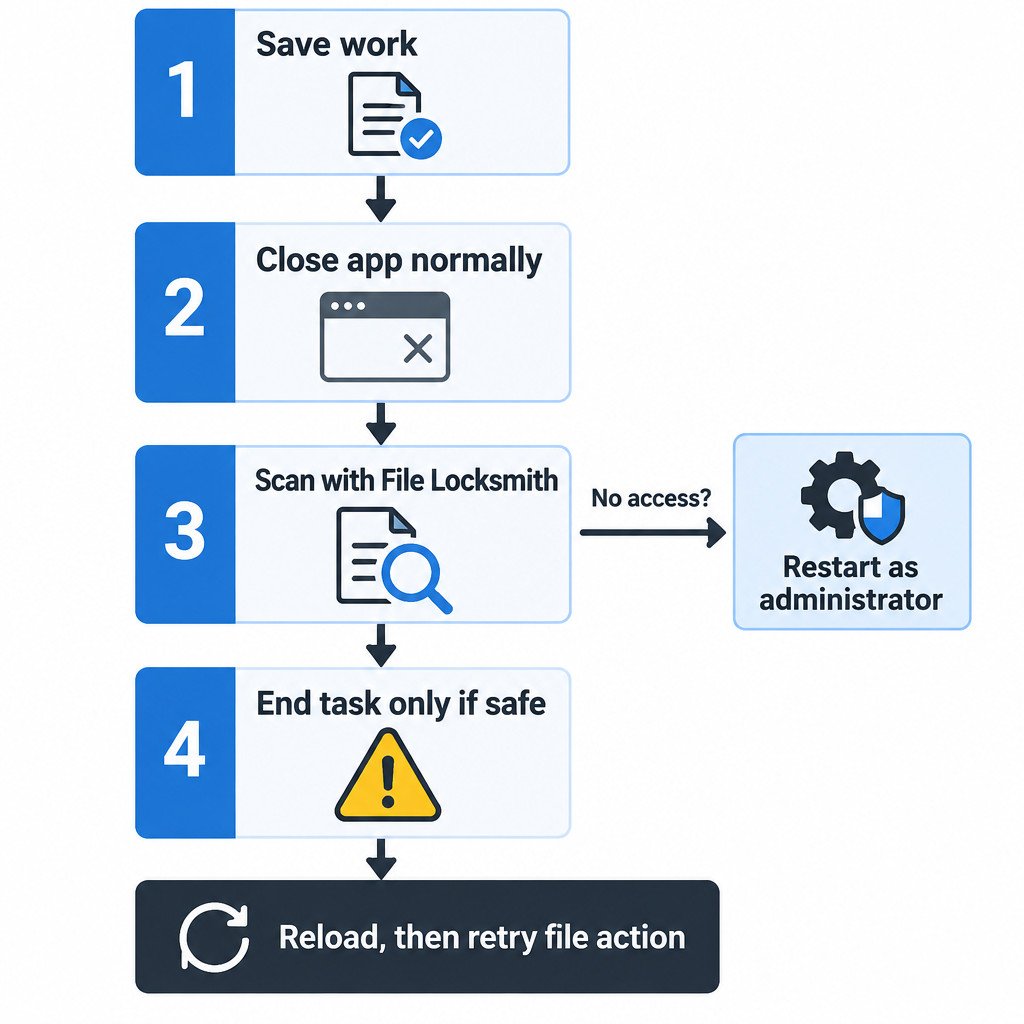
Find what is using the file
- In File Explorer, select the file you cannot change. You can also select a folder when the problem may be one of its contents.
- Right-click the selection. In the compact Windows 11 menu, choose Show more options if File Locksmith is not visible.
- Select Unlock with File Locksmith.
- Read the process list before taking action. If you have just closed an app, use Reload to scan again and see whether it released the file.
The results identify processes detected as using the selected item. Expand a result when you need more detail about the process and the files it has open. For a folder selection, File Locksmith scans files within that directory, so results may point to a file inside the folder rather than the folder itself.
Act on the result in the right order
A process name is a clue, not a verdict. First return to the named application and close the specific document or file. If that does not work, save anything important in that app and close the app normally. Then reload File Locksmith or retry the original rename, move, delete, or replace operation.
Use End task only when you understand what the process is doing and can safely accept losing unsaved work in it. Ending an editor can discard changes. Ending a sync client can interrupt transfers. Ending an unfamiliar Windows, security, database, or business process can cause a larger problem than a stubborn file. Do not treat an end-task button as an “unlock” button with no consequence.
| What File Locksmith shows | Best next step |
|---|---|
| A familiar app, such as an editor or viewer | Save work, close the document, then close the app normally if needed. |
| A cloud-sync, backup, or archive process | Check whether activity is still in progress. Let it finish when practical. |
| An unfamiliar system, security, or work application | Do not end it by guesswork. Check with the relevant administrator or application owner. |
| No result after an app was closed | Select Reload, then retry the file action. A restart is a reasonable fallback if the issue remains. |
When to restart the scan as administrator
File Locksmith may not be able to show processes running as another user or with elevated permissions. If the file is still locked and the initial scan is incomplete, choose Restart as administrator in File Locksmith. This reruns the inspection with elevated access; it does not make terminating a process safe. Microsoft explains that elevated PowerToys access is needed when its utilities must interact with elevated applications.
Use elevation only when it addresses an access boundary you expect, such as an administrator-run application. Work-device policy may prevent it, and that is a reason to use the approved support route rather than trying to bypass controls. The PowerToys administrator-mode documentation explains this access distinction.
Optional command-line use for repeatable checks
Advanced users can use File Locksmith from the command line to query a path. Its documented options include waiting for a lock to be released with --wait, setting a wait limit with --timeout, and returning structured output with --json. This can be useful in a controlled troubleshooting or automation workflow.
A waiting check is usually safer than an automatic termination. Although a --kill option exists, do not make it the default in a script: a script cannot reliably know whether a process has unsaved work, is updating a shared file, or is performing a business-critical task. Test any automation on noncritical files first and define what should happen when the timeout expires.
If the lock persists
A restart is often the sensible next step after saving work and closing applications normally. It clears many ordinary user-session locks without requiring you to terminate an unfamiliar process. If the same file repeatedly locks after a restart, look for the pattern: a sync client, backup agent, security product, indexing service, or application service may be reopening it. Investigate that specific software rather than repeatedly ending tasks.
Quick safety check before you force-close anything
- Have you saved related work and closed the file normally where possible?
- Is a sync, backup, download, or shared workflow still active?
- Do you recognize the process and understand what stopping it will interrupt?
- Have you used Reload after closing the app?
- Have you retried the original file action after the lock was released?
File Locksmith narrows down a vague Windows message to a process you can investigate. Its limitation is equally important: it can help identify a lock, but it cannot assess the value of the work that process may be doing. Microsoft’s File Locksmith reference covers the File Explorer workflow, elevated scan, folder behavior, and command-line options.