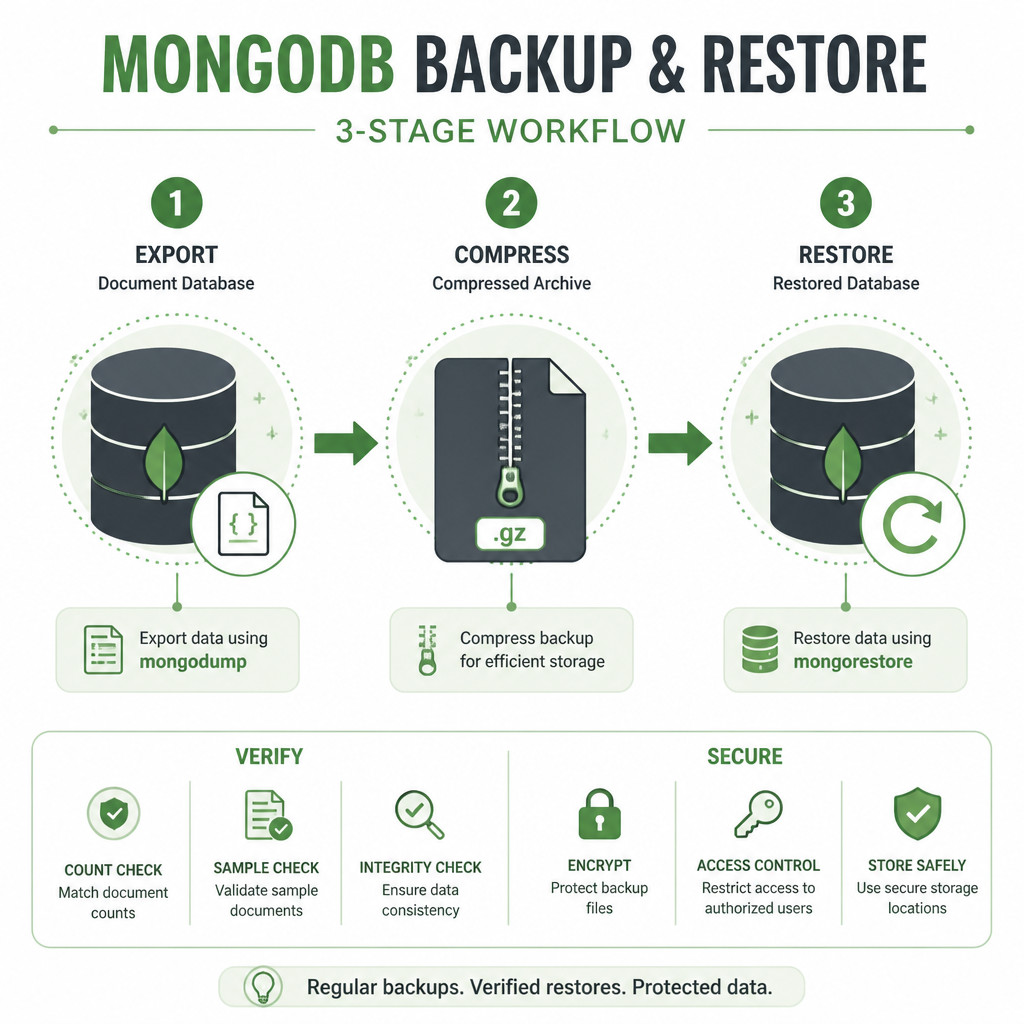
Quick answer: Use mongodump to export a MongoDB database, then load the BSON data with mongorestore. For a portable backup that takes up less space, create a gzip-compressed archive:
mongodump --uri="mongodb://localhost:27017" --db=appdb --archive=appdb.archive --gzipRestore the archive with:
mongorestore --uri="mongodb://localhost:27017" --archive=appdb.archive --gzip --nsInclude="appdb.*"For important data, run the restore against a test database first. Don’t add --drop unless you mean to delete matching collections at the destination before restoring them.
Prerequisites
mongodump and mongorestore come with MongoDB Database Tools. You may need to install these tools separately from MongoDB Server or MongoDB Shell. Check that both commands are available:
mongodump --version
mongorestore --version
The backup account needs permission to read the required databases. For restoration, the account must be able to create collections, write data, and restore indexes in the destination.
Back up a MongoDB database to a directory
This command backs up appdb into a directory named mongo-backup:
mongodump --uri="mongodb://localhost:27017" --db=appdb --out=./mongo-backupInside the output directory, you’ll find BSON data files and metadata files for the database’s collections. Restore the database with:
mongorestore --uri="mongodb://localhost:27017" --db=appdb ./mongo-backup/appdbDirectory backups are handy if you want to inspect files or restore individual collections. An archive, on the other hand, is usually easier to copy and store because everything is kept in one file.
Create a compressed MongoDB backup
Combine --archive with --gzip to create a single compressed backup file:
mongodump --uri="mongodb://localhost:27017" \
  --db=appdb \
  --archive=appdb-2025-01-15.archive \
  --gzip
Including the date in the filename is optional, but it makes retention and recovery easier to manage. Replace the example date with the date of your actual backup rather than copying it unchanged.
Back up MongoDB with authentication
If the user was created in the admin authentication database, include authSource in the connection URI:
mongodump --uri="mongodb://backupuser:password@db.example.com:27017/?authSource=admin" \
  --db=appdb \
  --archive=appdb.archive \
  --gzip
Special characters in URI usernames and passwords must be percent-encoded. To avoid exposing a password in shell history or process listings, leave it out of the URI and enter it when prompted:
mongodump --host=db.example.com --port=27017 \
  --username=backupuser --authenticationDatabase=admin \
  --db=appdb --archive=appdb.archive --gzip
Restore a MongoDB backup safely
To restore a compressed archive without deleting collections that already exist, run:
mongorestore --uri="mongodb://localhost:27017" \
  --archive=appdb.archive \
  --gzip \
  --nsInclude="appdb.*"
If the destination already contains documents with the same _id values, you may see duplicate-key errors. For a clean replacement, the --drop option removes each matching collection before restoring it:
mongorestore --uri="mongodb://localhost:27017" \
  --archive=appdb.archive \
  --gzip \
  --nsInclude="appdb.*" \
  --drop
Warning: --drop is destructive. Before running the command, confirm the destination URI, database name, and backup file.
Restore under a different database name
Namespace mapping allows you to restore appdb as appdb_test. This is useful when testing a recovery:
mongorestore --uri="mongodb://localhost:27017" \
  --archive=appdb.archive \
  --gzip \
  --nsFrom="appdb.*" \
  --nsTo="appdb_test.*"
You can also restore a single collection by narrowing the namespace:
mongorestore --uri="mongodb://localhost:27017" \
  --archive=appdb.archive \
  --gzip \
  --nsInclude="appdb.orders"
Verify the restored database
Connect with mongosh, then check the collection list and representative document counts:
mongosh "mongodb://localhost:27017/appdb_test"

db.getCollectionNames()
db.orders.countDocuments({})
db.orders.findOne()
A successful command exit isn’t enough on its own. Compare the restored collection counts with what you expect, inspect important records, confirm the indexes, and run an application-level test. To inspect indexes, use:
db.orders.getIndexes()Limitations and good backup practices
- Test recovery regularly: A backup only helps if you can restore and validate it.
- Protect backup files: BSON archives may hold credentials, personal information, or business records. Encrypt stored backups and limit who can access them.
- Use compatible tools: Keep MongoDB Database Tools current, and check compatibility with both the source and destination server versions.
- Account for active production writes: A basic dump from a busy deployment may not be point-in-time consistent across every collection. Depending on your recovery needs, replica-set oplog workflows, filesystem snapshots, or managed continuous backups may be a better fit.
- Back up authorization data separately when necessary: Dumping one application database doesn’t automatically preserve users and roles stored in the
admindatabase. - Automate retention: Add timestamps to backups, monitor command failures, keep multiple recovery points, and store at least one copy away from the database server.
Frequently asked questions
Does mongodump stop MongoDB during a backup?
No. mongodump reads data while the deployment is running. Concurrent writes can still affect consistency, so your production recovery requirements should determine whether you use dumps, snapshots, oplog-based methods, or managed backups.
Does mongorestore overwrite existing documents?
Normally, it won’t replace documents with duplicate _id values. Those writes may fail with duplicate-key errors instead. Use --drop only if you intentionally want to remove matching destination collections before restoring them.
Does mongodump include indexes?
Yes. It saves collection metadata that mongorestore uses to recreate indexes. Even so, check important indexes after the restore rather than assuming the entire recovery completed correctly.
Can mongodump back up MongoDB Atlas?
Yes, as long as the deployment allows your network connection and the database user has the required privileges. Use the Atlas connection string with MongoDB Database Tools. For ongoing production protection, Atlas managed backup features may offer stronger recovery options than occasional logical dumps.