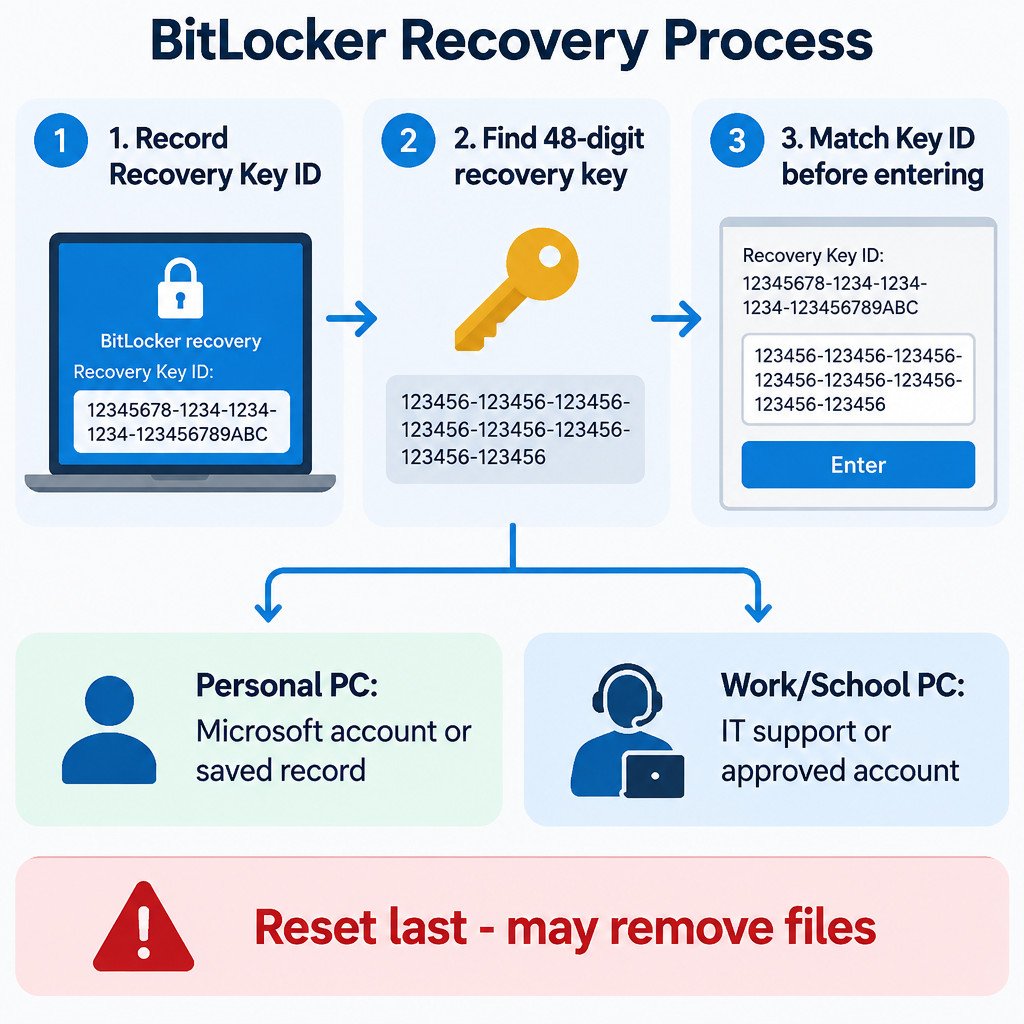
If Windows 11 asks for a BitLocker recovery key, do not reset the PC, clear the TPM, or change BIOS/UEFI settings first. The immediate task is to find the 48-digit recovery key that matches the Recovery Key ID shown on the screen. A reset can remove files, while the correct key can unlock the existing installation.
BitLocker protects a drive by encrypting it. The recovery screen appears when Windows cannot automatically verify the conditions it expects at startup. That can follow a hardware, firmware, TPM, or Secure Boot change, but the screen alone does not prove which change caused it. Microsoft describes the recovery key as a 48-digit number used to unlock an encrypted drive when normal startup cannot do so.
Read the screen before entering anything
Take a clear photo of the recovery screen or write down the displayed Recovery Key ID, including its first eight characters. The Key ID is an identifier for selecting a key; it is not the 48-digit recovery key itself. An account can hold several recovery keys for several devices or past installations, so entering the first key you find is often the wrong move.
Use another trusted device to locate possible keys. When you find one, compare its Key ID with the ID on the locked PC before typing the 48-digit number. This small check avoids repeated failed attempts and makes it less likely that you will overlook the right record. Microsoft lists the supported places a key may have been saved, including a Microsoft account, a work or school account, a printout, and a USB flash drive.
- Personal PC: Start with the Microsoft account used when Windows was set up or when encryption was enabled.
- Work or school PC: Use the organization-approved work or school account route, or contact IT support. The organization may hold the key in its device-management system.
- PC set up by someone else: The key may be in that person’s account or records, not yours.
- Offline records: Check a deliberate printout or a USB drive that was used to save a recovery-key text file.
For the official list of recovery-key locations and the Key ID matching process, see Microsoft’s BitLocker recovery key guidance.
Personal device or managed work device?
This distinction changes what to do next. On an eligible Windows device, encryption can be associated with the Microsoft account or work/school account used during setup. That does not mean every encrypted Windows PC is configured identically: some use Device Encryption, some use BitLocker Drive Encryption, and managed devices may follow organization-specific policies.
| Situation | Best next action | What not to assume |
|---|---|---|
| You bought and set up the PC yourself | Check the Microsoft account you used for Windows setup and compare Key IDs. | Your current Windows password can unlock the recovery screen. |
| The PC belongs to an employer or school | Contact IT support and provide the displayed Recovery Key ID through the organization’s approved channel. | A personal Microsoft account contains the organization’s key. |
| A family member, seller, or former owner set it up | Ask which account was used and whether they retained a key record. | Changing ownership of the PC moved the existing recovery key to your account. |
Do not send the full 48-digit key in email, chat, or a support forum. Anyone who has both the key and physical access to the encrypted drive may be able to unlock it. If an organization asks for the on-screen Key ID, provide that identifier through its normal support process instead.
After the correct key unlocks Windows
First, back up important files. Then think about what changed immediately before recovery appeared: a firmware update, a motherboard or storage change, a TPM or Secure Boot adjustment, or a repair procedure are useful clues. Do not make further firmware or security-setting changes until your files are protected and you understand the change you plan to make.
For planned firmware, TPM, or hardware maintenance, BitLocker can be temporarily suspended before the approved change and resumed afterward. Suspension does not decrypt the drive; it temporarily changes how startup protection is enforced. It is a maintenance step, not a general cure for an already-locked computer and not a reason to disable protection permanently. Microsoft notes that planned hardware or firmware work is a situation where temporary suspension can help prevent an expected recovery event.
Windows labels and available controls vary by edition and device configuration. If the PC is work-managed, follow the organization’s maintenance procedure rather than changing BitLocker settings yourself. For background on why trusted-startup changes can trigger recovery, consult Microsoft’s BitLocker recovery overview.
If no recovery key can be found
On a personal device, exhaust every legitimate location before considering a reset: each plausible Microsoft account, any old printout, any recovery USB, and the account of the person who originally configured the PC. Microsoft cannot retrieve or recreate a recovery key that was not saved. A Windows reset is therefore a data-loss decision, not a recovery-key workaround.
On a work or school device, stop and contact IT support. Reinstalling Windows, clearing security hardware, or attempting unofficial “key recovery” services can make support harder and may violate organizational policy. Windows Recovery Environment can offer repair and reset tools, but encryption still requires the BitLocker key for relevant recovery actions; its menus do not bypass drive encryption.
Mistakes that make recovery harder
- Confusing a password with a recovery key: A Windows sign-in password, PIN, and Microsoft account password are not the 48-digit BitLocker recovery key.
- Skipping the Key ID comparison: A valid key for another device will not unlock this drive.
- Using unverified recovery websites: A legitimate recovery key is held in your account, your organization’s systems, or records you intentionally created. Do not hand a key or account credentials to a third party.
- Resetting too early: Resetting can remove personal files and does not recreate a missing key.
- Changing firmware settings while locked out: More changes can complicate the timeline and do not substitute for the key.
Prevention checklist after you regain access
- Verify that a recovery key exists in the intended account or approved organizational location.
- Record which Microsoft or work account owns the recovery key for each device.
- Keep account recovery methods current so you can sign in from another device if needed.
- Back up important files independently of device encryption.
- Before planned firmware, TPM, or hardware work, follow the documented BitLocker suspension-and-resume process for that device.
The key principle is simple: the BitLocker screen is asking for a specific recovery key, not permission to erase the PC. Match the Key ID, use only legitimate storage locations, and reserve reset for the point when you understand and accept the file-loss consequence.