A PostgreSQL connection problem becomes much easier to fix when you separate three different failures: the server cannot be reached, the server is reached but rejects the login, or the server is under connection pressure. Do not treat every error as a password problem or expose the database to the internet as a quick test.
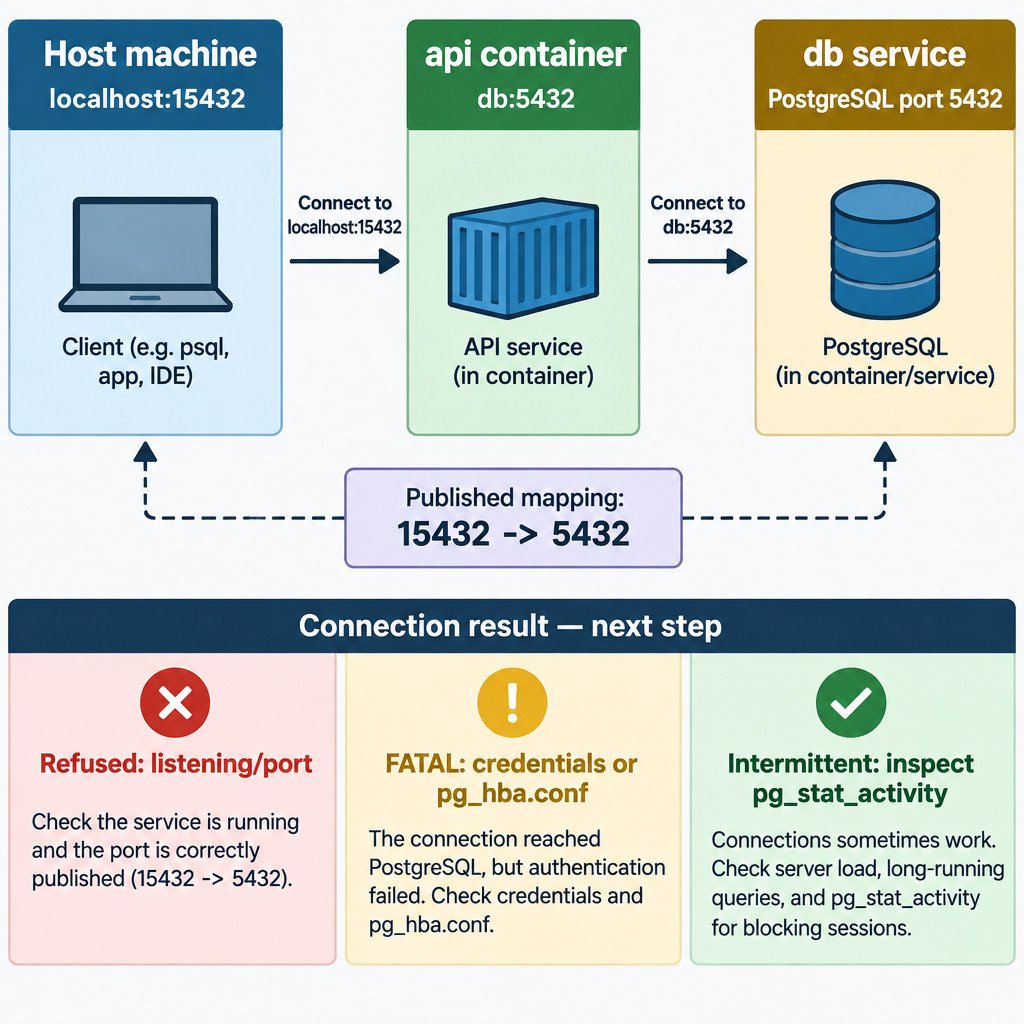
For an application running in the same Docker Compose project as PostgreSQL, the usual connection target is the database service name and PostgreSQL’s container port: for example, db:5432. It is normally not localhost, and it is not the port published for your host machine. Compose services on the same network can discover each other by service name; Docker also notes that container IP addresses may change when containers are recreated. Docker’s Compose networking documentation describes this service-to-service model.
Start with the wording of the error
| Error pattern | What it usually means | First layer to inspect |
|---|---|---|
| Connection refused | The target address responded, but no PostgreSQL server is listening on that address and port, or the connection was rejected before PostgreSQL authentication. | Hostname, port, running container, listening address |
| Connection timed out | The client did not get a response within its timeout period. | Network path, firewall rules, wrong address, routing |
FATAL: password authentication failed, no pg_hba.conf entry, or database/role errors | The PostgreSQL server was contacted and returned a PostgreSQL-level response. | Database name, role, password, TLS mode, access rules |
| Intermittent connection failures under load | The connection path may work, but available sessions or another shared resource may be constrained. | Active sessions, application pooling, server resources |
“Connection refused” is a useful clue, not a diagnosis. PostgreSQL’s documentation identifies a server that is not listening at the attempted address or socket as a common cause; a timeout can instead point to a wider network or firewall problem. See the PostgreSQL server startup documentation for that distinction.
Locate the client before choosing a hostname
| Where the client runs | Typical host | Typical port |
|---|---|---|
| Another service in the same Compose network | db (the database service name) | 5432 (the container port) |
| Your host machine | localhost or 127.0.0.1 | The published host port |
| A container on a different network | Depends on deliberate network configuration | Depends on the reachable target |
Consider this illustrative Compose mapping: "15432:5432". A database tool on the host connects to localhost:15432. An api container in the same Compose network connects to db:5432. If that API uses localhost:15432, localhost means the API container itself, not the database container or your host.
Check Compose networking before editing PostgreSQL
First, confirm that the application and database containers are actually running. Then read the Compose file rather than guessing from a connection string. Look for the database service name, the application’s configured host and port, and any explicitly declared networks.
services:
  api:
    environment:
      DATABASE_HOST: db
      DATABASE_PORT: 5432
    depends_on:
      - db

  db:
    image: postgres
    ports:
      - "15432:5432"
In this illustrative configuration, the ports line is for access from the host. It does not change the internal PostgreSQL port used by peer containers. Publishing a port is unnecessary when only other services in the Compose network need the database, and omitting it reduces accidental host exposure.
Use Docker’s inspection tools to verify the assumptions. docker compose ps shows service state and published ports. docker compose port db 5432 shows the host mapping when one exists. docker network inspect can show which containers are attached to a network. For a meaningful test, run a client or a simple DNS/network check from the application container or an equivalent container on the same network—not only from your laptop.
Confirm PostgreSQL is listening on the intended interface
If the hostname and port are right but the connection is still refused, inspect the database container logs and PostgreSQL configuration. TCP connections require PostgreSQL to listen on an address reachable from the client. A loopback-only setting works for local clients in the same network namespace, but not for a separate application container.
The relevant setting is listen_addresses. Its appropriate value depends on the deployment design. In a private Compose network, it must include an interface through which the application container can reach PostgreSQL. Do not copy a broad address setting into a production system without considering who can reach the network. Changes to startup configuration require a PostgreSQL restart before they take effect.
Avoid a misleading readiness assumption
A container being marked as running does not necessarily mean the database is ready for application connections. PostgreSQL may still be initializing, recovering, or applying initial setup. Likewise, Compose startup ordering alone does not prove that the database has accepted a connection. Check the database logs and use application retry behavior or an appropriate health check where your deployment calls for it.
Treat authentication as a separate stage
Once PostgreSQL returns a FATAL message, stop changing Docker port mappings. Networking has progressed far enough for PostgreSQL to answer. Compare the application’s database name, role name, password source, and SSL mode with the database configuration. A surprisingly common issue is that an application still has an old environment variable or secret after a password change.
For TCP connections, PostgreSQL evaluates pg_hba.conf rules as well as listen_addresses. Rule type matters: host is for TCP connections, while hostssl requires SSL and hostnossl excludes it. Rules also match by database, user, and client address range. PostgreSQL’s pg_hba.conf documentation explains these matching dimensions.
- Use the smallest client network range that fits the actual deployment.
- Grant the application its own role and only the database privileges it needs.
- Match the application’s SSL expectation to the server and access-rule design.
- Do not add an unrestricted all-addresses, all-users rule just to make a test pass.
When failures appear only under load
If connections succeed at first and then fail during busy periods, inspect current sessions before increasing max_connections. The pg_stat_activity view provides one row per server process and can show the database, user, application name, client address, state, and current activity, subject to privileges. PostgreSQL documents pg_stat_activity and its visibility limits here.
SELECT datname, usename, application_name, client_addr, state
FROM pg_stat_activity
ORDER BY datname, usename, application_name;
Read the result as an operational clue, not permission to terminate sessions. Look for many idle connections from one application, unexpected client addresses, or a workload that creates a new connection for each request. Connection pooling and sensible application-side limits are often more durable fixes than simply raising the server limit. A higher max_connections also changes resource demands, so size and test that change for the server and workload rather than applying an arbitrary value.
A safe troubleshooting sequence
- Record the full error, target hostname, target port, and where the failing client runs.
- For same-network Compose services, test the service name and container port first.
- Confirm both services share the intended Docker network and that the database service is running.
- Use the published host port only when testing from the host machine.
- Check PostgreSQL logs and listening configuration if the result is connection refused.
- When PostgreSQL returns a
FATALresponse, verify credentials, database name, TLS expectations, and matchingpg_hba.confrules. - For intermittent failures, inspect sessions and application connection behavior before changing capacity limits.
- Change one layer at a time, retest from the same network location as the application, and keep a note of the working connection string.
Know when this guide does not apply directly
This sequence is for a self-managed PostgreSQL instance, particularly one used with Docker Compose. Managed database services, Kubernetes clusters, Linux package installations, and Windows installations can have different configuration locations, network controls, TLS requirements, and log collection methods. In those environments, use the platform’s documented connection and networking guidance before changing firewalls or production authentication rules.
The central rule still holds: establish the client’s network location, use the address and port valid from that location, then move upward through server listening and access control. That order prevents unrelated changes and produces a clearer trail when the problem needs escalation.