If an application suddenly reports that a config file, script, or dependency directory is missing after docker compose up, inspect its mounts before changing the image or application settings. A bind mount can hide files already present in the image at the same container path. A misspelled host path can make this look like the image lost its files when the actual problem is the mount source.
A common risky pattern is short volume syntax:
services:
  app:
    volumes:
      - ./config:/app/config
This means “bind the host directory ./config to /app/config in the container.” For local Compose deployments, a relative host path must begin with . or .., and it is resolved from the Compose file’s parent directory. Docker Compose retains behavior that can create a missing host source directory with short syntax. That is convenient in some workflows, but a typo can become a new, empty directory and mask the real mistake. The Compose reference documents both forms and the fail-fast long-syntax option. Docker’s Compose container specification
The second part of the confusion is mount masking. If the image contains /app/config/default.yml and you mount an empty host directory at /app/config, the container sees the empty mounted directory instead. The image contents are not deleted; they are obscured for that container while the mount exists. Docker’s bind-mount documentation describes this behavior.
First, identify what should own the files
A bind mount is appropriate when the host and container both need access to the same files: for example, a host-managed configuration file or source code during local development. A named volume is usually the clearer choice for data the application creates and manages itself, such as a database data directory. Named volumes are managed by Docker and persist independently of a particular container. Docker’s volumes documentation distinguishes these two storage models.
| Need | Usually choose | Example |
|---|---|---|
| Read or edit the files from the host | Bind mount | ./config/app.yml mounted into the app |
| Keep application-generated data across container replacement | Named volume | A database data directory |
| Provide a fixed configuration that the app must not change | Read-only bind mount | ./config/app.yml mounted with read_only: true |
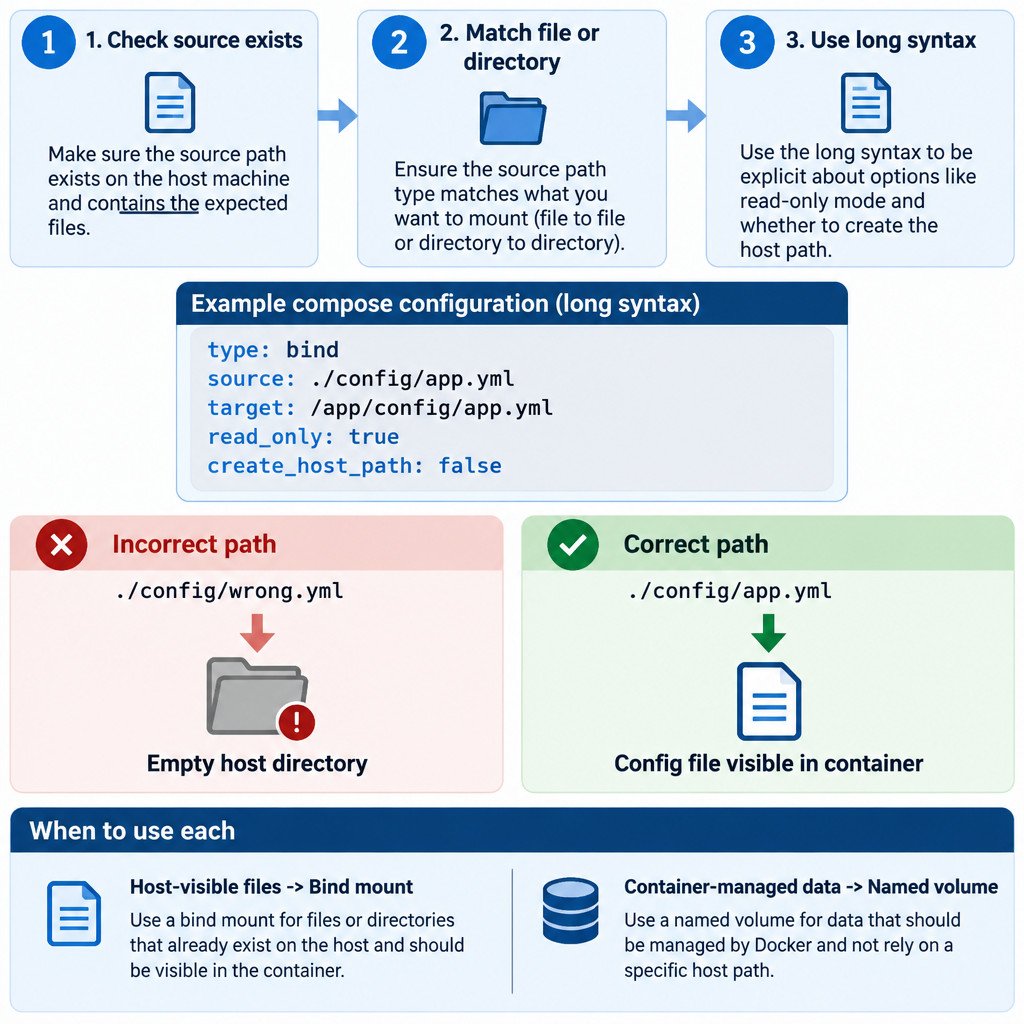
Diagnose the mount before rebuilding anything
Work through these checks in order. They separate a bad path from a source-type mismatch and from an application-level problem.
- Print the resolved Compose model with
docker compose config. Find the service and confirm the intended source and target paths are present. - On the Docker daemon host, verify that the source exists at the expected location. Check whether it is a file or a directory; those are not interchangeable.
- Start the service, then run
docker inspect <container-name-or-id>. In theMountssection, compareSource,Destination, andTypewith the Compose file. - Inspect the target from inside the container, if the image has a suitable shell or diagnostic command. Confirm that the content visible there matches the host source you intended to mount.
Do not assume that your terminal’s current directory is the reference point for a relative source path. The Compose file location is the relevant reference for this local-path behavior. Also, a bind mount is created on the Docker daemon host. With a remote daemon or some Docker Desktop arrangements, that host may not be the machine or filesystem you first had in mind.
Use long syntax to make a missing source fail
For a configuration file that must already exist, use explicit long syntax and disable automatic source-directory creation. This example is illustrative; change both paths to match the application and ensure the host file exists before starting the service.
services:
  app:
    image: example/app:latest
    volumes:
      - type: bind
        source: ./config/app.yml
        target: /app/config/app.yml
        read_only: true
        bind:
          create_host_path: false
type: bind removes ambiguity about the storage type. source is the host file or directory, and target is its path in the container. read_only: true prevents the container from modifying a host-managed configuration file. Most importantly for this case, bind.create_host_path: false turns a missing source into a startup error rather than silently creating a directory.
The source and target must represent the same kind of object. To mount one configuration file, the source must be a file and the target must be a file path. To mount a configuration directory, both sides must be directories. Mounting a directory at a path where the application opens a file does not supply that file; mounting a file where the application expects a directory likewise cannot replace the directory tree.
Avoid masking an image directory by accident
Suppose an image ships with templates under /app/templates. The mount below makes only the host’s ./templates visible at that destination:
volumes:
  - type: bind
    source: ./templates
    target: /app/templates
    bind:
      create_host_path: false
If the host directory is empty, the application sees an empty directory even though the image contains templates. Choose a narrower target when you only need to override one file, or do not add a bind mount when the image’s built-in files should remain authoritative. A mount does not merge its contents with the target directory.
Use a named volume for container-managed persistent data
For a database or other application-owned data directory, a named volume avoids coupling the container to a particular host directory. The application still gets persistent storage, but Docker manages the volume location.
services:
  db:
    image: postgres:latest
    volumes:
      - db-data:/var/lib/postgresql/data

volumes:
  db-data:
This is not a rule that bind mounts are wrong for databases; operational requirements may call for host-visible files. It is a decision about access. If people or host-side tools must directly manage the files, use a carefully specified bind mount. If the data is generated and used by the container, a named volume generally gives Docker ownership of storage placement and lifecycle.
Recover safely after finding a typo
- Stop the affected stack with
docker compose down, or stop only the affected service if that better fits the situation. - Confirm the mistakenly created host directory is genuinely empty and contains no files you need. Remove only that accidental directory, if desired.
- Correct the source path and switch the mount to long syntax with
create_host_path: false. - Run
docker compose configagain, then recreate the affected service and inspect its mount.
Do not add -v to docker compose down as a generic cleanup step. That option also removes named volumes declared in the Compose file and can remove persistent application data. Use it only when you have identified the volumes involved and intentionally want to discard their contents. Docker’s documentation for docker compose down details what the command removes.
Pre-start bind-mount checklist
- The host source path is exact and starts with
.or..when relative. - The source already exists and is the expected type: file or directory.
- The container target is the path the application actually reads.
- A configuration or source-code mount is read-only unless the container genuinely needs to write to it.
- Long syntax uses
bind.create_host_path: falsewhere a missing source should stop deployment. - Container-generated persistent data uses a named volume unless host-file access is a deliberate requirement.
The practical fix is simple: treat bind mounts as explicit host-to-container mappings, not as a way to add files into an image. Verify the source before startup, use long syntax for important mounts, and reserve named volumes for data Docker should manage.